

Logo

What are you looking for?

Get help straight from our team...

How to Add Your Logo to Your Profile

Getting Started

How to Add Your Logo to Your Profile

Did you know that you can add your own logo to your Wise Agent profile? As a real estate agent, your brand represents who you are, your values, and the services you offer. Follow the steps below to effortlessly add or update your logo, elevating your professional presence!

Last updated on 02 May, 2024

  1. Log in to your Wise Agent account.

  2. Navigate to your Profile by clicking on the gear icon located in the upper right-hand corner, then select Profile

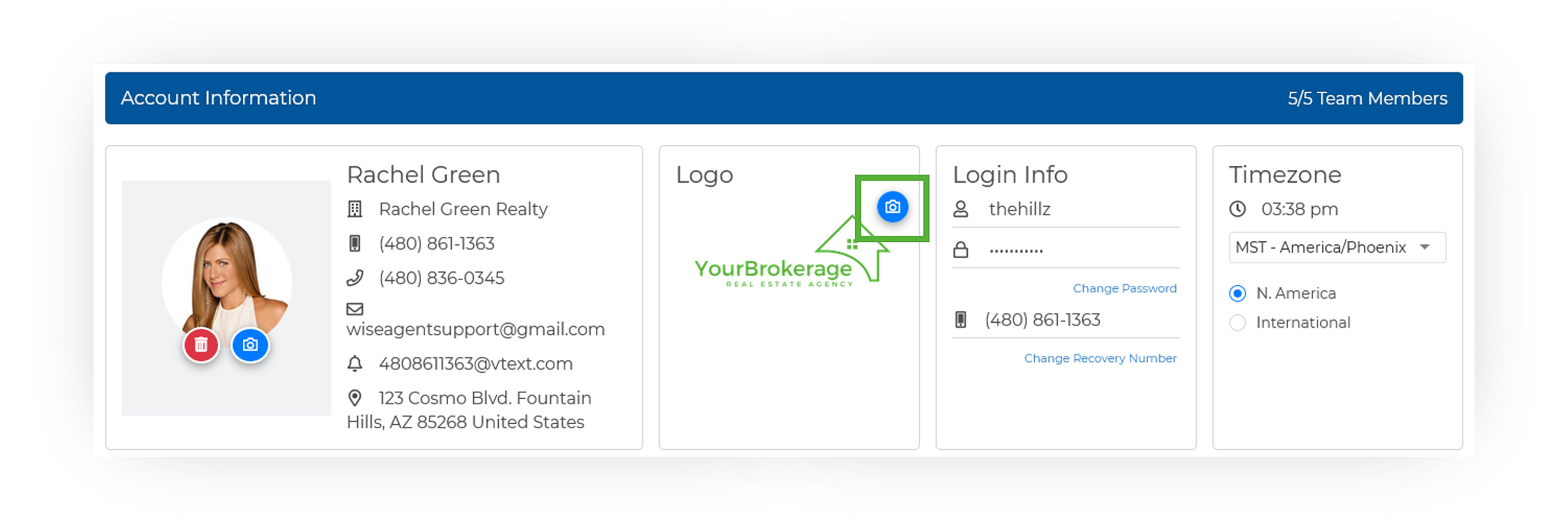
  3. In your Profile settings, click on the blue camera icon in the top right corner of the logo section to open the Upload Logo modal.
Image
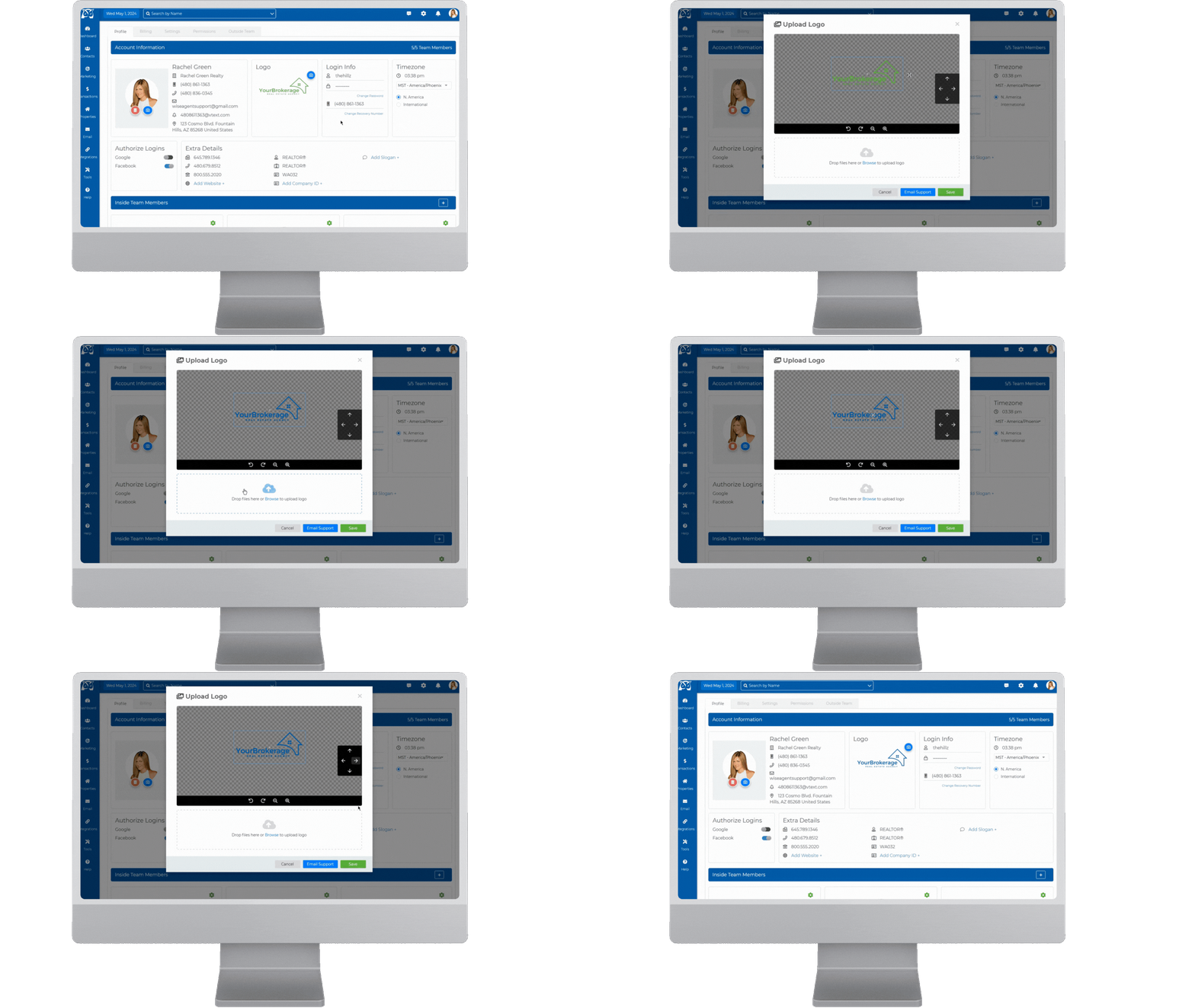
  1. Drag and drop your logo into the designated box or click on Browse to select the logo from your computer.

  2. Ensure your logo is centered within the box for optimal presentation.

  3. Once aligned, click Save to finalize the changes and that's it!
Image
Did you find this article helpful?
Previous

How to Import Your Contacts Using a CSV File / Previously Exported Database

Next