

Follow the steps below to add contacts from Wise Agent to a MailChimp audience.
Adding Multiple Contacts:
Navigate to Your Contact List:
From the side navigation bar, click Contacts > Contact List.
Select Contacts to Add:
Use the checkboxes to select the contacts you want to add to MailChimp.
To select all contacts in a specific category, use the "Select All" option.
💡 Mailchimp will automatically ignore duplicate contacts.
Initiate Mailchimp Upload:
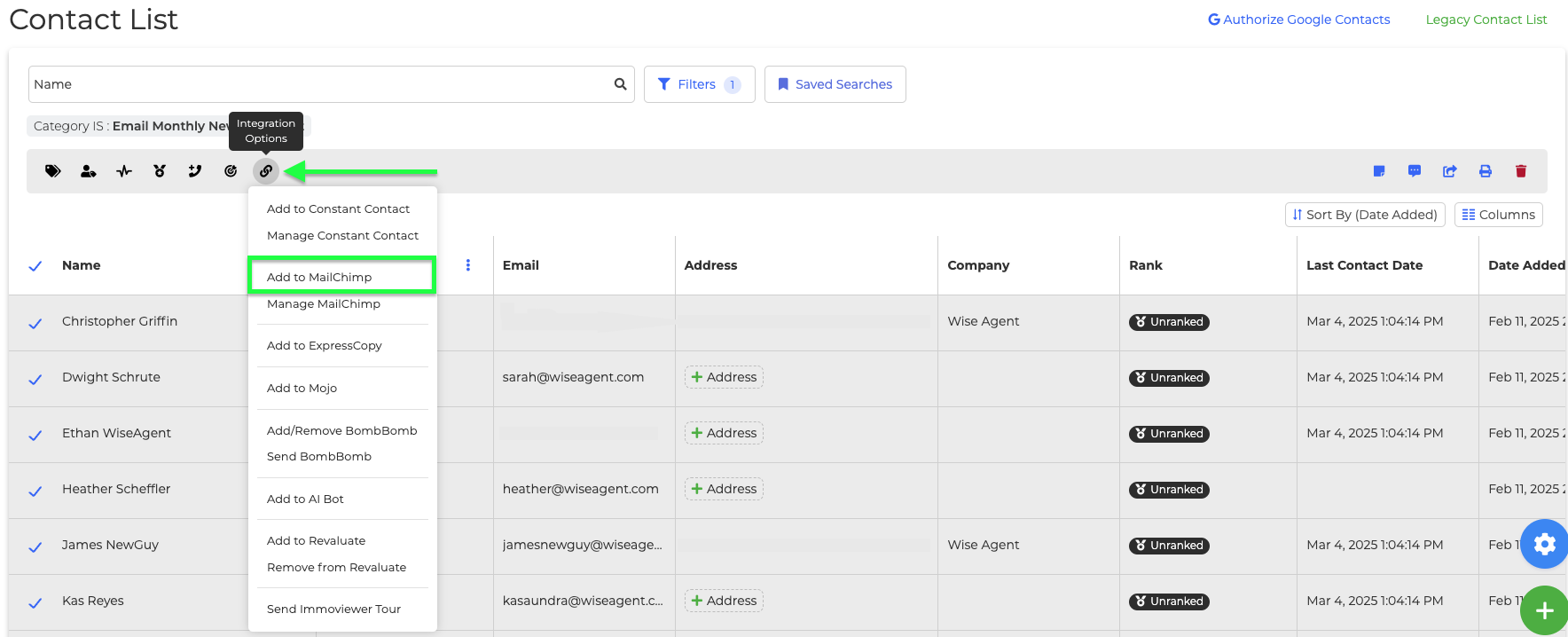
From the Actions bar, click the Integration Options icon
Select Add to Mailchimp.
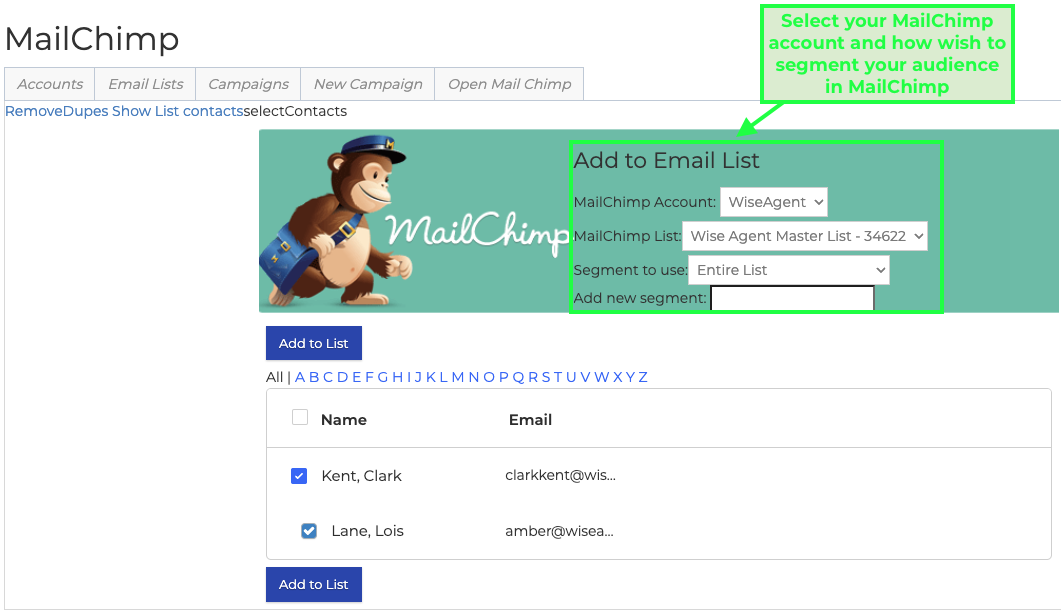
Choose or Create a Segment: From the next screen, review your selected contacts and add them to the appropriate MailChimp List and Segment.
Select an existing segment or create a new one in the provided field.
💡 Segments help organize contacts for targeted campaigns and are required for the sync.
Complete the Sync:
Click Add to List.
Wait for the confirmation message: "Finished," and you're done! 🎉
FAQs:
What contact information pushes over to MailChimp?
Name and Email.
Does Spouse information transfer over?
Yes, the spouse is saved as a separate contact after sending the contact record to MailChimp.
Keep in mind the contact record must be sent from the Contact List page in order for the Spouse to transfer to over.
What happens if I delete a contact in MailChimp? Does it delete them from Wise Agent?
Deleting a contact in MailChimp will not delete them in Wise Agent.
What happens when someone unsubscribes from MailChimp?
The contact’s email will be marked UNSUBSCRIBED in Wise Agent.
Please note that "permanently deleting" a contact in MailChimp is seen as unsubscribing.
If you experience any issues, please reach out to our 24/7 support team for assistance.