

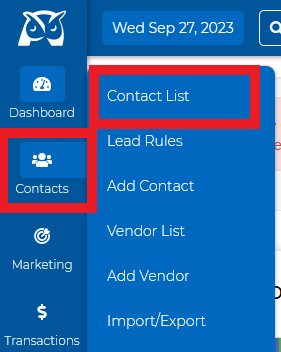
From the side menu bar, click Contacts > Contact List
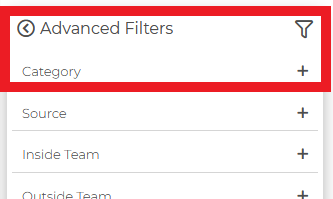
On the left-hand side, click on the "Category +" header and select the category you wish to pull up from the drop-down
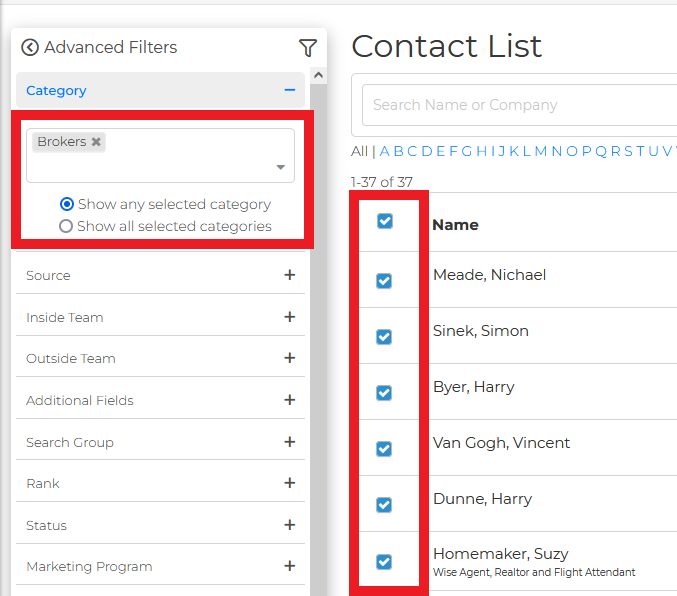
Once your selected contacts from your category populate, check off the names of the contacts you wish to add a call for or click on the checkbox next to "name" on the top of the contact list.
After selecting your contacts, click on the "Actions" drop-down and select the second option, which says "Add to call list."
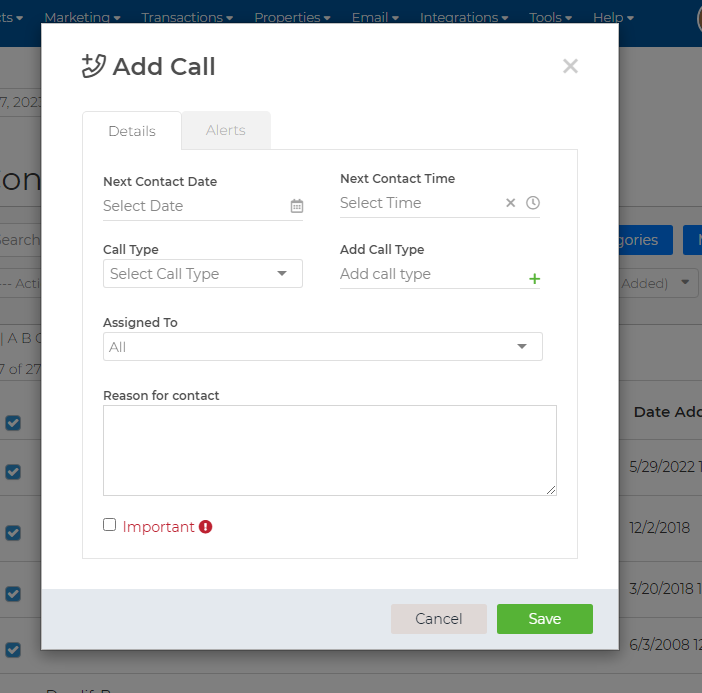
A new modal will pop up that will say, "Add Call," from here, you can add details about the call you are scheduling and then click on the "Save" button. Always go to the call list to ensure your calls have been scheduled."
Here is a short video showing how to use the call list: