

Accessing The Call List:
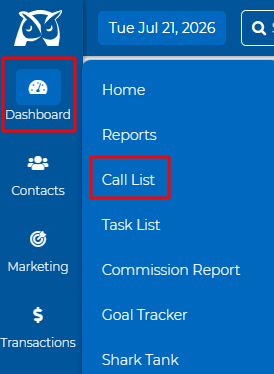
Click Dashboard, then Call List.
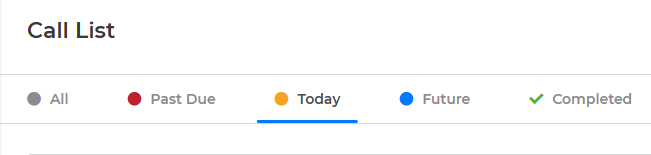
The calls are sorted out separately by:
All: This tab will show ALL of your calls in one place.
Past Due: Any calls from yesterday or prior will show here
Today: Calls on your call list for todays date.
Future: Calls scheduled for a future date.
Completed: Any calls you've completed from the list will show here.
You can search your call list for a specific client by typing their name in the search bar.

Filter your Call List by Assignment or Call Type. Click the blue pencil icon to edit the types of calls or add a new one.

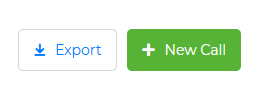
You can click "Export" to export your Call List, or click the green "+ New Call" button to add a new call to your list.
EXPORT NOTE: Your export list will display the Contact's Name, Assigned To, Phone Number, Contact Date, Last Contact Date, Reason for Contact, Call Type, and Completed Date so you can see all the important details at a glance.
Actions:
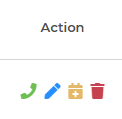
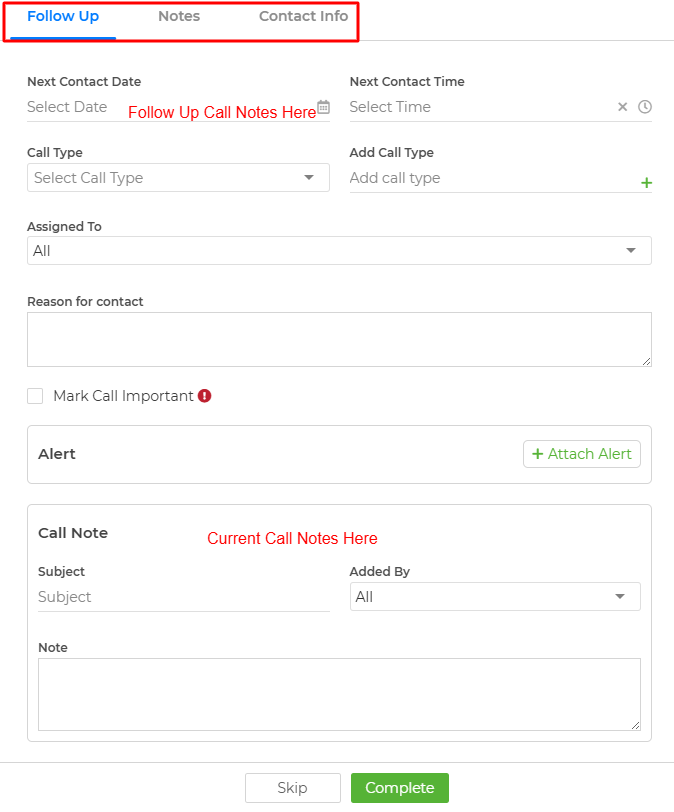
Make Call: Click the green phone icon under Action. This is where you can leave your notes, create a follow up call, view the activity section notes from the Contact Summary page, and view or edit contact info, including Rank, Status, DNC Status, Team Assignment, or Categories.
Edit: Click the blue pencil icon to edit the call.
Calendar: Click the Calendar icon to add the call to your calendar.
Delete: Click the red trash icon to delete the call from your call list.
Selecting a single contact on your call list or the empty box next to Name will open our bulk actions box:
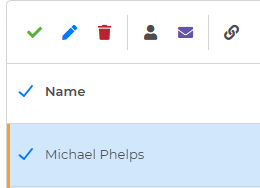
Selecting the green checkmark will complete the calls.
Selecting the blue pencil icon will allow you to edit the call.
Selecting the red trash icon will delete the calls from your call list.
Selecting the contact list icon will open them in your Contact List to perform other actions—like adding them to a category or drip campaign.
Selecting the e-mail icon will open up your Send Email page.
Selecting the chain icon will open up the integration options, if you have any connected.
How To Add A Call From The Contact List:
Click Contacts, then Contact List.
Select the Contact by clicking the colored circle next to their name, or select everyone by clicking the empty box next to Name.
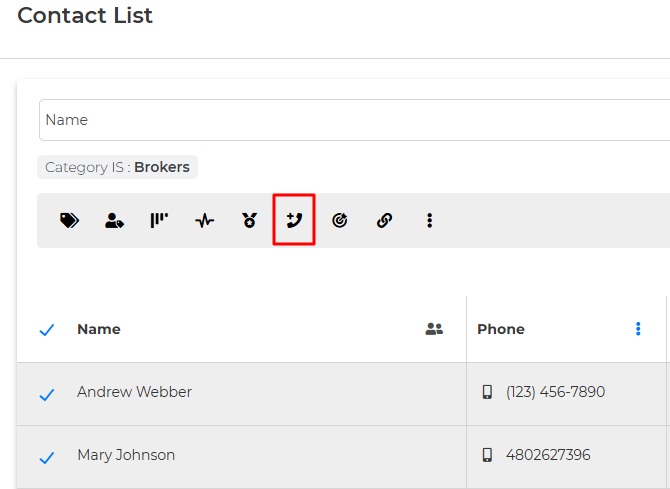
When the bulk actions box appears, select the phone icon to add to the call list.
How To Add A Call From The Contact Summary Page:
Click the blue phone icon on the contact card.
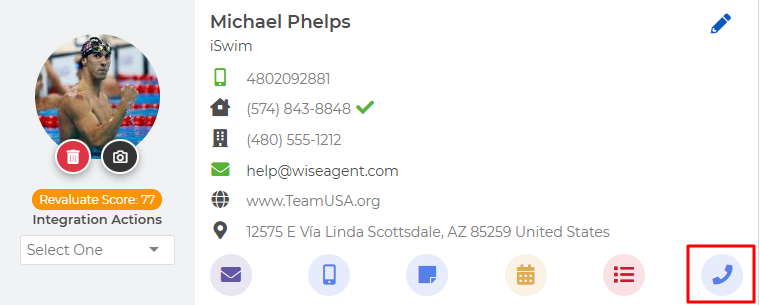
Select Add To Call List.
Watch a video on our call list feature HERE
Read our blog to know more about the Call List features: Wise Agent Call List
We also have a Power Dialer built right into your Wise Agent CRM.