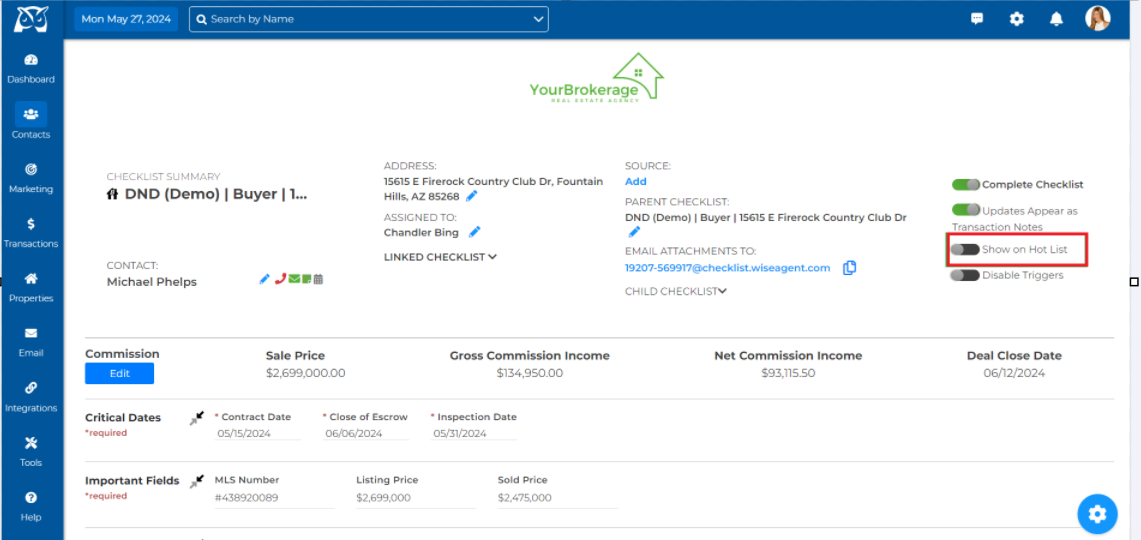
Once a transaction has closed - open the checklist summary page, and at the top of the checklist, under "Show Checklist On Your Hot List" - make sure to bubble No as the transaction is no longer active.
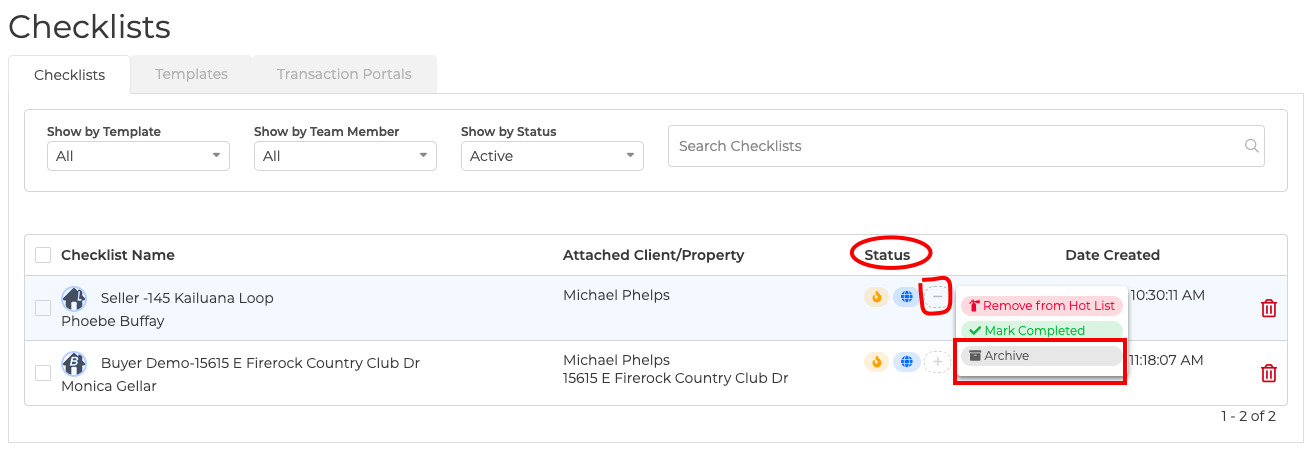
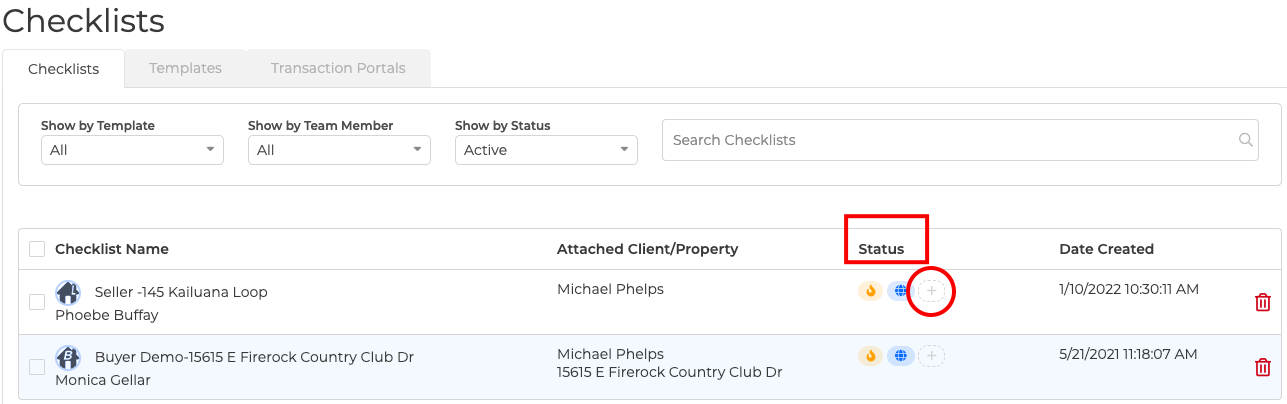
Now that you have made the changes within the summary page, you will archive the checklist so it will no longer appear under your checklist transactions list. This WILL NOT delete the checklist entirely from the system. You will always have access to all of the information you have saved if you need to refer back to the file in the future. The checklist will remain under the client summary and property summary page. When you go to Transactions > Checklists, you should be able to see a "Status" section that gives you the option to click on a little "+" icon. When you click on that "plus" sign icon, you can then select "Archive".
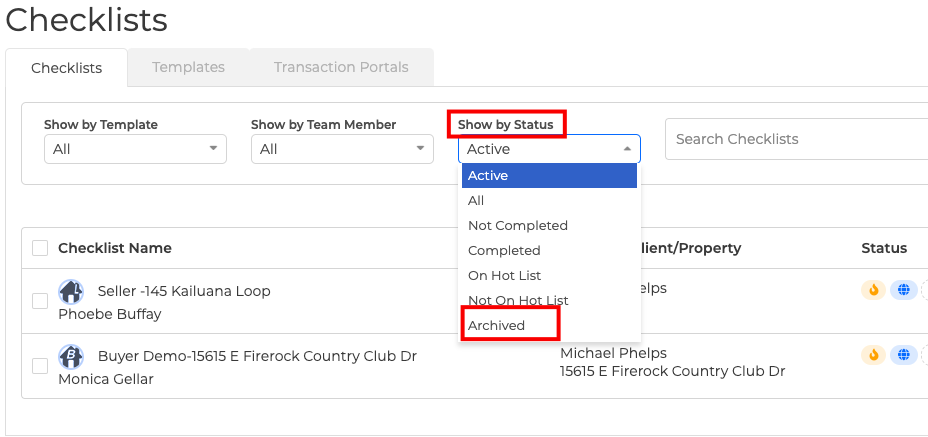
The checklist will no longer appear on this page. You can, however, access and restore the checklist at any time. You'll notice there's a "show by status" drop-down menu at the top of the page. Select "archived" under the drop-down menu.