Navigating To Drip Campaigns
From the sidebar, select Marketing➜ Drip Campaigns.
Event Calendar Overview
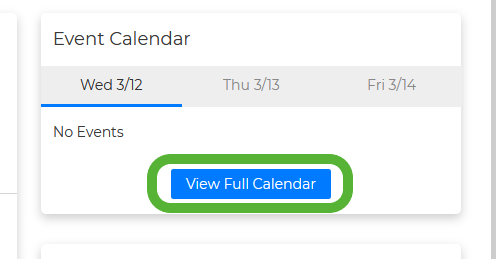
This section shows an upcoming, 3-day view of scheduled events. You will find this section directly to the right of your saved drip campaigns.
AutoSend
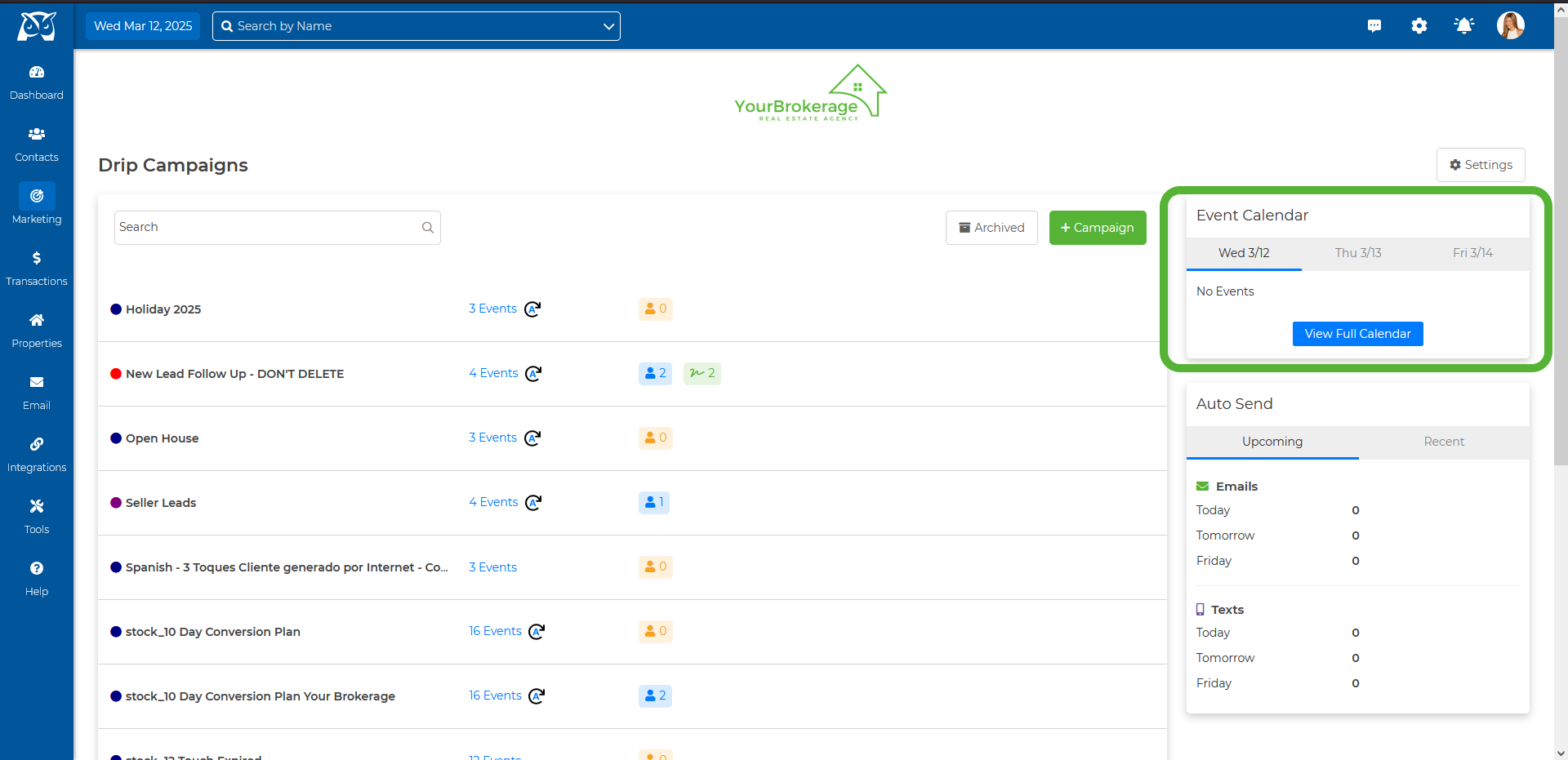
This section provides a preview of upcoming and recently sent emails and texts scheduled for auto-send. You will find this section directly beneath the event calendar!
Settings
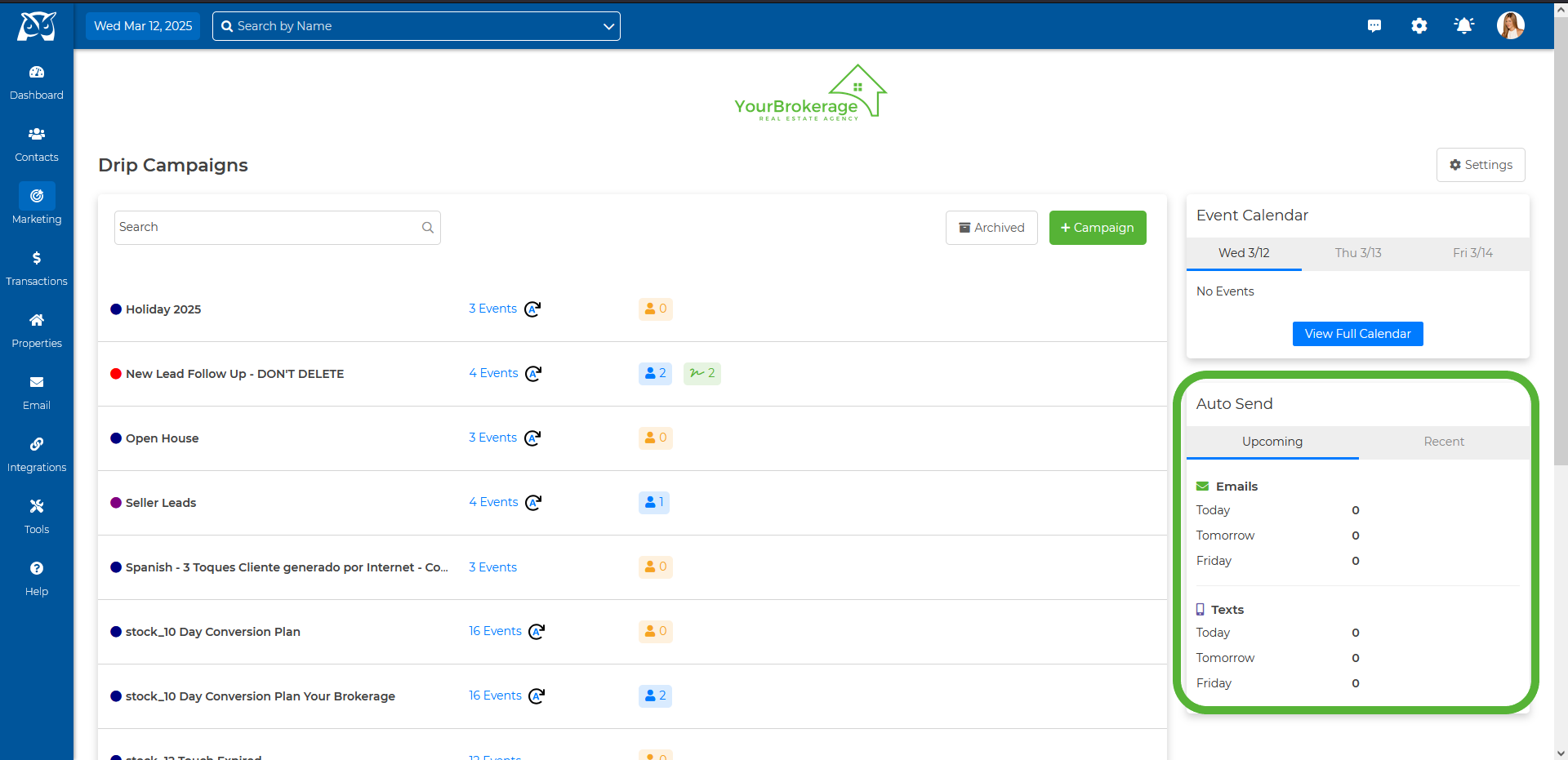
By clicking on this tab, you can modify your settings to receive a copy of the emails sent with AutoSend, emails sent manually, and an option to receive an email notification when there is an error performing auto drip marketing email events. If modifications are made, ensure you click Save before proceeding to another page.
Settings in a Created Drip Campaign
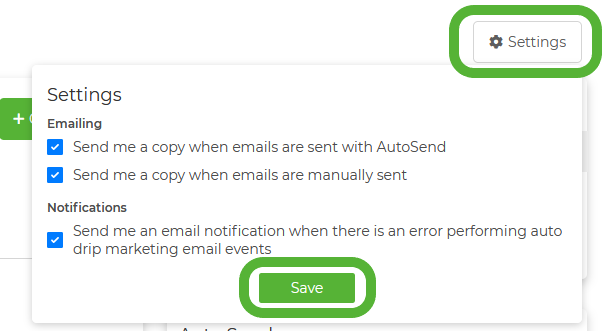
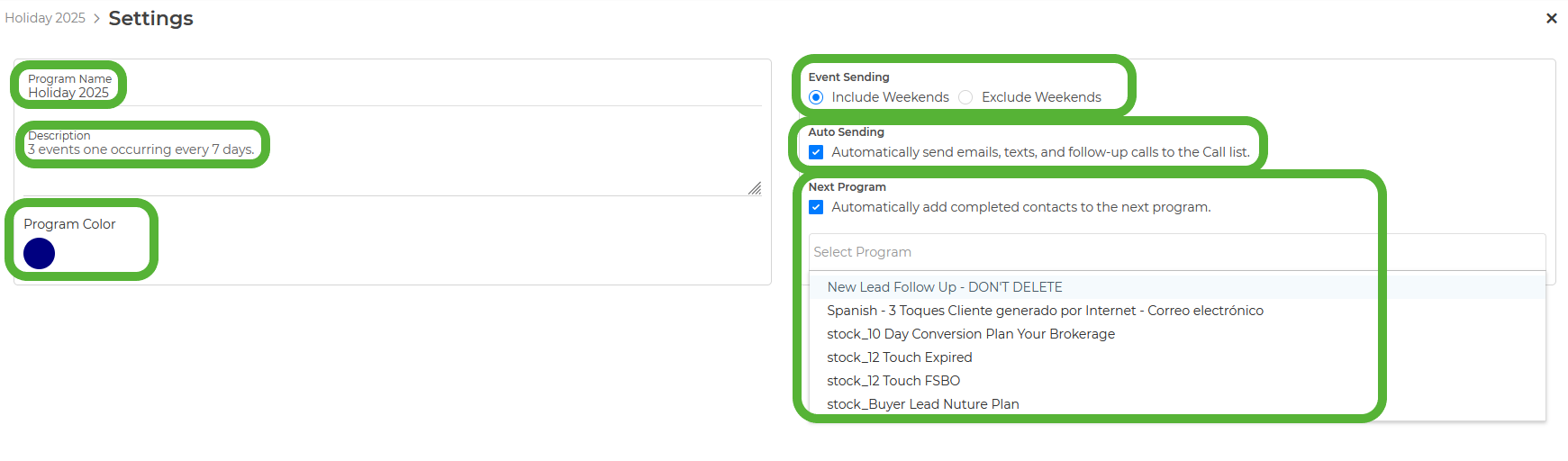
Once you have a campaign created you can modify settings such as Program Name, Campaign Description, Program Color, Event Sending (to include or exclude weekends), turn Auto Sending on or off, and Automatically add completed contacts to the Next Program
Calendar View
By clicking on the Calendar View tab at the right of your Marketing Program dashboard, your homepage calendar will populate to view all events