

Obtain Your Unique Wise Agent Lead Capture Email
From the sidebar, choose Integrations, then click on Settings from the menu.
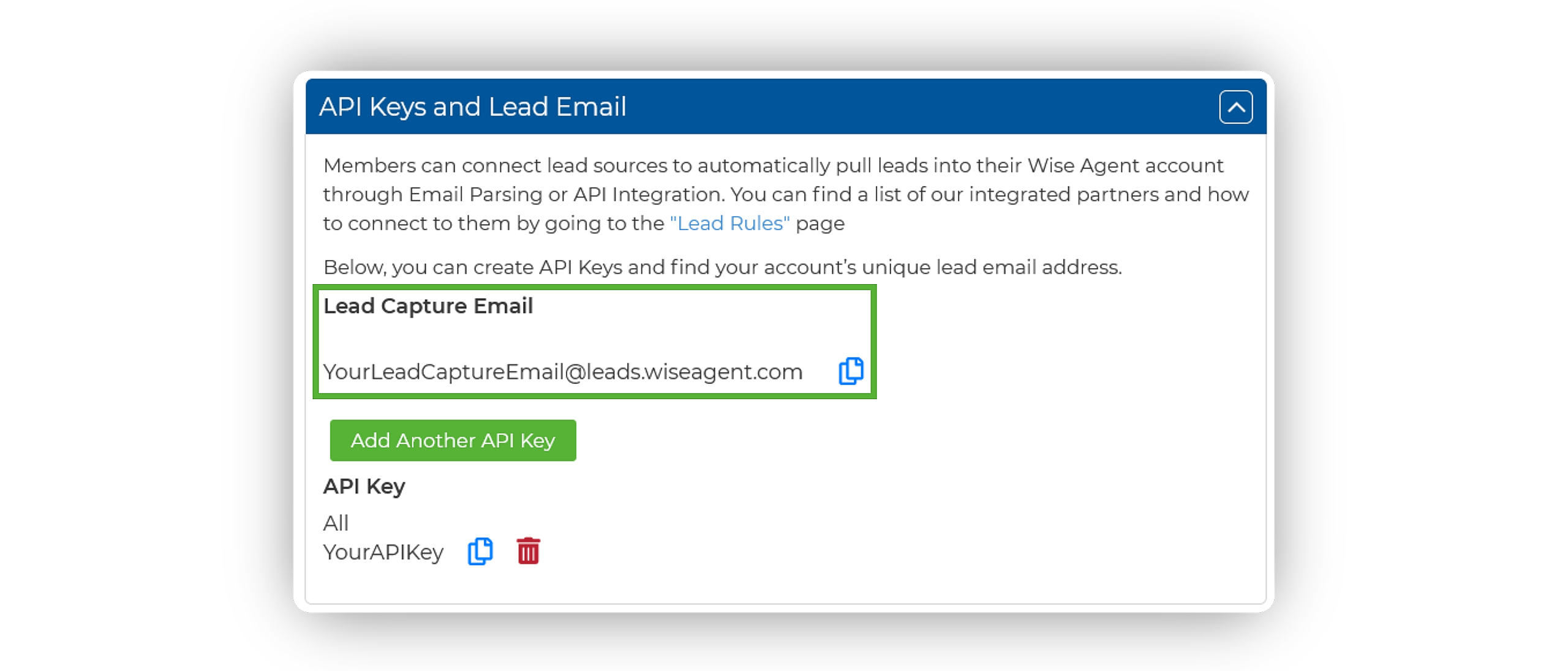
On the Integrations Settings page, find and click on the API Keys and Lead Email tab and click to expand.
From this section, locate and copy your Lead Capture Email. This email address is specific to your Wise Agent account and is utilized to capture leads from various sources.
Add Your Wise Agent Lead Capture Email To Your Homes.com Account
This can be accomplished by selecting your profile Icon in the top right corner of your homes.com account and choosing "Account Settings".
From the "Lead Management" tab, paste your Wise Agent Lead Capture Email into the box titled Lead Parsing Email for CRM.
Kindly ensure that lead notification emails are enabled under the "Notification Settings" tab.
Test The Connection
Submit a test inquiry or lead from your lead source.
Wait for the email notification to arrive in your email inbox.
Verify your Wise Agent contact list to confirm that the lead has successfully entered your Wise Agent account.
If you receive the email notification, but the lead does not enter your Wise Agent account, please forward the email notification to help@wiseagent.com. In your forwarded email, indicate that you are attempting to set up Email Parsing, along with providing the name of the lead source/platform you are configuring, and our team will assist you in troubleshooting the issue.