

Updating Your Card Information
Login to your Wise Agent account.
In the upper right-hand corner, click the Gear Icon, then select Billing.
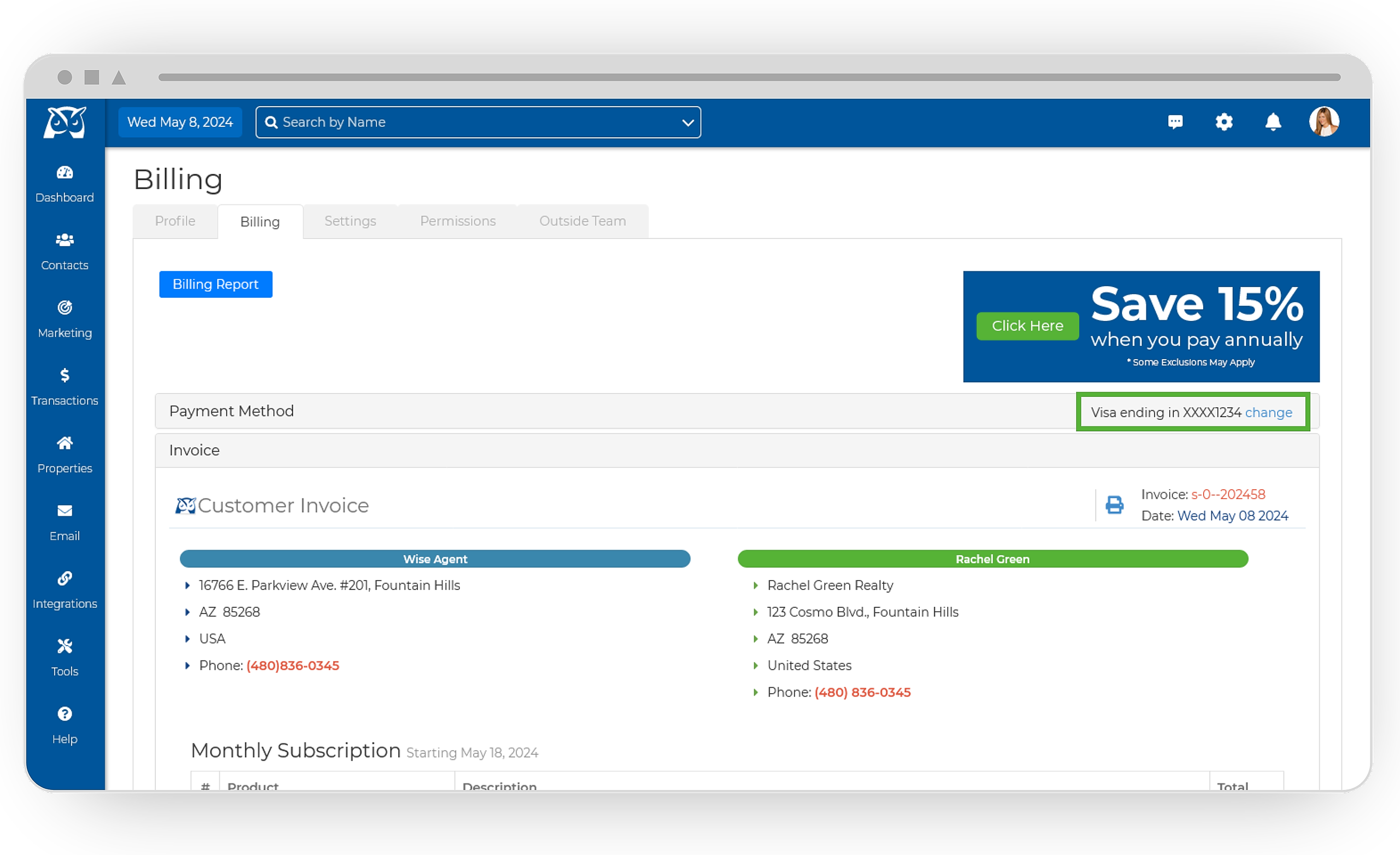
On the Billing page, find the Payment Method section. Next to your card information, click Change.
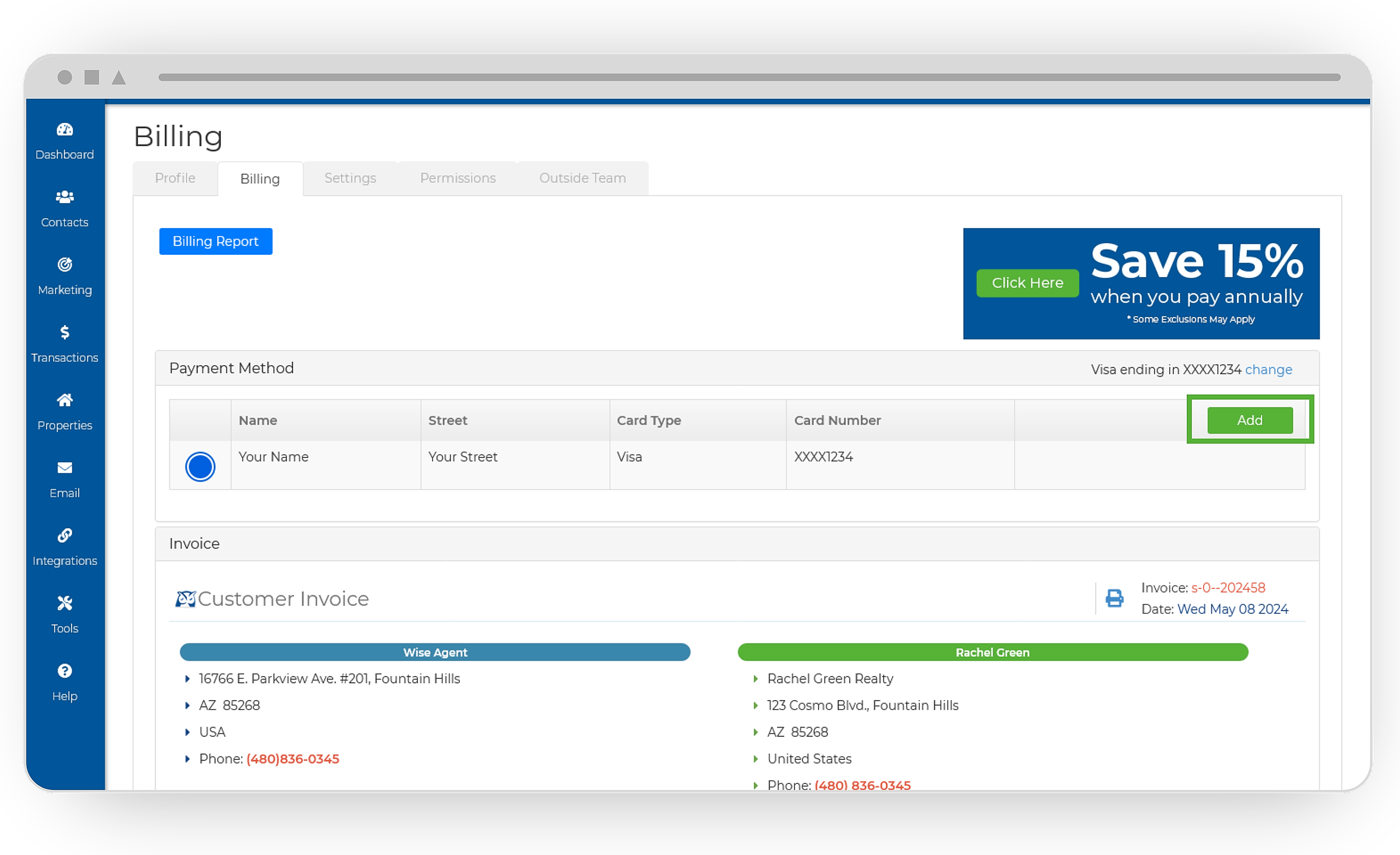
A dropdown window will appear with your card information. Click Add.
Input your payment details and click Save.
After saving, scroll to the bottom of your Subscription Summary and click Update. That's it!
Updating Your Billing Cycle
Login to your Wise Agent account.
In the upper right-hand corner, click the Gear Icon, then select Billing.
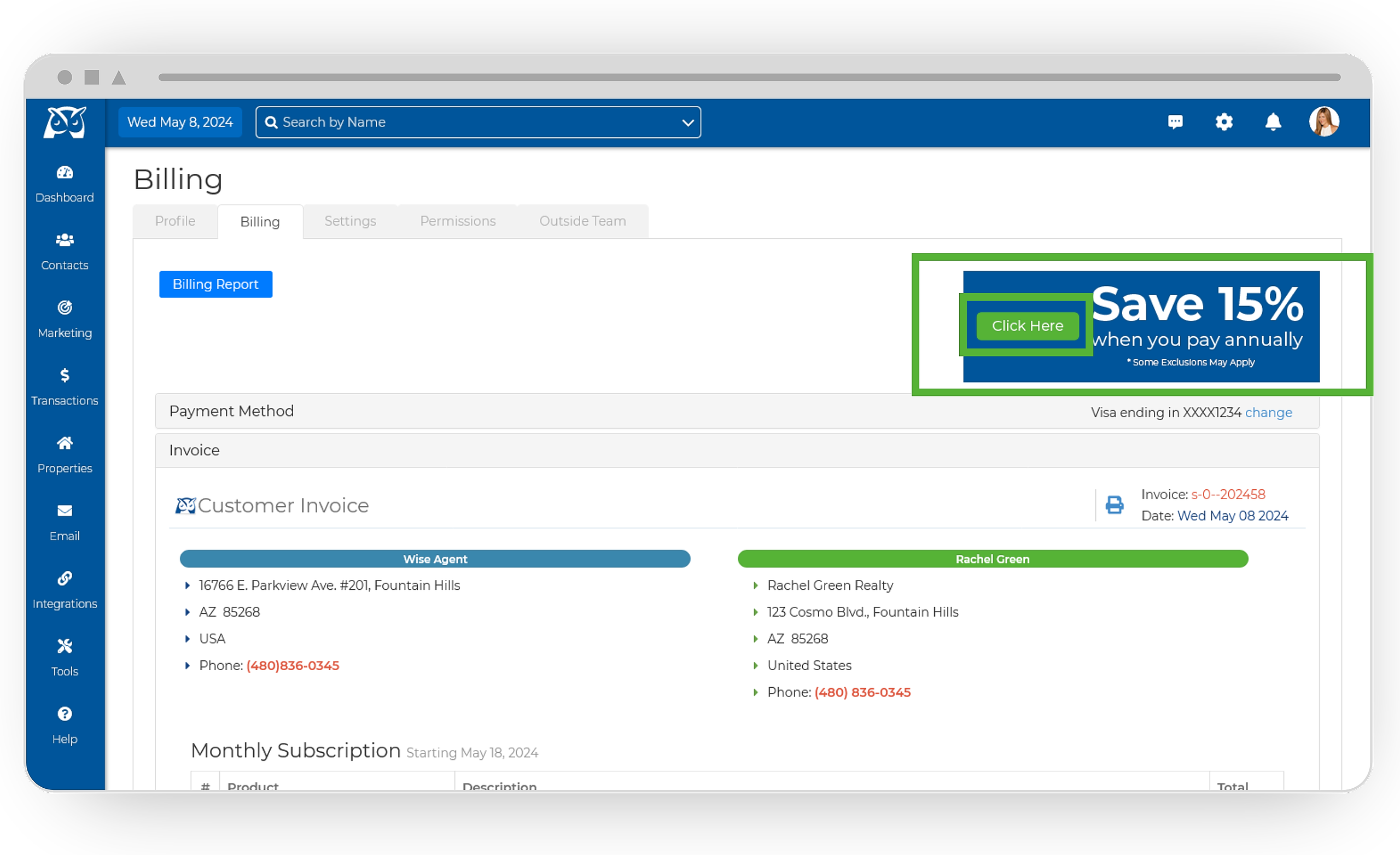
Locate the Save 15% banner in the upper right-hand corner, and select the Click Here button.
Your billing cycle will change to yearly/monthly. Confirm that the desired billing cycle is reflected on your subscription summary.
Scroll to the bottom of your Subscription Summary and click Update. That's it!