

Obtain Your Unique Wise Agent Lead Capture Email
From the sidebar, select Integrations, then click Settings from the menu.
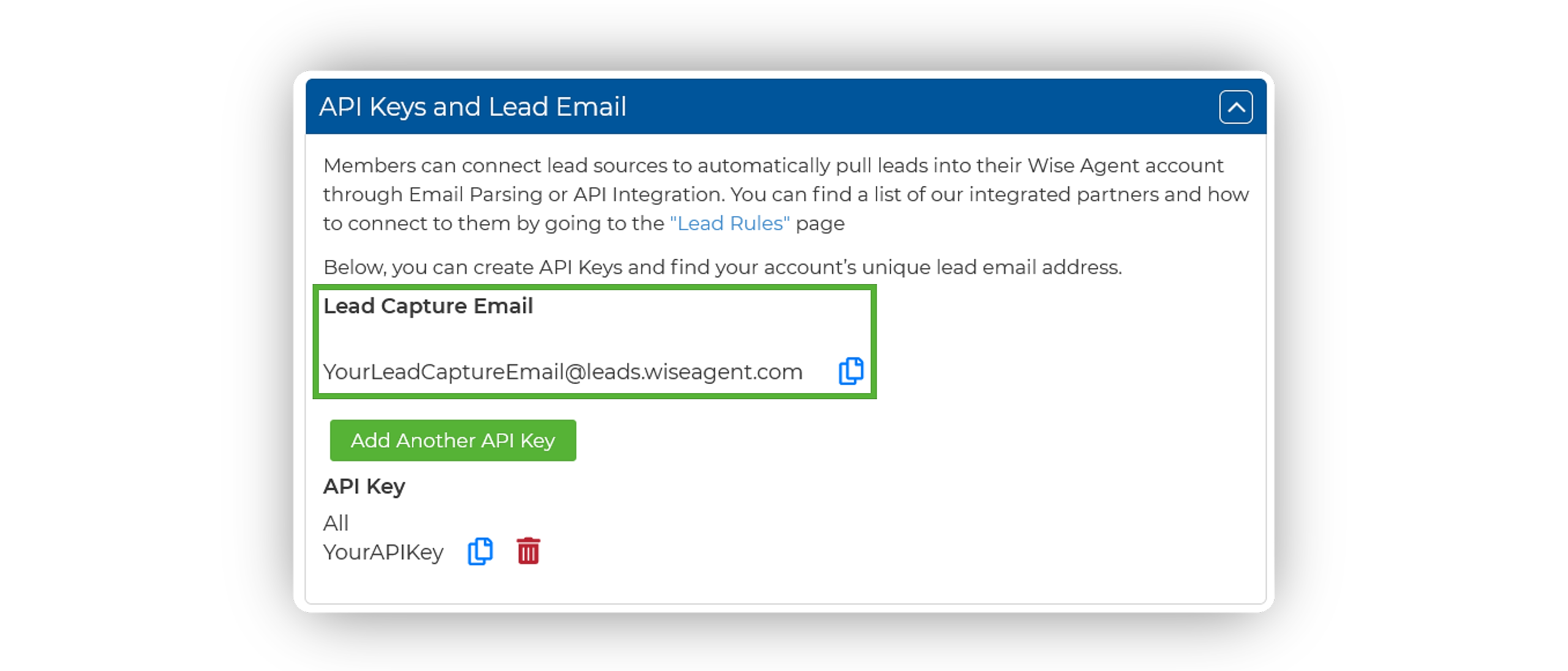
On the Integrations Settings page, locate and click on the API Keys and Lead Email tab and click to expand.
From this section, locate and copy your Lead Capture Email. This email address is specific to your Wise Agent account and is used to capture leads from various sources.
Add Your Wise Agent Lead Capture Email To Your External Lead Source
Log in to the account associated with your lead source (I.E. real estate portal, website builder, external lead generation platform, etc.).
Find the section or settings related to the email that receives notifications about new, incoming leads.
Update or add your Wise Agent lead capture email address as the lead notification email. By doing so, leads from your lead source will now also be sent to your Wise Agent account.
Test The Connection
Submit a test inquiry or lead from your lead source.
Wait for the email notification to arrive in your email inbox.
Check your Wise Agent contact list to ensure that the lead has successfully entered your Wise Agent account.
If you receive the email notification, but the lead does not enter your Wise Agent account, please forward the email notification to help@wiseagent.com. In your forwarded email, mention that you are trying to set up Email Parsing, in addition to providing the name of the lead source/ platform you are configuring, and our team will assist you in troubleshooting the issue.
Supported Fields for Email Parsing
When setting up email parsing, Wise Agent supports the following fields for capturing lead information:
Source Name
First Name
Last Name
Name [[instead of First Name and Last Name]]
Company
Phone Number
Phone
Extra Details
Email Address
Street Address
State
City
Website
Please note that the entire email message body will also be saved in the Wise Agent contact record under the "Activity" section for your reference. With this in mind, any additional submitted fields that are outside of our supported fields can be referenced in the notes!