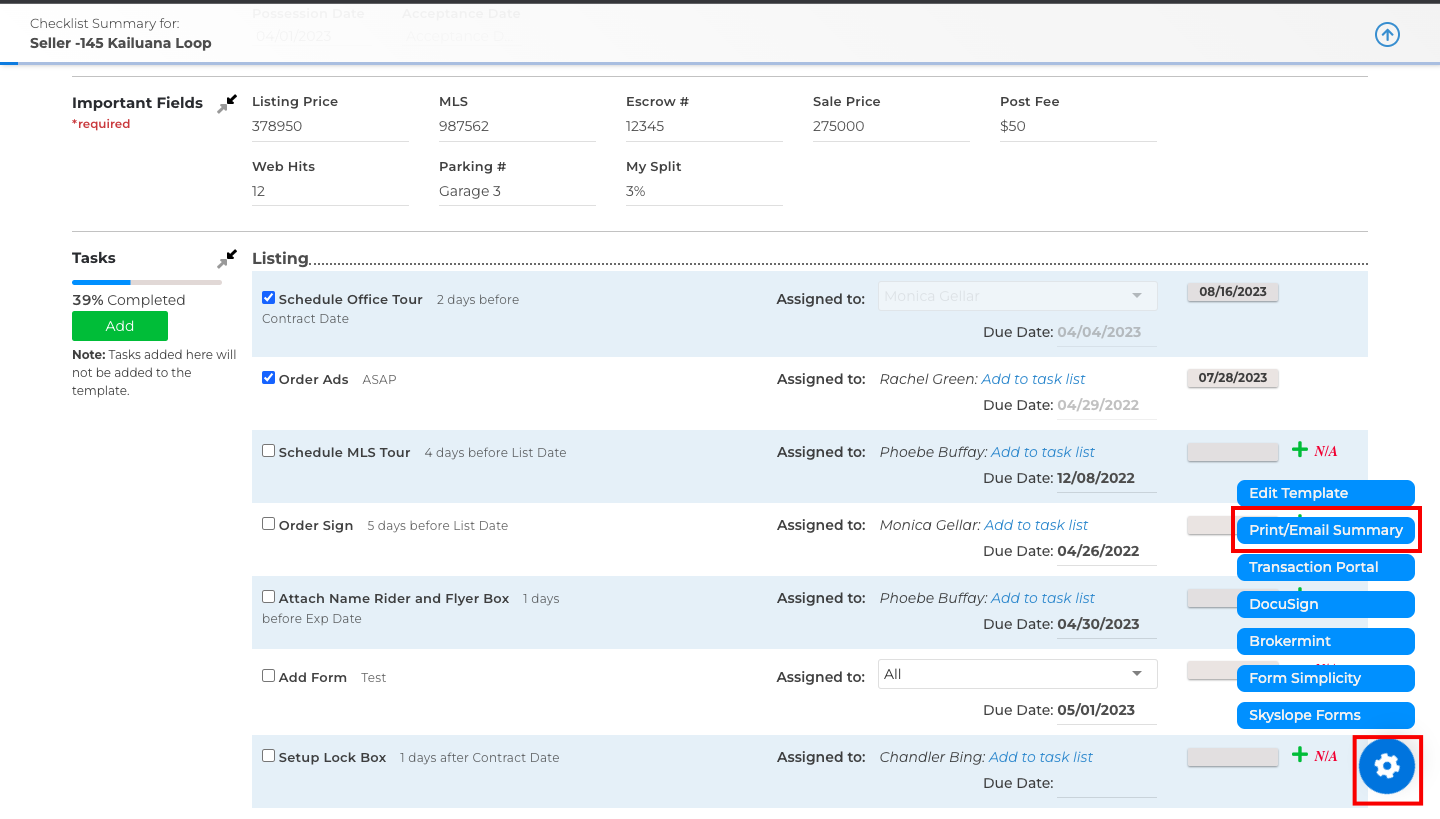
Please follow the steps below to print your checklist summary.
1. Scroll over Transactions and click on Checklists.
2. Click on the checklist name/icon to open the transaction summary you'd like to print.
3. On the bottom right click the settings gear and click on Print/Email Summary
NOTE: If you select "Custom Summary" under the Actions drop-down box you will be able to select certain fields you'd like to print rather than ALL fields.