

Note: Before doing the following instructions, your Google calendar must be synced first with Wise Agent, and you must add a new Inside Team Member on the profile page and use your Outlook email address.
Please follow the steps below to sync your Outlook Calendar to your Google Calendar:
1. In your browser, go to your Outlook account.
2. Select Settings and then click View All Outlook Settings.
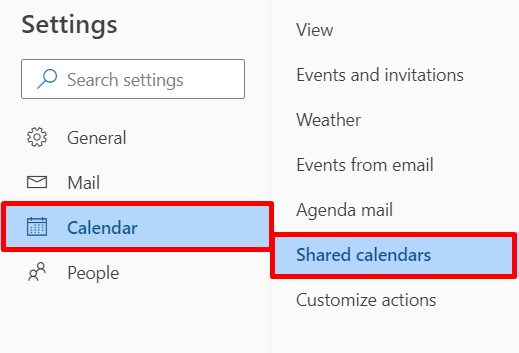
3. Search Calendar, then click Shared Calendars.
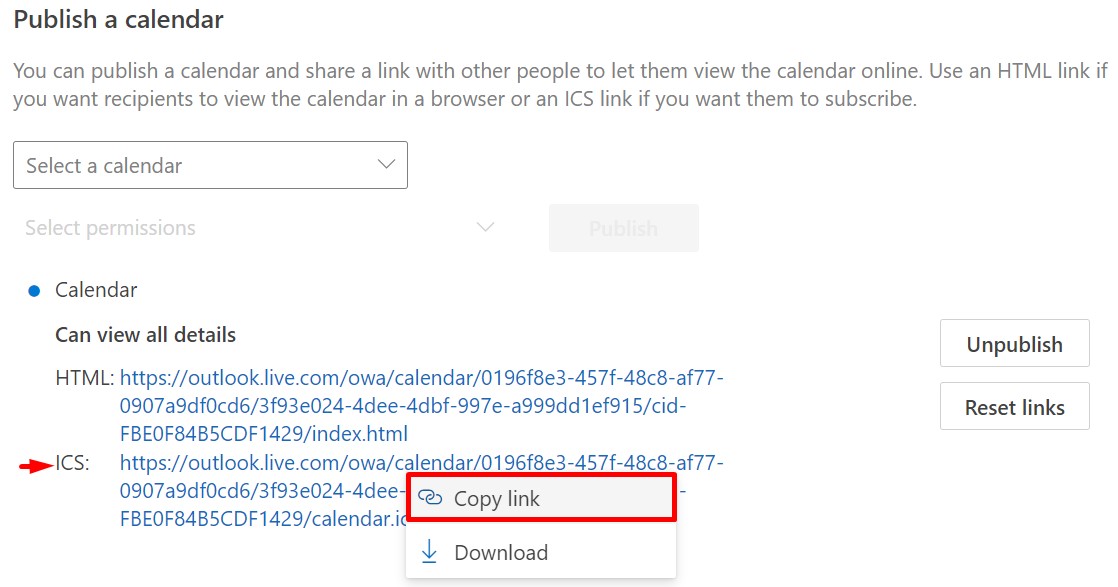
4. Go to Publish a calendar section, select Calendar, click Can view all details as permission, then click Publish.

5. Copy the ICS link.
6. Go to your Google Calendar.
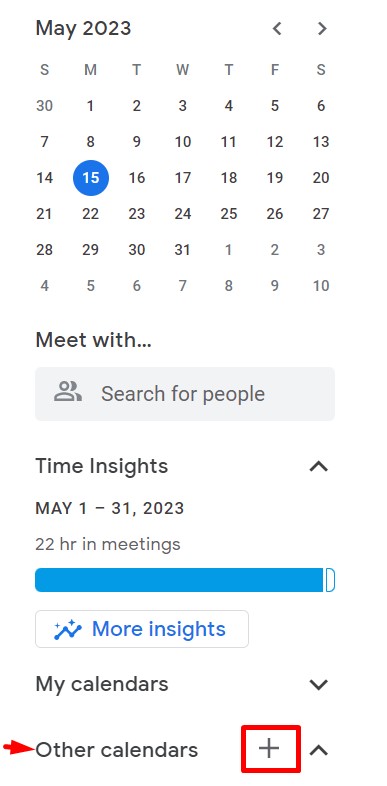
7. On the sidebar, near the bottom of the page, click Other calendars +.
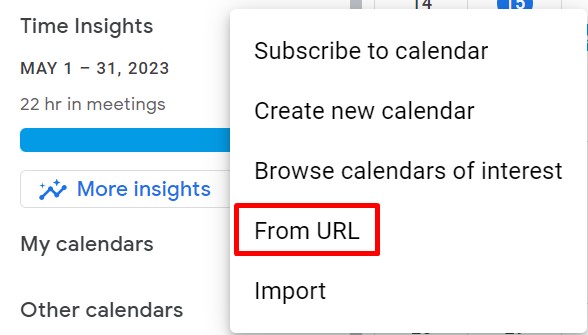
8. Click From URL in the drop-down menu.
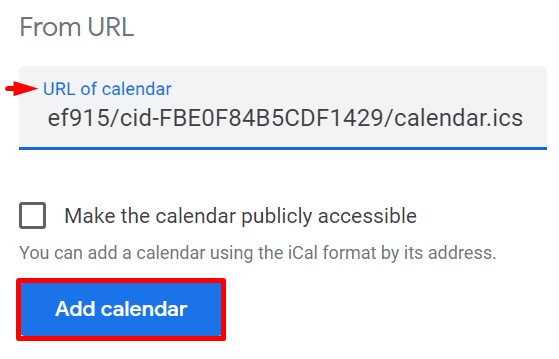
9. Paste the link you copied earlier and click Add calendar.
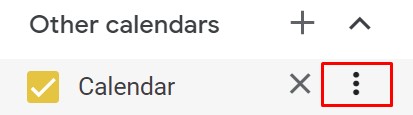
After it has been synchronized, your new calendar will be shown in the list under Other calendars +. Its name and color options can then be modified by clicking on the ellipsis.
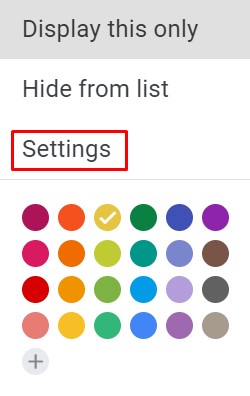
10. Click on the ellipsis or the three dots next to your Outlook calendar, and select Settings.
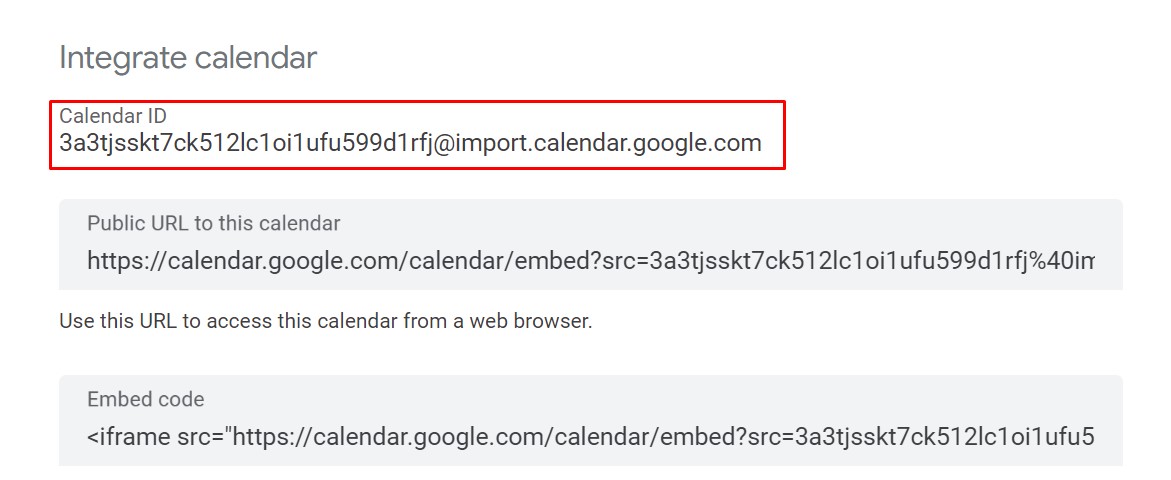
11. Go to the Integrate calendar section, and copy the Calendar ID.
12. Send the Calendar ID to help@wiseagent.com, and let us know the name of the inside team member you added with your Outlook email address.
The rest of the procedure will be handled by our CS team, who will notify you when it is complete.