1. Log in to https://www.facebook.com with your Facebook login credentials. The person logging in here should be someone who either created the page or who has an admin role on the page.
2. Click your profile picture, at the top right of the page, click See All Profiles, then select the business page.
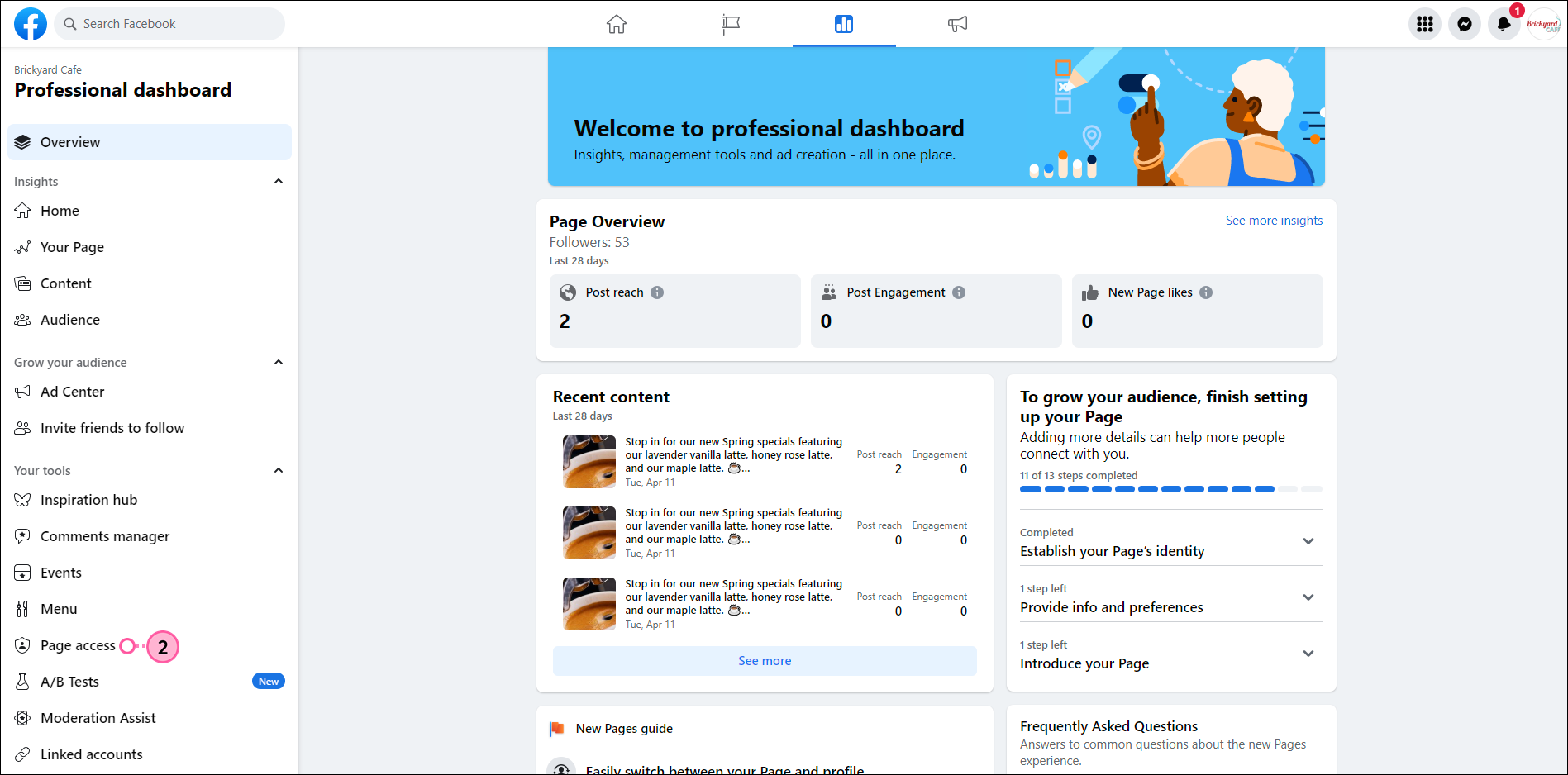
3. On the left side of the page, click Professional Dashboard.
4. On the left side of the page, in the "Your Tools" section, click Page Access.
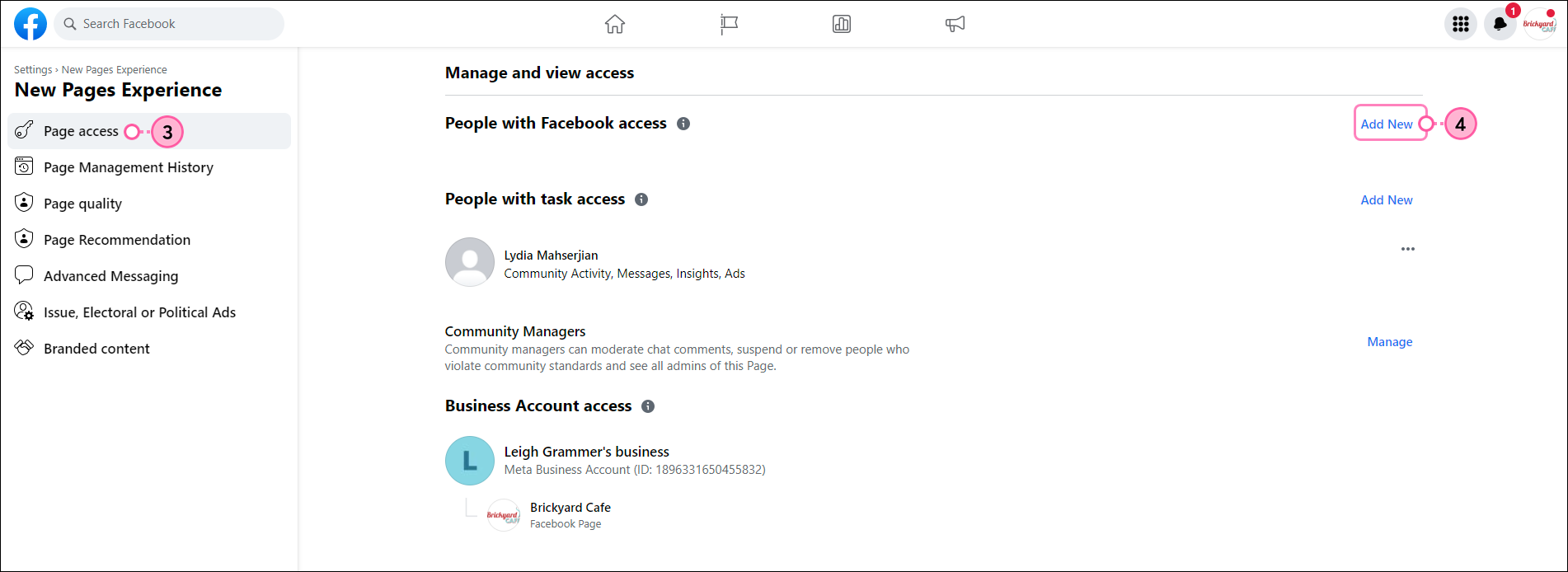
5. If you want to add admins to the page, click Add New, In the "People with Facebook Access" section. An informational pop-up will appear, click Next. Find and select the person, scroll down, and turn the "Allow this person to have full control" toggle on, then click Give Access.
That person will receive an email and will need to accept the invitation to become an admin for the page.
6. Once you have added additional people to have page access, you will want to reconnect the Facebook integration in your Wise Agent account!