

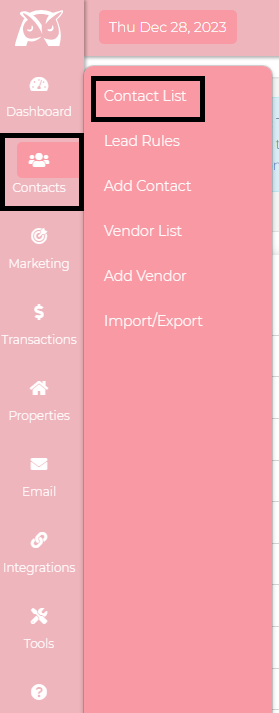
Go to Contacts > Contact List
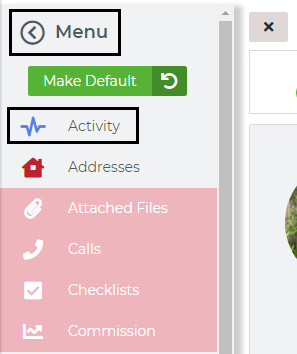
Once you are on the summary page, select the "Activity" option on the contact menu, and it will pull up your activity tracker.
First, you will see all the activity from the contact and you can adjust by selecting the "Filters" option.

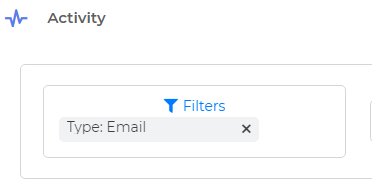
Email - The Email option will show you all of the email activity, including the email reports. You will be able to see if they open your email right from this page.
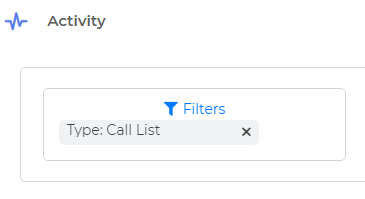
Call List - You can find here your call recordings from WAVV dialer and Productive Call.
Texts - We have taken away the text option on the contact menu and added here on the activity tracker. You can see here the text messages sent and received from your Wise Agent number.
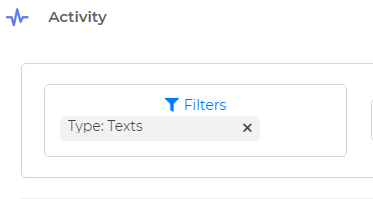
Task - This section will show you any completed tasks for your contact.
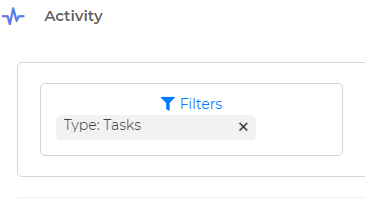
Drip Campaign - This filter will show you when you received messages from current campaigns as well as once they received the last message upon the end of the campaign.
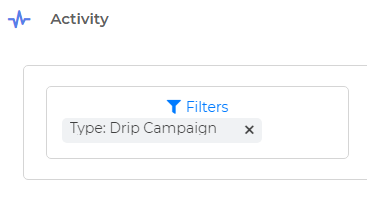
Calendar - This will show the appointments that are added and deleted for your client.
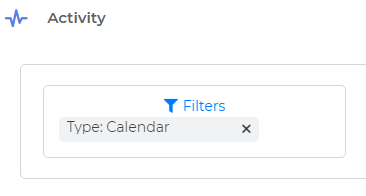
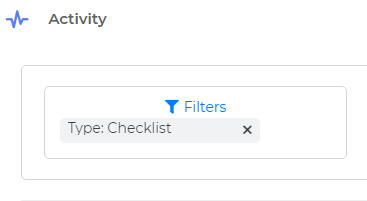
Checklist - Checklist notes will appear on this option.
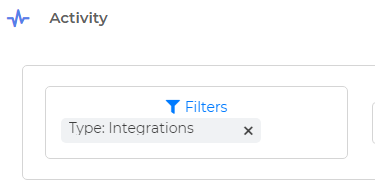
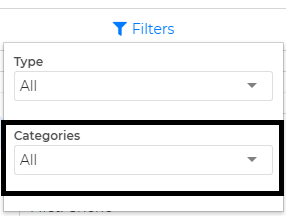
Integrations - All theintegrations you have with the client will show on this filter. You can also filter by a specific integration on the lower dropdown.
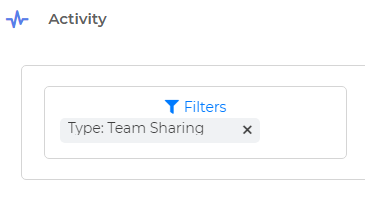
Team Sharing - This option will benefit for those that has an outside team. You can track all the progress you made on a shared client. This filter also shows inside team assignments, as well as if an inside team member has been removed from the client.
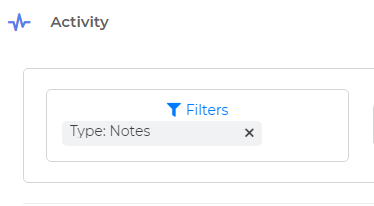
Notes - By using this filter, you will be able to see all the notes you have added for this client.
You can now print all of your contact notes, or choose the only page that you are currently viewing by clicking on the blue printer icon.

You can also manually add note by clicking on the green plus icon.

You can attach the same note to your multiple contacts by heading to the contact list, and selecting the "Actions" dropdown menu at the top of the screen. The notes will be seen at the notes section of your activity tracker.