

Adding Contacts Directly Within The Drip Campaign
Log in to your Wise Agent account.
From the sidebar, select Marketing ➜ Drip Campaigns.
Under the Active Programs list, locate your desired campaign, then click the green Add Contacts icon to the right of the campaign name.

Add the search filter that you would like to filter your contact list by, and hit the Search button
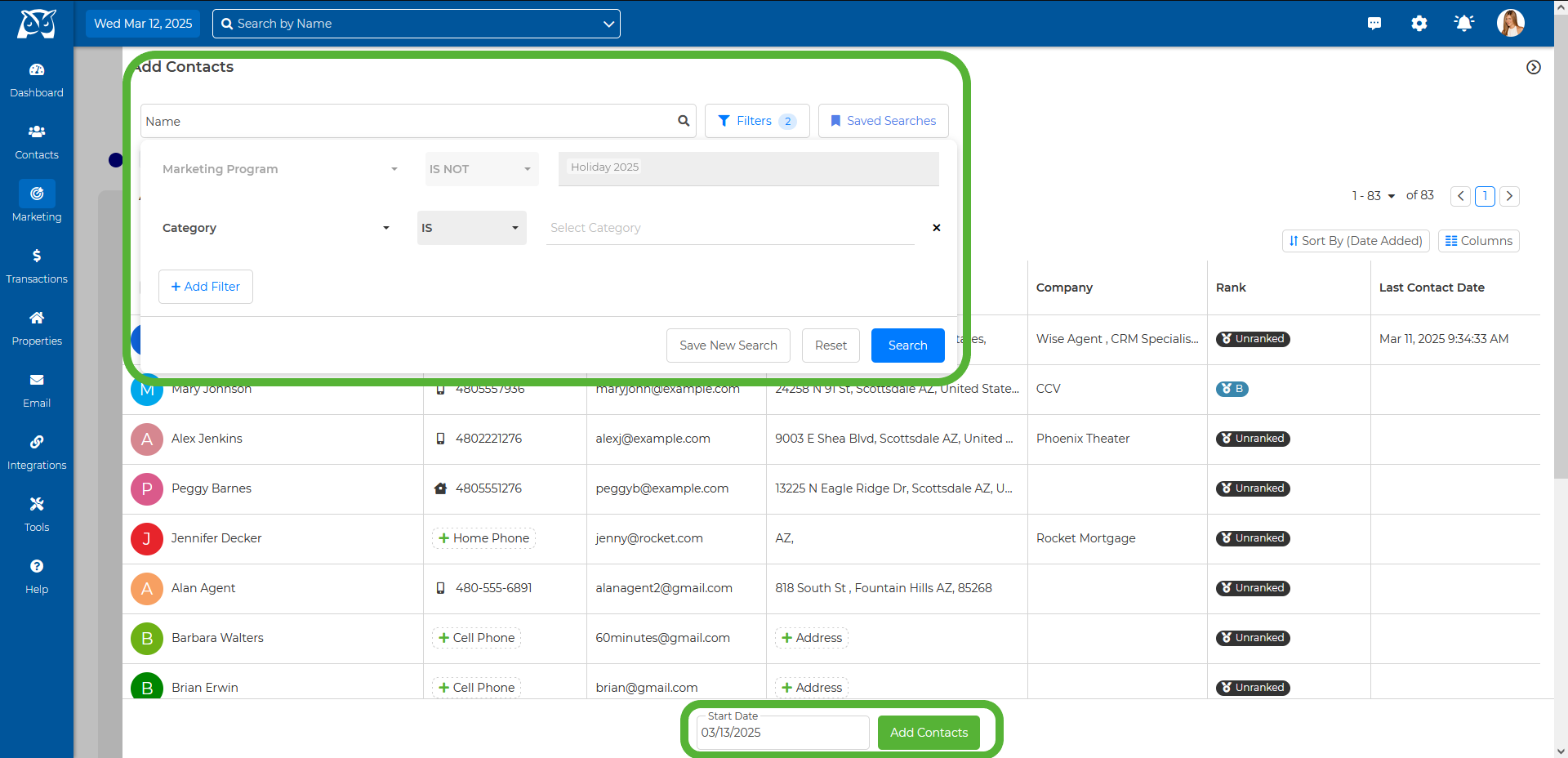
Scroll through the contact list and check the boxes next to the names of the contacts you wish to add. To select all contacts from the active page, check the box next to Name at the top of the list.
💡 Important to Note: You can only select one page of contacts at a time! Ensure you proceed with the following steps before moving on to the next page of contacts.Once you’ve made your selections, click the green Add Contacts button at the bottom of the page.
Adding Contacts via the Contact List Bulk Actions
Log in to your Wise Agent account.
From the sidebar, select Contacts ➜ Contact List.
Check the boxes next to the names of the contacts you want to add.
💡 Important to Note: You can only select one page of contacts at a time! Ensure you proceed with the following steps before moving on to the next page of contacts.At the top of your contact list, select the Marketing Icon and choose Add to a Marketing Program.
Select the desired drip campaign from the Program dropdown menu.
Choose a start date for the campaign.
Click the green Add Contacts button to finalize.
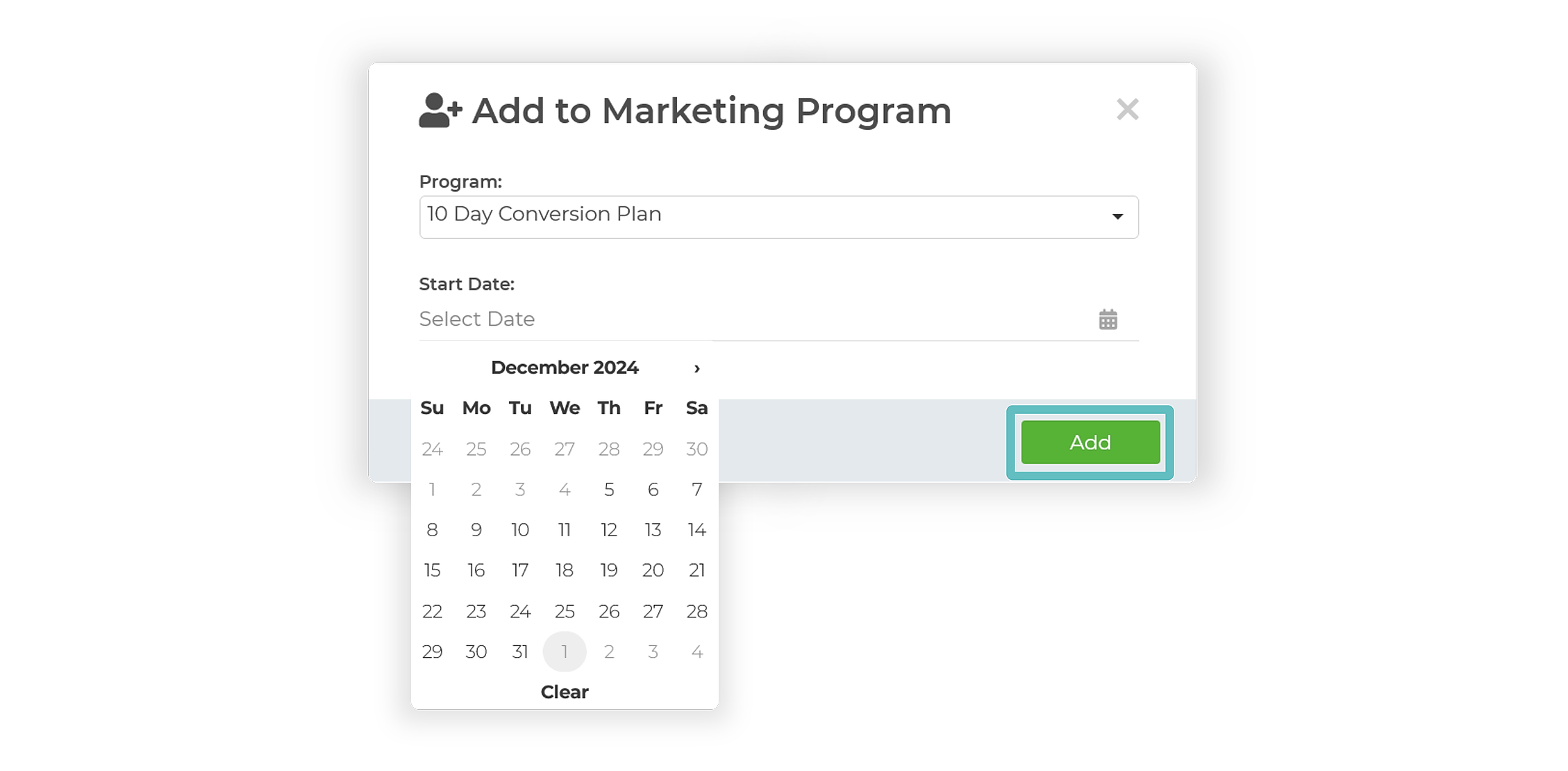
Adding a Single Contact from the Contact Summary Page
Log in to your Wise Agent account.
From the sidebar, select Contacts ➜ Contact List.
On your Contact List, click on the desired contact to enter their Contact Summary Page.
From the menu on the left-hand side of their Contact Summary Page, select Marketing.
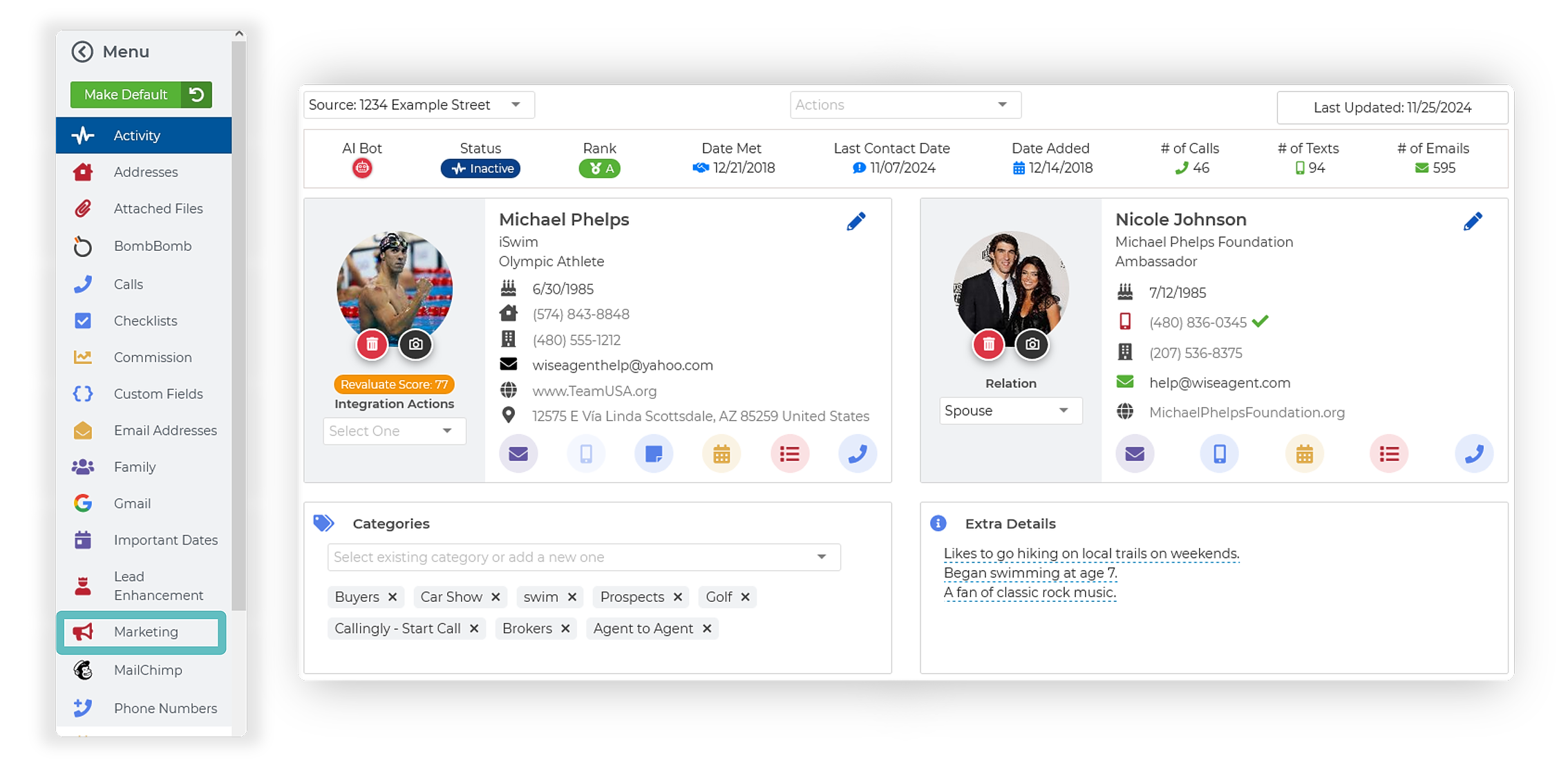
After your selection, a Marketing section will appear - On the right-hand side of this section, click the green plus (+) icon.
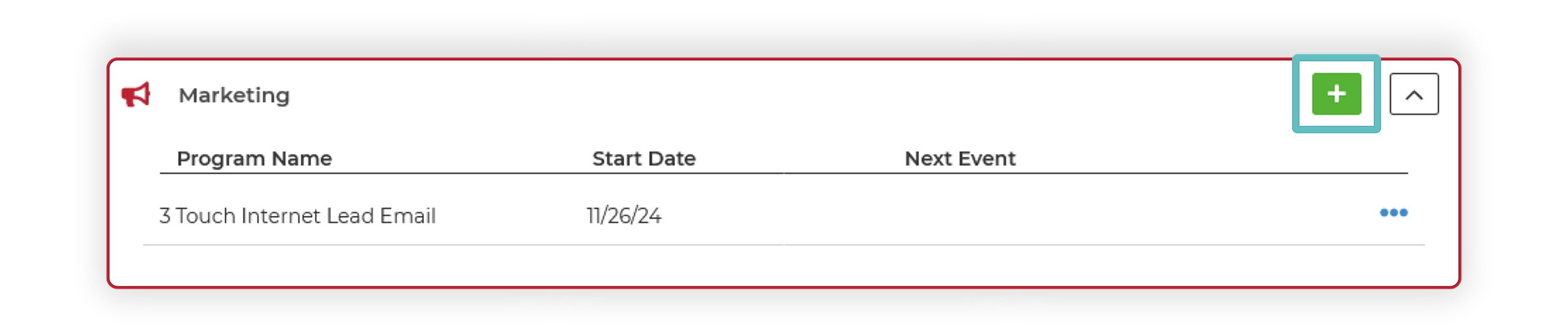
From the Marketing Program dropdown, select your desired drip campaign.
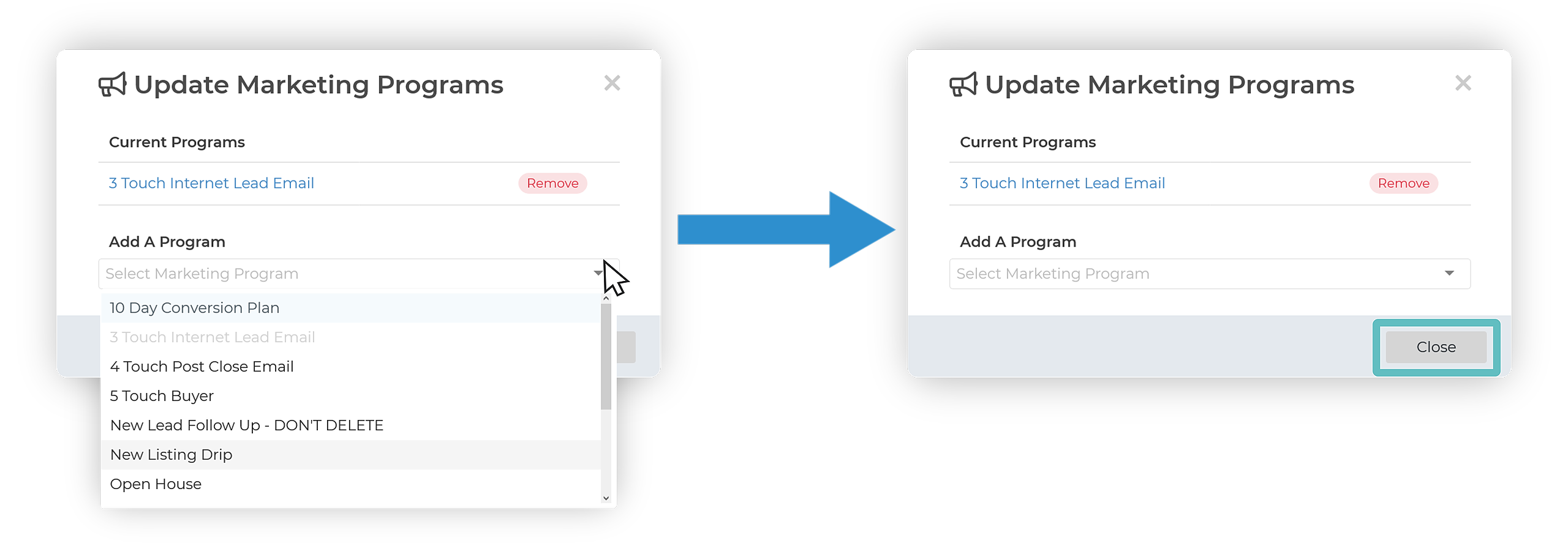
Once selected, click Close.