1. From the toolbar menu, click Marketing > Drip Campaigns.
2. Click the 'Add Program' button (or, if you only see a "Start" button, click that).
3. Select Create New Program. Enter the number of events (letters/emails/calls/etc.) and the days between the events. Click Next.
4. Type a name for the program, select a color so that it can be easily identified on your calendar, and check the box for 'AutoSend' emails. Click Next.
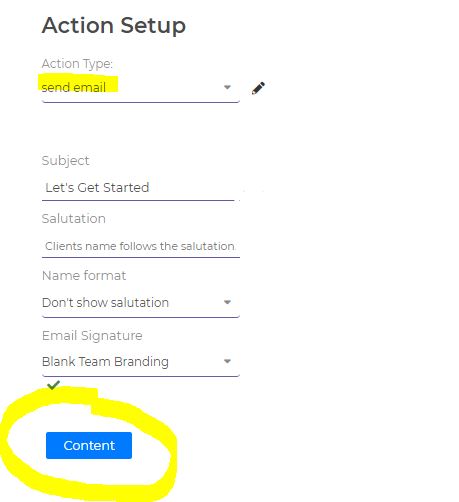
5. Now, it will walk you through each event of the program. To add the content that you wish to email, select the Action Type "send email".
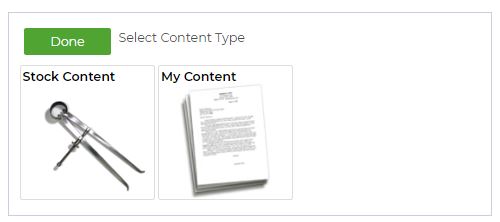
6. Click the "content" button and a new modal will pop up where you can select from the two content types. (Here's how to access and add new content to your content library)
7. After you have done this for each event, you will be able to select which clients you want it to be sent to. Remember that you can add clients at a later time as well, and they will start from the first event of the program.