Step 1: Connecting Your External Lead-Generating Source
If your leads are obtained from external sources (such as Wise Agent's landing pages or Realtor.com), you can opt them in automatically! Prior to configuring a lead rule, you must connect the external platform to your Wise Agent CRM in order to have the leads flow into your database automatically.
To connect popular lead-generating platforms, simply click on any of the Supported Email and/or API Lead Capture options on the Lead Rules page. This will redirect you to step-by-step instructions for establishing the connection.
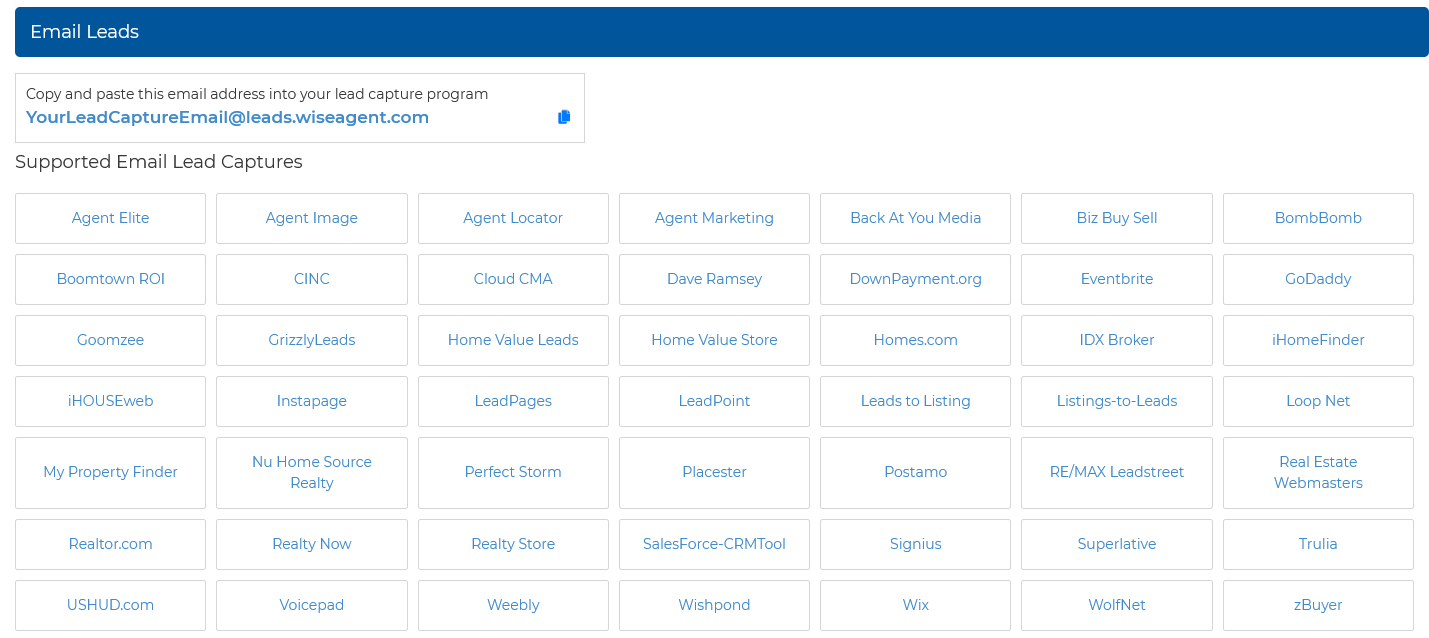
💡 If your platform isn't listed, you may still be able to integrate it with your Wise Agent database using Email Parsing! Click HERE for more details.
Step 2: Create An Automatic Email Response Using Lead Rules
From the sidebar, select Contacts ➜ Lead Rules
Once you are on the Lead Rules page, click the ➕ to begin the creation of a new Lead Rule.

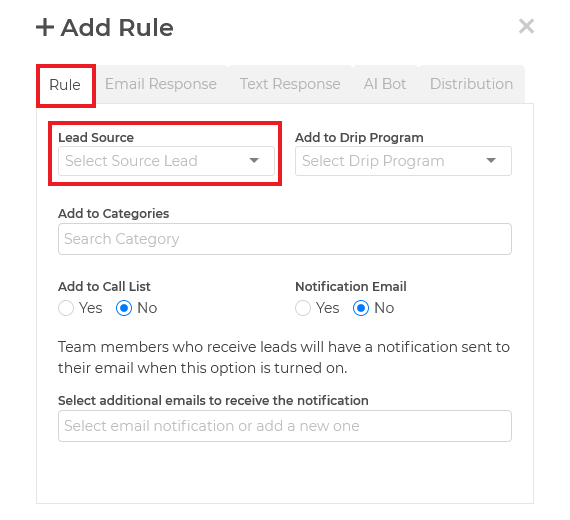
Under the Rule tab, click on the Lead Source dropdown menu, then select the automatically generated Lead Source for the connected external source.
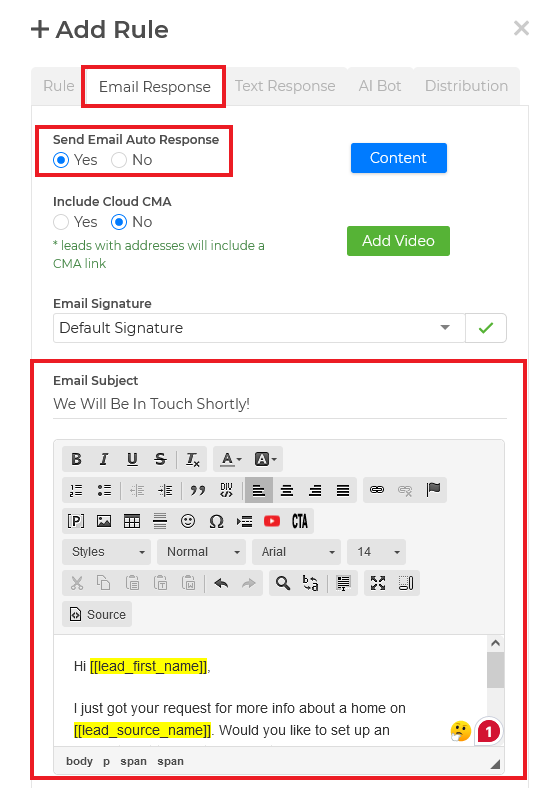
Select the Email Response tab and ensure you enable and create an automatic email reply. Once the automated email goes out to that new lead, the system will auto-opt the contact without any further action required!