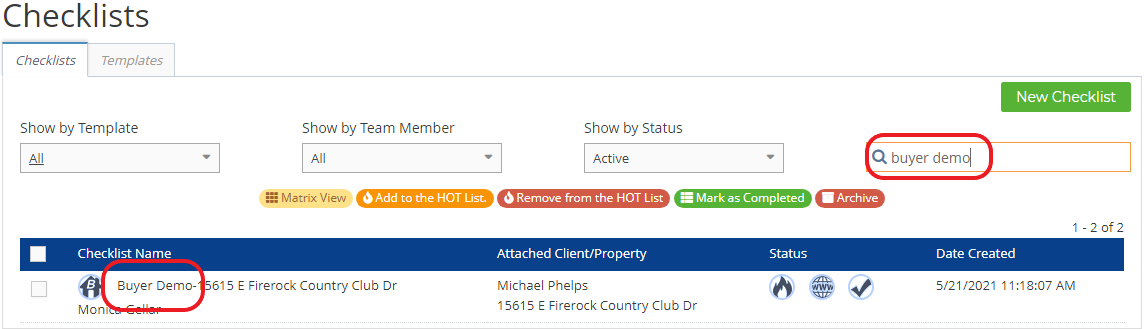
You can view all the checklists you created from your templates on this page. You can add a new or edit a checklist. You can also search for a checklist.
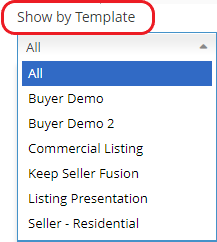
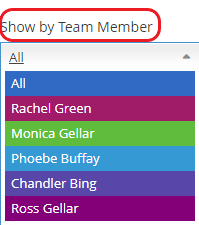
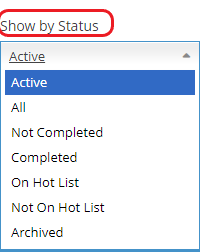
These are the different ways to show or filter your checklist:
Show by Template
Show by Team Member
Show by Status
Type the checklist name on the search bar to search for a checklist.

Matrix View allows you to view several checklists (as long as they are using the same template) all on one page. If you're working on several listings, you can view them all at once without going in and out of each Checklist.
Selecting several checklists, not from the same template will give you an error. Go back and go to Show by Template and select the template, then select the checklists and click on Matrix View.

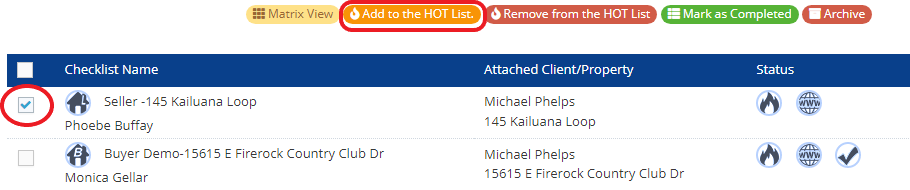
Add to the HOT List allows you to add your listings to your homepage so you can spot them right away.
1. Select the Checklist
2. Click on the Add to the Hot List
What you see on your homepage:
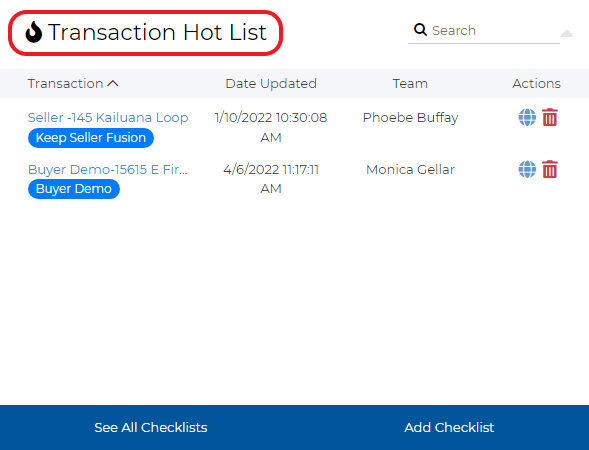
You can also See all your checklists or Add a new checklist.
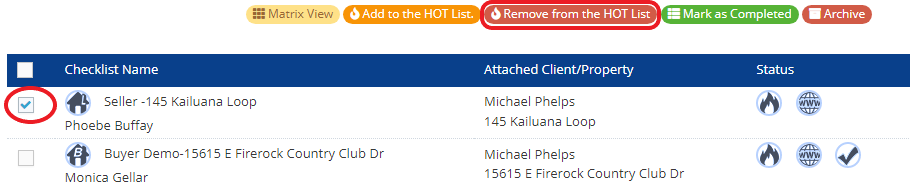
Remove from the HOT List to remove the Checklist from the Hotlist.
1. Select the Checklist
2. Click on the Remove from the HOT List
Mark as Completed once the transaction has closed.
1. Select the Checklist
2. Click on the Mark as Completed
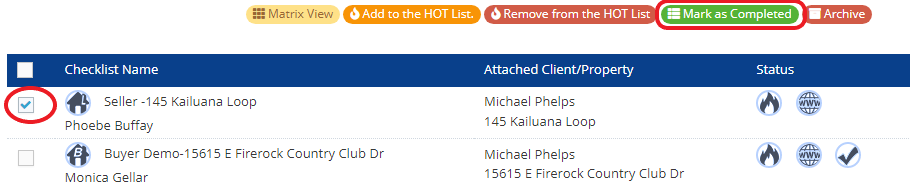
You may check this article on what to do when your Checklist is completed. Complete Checklist.
The archive is to hide all the checklists that you do not need or all the completed checklists. You are hiding them away without permanently deleting them.
1. Select the Checklist
2. Click on the Archive
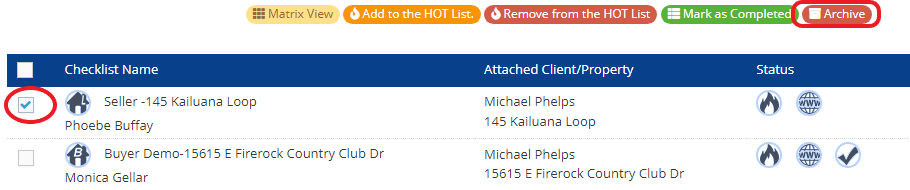
You may check this article to Restore an Archived Checklist.
The image below shows the name of the Checklist, attached client, property, the status, and when it is created. To delete a transaction, click on the trash bin icon.

To create a Transaction Portal, click the web icon.