

How To Access The Content Library:
From the left side navigation bar, click "Marketing", then "Content Library."
Under the Letter/Email Content header, you will find the content name, group name, and the actions you would like to perform (print, clone, edit, email, preview, share link, or delete). You can search for specific content by typing in the search box, and you can also create new content by clicking on the plus icon. The entire section is collapsible; if you want to hide/show the list of your content, just click on the arrow icon next to the plus icon.
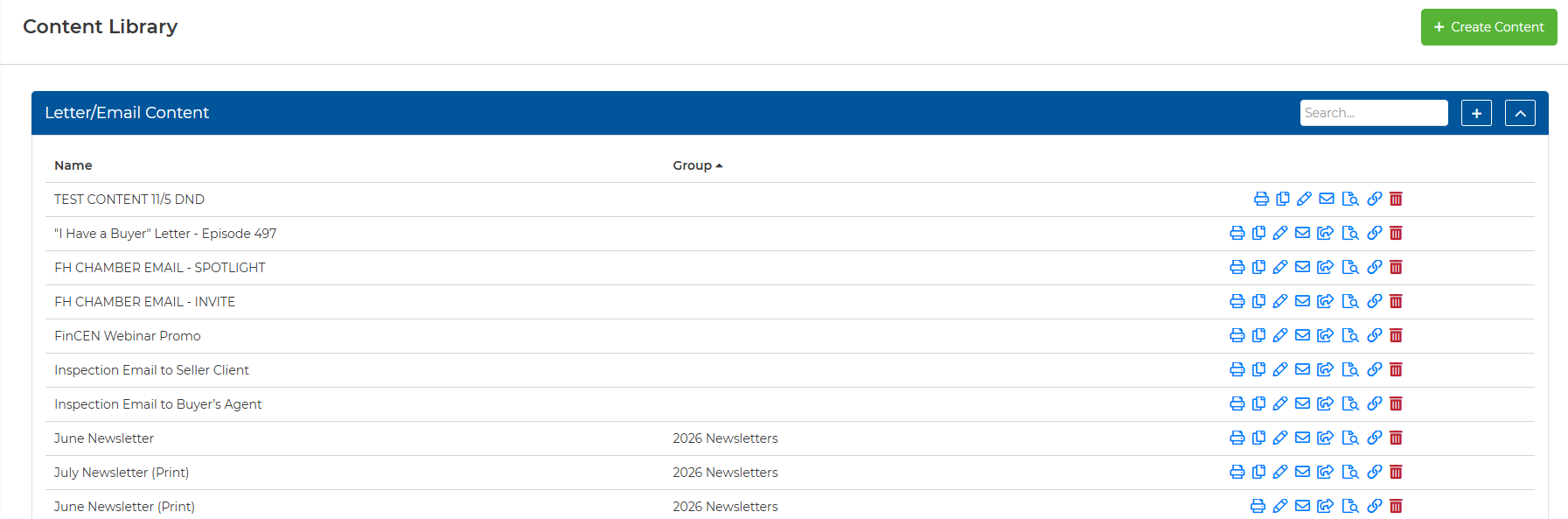
You can select the green "+ Create Content" button to open the editor. If you have a WiseText subscription, you can choose whether you'd like to Create Email/Letter content or Create Text Content.
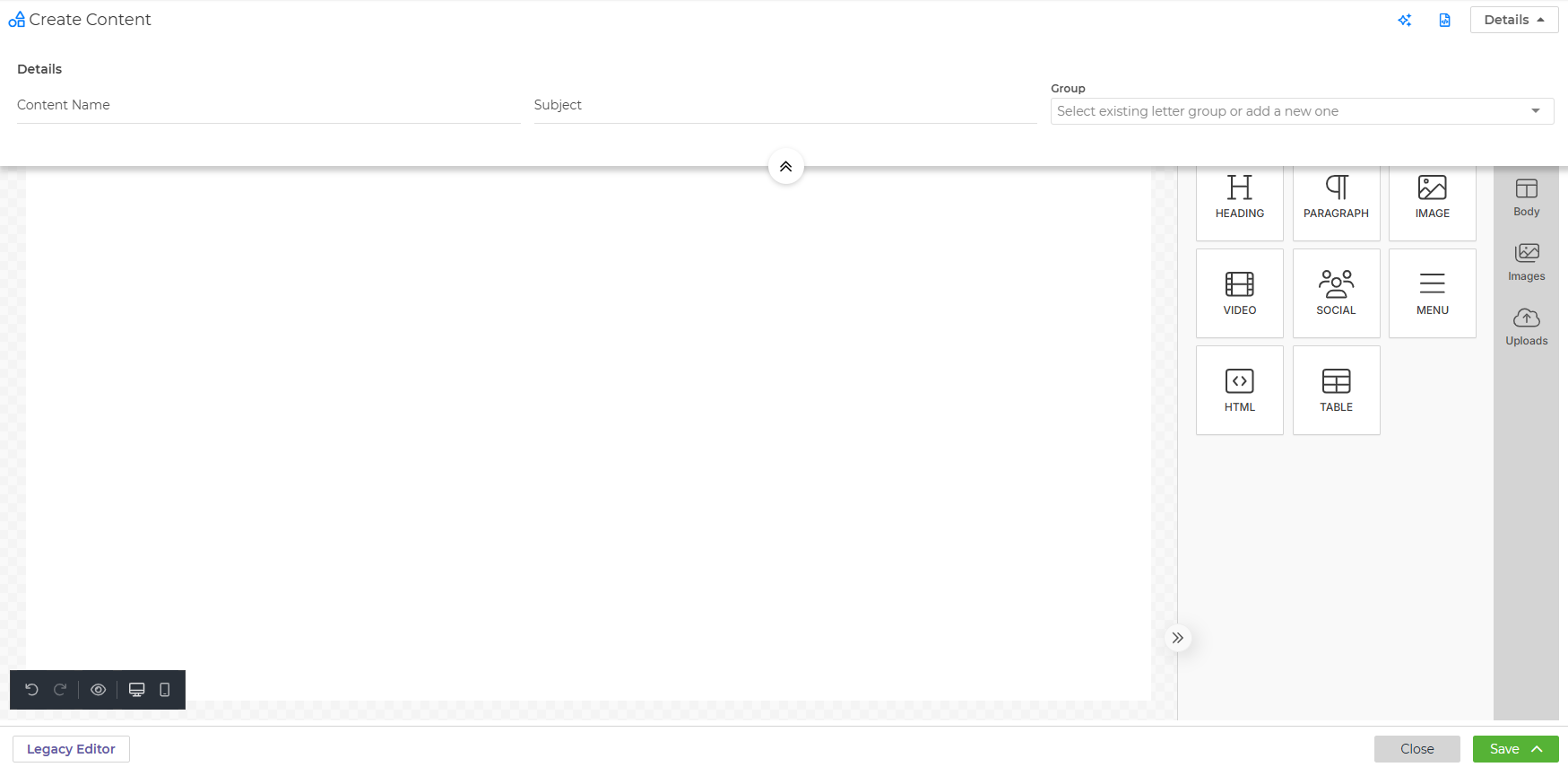
Once the email editor opens, you can enter the details such as what you'd like your content saved as, the subject of the email, and if you'd like to add this content to a specific group in your Content Library. You can click the arrow button to have the details disappear. The Details button on the top right can be clicked at any time to bring them back.

Clicking the stars icon will pull up Wise Agent's AI Writing Assistant powered by GPT-4 ™, where you can enter a prompt and wait while the tool writes it for you! To use this content, simply click it, and it'll appear in the editor where you can make any changes before saving.
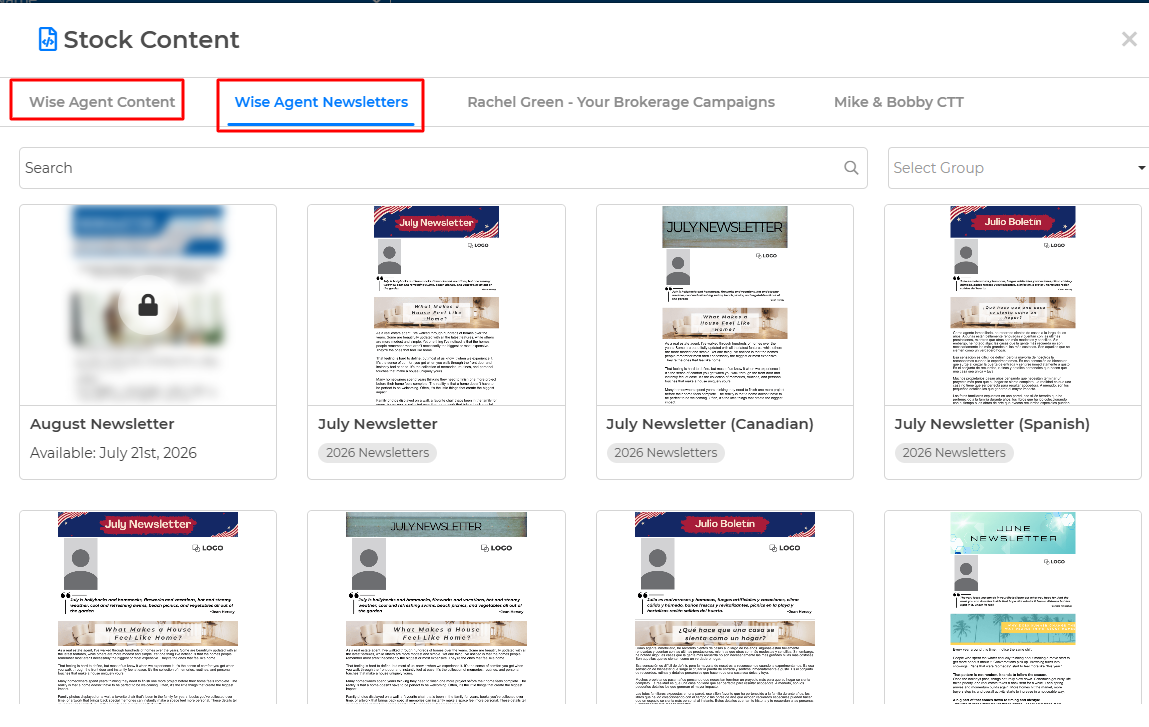
Clicking the paper icon will pull up Wise Agent's Stock Content, including our Monthly Newsletters.
For a full walkthrough of creating email templates, click the link below:
To learn more about our Monthly Newsletters, check out our article: