

You can create subheadings to put tasks under to keep them in order of each milestone, i.e. Listing tasks, Under Contract tasks, etc. To add a new subheading, please follow the steps below.
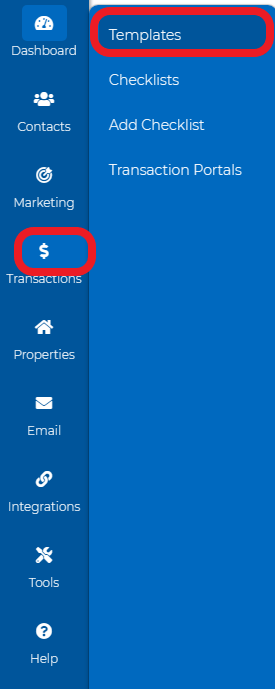
1. Navigate to the Transactions > Templates dropdown and create/edit your template.

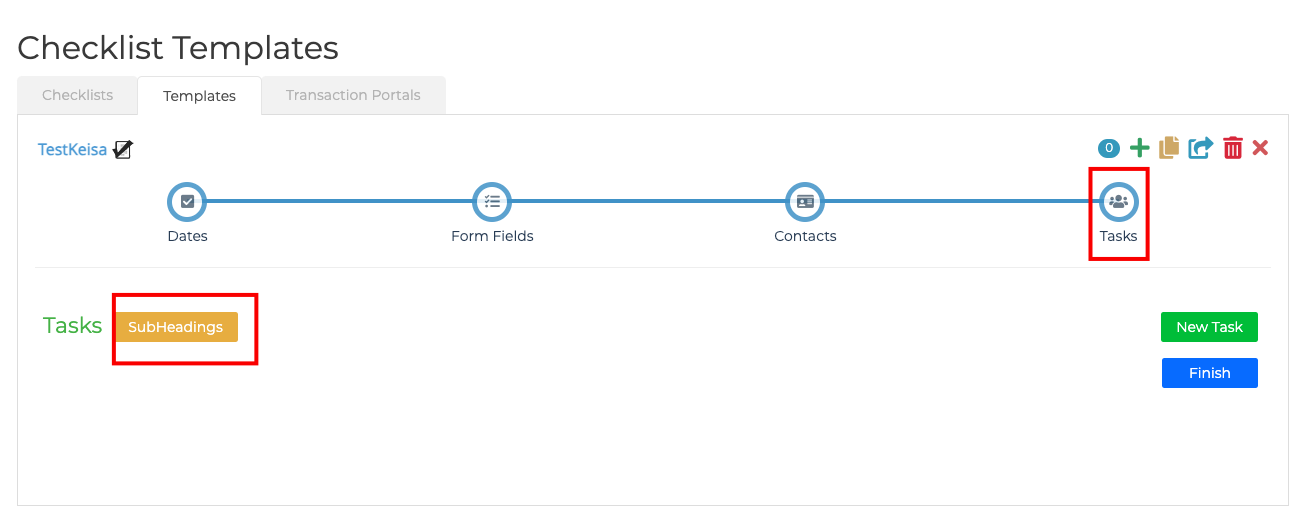
2. Navigate to the Tasks step and click SubHeadings
3. Click "New Sub-Heading" or you can edit an existing one.
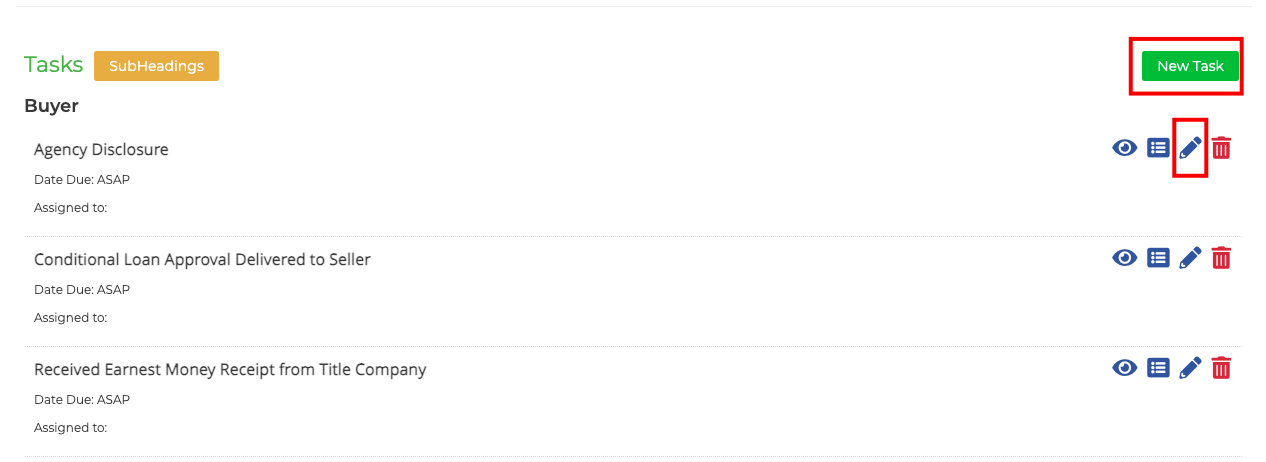
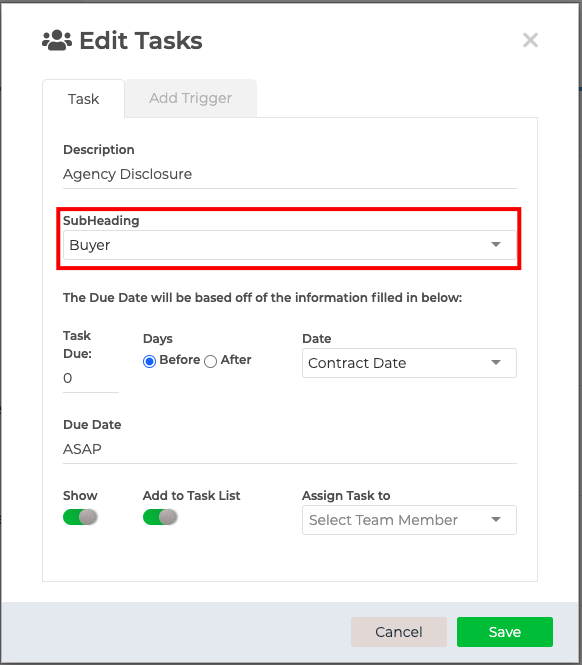
4. Type in the Sub-Heading name and click "Save". Now you can go under each individual task and select the new sub-heading in the drop-down box.
We have added a new feature called Checklist Triggers, which allows you to set up automated workflows in Wise Agent. These workflows prompt specific actions or reminders at designated times or events.Wise Agent's Checklist Trigger Feature