

To find out new Email Statistics feature you will want to follow the steps below:
Go to the Send Email tab on the left hand side of you screen.

Once on the page where you can select the Editor you would wish to use, you will see a button labeled "Email Stats" on the left hand corner of the screen.
You will be directed to the Stats page.
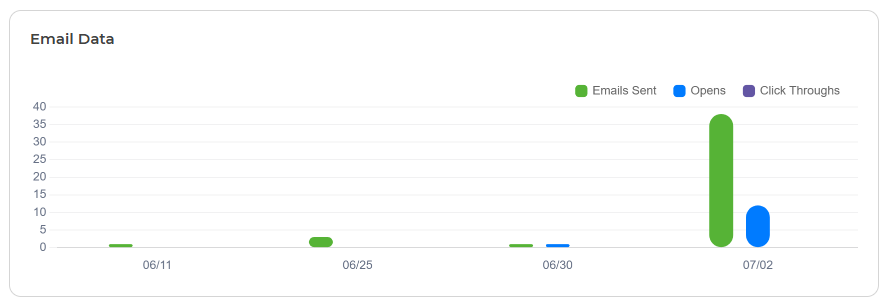
Here you will be able to see your Emails Sent, Avg Open Rate, Avg Click Rate, and Unsubscribe. There will also be a portion that shows a graph of the Email Data and Email Performance.

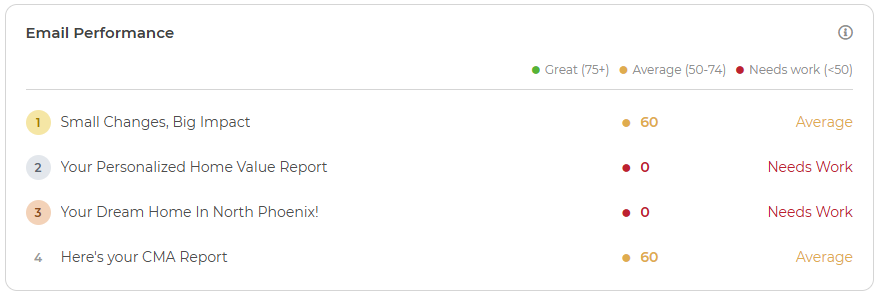
If you click the Info icon on the right hand corner of the Email Performance section, it will direct you to more information on what the Stats on this section mean.

How Email Performance Scores Are Calculated
Every time you send out an email, Wise Agent grades it with a Performance Score from 0–100, so you can see how it performed relative to industry expectations, not just how many people opened it.
Performance Ratings
Score | Rating |
75–100 | Great |
50–74 | Average |
0–49 | Needs Work |
Score Breakdown
The score has two components that add up to 100 points:
Component | Weight | Full Points | Benchmark |
Open Rate | 60% | 60 pts | 25% open rate = full points |
Click Rate | 40% | 40 pts | 3.5% click rate = full points |
Points scale linearly from 0 up to the benchmark, then cap. Exceeding the benchmark doesn't add extra points. A 50% open rate scores the same as a 25% open rate.
Penalties
Points are deducted for signals that hurt your sender reputation. Each penalty scales linearly between its starting point and its "full penalty" threshold:
Issue | Max Deduction | Full Penalty At |
High Unsubscribes | −25 pts | 0.5% unsubscribe rate |
High Complaints | −25 pts | 0.2% complaint rate |
Low Delivery Rate | −35 pts | 80% delivery rate (penalty starts below 97%) |
Penalties are proportional. A 0.1% complaint rate deducts about 12 pts, not the full 25.
The final score is floored at 0 and capped at 100.
Example
An email sent to 400 contacts:
38% open rate (above the 25% benchmark): full 60 open points
2.1% click rate: 60% of the 40 click points, so 24
0.15% unsubscribe rate: -7.5
0.05% complaint rate: -6
99% delivery rate (above the 97% threshold): no penalty
Score: 70, Average
Date Range/New Email
There is also a space for you to change the date range to so you can see the stats for specifics dates. You will find where to do this on the time right hand corner. You can also create a New Email from this page as well.
List of Emails
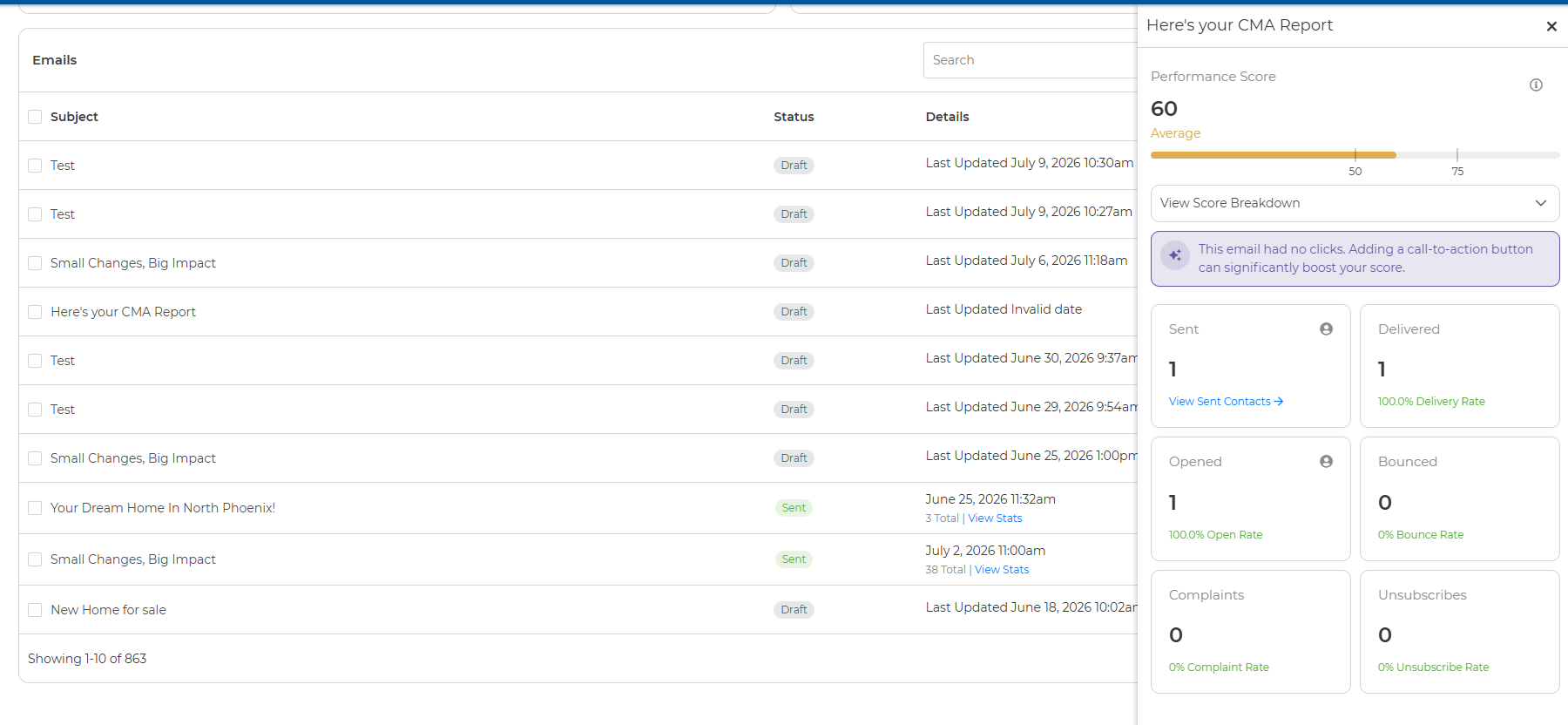
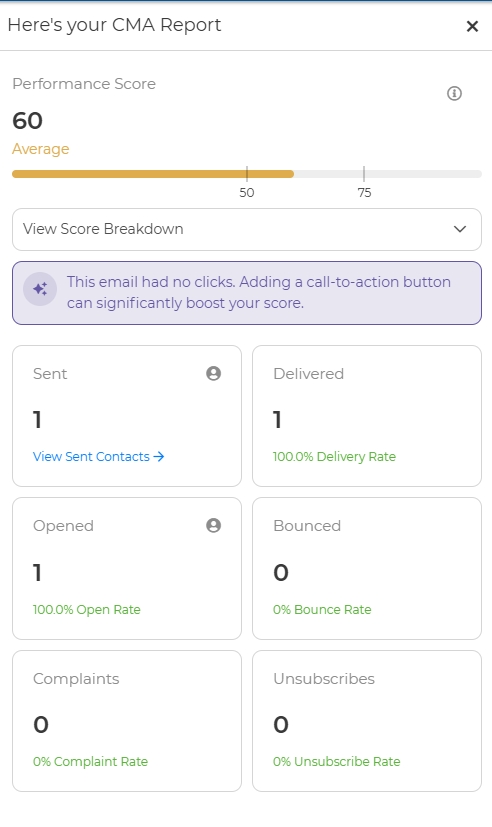
Further down on the page you you see you emails, you can search a certain email to open up the statistics, or click on the box to open up a window that shows the statistics of that particular email.
Please reach out if you have further questions about our new Email Stats page! We are always happy to help explain further!