Adding The Extension
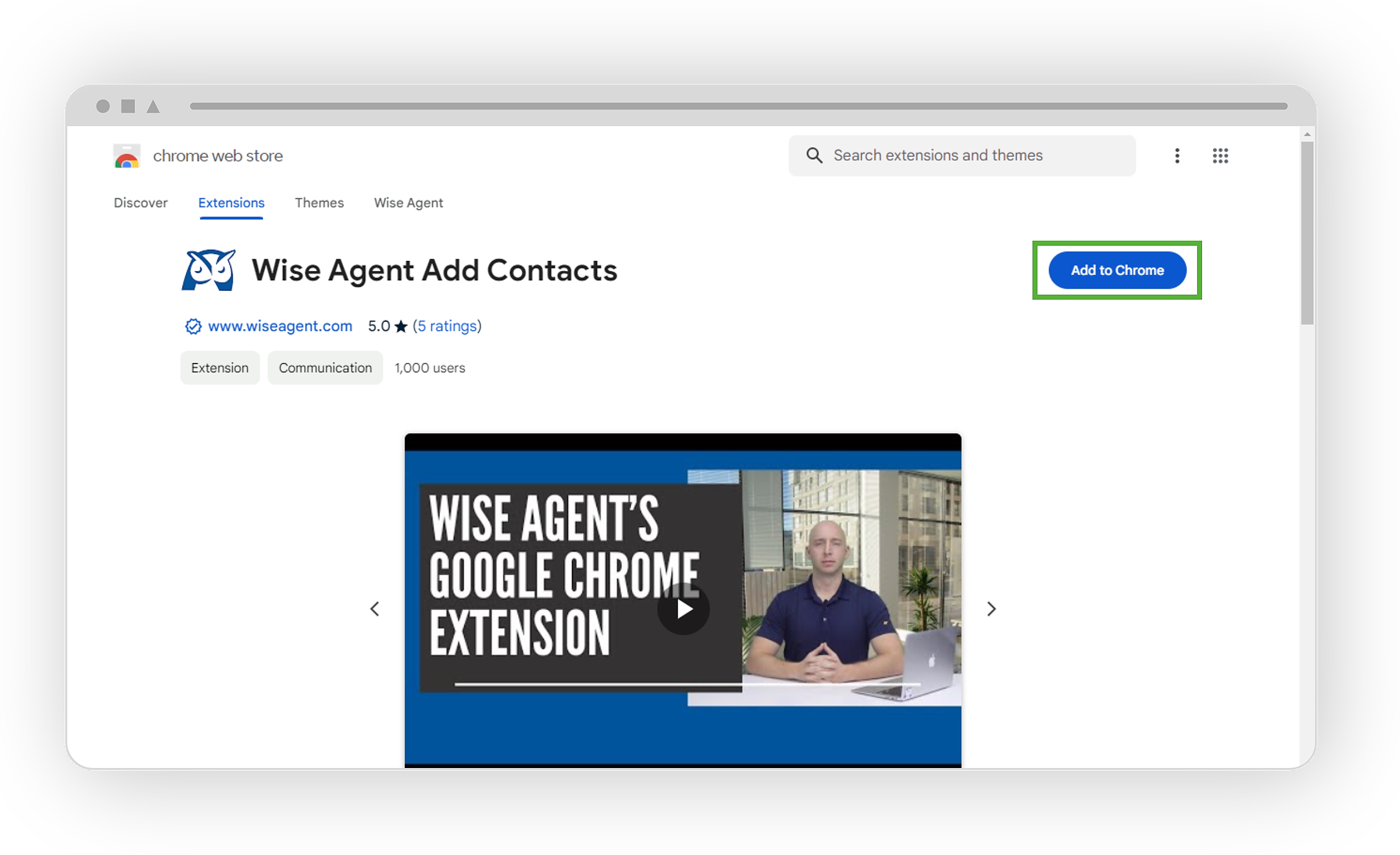
Open the Chrome Web Store.
In the left column, click Extensions.
Search for Wise Agent Add Contacts, or click HERE to be redirected
When you find the extension, click Add to Chrome.
You'll see your extensions in Chrome as buttons on the toolbar.
Utilizing The Extension
Once added, open your Gmail inbox. If you are opening a pre-existing Gmail tab used before adding the extension, you may need to refresh the page or open up a new Gmail tab.
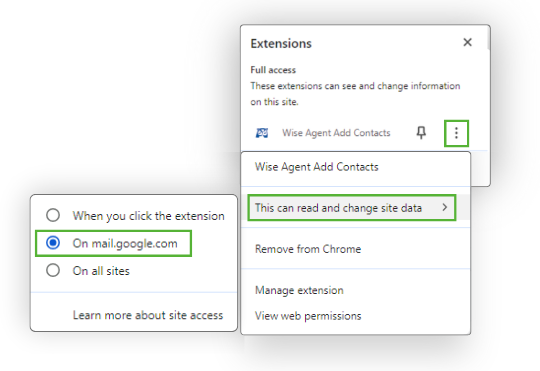
From the upper right-hand side of your window, click Extensions

Once selected, locate the Wise Agent Add Contacts extension, then select More

Hover over This can read and change site data and ensure On mail.google.com is selected.
Once confirmed, open an email, then locate the Add to Wise Agent option below the search bar.
Select the Add to Wise Agent button and follow the prompt to add your API key. (Further steps below)
You're done! Now, when you receive emails from new contacts, you can import their information into Wise Agent with a single click.
Locating Your Wise Agent API Key
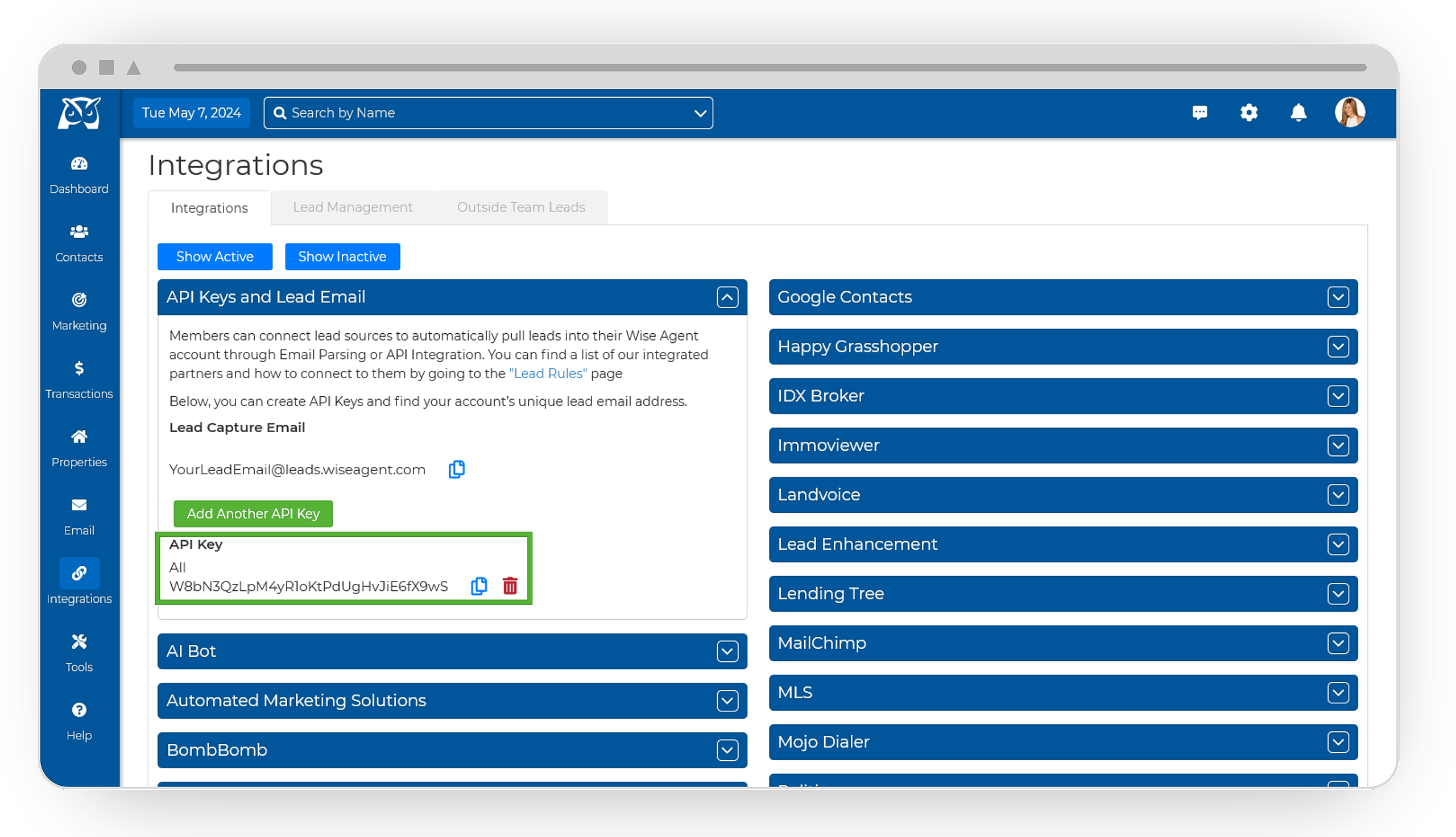
From the sidebar, select Integrations, then click Settings from the menu.
On the Integrations Settings page, locate and click on the API Keys and Lead Email tab and click to expand.
From this section, locate and copy your API Key. This API Key is specific to your Wise Agent account and is used for capturing leads from various sources.