


Modifying The YouTube Shorts Link
Open your YouTube Shorts video and locate the URL in the address bar.
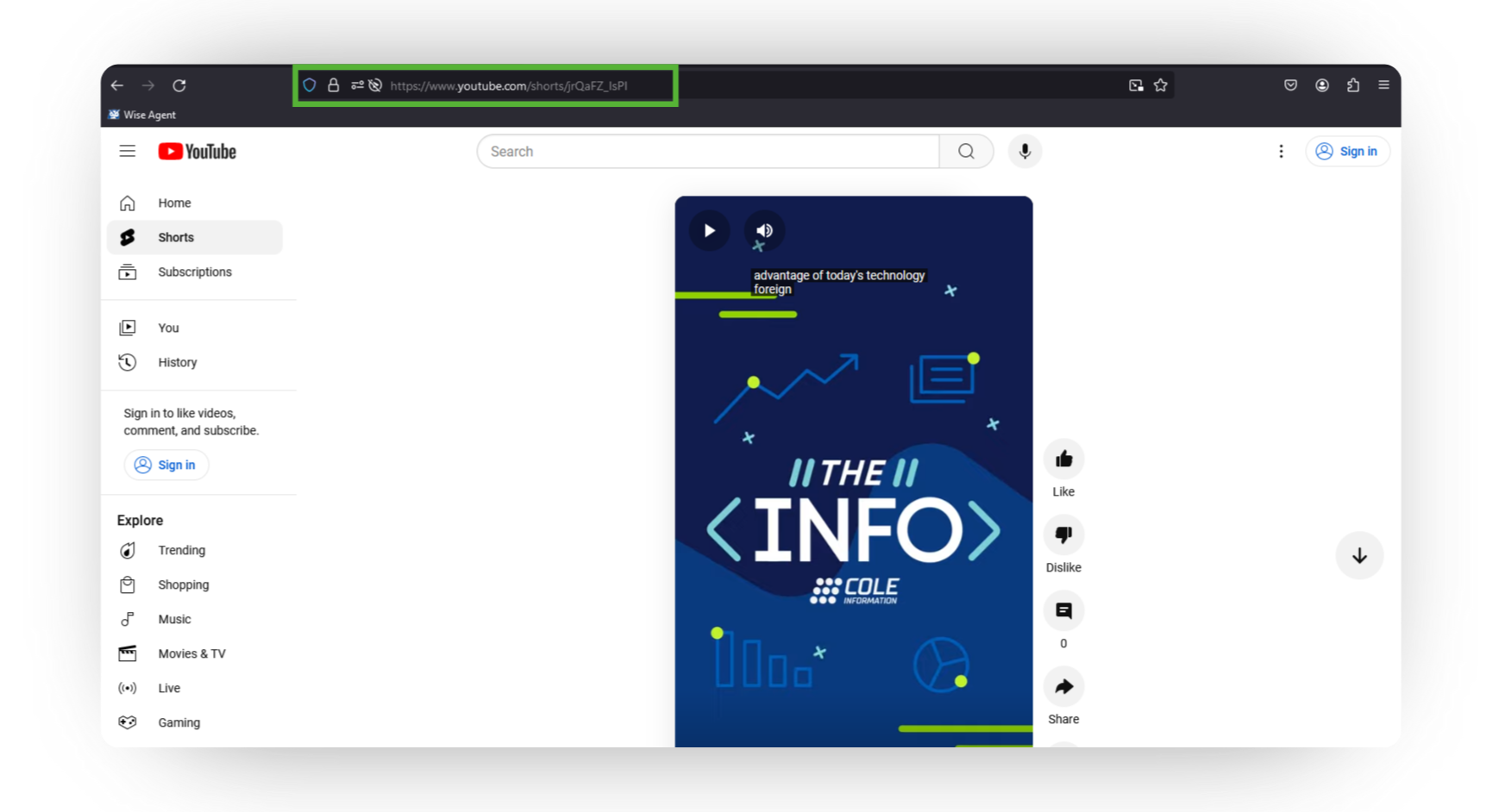
Copy the characters at the end of the URL.
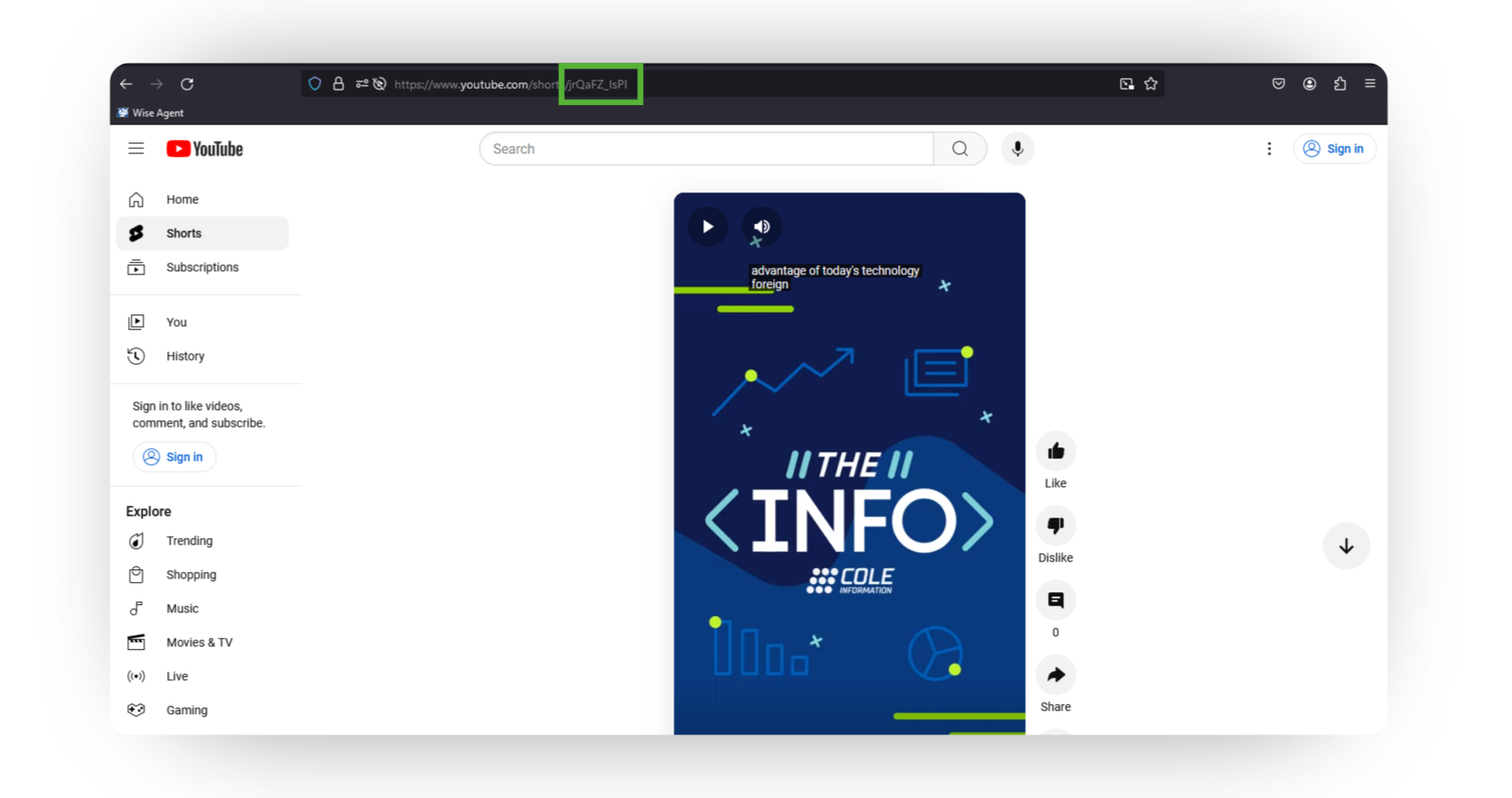
Paste these characters at the end of the following link:
https://www.youtube.com/watch?v=INSERT CHARACTERS HERE
For Example:
https://www.youtube.com/shorts/jrQaFZ_IsPI ➜ https://www.youtube.com/watch?v=jrQaFZ_IsPICopy your modified link and follow the steps below to add your YouTube Shorts video to your Wise Agent email!
Adding The Video To Your Wise Agent Emails
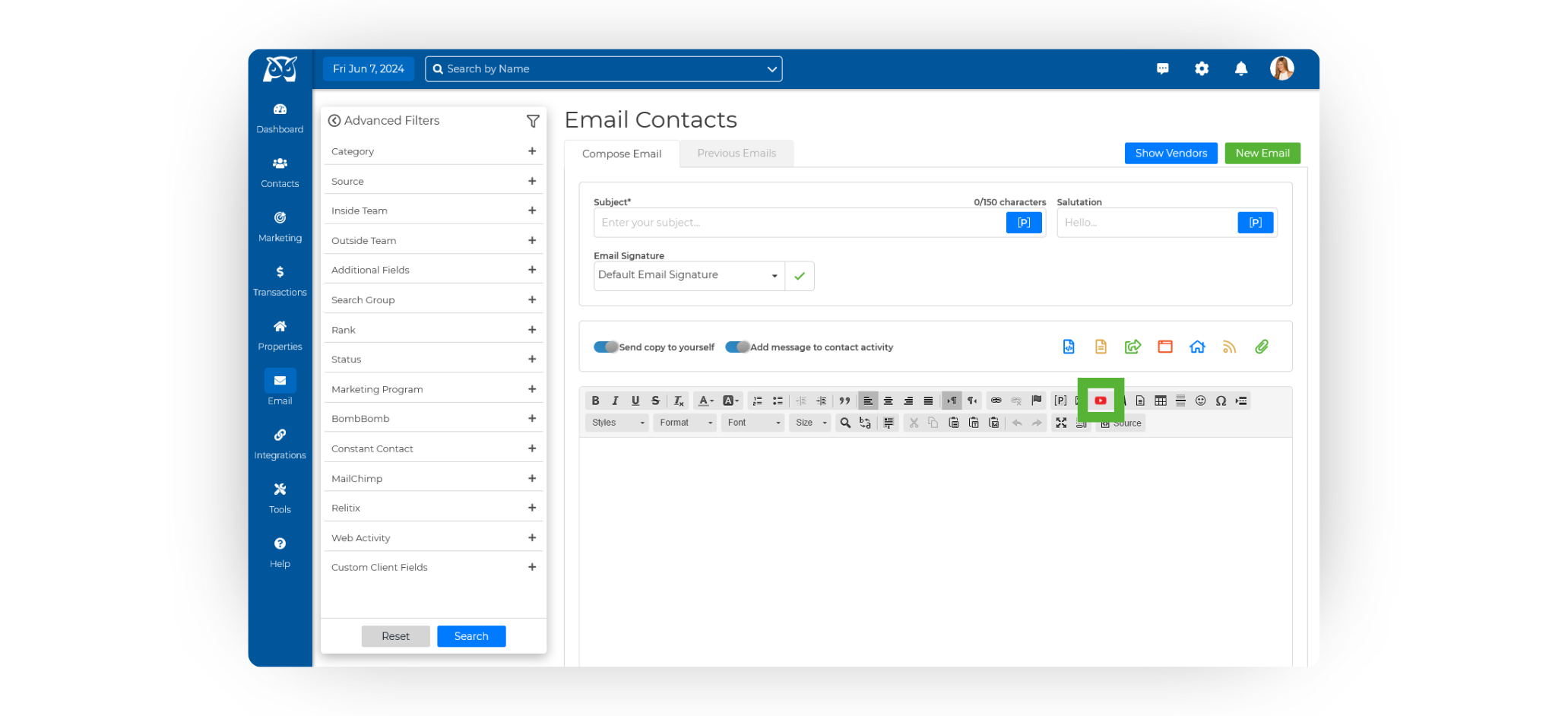
From the sidebar, select Email ➜ Email Contacts to access the Email Editor.
In the toolbar above the email body, click the YouTube icon. This will open the YouTube Properties pop-up window.
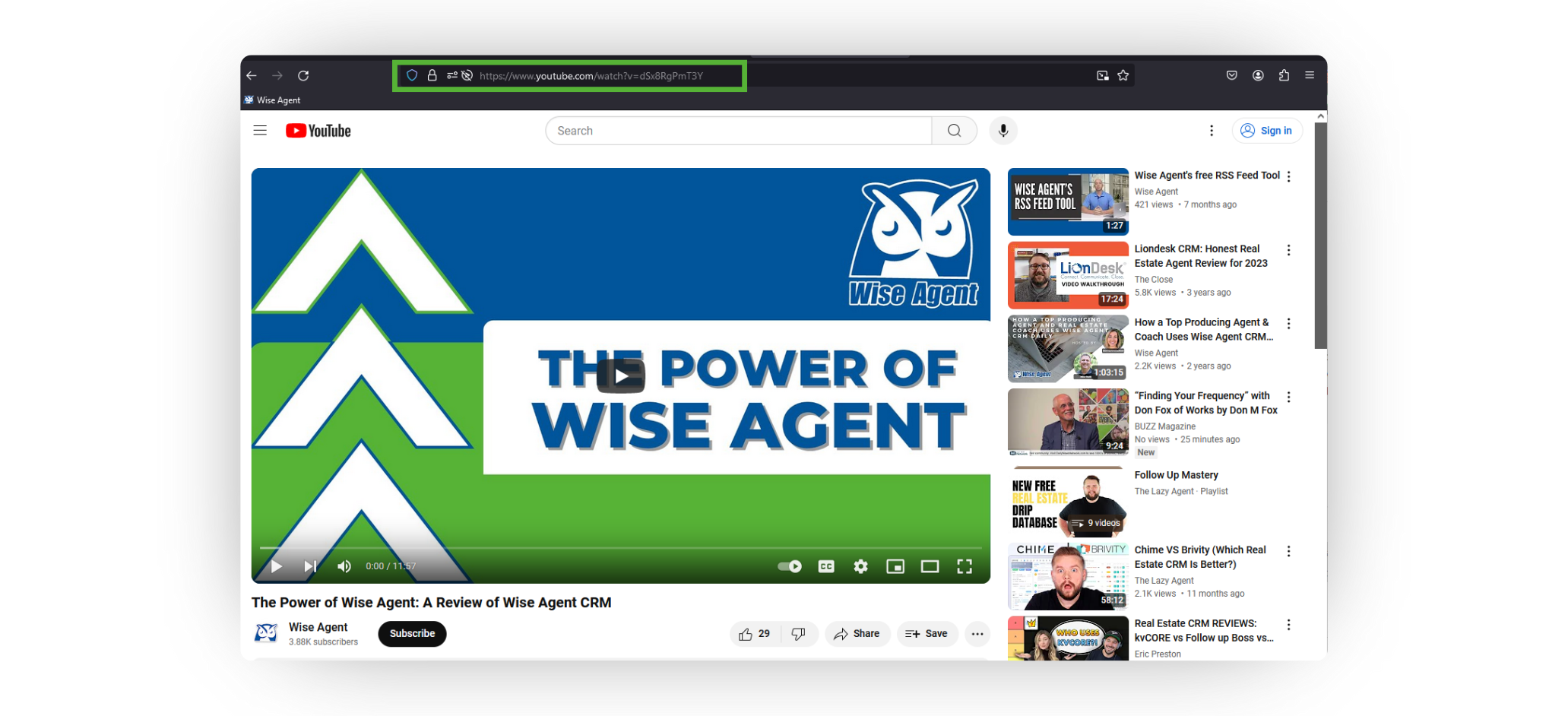
Next, redirect to your YouTube video and copy the full URL from the browser’s address bar. Do not use the Share Link, as this will prevent the video from being added altogether.
Return to your Wise Agent account and paste the complete URL into the specified field in the YouTube Properties pop-up window.
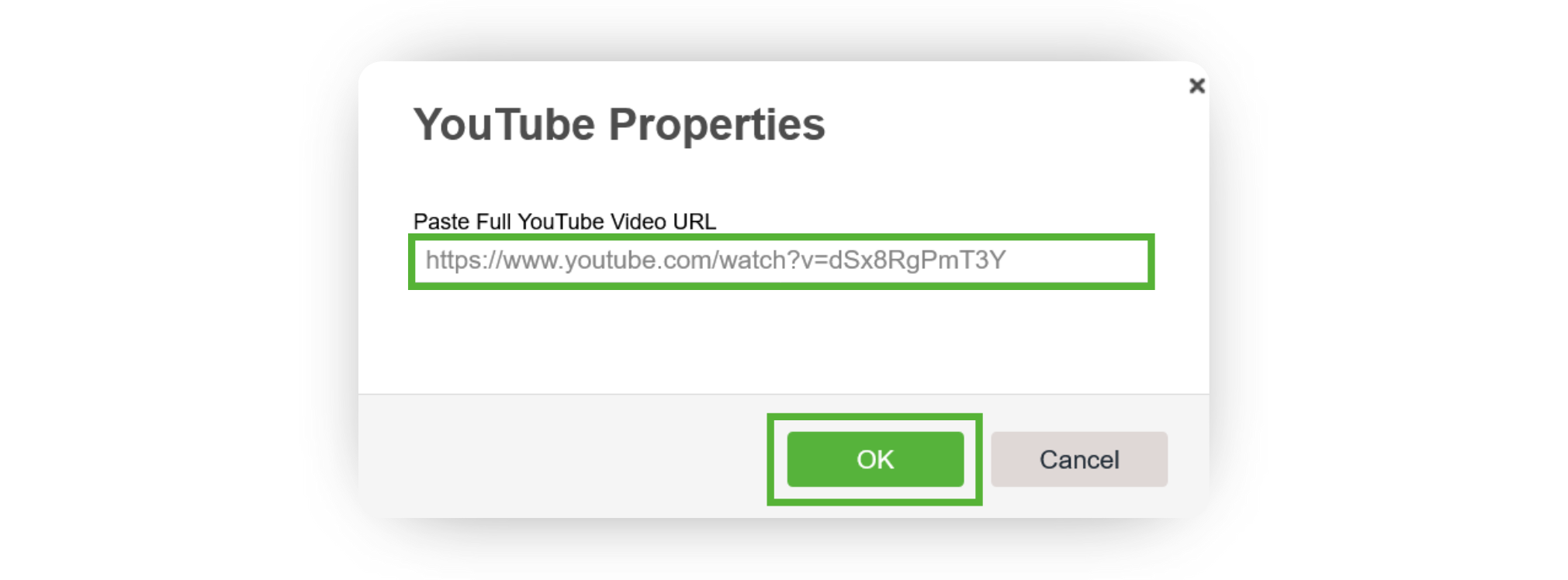
Click OK. You should now see the thumbnail of your YouTube video in the body of your email. That's it!