

To get started, you must integrate the Wise Agent capture form plugin into your WordPress site:
🌎 Wise Agent's Capture Form Feature With WordPress ➜
Enabling reCAPTCHA (v3)
Visit Google reCAPTCHA.
Click on V3 Admin Console in the upper right corner.
Enter a label for your reCAPTCHA and select the V3 checkbox.
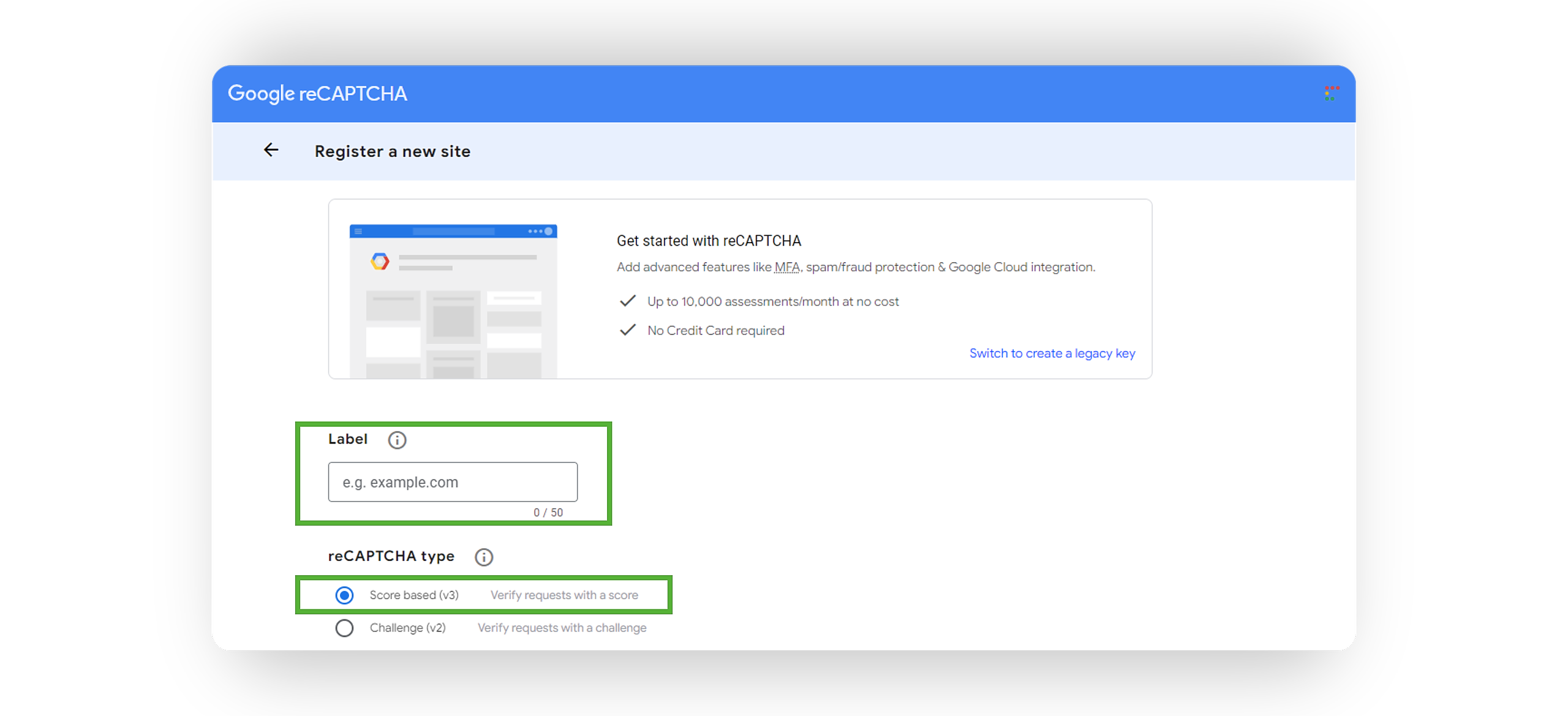
In the Domain section, add your site's URL.
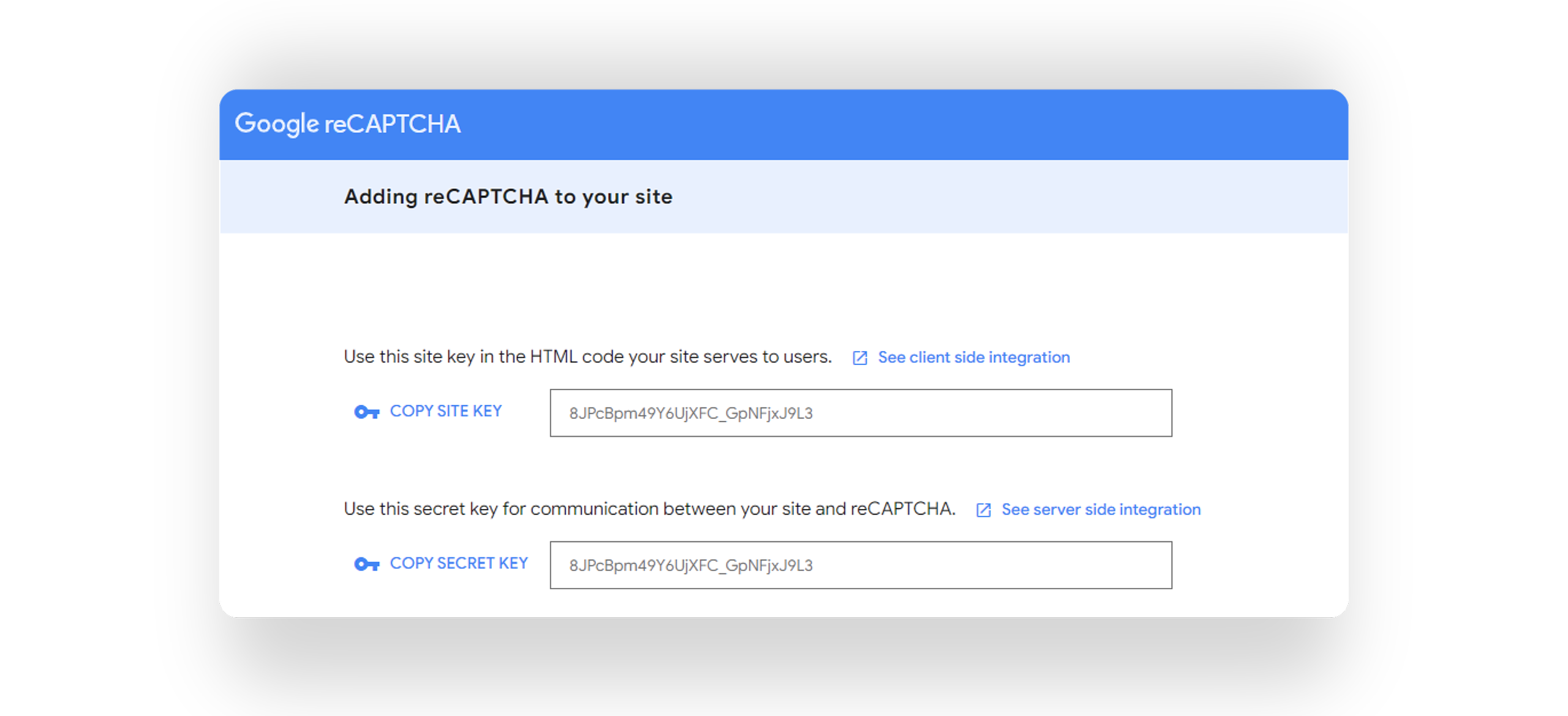
Accept the terms of service and click Submit. Google will generate a Site Key and Secret Key for you—copy these keys.
Redirect to your WordPress Home Dashboard.
From the sidebar, select Wise Agent ➜ Settings.
Expand the Google reCAPTCHA (v3) Setup section and check the box to Enable Google reCAPTCHA.
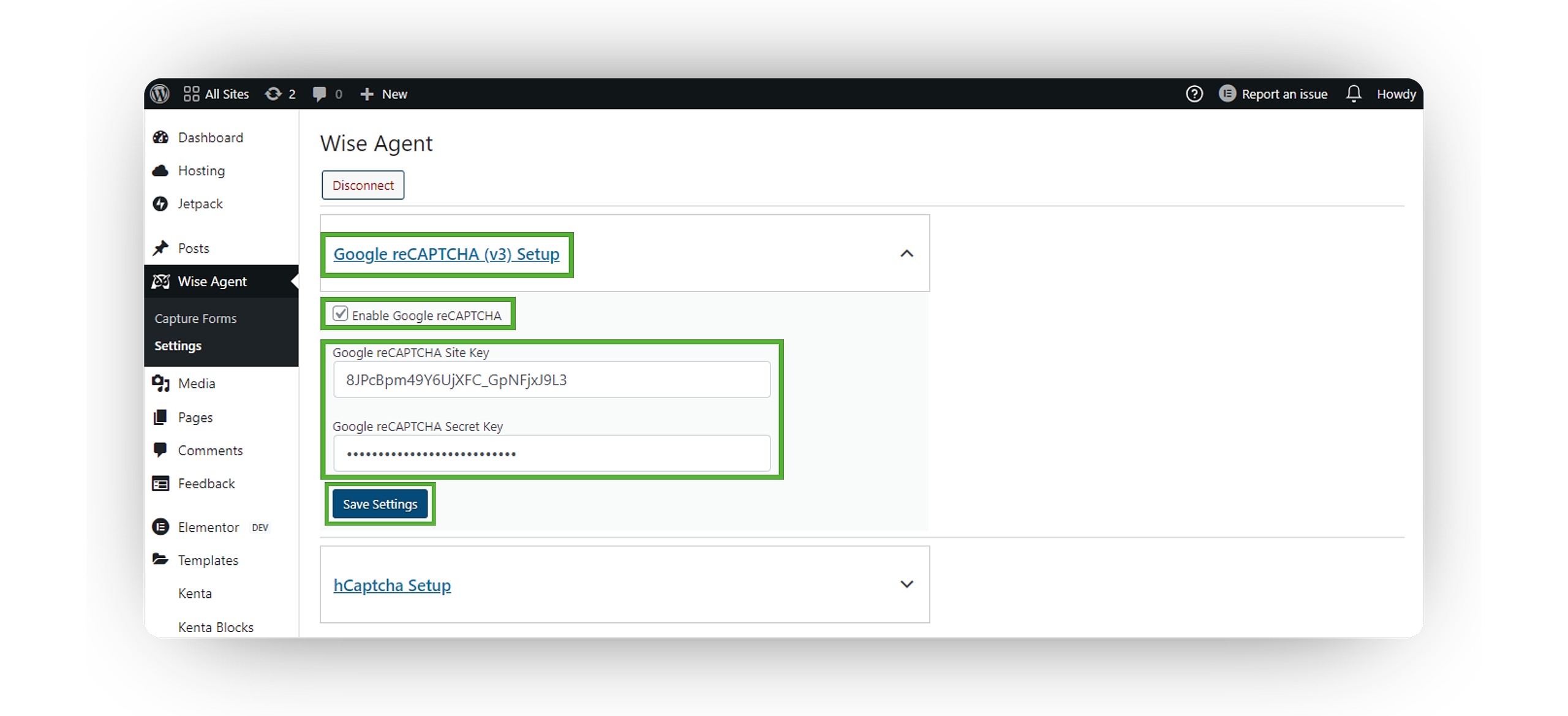
Enter the Site Key and Secret Key you previously generated in the designated fields.
Click Save Settings, and you're done!
Enabling hCaptcha
Signup or login on to the hCaptcha Dashboard.
Go to the Sites tab in the dashboard and create a new sitekey.
Go to the Settings tab in the dashboard and generate your secret key by clicking
Generate New Secret.Redirect to your WordPress Home Dashboard.
From the sidebar, select Wise Agent ➜ Settings.
Expand the hCaptcha Setup section and check the box to Enable hCaptcha.
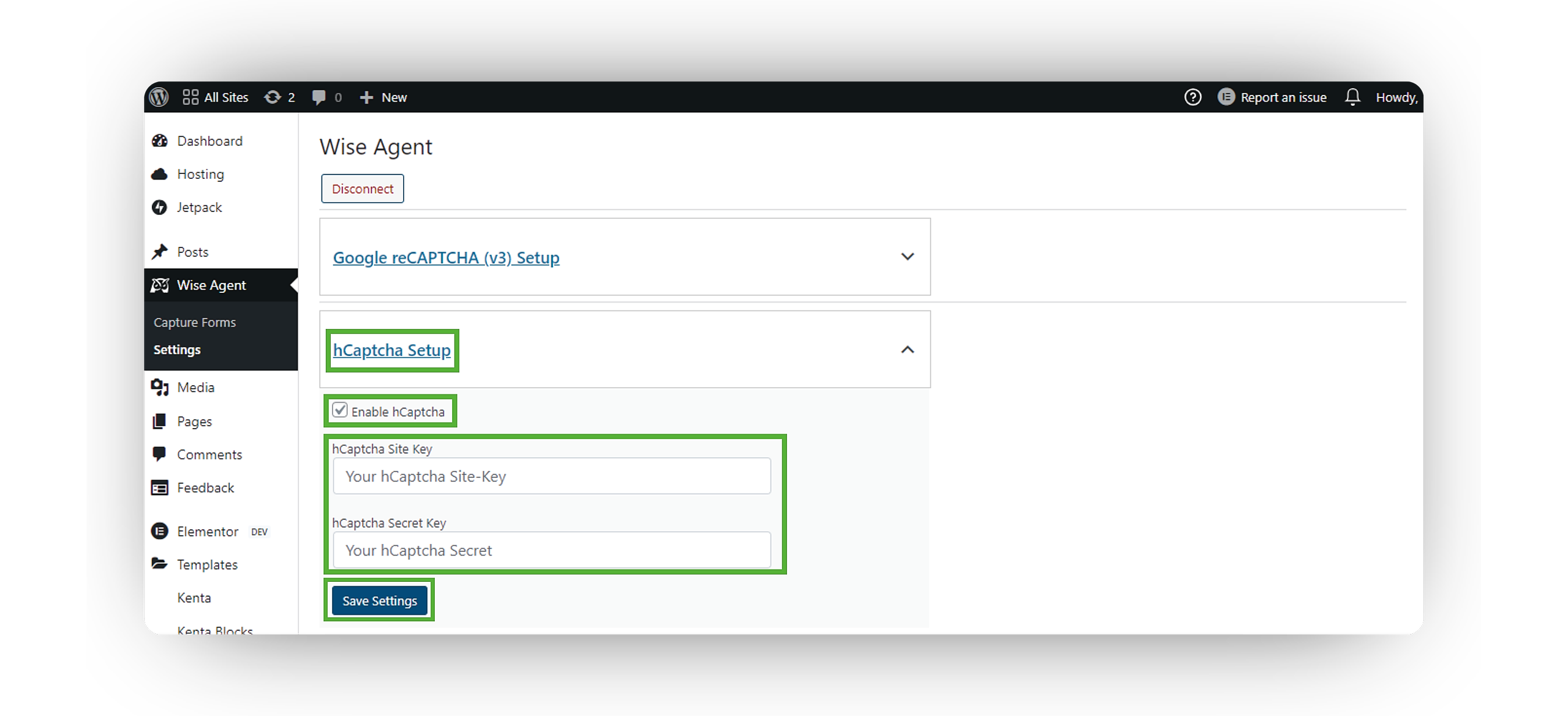
Enter the Site Key and Secret Key you previously generated in the designated fields.
Click Save Settings, and you're done!