

How to import contacts
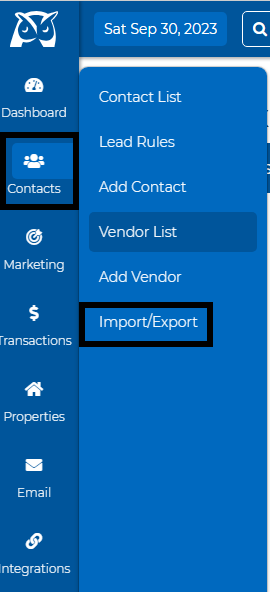
Click "Contacts" and select "Import/export."
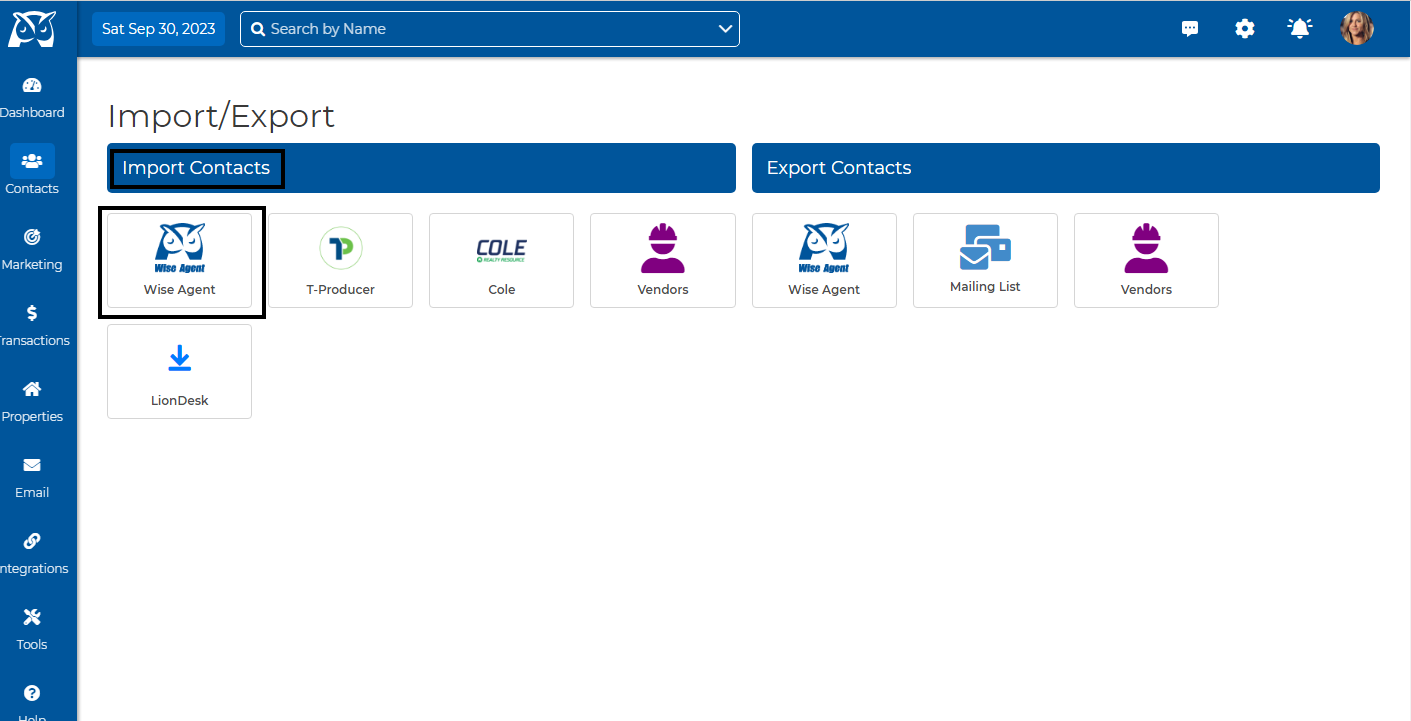
2. Select the blue owl button under the Import option.
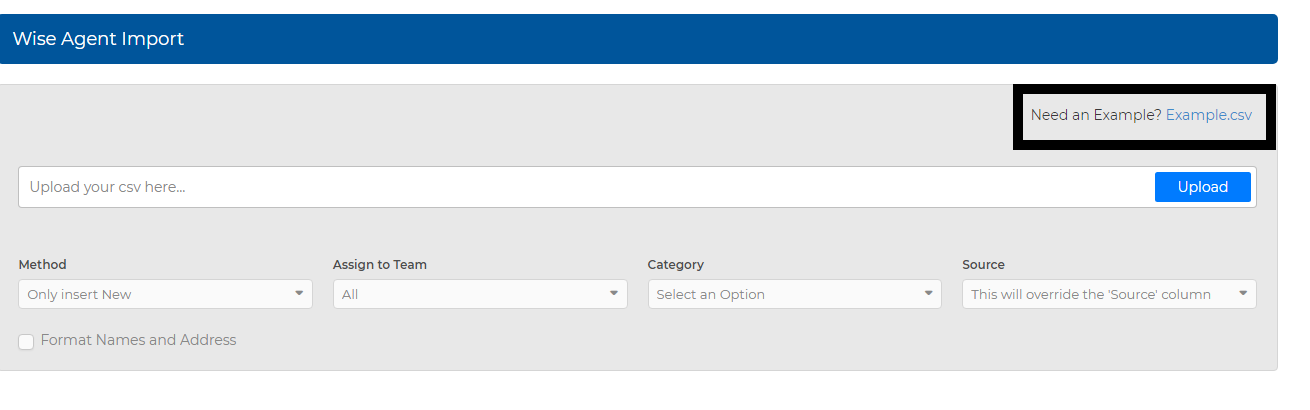
3. Download the Example.csv file and make sure the headings are correctly set up with the headings in the example.
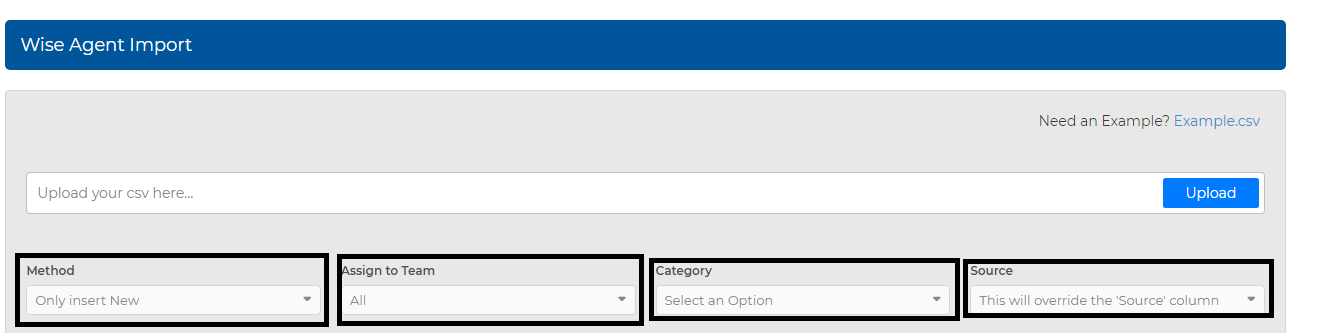
4. Click on the "Upload " button to upload your file.
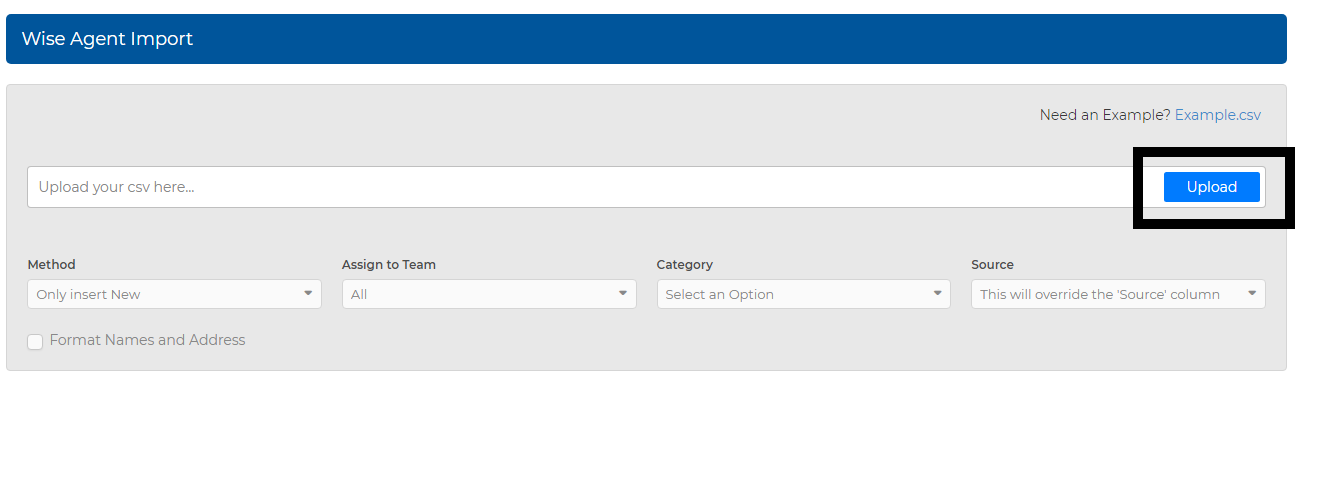
5. You also have the option to select a method (from the method drop-down, you can choose whether to "only insert new" or "Insert new/update existing" and "Allow duplicates" ), select who the contacts list will be assigned to, choose a category and a source.
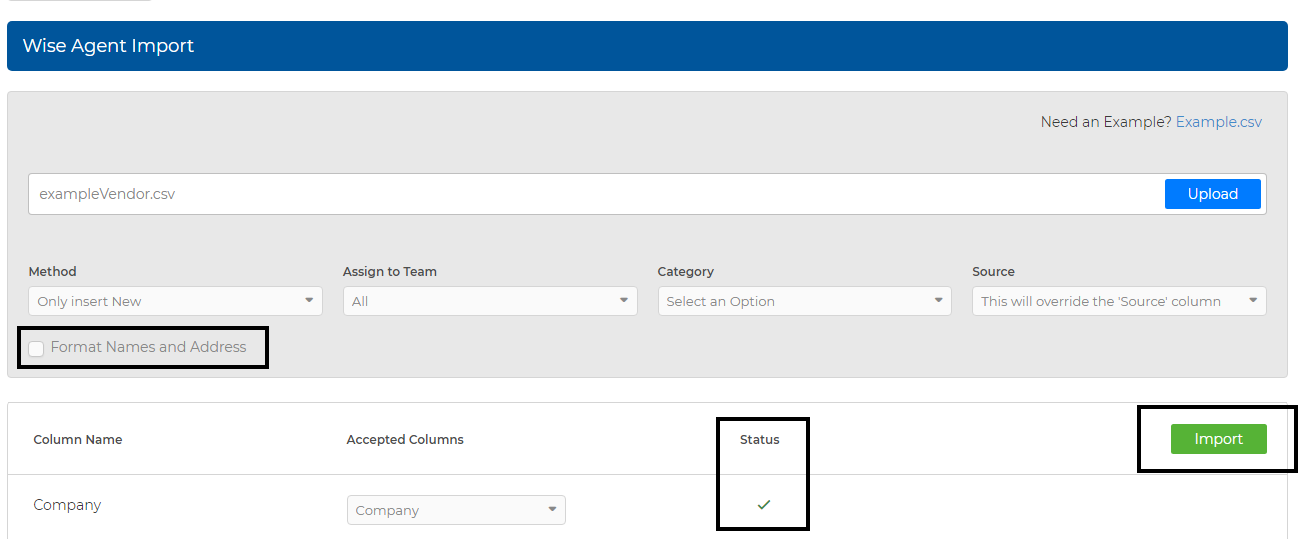
6. By checking off the "Format Names," once the contacts are imported, the first letter of the first and last names will be capitalized. Also, ensure a green check mark on the status column, then hit import.
Click here to watch a short Tutorial!