

Logo

What are you looking for?

Get help straight from our team...

Import: Example CSV File

Contact Management

Import: Example CSV File

In this article, we’ll guide you step-by-step on how to locate our example CSV file, ensuring you have a solid foundation for your imports. By utilizing this example, you’ll streamline your data entry and enhance your overall efficiency. Dive in to discover how easy it is to get started!

Last updated on 24 Dec, 2024

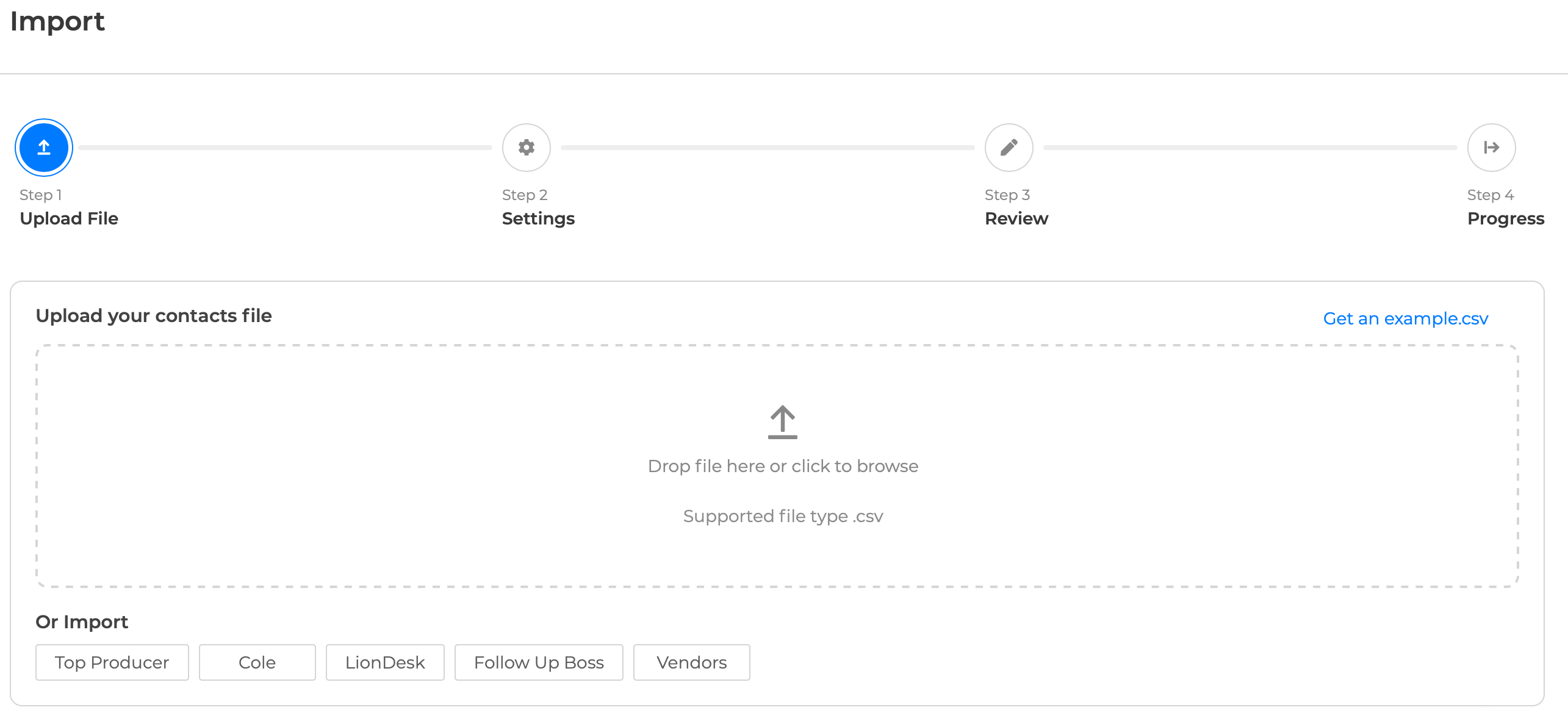
Our import function requires files to be in a particular format, containing the appropriate column headings. If you'd like to format your files for import, you can use our example spreadsheet.

1. Once signed into your Wise Agent account, select "Contacts" then "Import/Export".
2. Under "Import Contacts", select "Wise Agent".
3. On the right-hand side, click on "example.csv" or click HERE to download our example file  
Image

NOTE: To import successfully - your file name cannot contain any symbols or spaces. 

Wise Agent Blog - Transfer Data to Wise Agent

Did you find this article helpful?
Previous

How To Purchase Additional WiseSMS Texting Credits

Next