

Adding Inside Team Members
Login to your Wise Agent account.
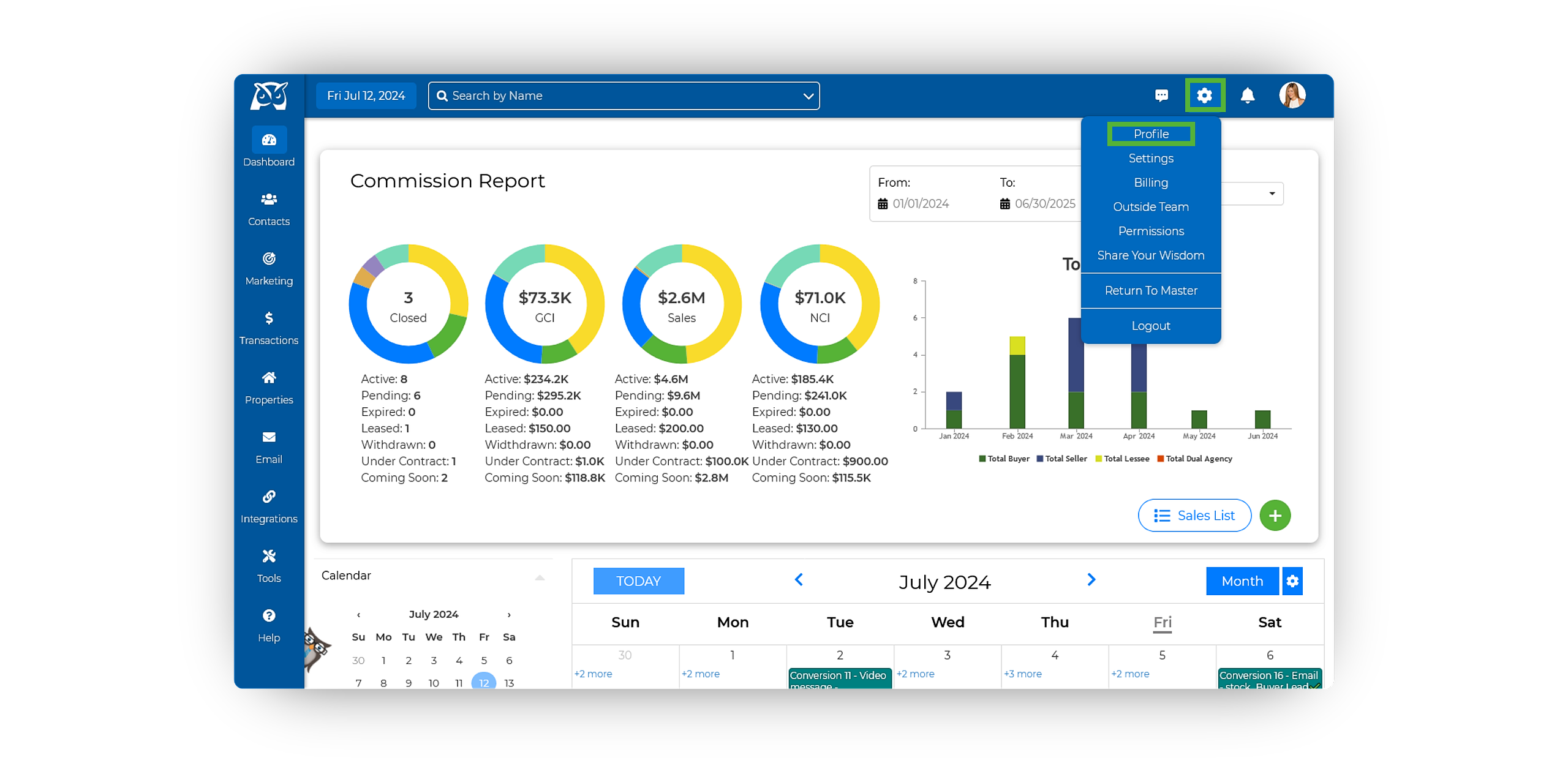
In the upper right-hand corner, select the Gear Icon ➜ Profile.
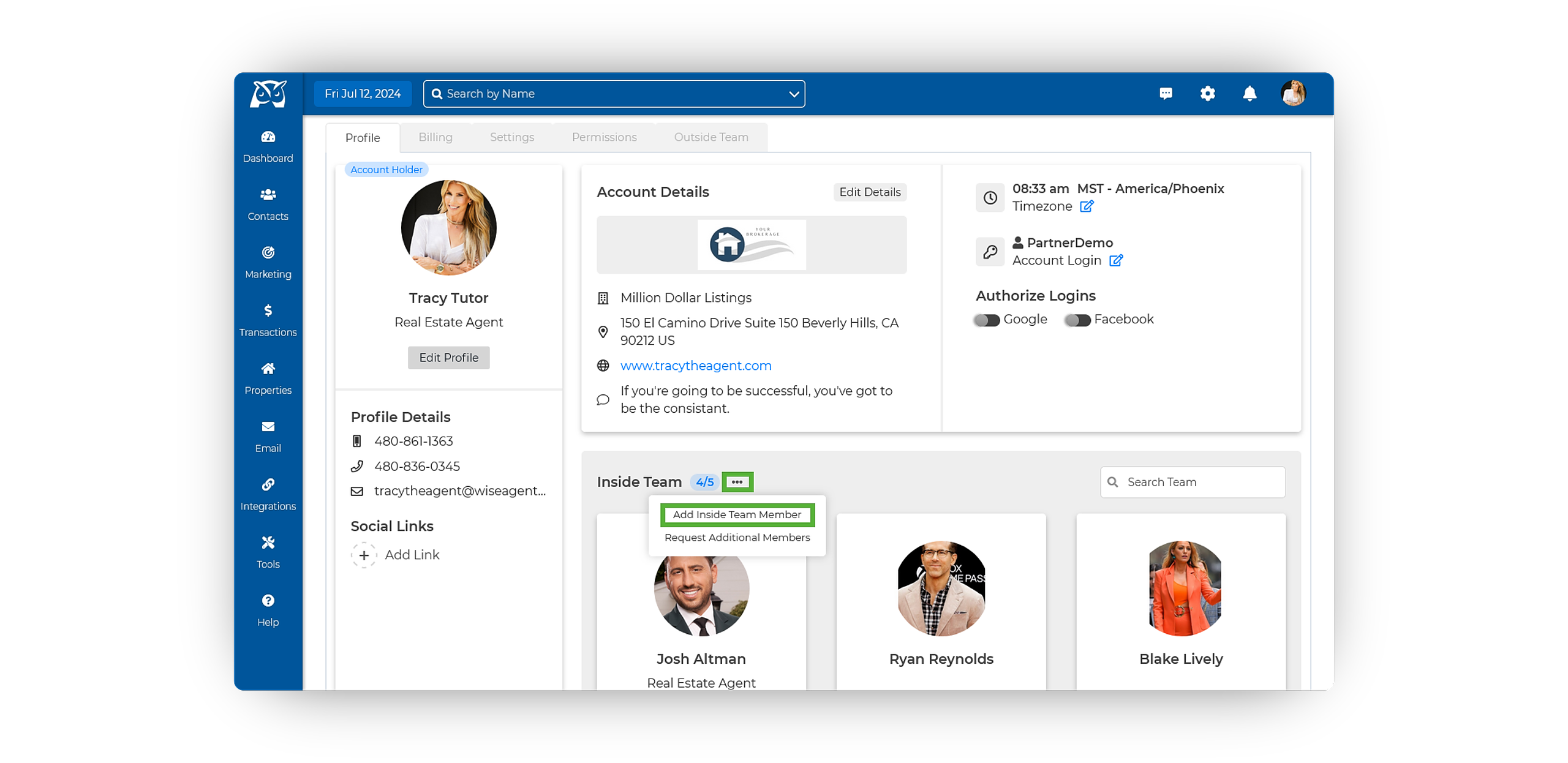
On your profile, locate the Inside Team section beneath your Account Details.
To the right of Inside Team, click the •••, then select Add Inside Team Member.
Input the team member's profile details, then click Save.
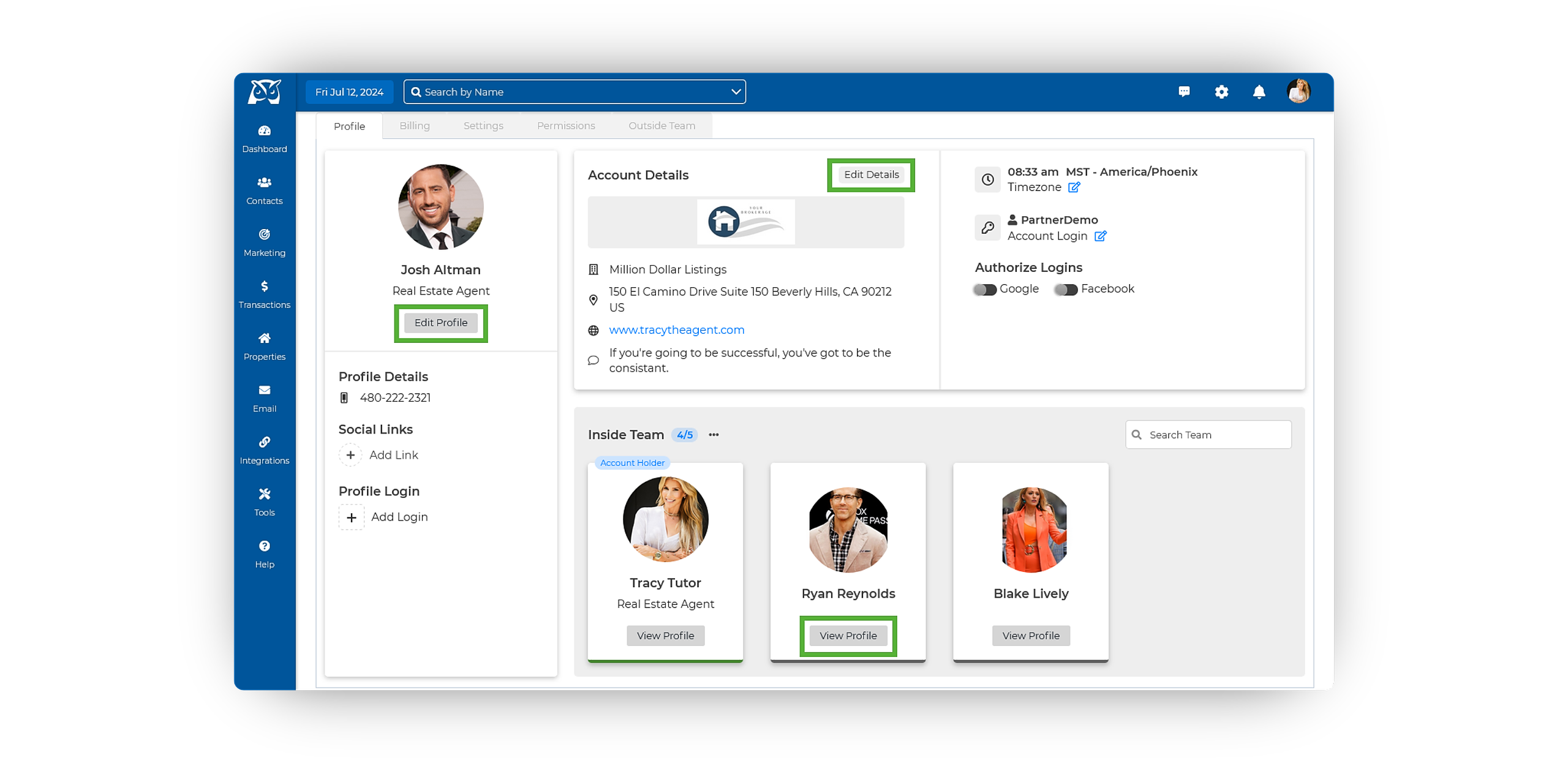
Once saved, click View Profile beneath your inside team member's card to edit/ modify their profile details!
Purchasing A Login For Your Inside Team Members
💡 Did you know you can create custom logins with set permissions for your individual Inside Team Members?
The cost for the login per team member is $20/month if you pay the current rate of $49, or equal to your subscription if paying $32 or less. Switching to the new pricing plan is recommended for potential savings on additional logins.
Login to your Wise Agent account.
In the upper right-hand corner, select the Gear Icon ➜ Profile.
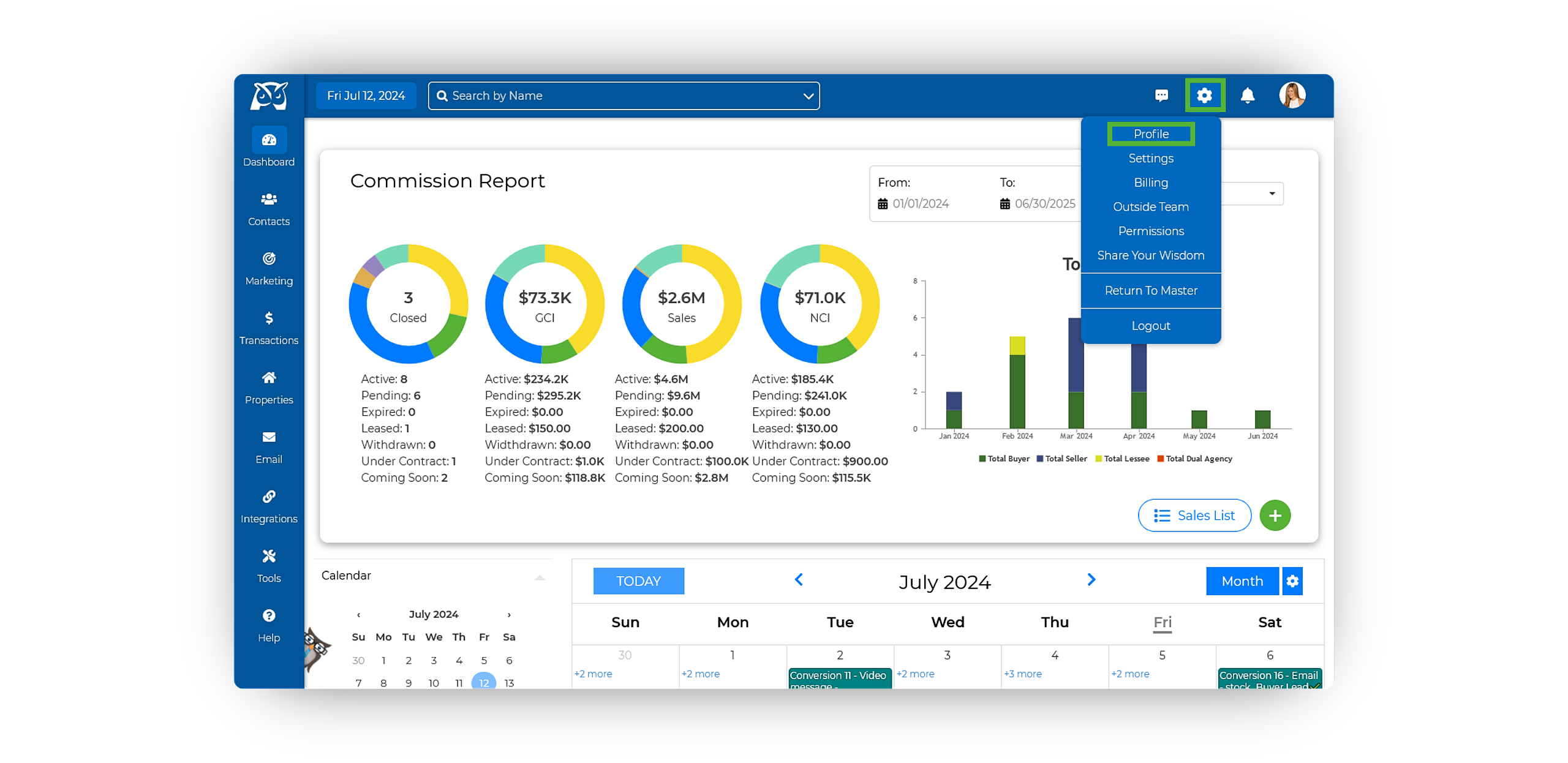
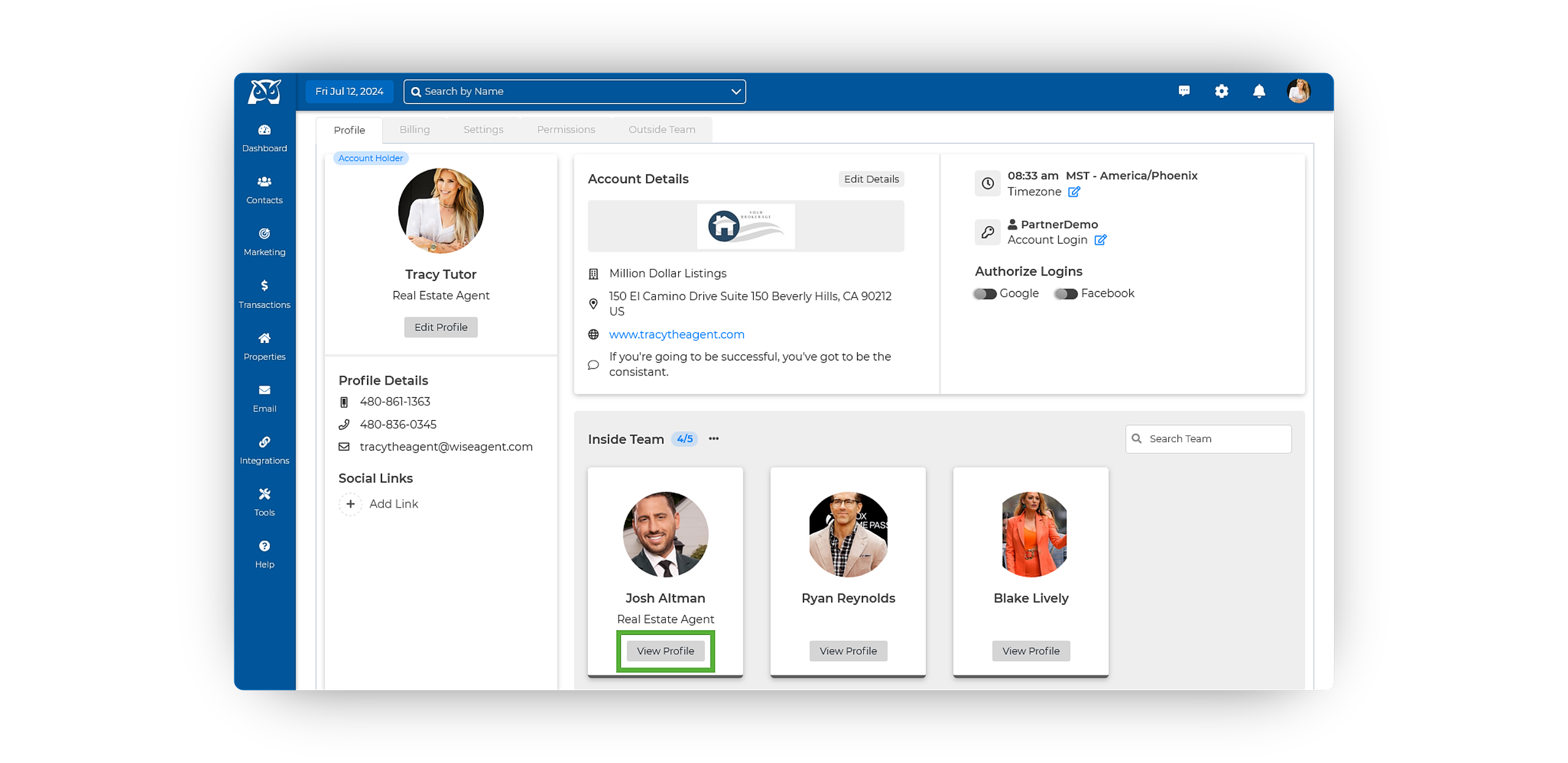
On your profile, locate the Inside Team section beneath your Account Details, then click View Profile beneath the desired Inside Team member's card.
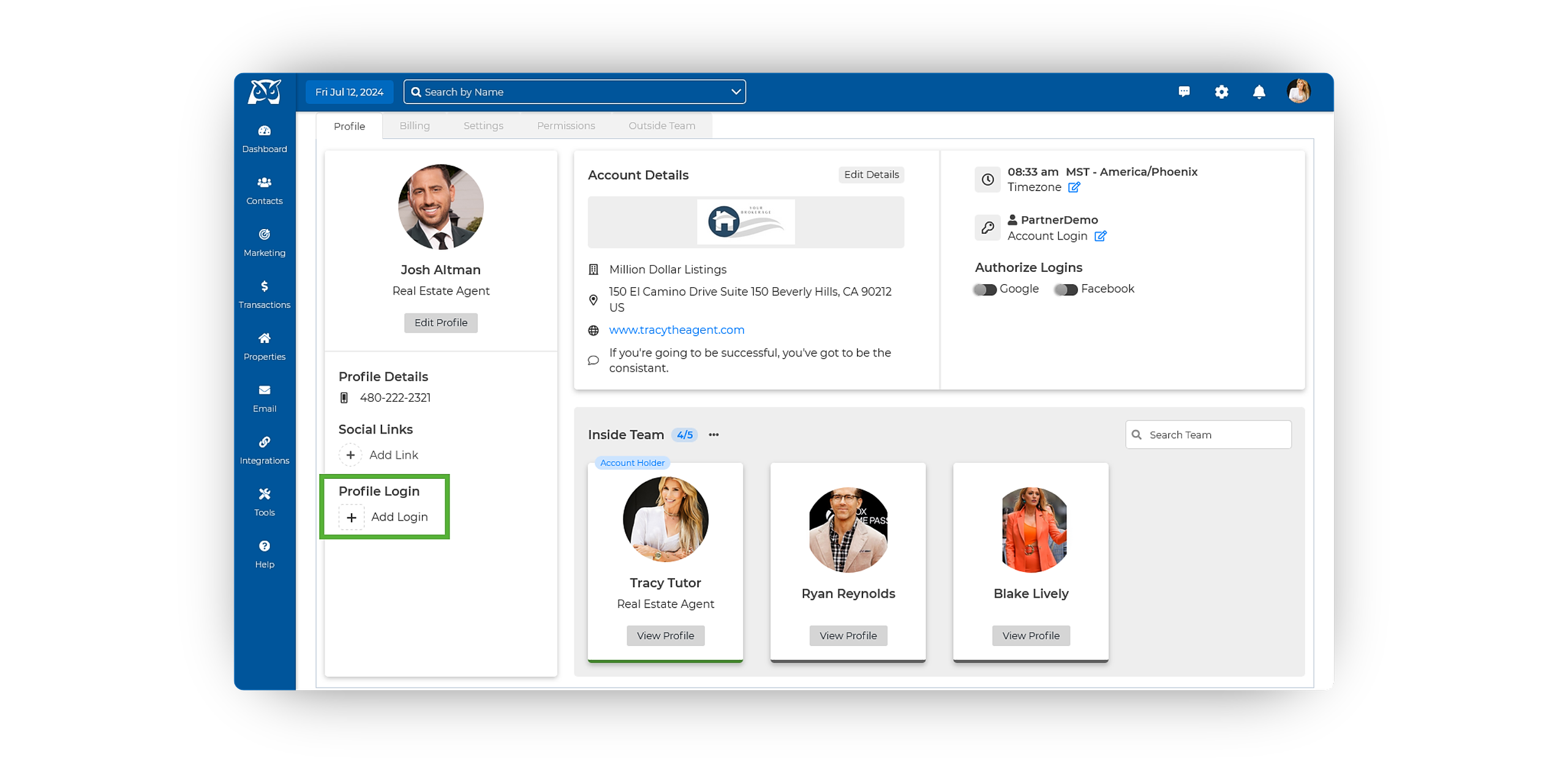
Beneath the Profile Details, click on the plus sign to the left of Add Login.
Enter the Inside Team Member's email, desired password, & their mobile phone.
💡 Important To Note: The phone number entered here will be used as the recovery phone if an inside team member needs to reset their password. Additionally, the email entered will serve as their "username" for logging in.
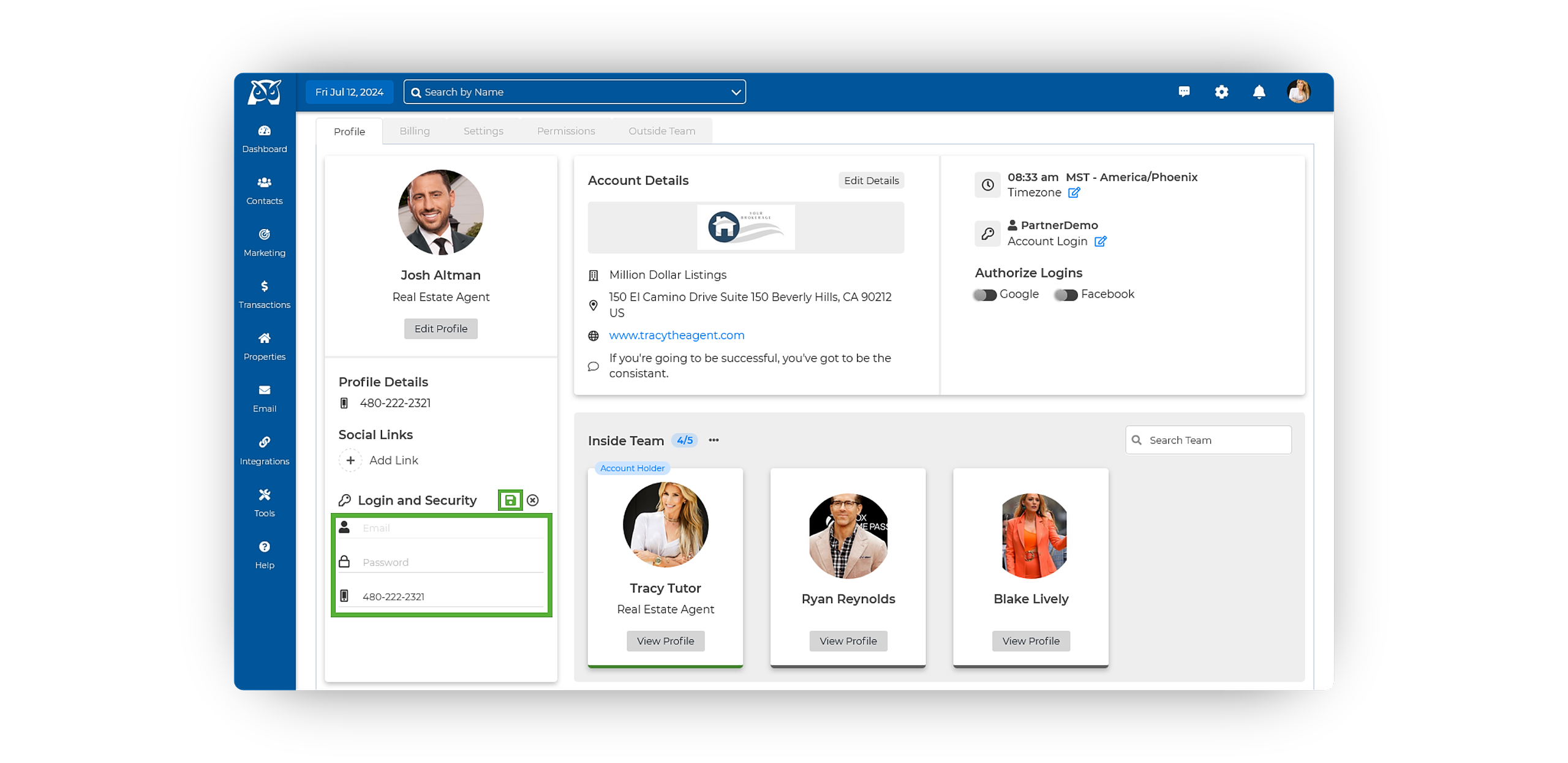
Once their details have been entered, click Save & that's it!