

From the sidebar, select Contacts ➜ Contact List.
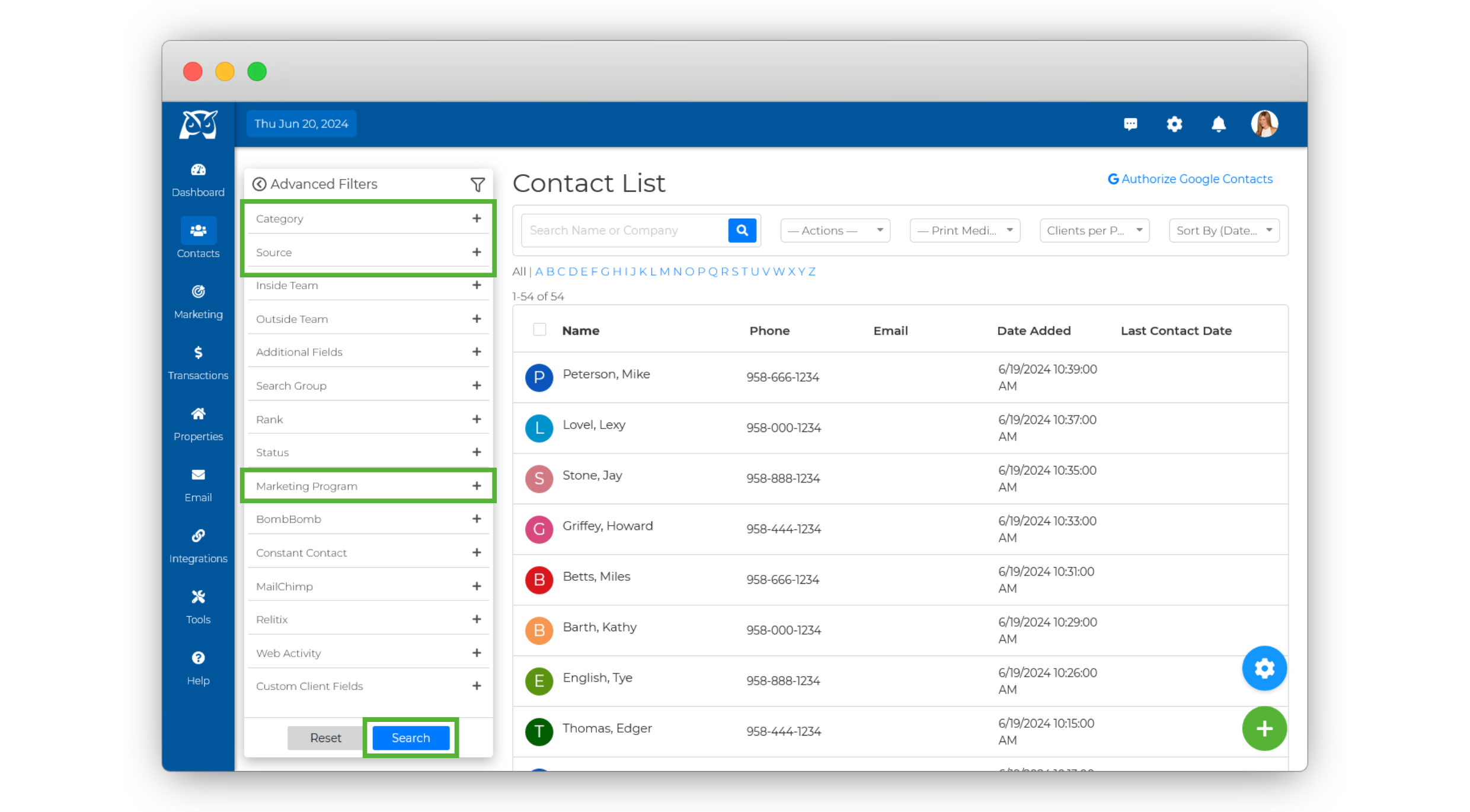
Use the Advanced Filters on the left side of your contact list to filter by the desired category, source, or marketing program of the contacts you wish to remove. Click Search to filter your contacts after making your selection.
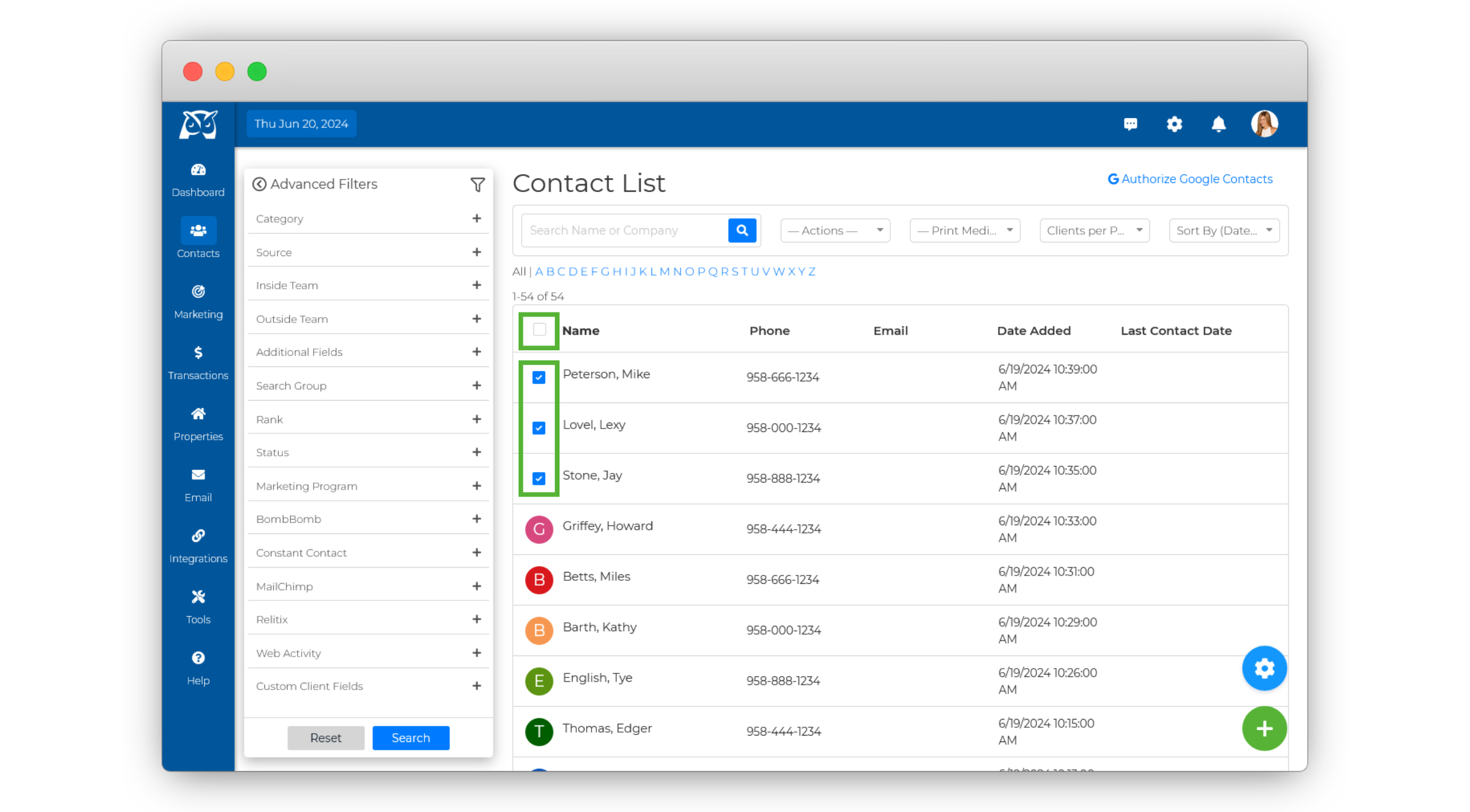
Check the boxes next to the contacts you wish to remove.
💡 Important To Note: You can only process one page at a time. After selecting contacts on one page, execute the necessary actions before navigating to the next page. If you navigate away without doing so, your previous selections will be lost.
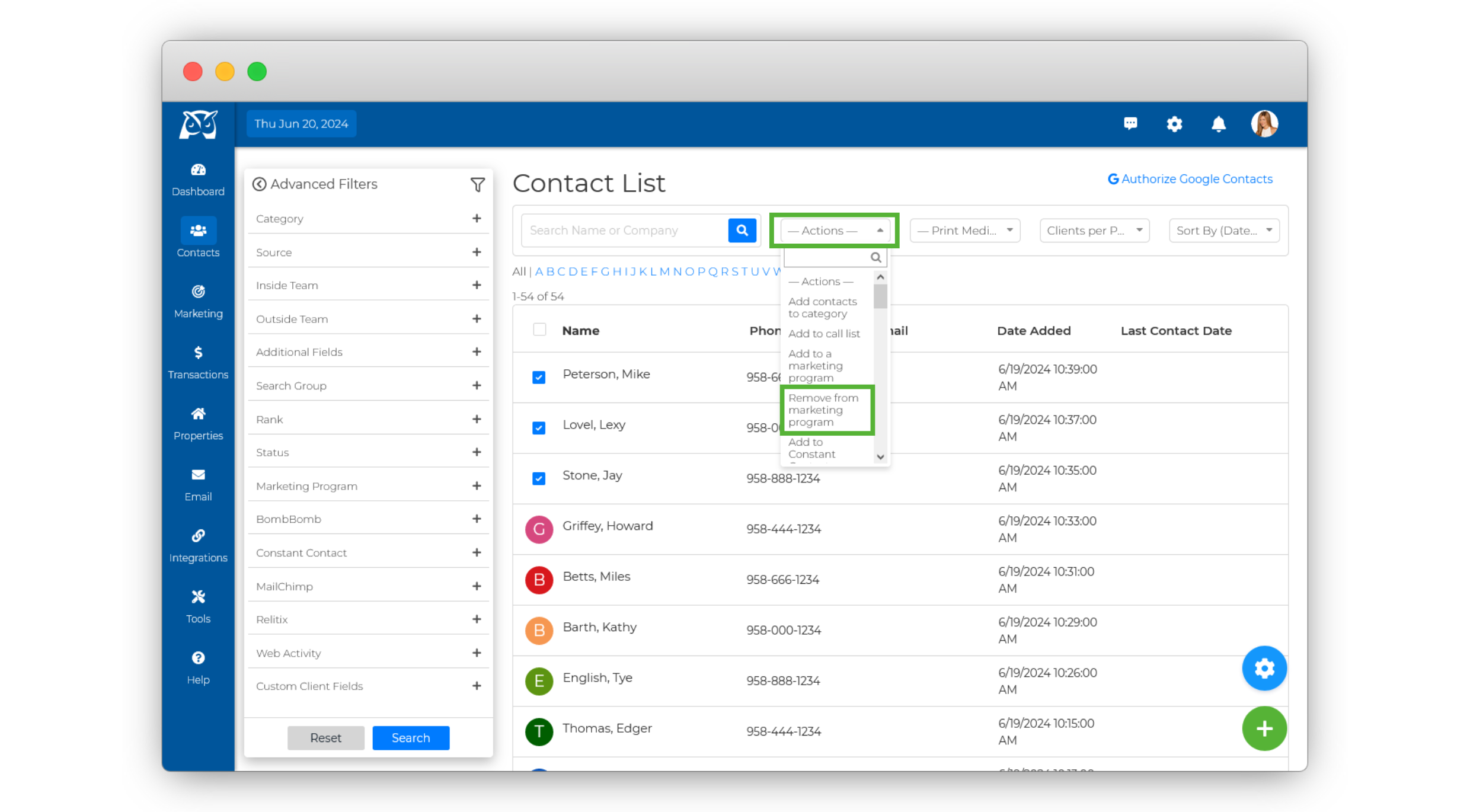
Click the Actions drop-down located at the top of your contact list, then select Remove From Marketing Program.
Once selected, the Remove From Marketing Program pop-up will appear. Click on the drop-down menu and choose the drip campaign you wish to remove the selected contacts from.
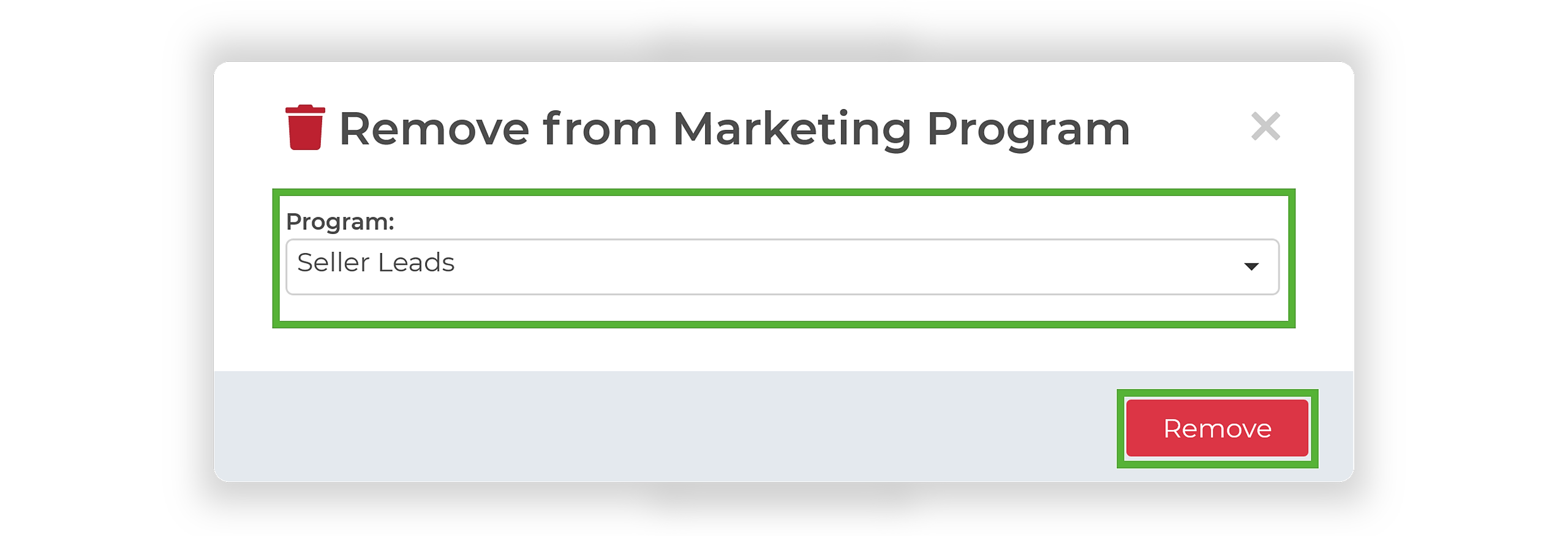
Click Remove, and that's it!