

To activate the Google Calendar Sync option:
1. log in to your Wise Agent account.
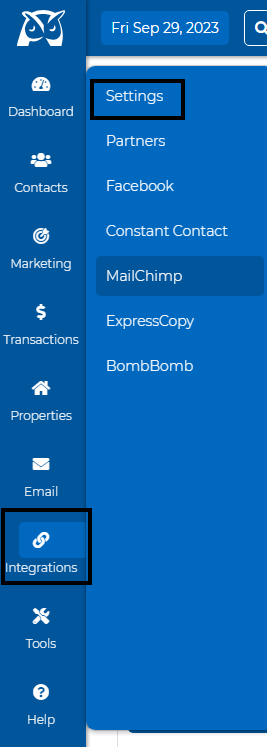
2. Click on the Integrations tab, then settings, and scroll down to the bottom left side.
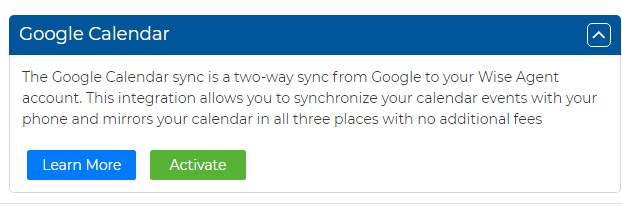
3. Click on the "Google Calendar" tab and then click on the "Activate" button.
4. log in to your Google (Gmail) account to allow Wise Agent to connect with your Google Calendar.
NOTE: It may take a few moments for your phone / Google account to update with all of the calendar items saved to your Wise Agent account and vice versa.
You will also need to make sure that the timezone on your Profile page has been selected.
Wise Agent Blog - Google Sync
Click here to Watch a short video on how to sync your Google Calendar
Note: The Google calendar sync only goes back 30 days. So if there are repeating events that started way before that, those will not appear on the Wise Agent calendar. You will need to edit and save in Google to have those show up in Google Calendar.