

NOTE: You will want to load the photos to the PROPERTY, not the flyer. Wise Agent will then pull the photos from the property automatically on the flyer.
1. Click on "Properties" and then "Property List".
2. Click on the address of the property you would like to use.
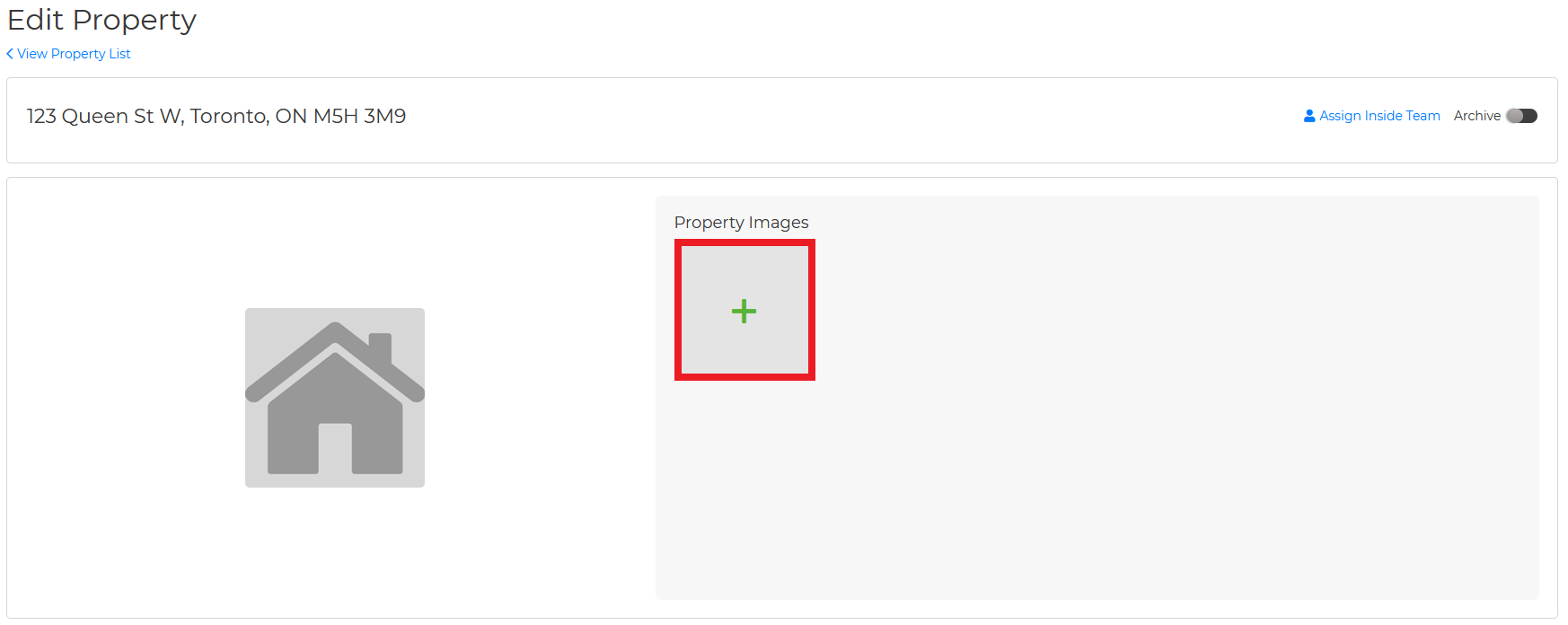
3. To add the property photos, click on the green +.
4. Click the shaded "Drop Files to upload" box and select from your photos. You can select multiple photos at once by holding down the CTRL button on your keyboard and selecting your photos.
5. Hit the "open" button, and then select "Upload".
Click here to view a video tutorial.