

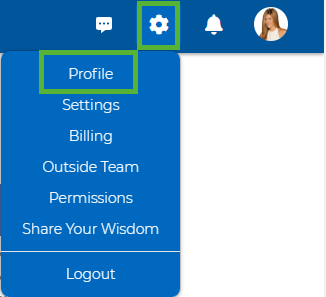
1. Click the “Gear Icon” at the top right of your home screen, and select “Profile” from the drop-down menu.
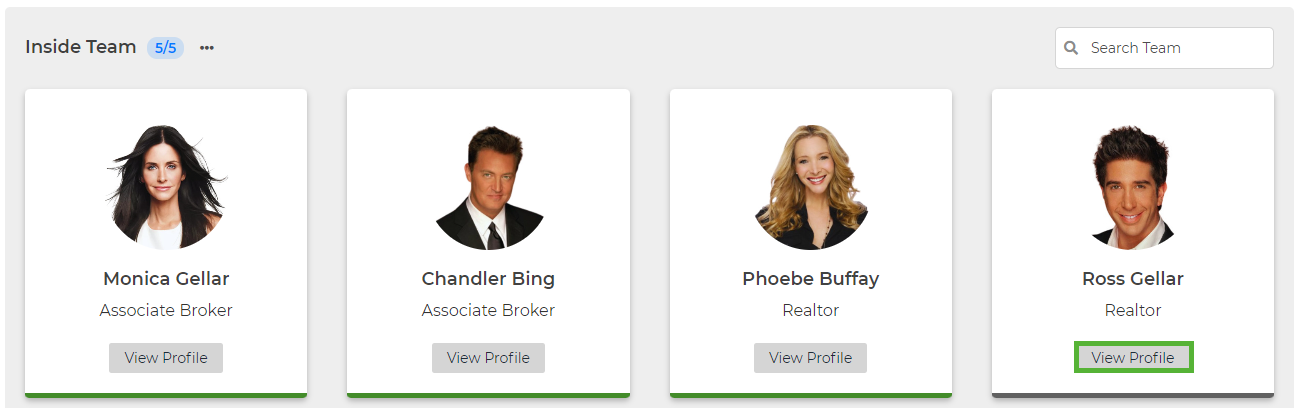
2. Scroll down to the Inside Team Member you’d like to create a login for and click “View Profile”
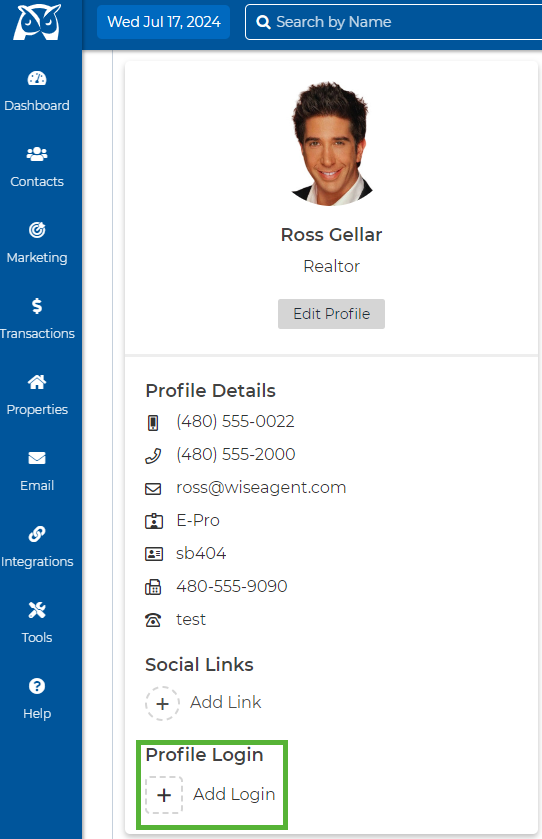
3. This will bring you to their profile, where you can see some of their details, choose to edit any details by selecting “Edit Profile” or click the “Add Login” button.
4. Create a password for the Inside Team Member and hit the green disc in the upper right corner.
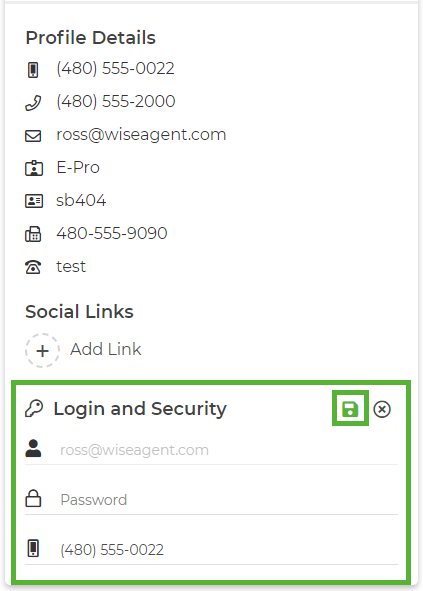
Note: The email will be locked to the email already saved from the inside team member’s profile.
5. From here, you will be redirected to your Billing page to confirm the $20/monthly payment.