

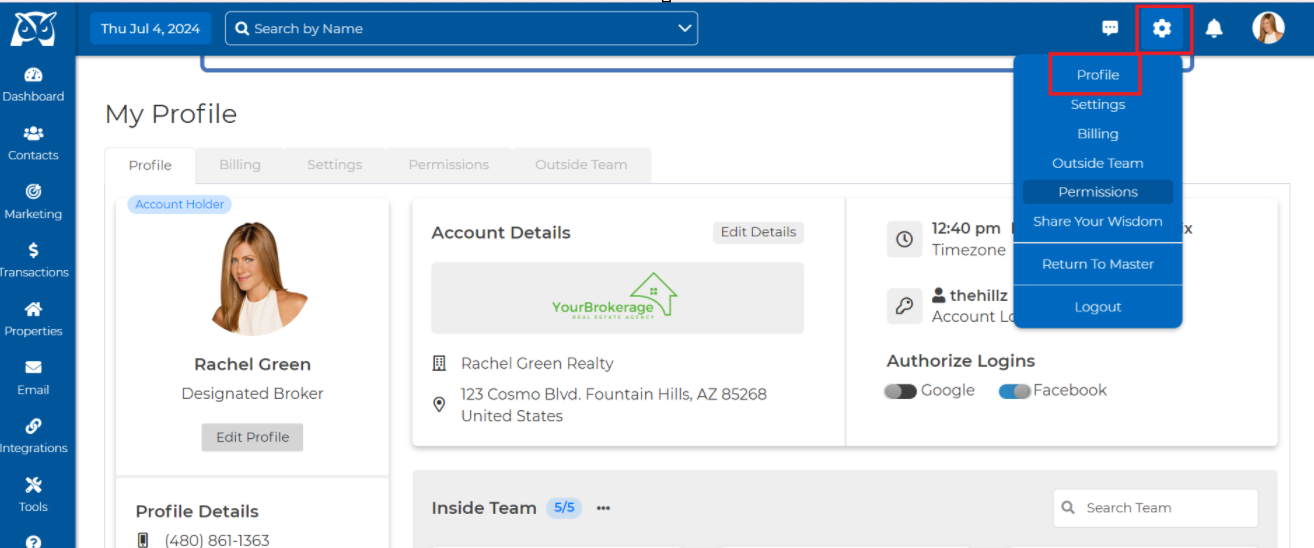
1. Click the Gear on the top right side of the page and click on Profile.
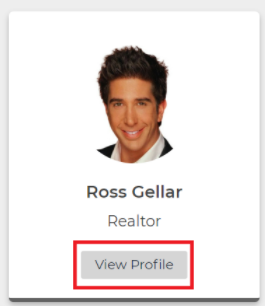
2. Scroll down to the desired team member, and click view profile.
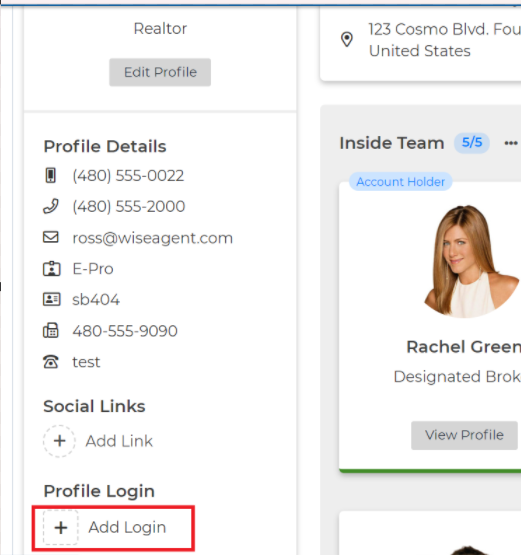
3. Click the Add Login button - Verify the email address and type a password and a recovery phone number. Hit the Save button.
4. Click the “Set Up Payment” button that is now in place of the “Add Login” button.
5. Follow the prompts to enter your credit card. It will add $20 to your normal monthly payment for each extra login.