

On the side navigation bar, select "Contacts" then select "Contacts List".
Once you are on your "Contact List", select the contacts you wish to assign to your inside team member. (NOTE: you must assign the contacts you have selected on one page before moving to your next page of contacts. If you move onto the next page without assigning the contacts, the previous page's selections will become unselected.)
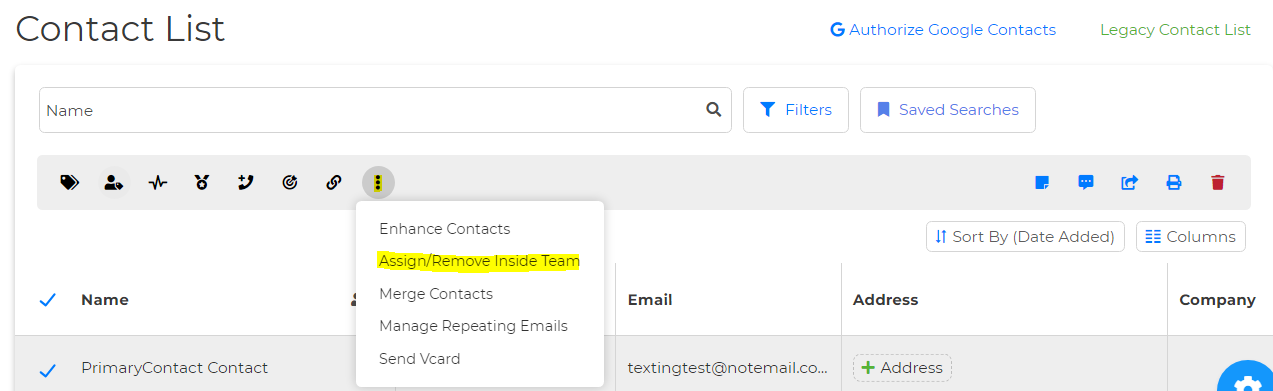
Once you have selected your contacts, a pop-up box will appear. Then click the three dots for more options, and select "Assign/Remove Inside Team."
You will be prompted to select an inside team member. Select the team member you wish to assign the contacts and that's it!