
Build guides from your existing vendor list.
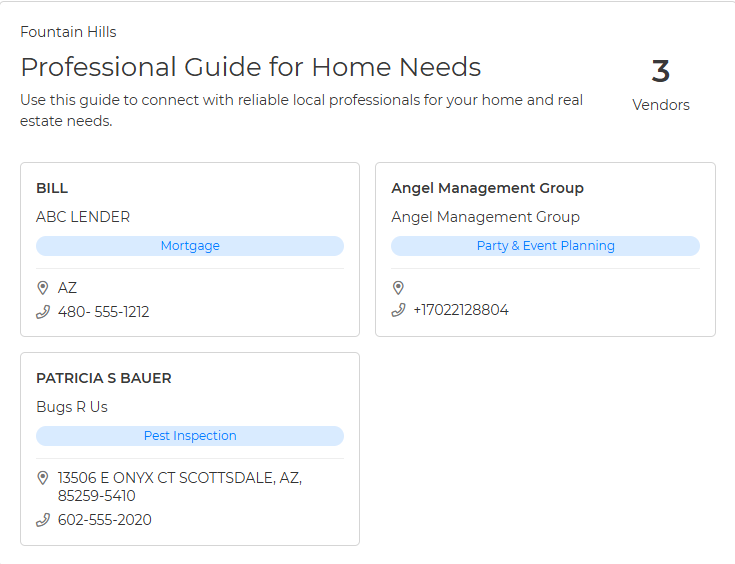
Choose from Classic, Cards, or Compact layout.
Use branding options to match the right team member.
Share a public link or save as a PDF to print.
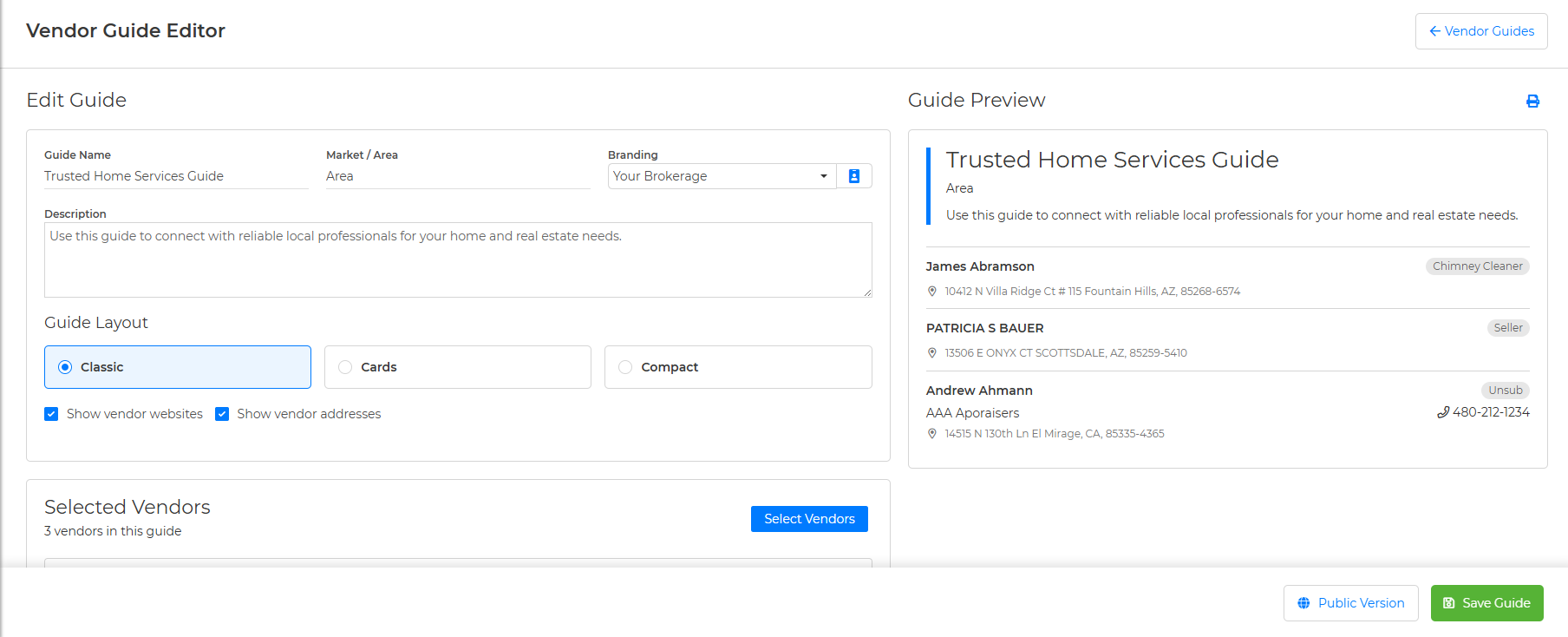
On the left under "Create Guide" is where you can edit or fill in details. You can give the guide a name, market/area, and choose the branding (email signature) you'd like attached to the guide. Fill out a description, and choose a layout of Classic, Cards, or Compact.
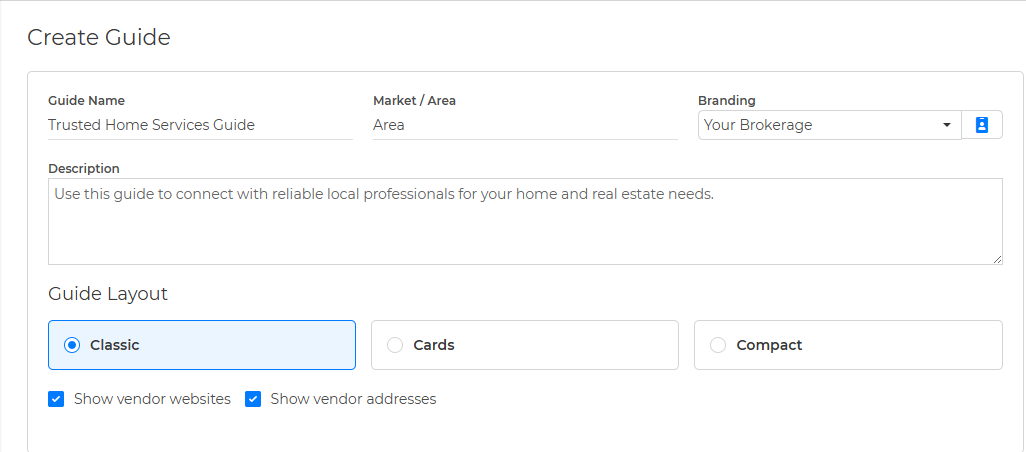
You can click "Select Vendors" under "Selected Vendors" to choose which ones to include in your guide. You can use the filters or Sort By to find specific vendors on your list easily. You can also change the order of the vendors by clicking the up and down arrows under Actions.
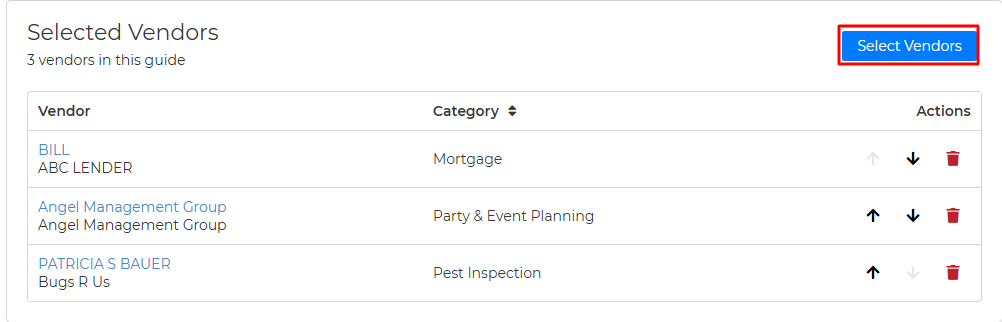
On the right side of the page is your "Guide Preview" to see what you've created.
Classic View:
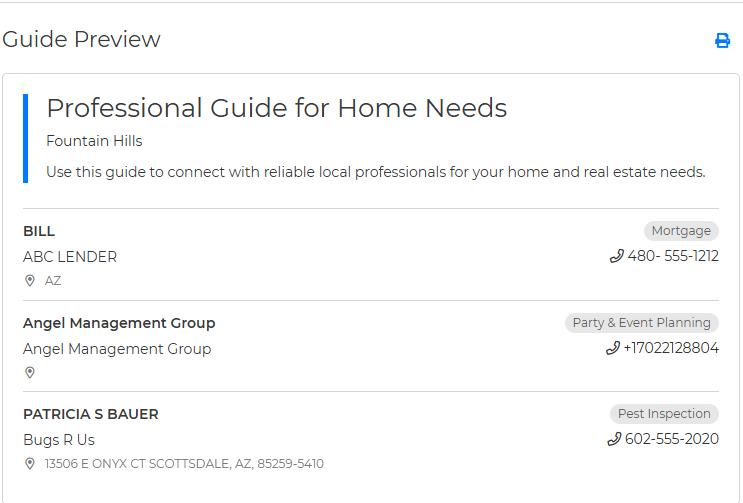
Cards:
Compact:
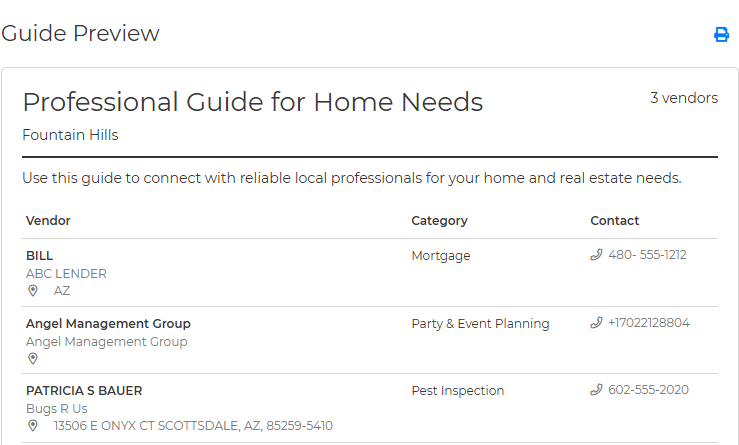
You can click the blue print icon at the top of Guide Preview to save a PDF/print your Guide.

At the bottom of the page, select "Public Version" to get a link or shareable version of the guide. Click "Save Guide" to save it.