There are two ways you can delete a contact from your Wise Agent account.
To Delete One Contact:
On the side navigation bar click Contacts then, select "Contact List".
Once on your contact list, locate the contact you wish to delete & click on their name to enter their "Contact Summary Page".
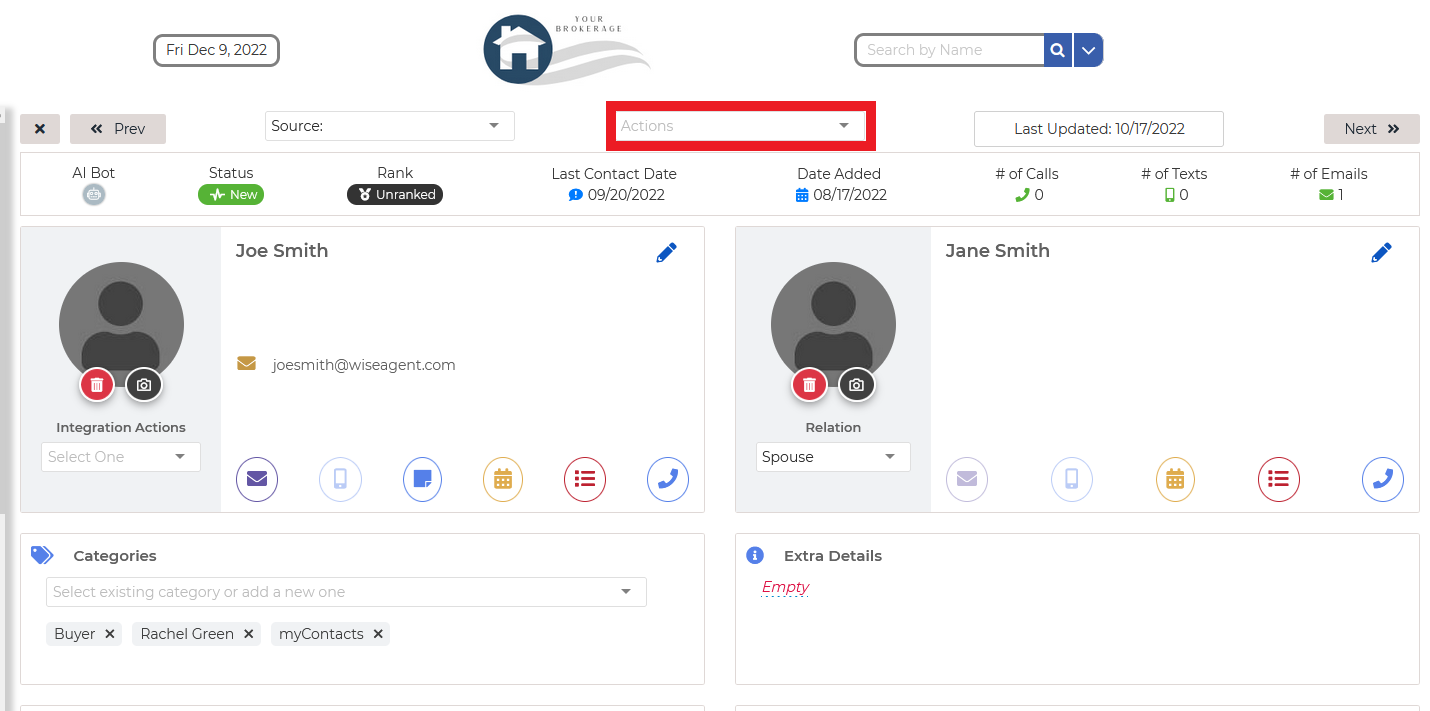
Once on their contact summary, locate the "Actions" drop-down at the top of the page, then select the action "Delete Contact".
To Delete Multiple Contacts:
On the side navigation bar click Contacts then, select "Contact List".
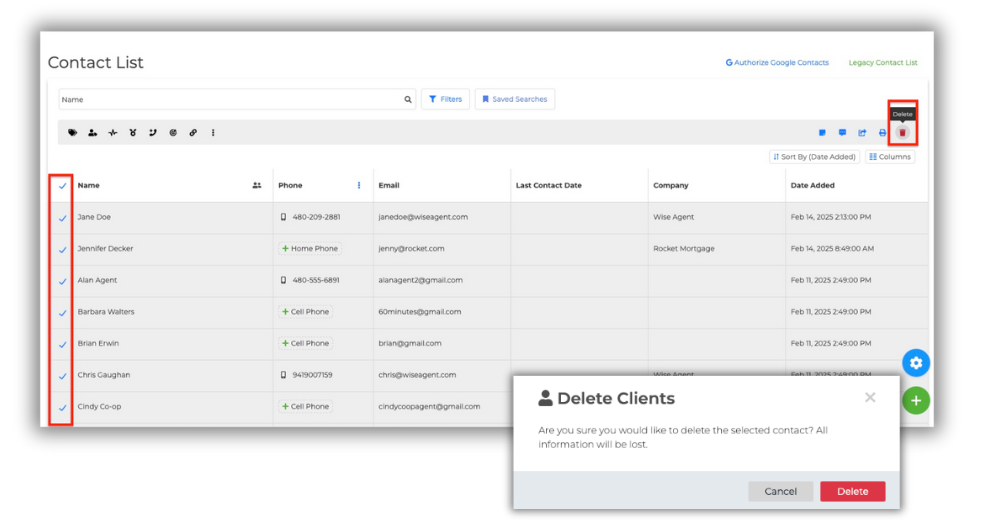
From your contact list, select the contacts you wish to delete.
Locate the red "trash can" icon at the top right-hand side of your contact list and click it to delete the selected contacts.
You will then see a confirmation message, click delete to complete your action.