

Do Not Contact (DNC)
The DNC feature allows you to control how a contact is restricted from phone and/or email communication.
DNC Types
When marking a contact as Do Not Contact, you can choose from three options:
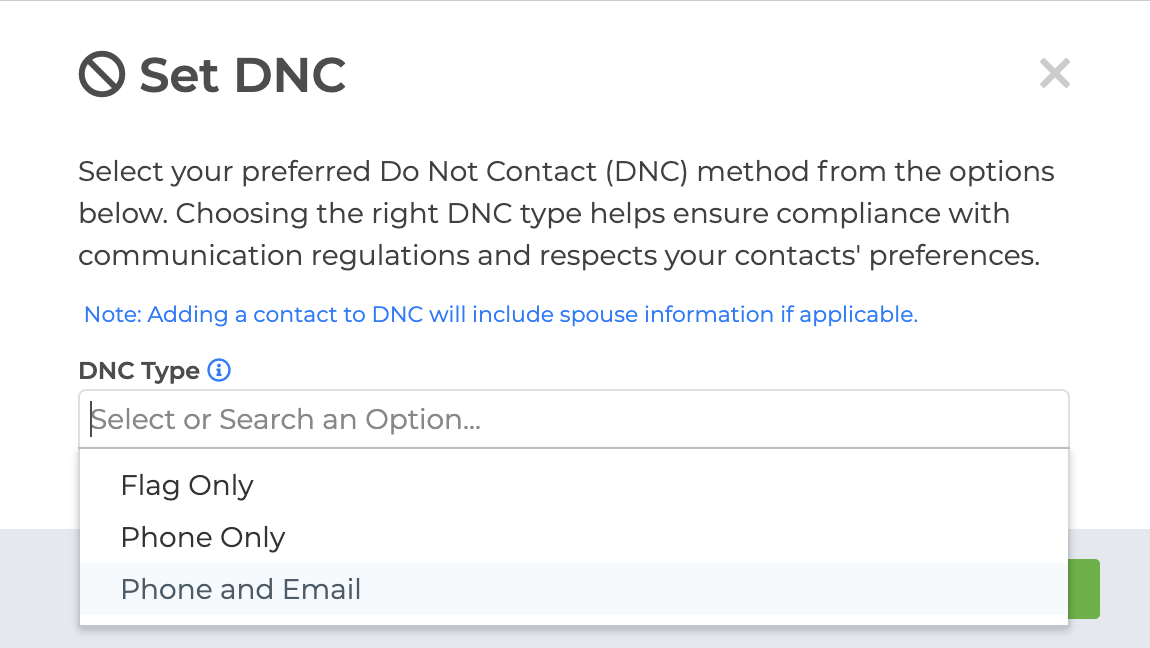
Flag Only
Visual indicator only
Does not block emails or text messages
Used for internal record keeping
Phone Only
Adds the contact’s main and spouse cell numbers to the SMS blacklist
Prevents texting
Prevents dialing through the Built-in Power Dialer
Phone & Email
Adds phone numbers to the SMS blacklist
Adds email addresses to the email blacklist
Blocks all outgoing email and SMS communication
Prevents dialing through the Built-In Power Dialer
How to Add a Contact to DNC
There are two different ways to add your contacts to the DNC.
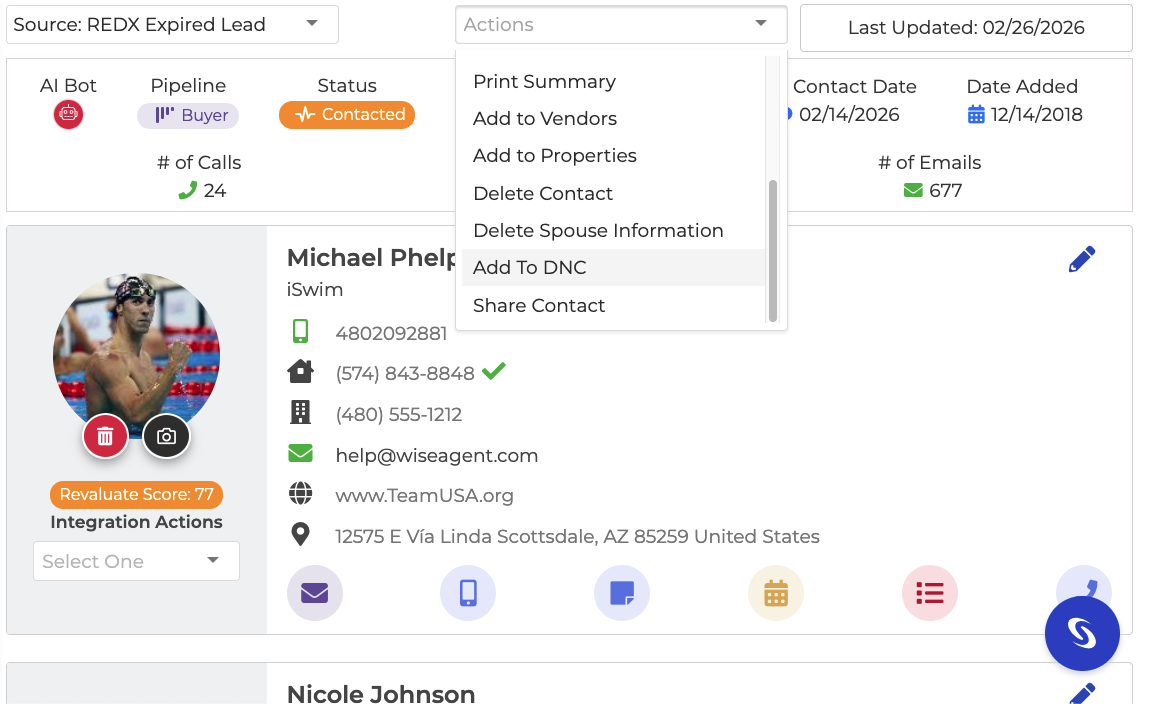
From the Contact Summary Page
Click the Actions dropdown.
Select "Add to DNC".
Choose the DNC Type.
Save.
A red DNC banner will appear at the top of the contact record.
From the Contact List Page (multiple clients)
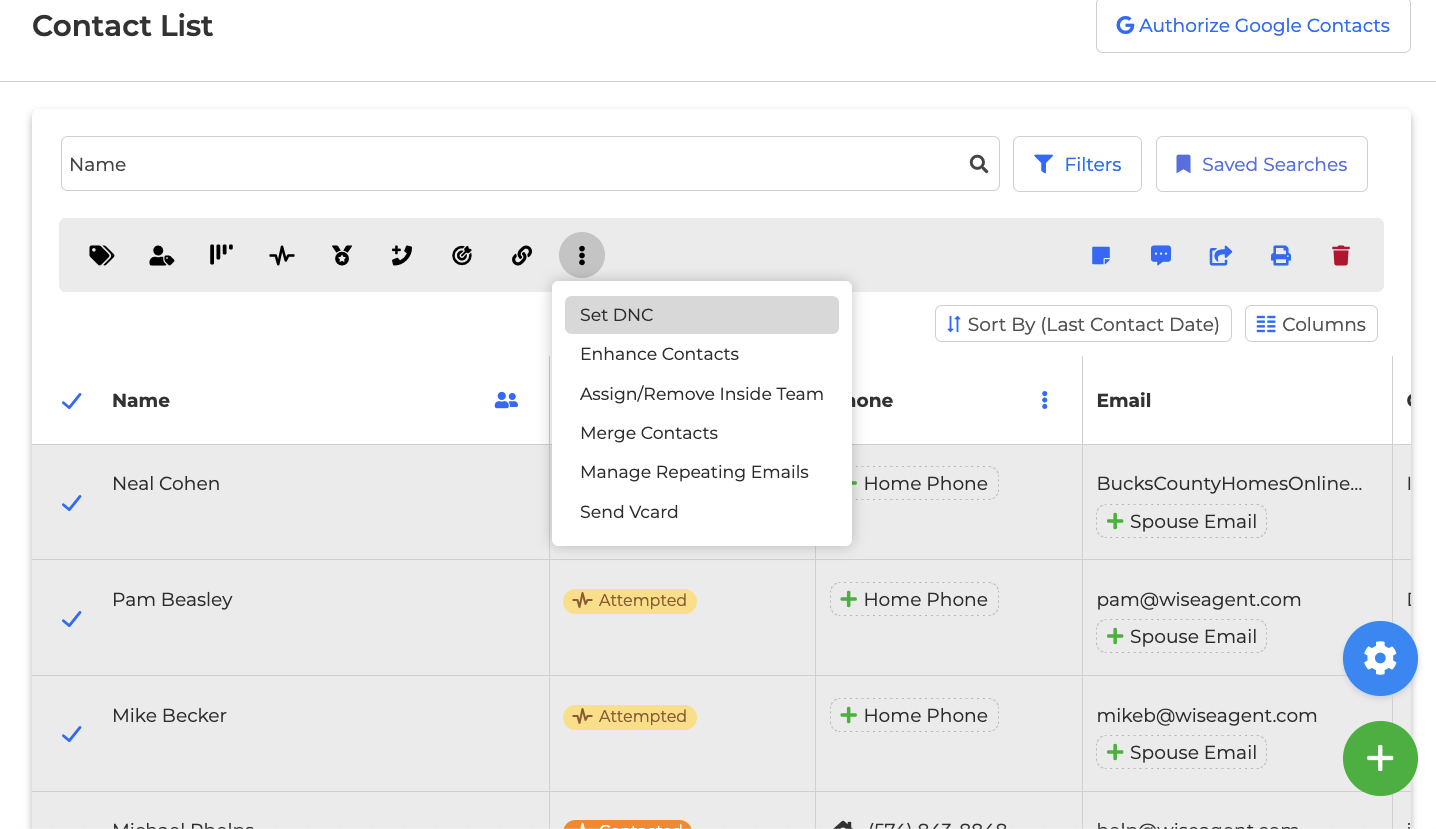
Go to Contacts --> Contact List
Select the name of the contacts you wish to add to the DNC
Click the Elipses "More" menu icon.
Select Set DNC.
Choose the DNC Type.
Save.
How to Identify DNC Contacts in the System
When contacts have been added to the DNC regardless of the DNC type there will be a few idenicators on the contact record.
On the Call List:
Contacts added to the DNC with display a red DNC pill when you're viewing your main Call List. When you are in an active call session the "Call In Progress" view will also have a red DNC banner across the main contact record.
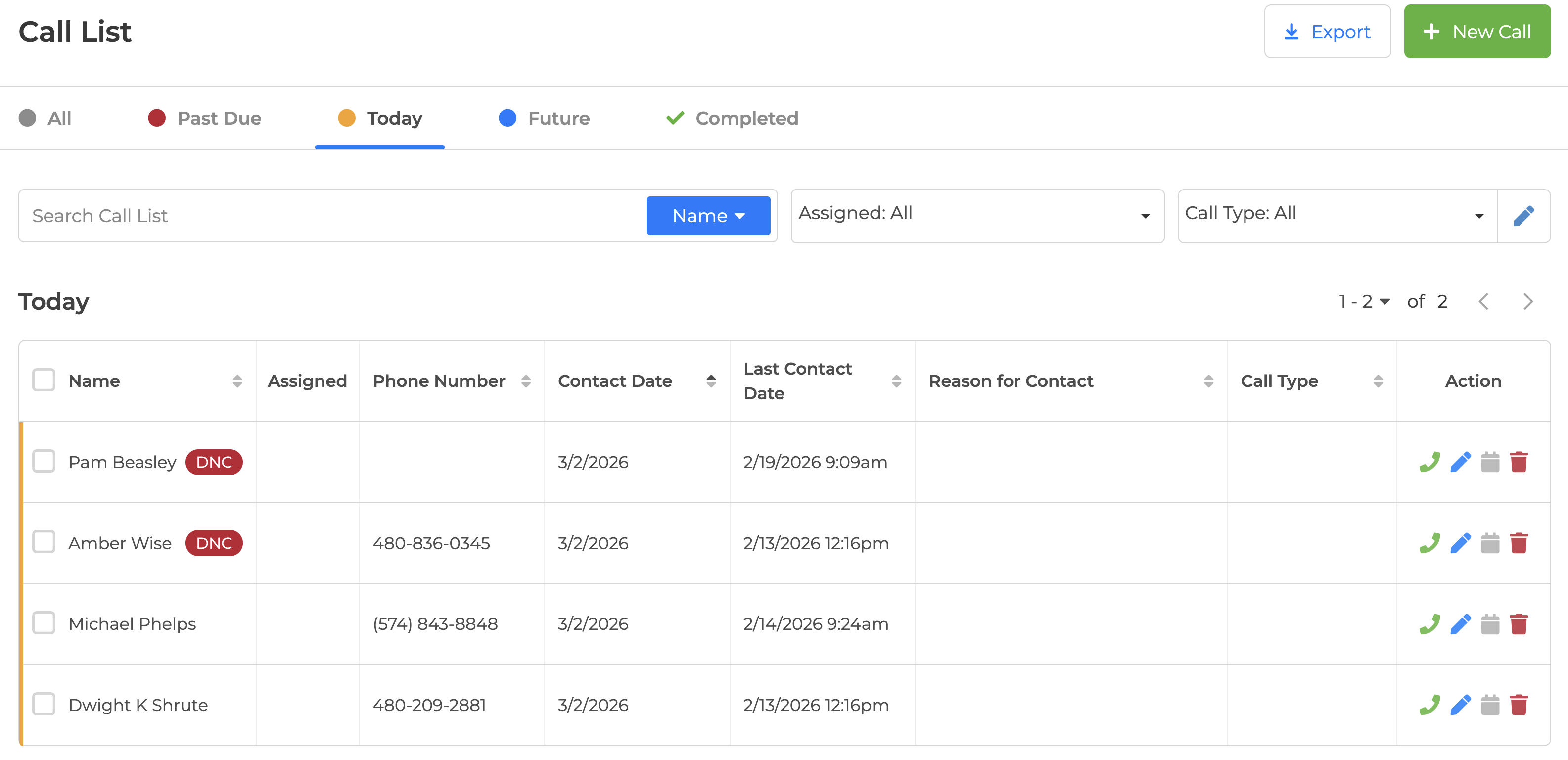
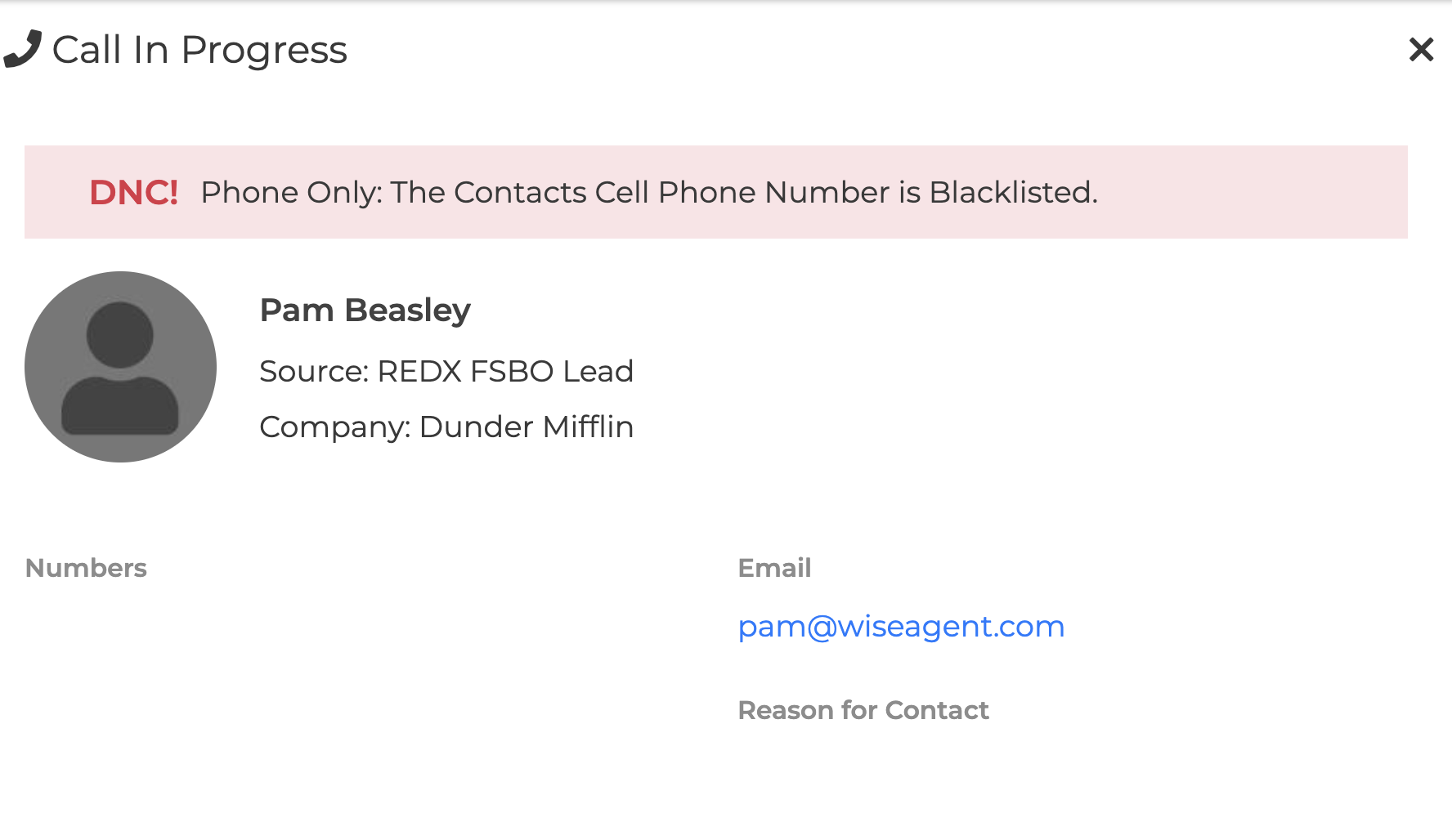
⚠️ Contacts added to either Phone DNC types cannot be dialed through the Built-in Power Dialer.
On the Contact List:
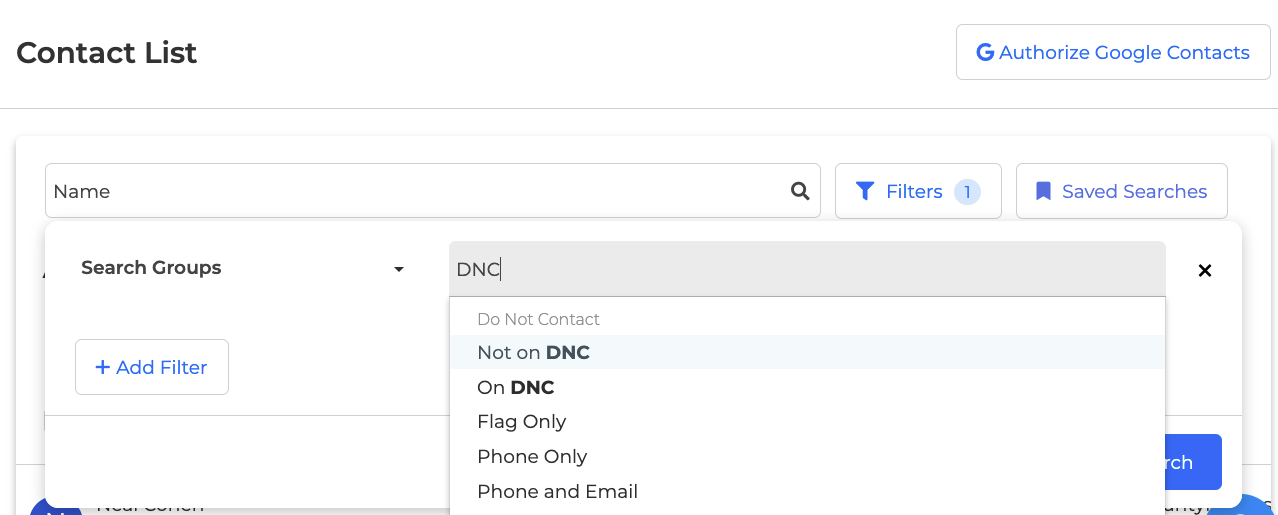
You can easily find DNC contacts by using the search Filters to filter clients by their DNC status.
Not On DNC
On DNC
Flag Only
Phone Only
Phone & Email
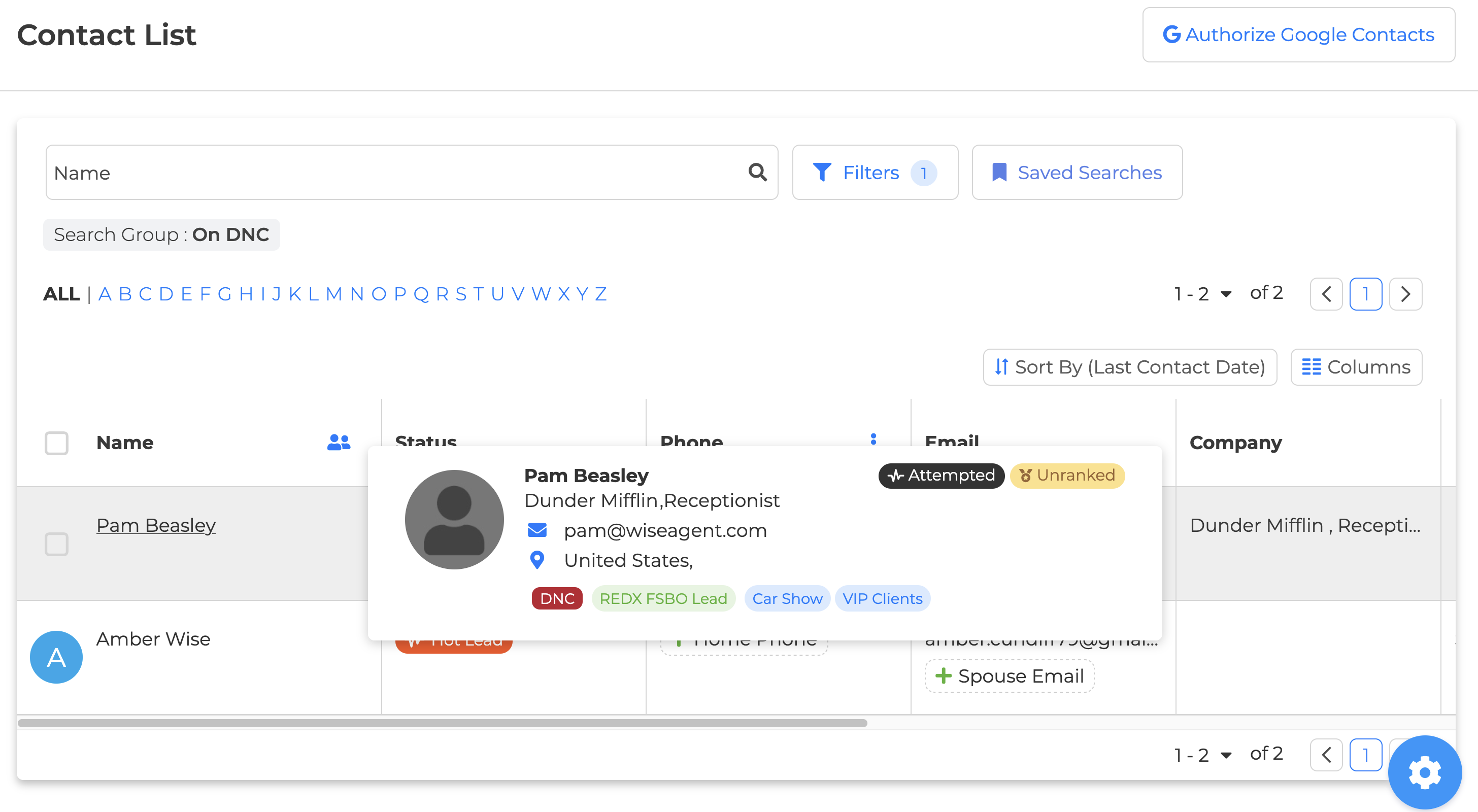
You can also identify DNC contacts on the Contact List page by hovering over a contact's name. A red DNC pill will appear for contacts who have been added to the DNC.
How to Edit or Remove DNC
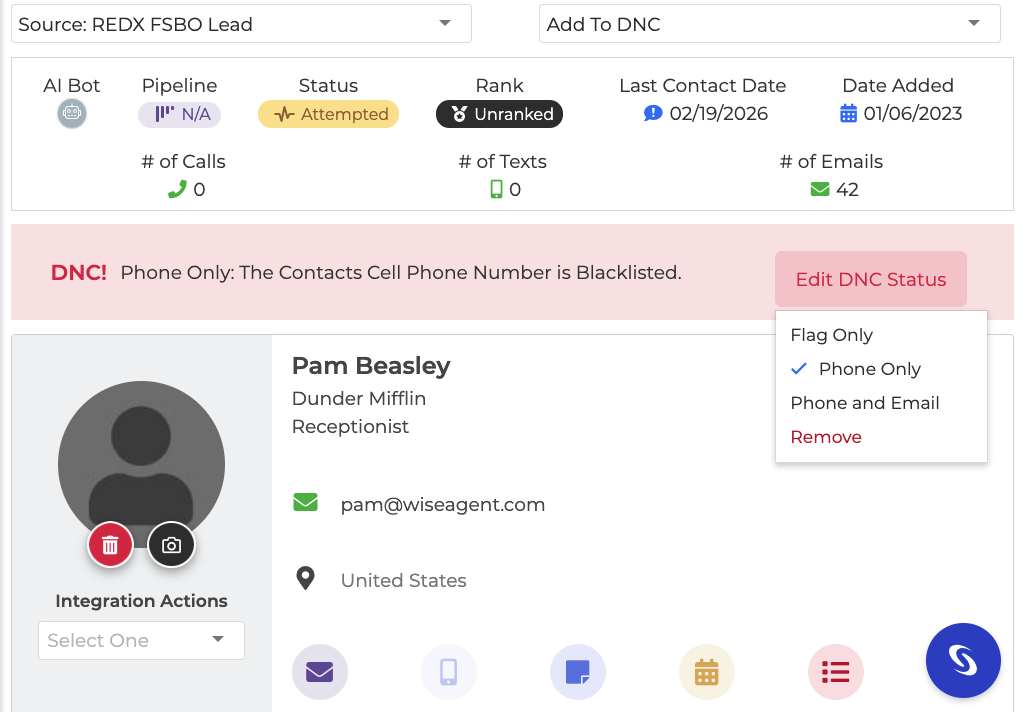
If a contact’s communication preferences change you can easily update their DNC status from the Contact Summary page:
Open the contact record.
Click the red DNC banner.
Update the DNC type or remove it.
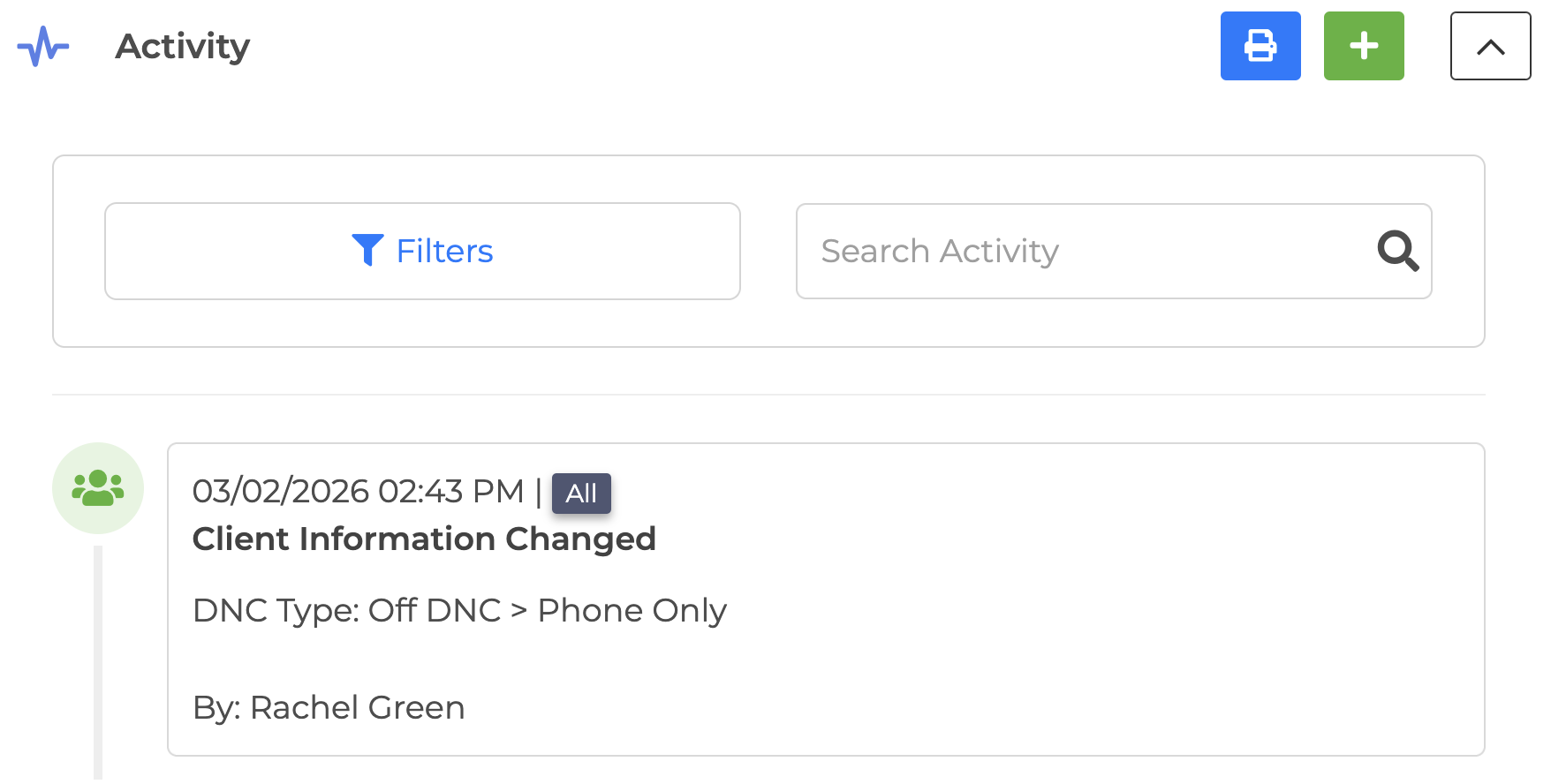
Any changes to DNC status are logged in Client Activity (previous type >> new type).
Account & Permission Notes
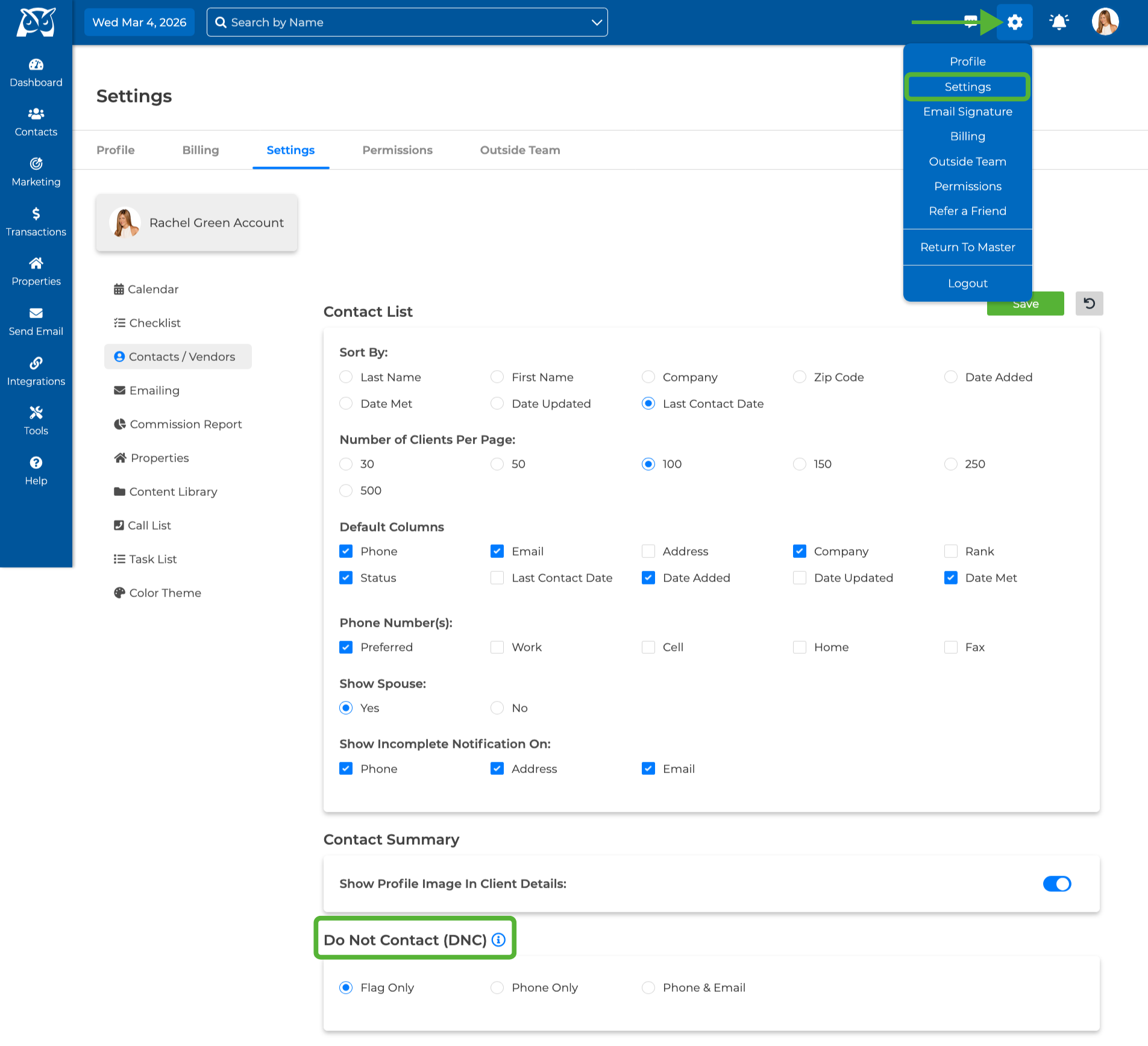
You can manage default DNC settings in your account by clicking on the gear icon on the top right corner, then "Settings."
Under the Contacts/Vendors settings, scroll down to the "Do Not Contact (DNC)" section. From here, you will be able to choose how contacts are blacklisted by default when added to the DNC.
Important Notes
DNC settings are global for the account.
You must be under “All” in the Team dropdown to edit DNC settings.
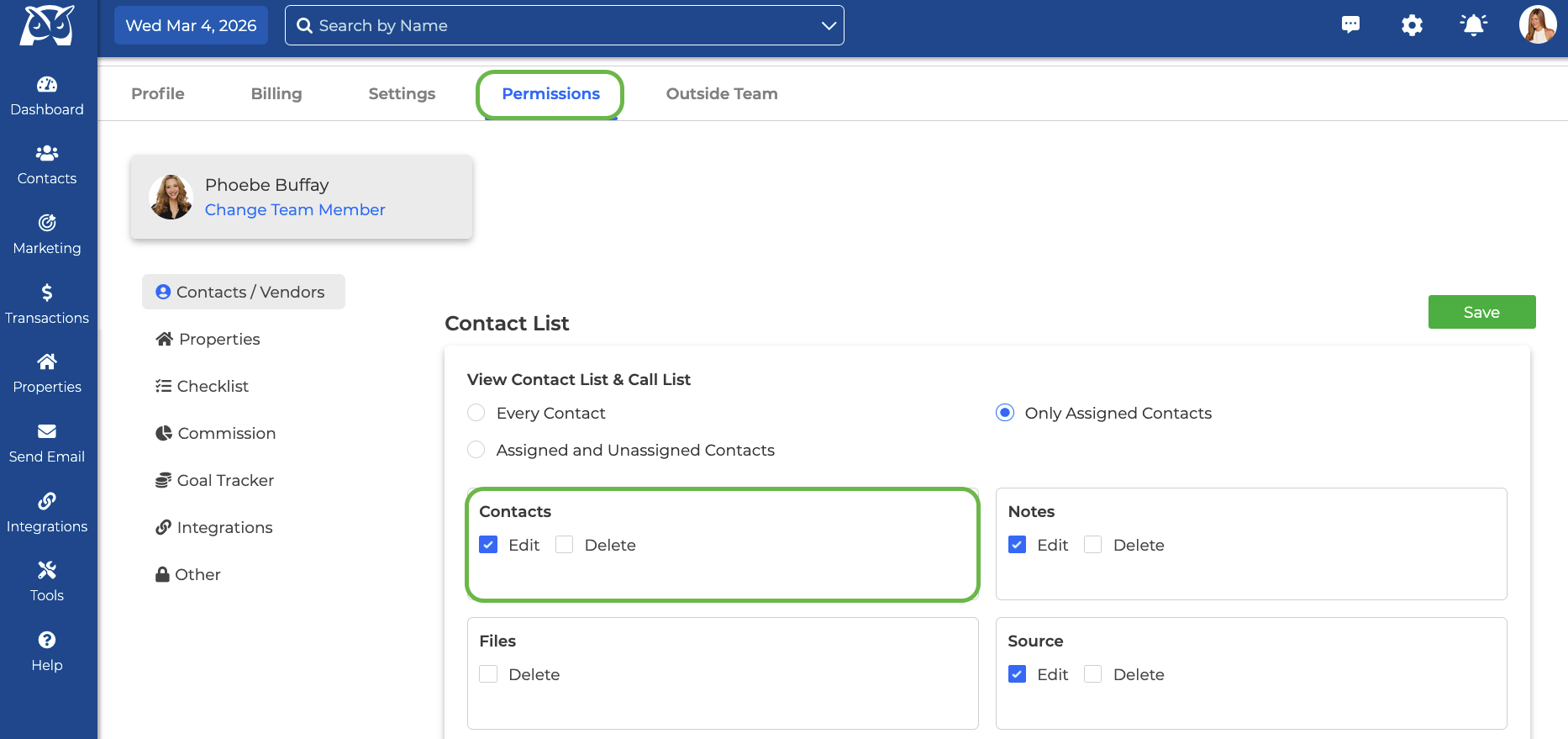
If your Inside Team member has the Edit Contact permission enabled for their login, they have access to change the DNC status on contacts they can view.
DNC and Shared Contacts (Outside Team / OTM)
If a contact marked as DNC is shared:
The receiving account will apply DNC based on their own DNC default settings.
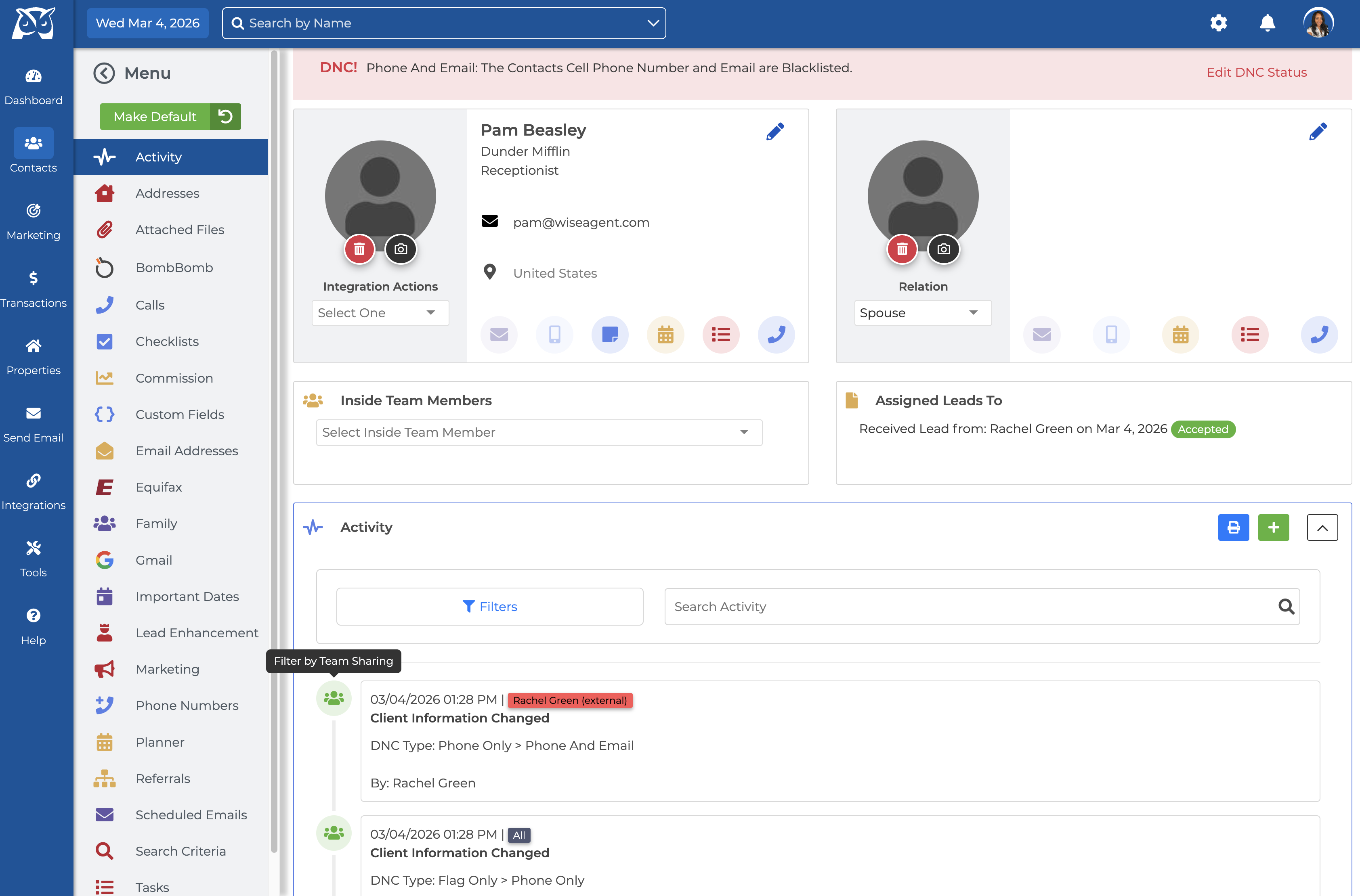
If DNC is updated later, it will sync across shared accounts and be trackable through the contact Activity tracker on the Contact Summary page.
Frequently Asked Questions
Does “Flag Only” stop marketing communications?
No. It is a visual label only.
Can a DNC contact still be added to a campaign?
Only if they are set to Flag Only. Phone Only and Phone & Email will block communication accordingly.
Does DNC prevent manual email sending?
Yes, if the contact is set to Phone & Email.
Can Inside Team Members override DNC?
Yes. If your Inside Team member has Edit Contact permissions, they can modify DNC status.
Need Assistance? Reachout to our 24/7 support team with any additional questions.