

Sending an Email From Your Wise Agent Account:
1. Log in to your Wise Agent account
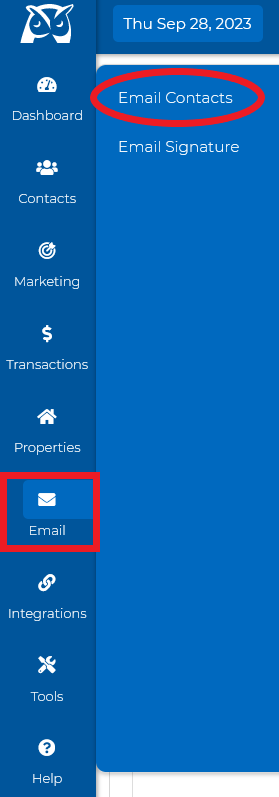
2. Click the "Email" > "Email Contacts"
Your Email Content Options:

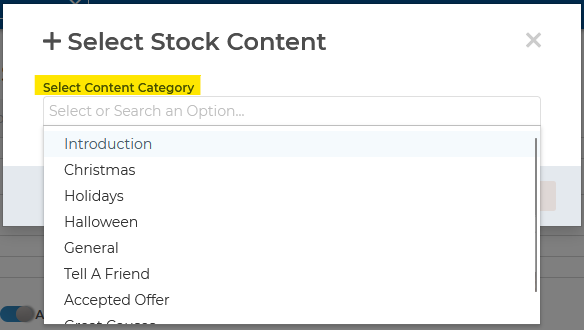
1. Stock Contents - Our email templates are various, pre-edited guidelines set for any occasion!
By clicking the icon, and then the drop-down, you can scroll through our various template options.
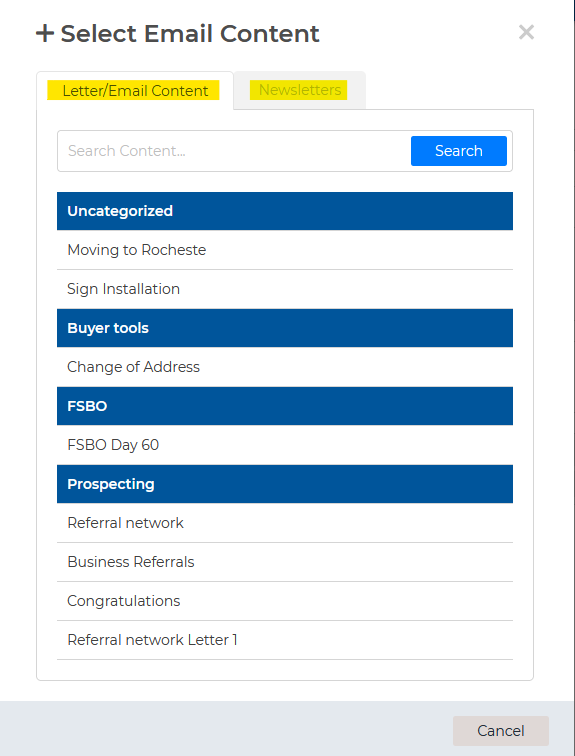
2. My Content - This option will give you a list of any emails you have saved in your Content Library.
3. Shared Content- This is where you would find letters and newsletters that are shared to your Wise Agent account from your brokerage through a promo code.
4. Landing Page- This will allow you to create an email with your active landing pages. Select one of your active pages, and your image and link from your landing page will appear in the body of your email.
5. Properties- This will give you the option to include listing details in your emails. Select the properties you would like to include and they will show up in the body of the email.
6. RSS Feed - You can email out any articles or blogs you saved through this feature.
7. Attach File - This will allow you to attach a document to your email.




Below are the fields you will need to fill out before sending the email:
Subject line
Salutation
Placeholder
Body of your email and any additional images/YouTube videos.
Selecting Contacts:
Wise Agent made it easy to sort and segment your contact list using the Advanced Filters feature. Here are the basic filters that you can select from:
Category
Source
Inside Team
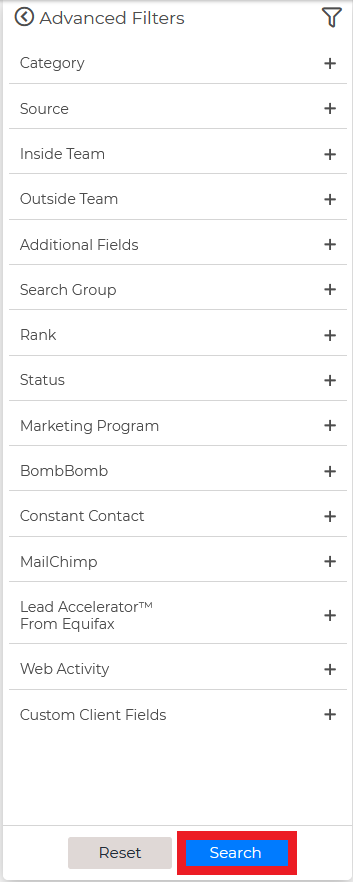
After finalizing your search and selecting your contacts, just simply hit Send/Schedule.

If you want to send the email to your vendors, then click on the Show Vendors tab.

Note: Before sending it to your contacts, you can preview your email from their point of view by simply clicking on the Preview button.