


You can sync your Google Contacts to a phone, tablet, and computer. Any additions or updates made to a contact reflect universally, seamlessly integrating with your Wise Agent CRM.
💡 A few tips from the pros:
Make sure to include Other Contacts in your main Google contacts. If you email someone but you haven't added them as a contact, Google Contacts automatically saves their email address in your Other Contacts group. You can adjust your Gmail settings to manually add contacts instead of automatically; Click HERE for more details.
If you have contacts in a spreadsheet, import them into Google Contacts and remove any duplicates before syncing with Wise Agent.
Follow the steps below to sync your Apple or Android contacts with Google Contacts prior to initiating the sync to Wise Agent CRM:
Syncing Your Apple or Android Account With Google Contacts
iPhone & iPad
On your iPhone or iPad, open the Settings app.
Tap Contacts. You might need to scroll down.
Tap Add account. Tap Accounts if you've already synced a Google Account to your device.
Tap Add account > Google.
Follow the instructions to sign in to your Google Account, ensuring you toggle contacts 'ON'.
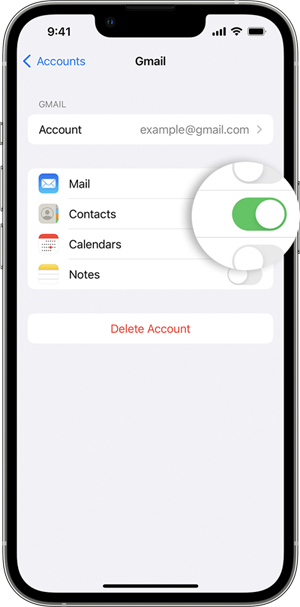
Tap Save. To start syncing, open your iPhone or iPad's Contacts app.
Android
Your Google contacts sync to your Android device when you sign in. Changes to your contacts will automatically sync to keep them backed up and up to date. If multiple Google Accounts are signed in to the same device, Google contacts from all accounts will sync to the device.
Connecting Google Contacts to Wise Agent
Log in to your Wise Agent account.
From the sidebar, select Integrations, then Settings.
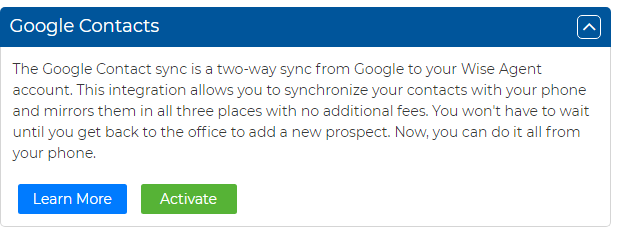
From here, locate and select "Google Contacts".
Click on "Activate", then log in with your Google credentials.
💡 Important To Note: If you have already uploaded contacts into your Wise Agent account before syncing with Google and you have the same contacts in both platforms, once you sync, you will want to use our merge tool to merge any duplicates in Wise Agent. After this, you will need to merge your Google Contacts as well.