

To Navigate to Your Contacts "Rank":
1. To navigate to "rank", simply click on the desired contact from your contact list.
2. Once you are on their contact summary, you will see a "Rank" at the top of the page.
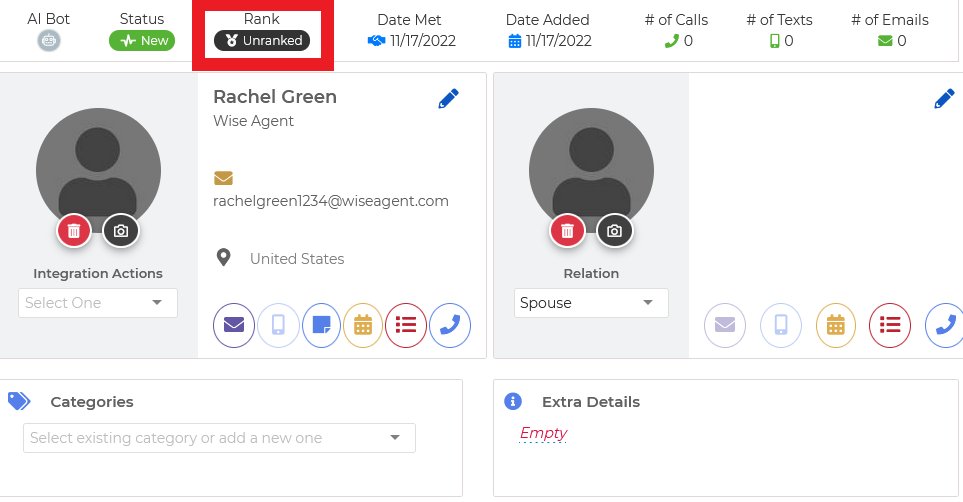
We have ranking options of unranked, A, B, C, D, and F. Here are some examples of how you can utilize them with your clients in your Wise Agent account.
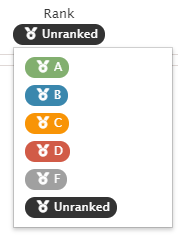
Rank
A - 80% active
B - 15% active
C - 4% active
D - 1% active
F - No Activity
OR
Rank
A - Looking really interested
B - Looking in a few weeks
C - Not looking for a few months
D - Next year
F - Not Looking
Note: Although these examples tend to be the most popular usage of the "Rank" feature within your Wise Agent account, you can use the different selections however you like!