

To add a client to your Vendor List:
1. Go to the "Contacts" menu on the left-hand side, and click on "Contact List"
2. Click on the name of the desired Contact, which will bring you to their Contact Summary page.
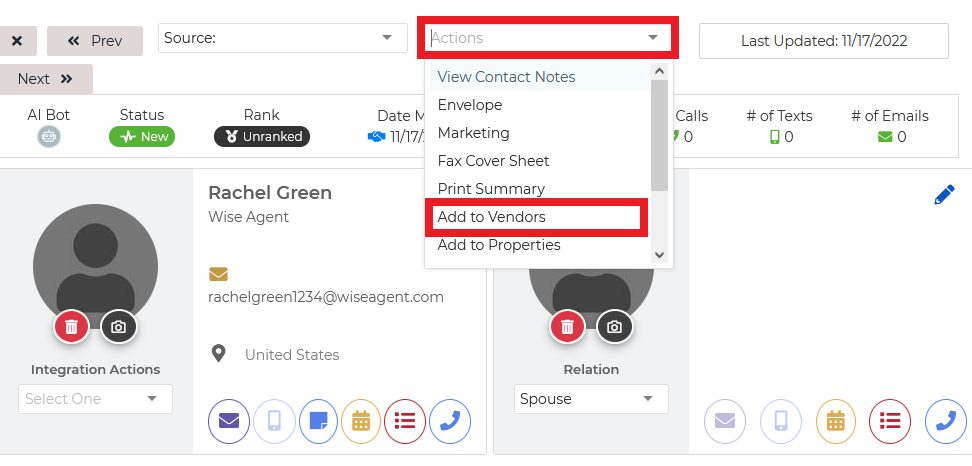
3. At the top of their Summary page, look for the "Actions" drop-down menu and click the option that says "Add to Vendors".
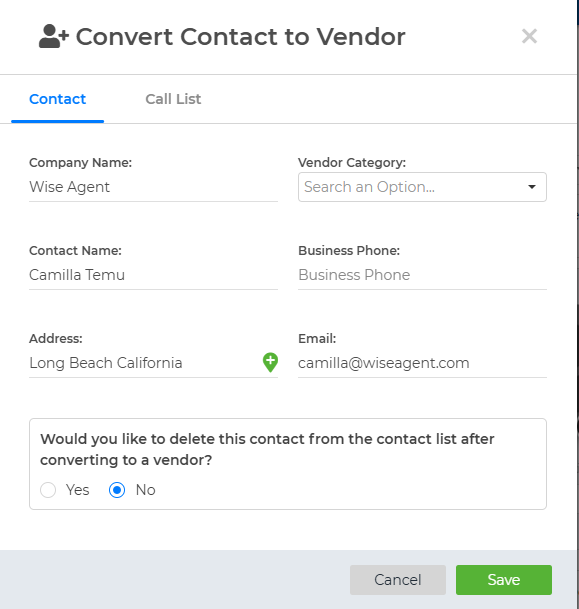
Next, you can edit the contact's details, add to "Vendor Category", click the "Call List" tab to add them to your call list, and decide if you'd like them deleted from the contact list or not. When completed, click the green "Save" button.
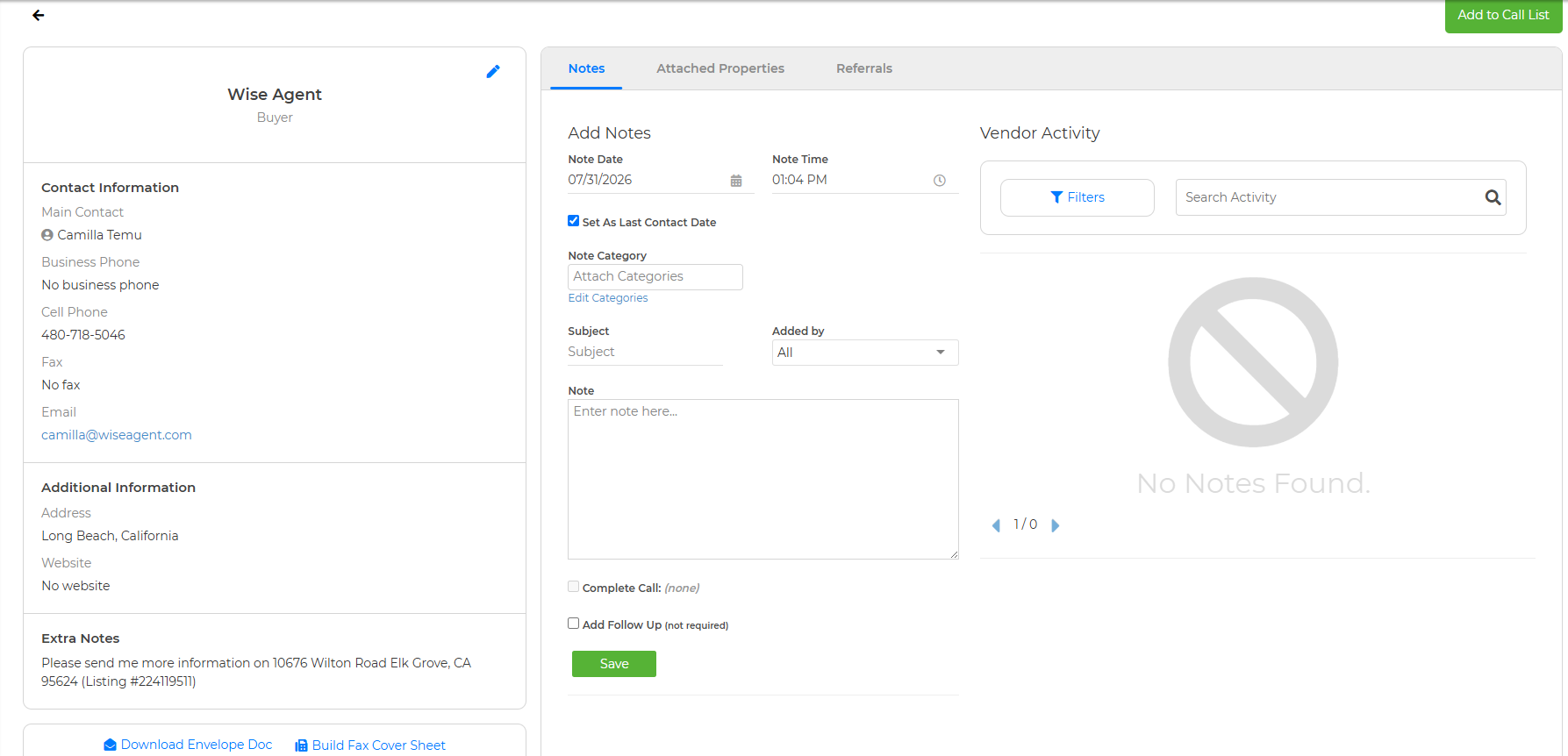
From here, the contact will open in the Vendors List, where you can add notes, "Download Envelope Doc" (to open in Word or Google Docs), Build Fax Cover Sheet, Add to Call List, or edit any details. You can also click the tabs on the top of the page "Attached Properties" to add or view properties this contact is attached to. Or "Referrals" to add or view your referral tree with this contact.