


Before You Start You'll Need...
Your Wise Agent API key. Not sure where to find it? See How To Locate Your Wise Agent API Key and Lead Capture Email or What Is Zapier?
An account with the AI assistant you want to connect, such as ChatGPT or Claude
💡 Tip: Zapier’s Free plan includes 100 tasks per month, and paid plans start at 750. Each successful action your AI assistant runs uses 2 tasks, and failed actions are not counted. A single prompt can run several actions, so a paid plan is recommended for regular use.
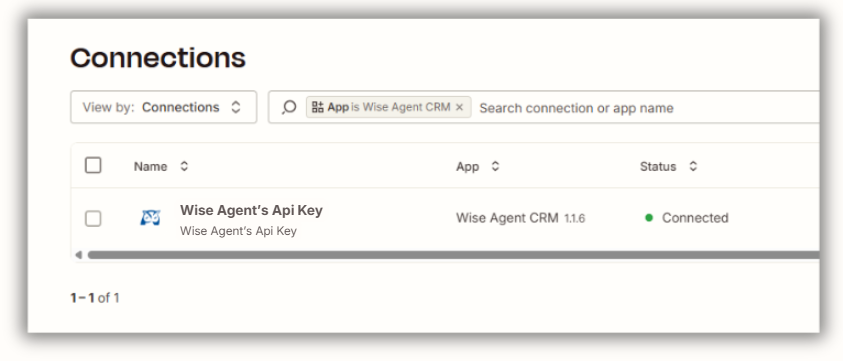
Note: If Wise Agent is already connected to your Zapier account, skip ahead to Step 2. To check, open App Connections in the left sidebar and look for Wise Agent in the list.
Step 1: Add Wise Agent to Your App Connections
Log in to Zapier.
Select App Connections from the menu.
Click Create Connection and select Wise Agent CRM.
Enter your API key from the Integrations section of your Wise Agent settings. Need help finding it? Click here.
Click Connect, then verify the correct account is selected.
Confirm the connection status reads Connected.
Step 2: Create Your MCP Server in Zapier
In Zapier, select MCP servers from the left sidebar.
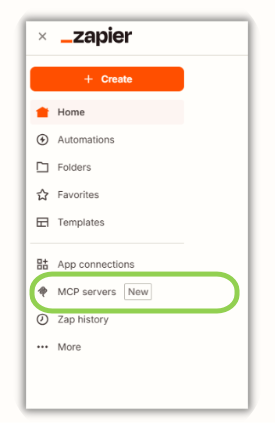
Click Add MCP server.
Choose the AI assistant you want to connect by selecting a tile in the Choose Your AI agent section.
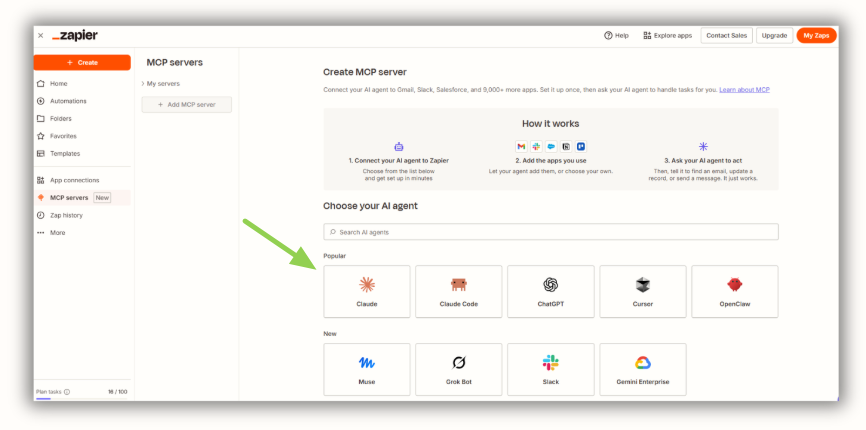
Upon clicking your desired AI agent, Zapier will provide you with a pop-up with detailed instructions on how to connect your AI agent to Zapier.
When you finish, your new server appears in your MCP servers list. Click My MCP servers to confirm your AI agent has been added.
Note: Some assistants will ask for permission to manage your Zapier connections. Allow it so the assistant can use the tools you set up in the next step.
Step 3: Add Wise Agent CRM to Your MCP Server
Open your MCP server and click Add Apps.
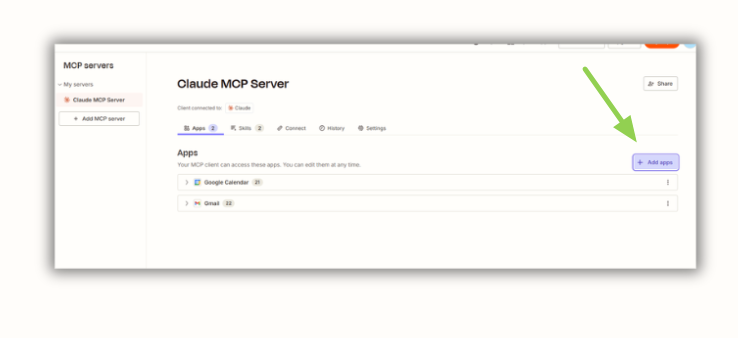
Search for and select Wise Agent CRM. (If you do not see the option to add Wise Agent, return to Step 1: Add Wise Agent to Your App Connections.)
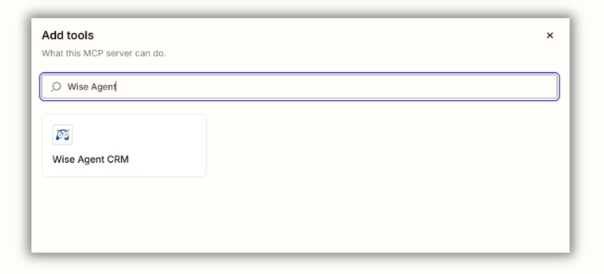
Click Connect, then confirm you have selected the correct account.
Choose the actions you want your AI assistant to use. The available Wise Agent actions are listed. Click Select all or select each one individually, then click Connect.
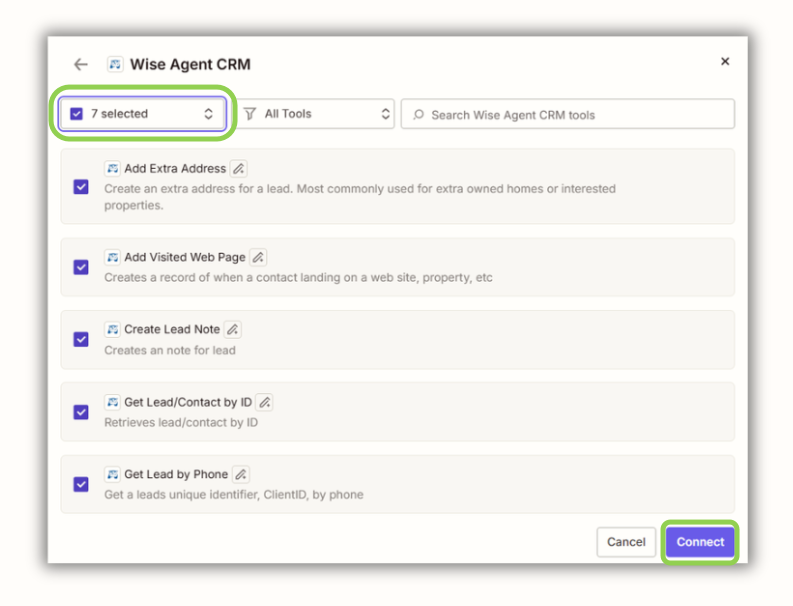
Tip: Only turn on the actions you plan to use. Your assistant can only do what you enable here.
Step 4: Run a Test Prompt
Open your AI assistant, start a new chat, and enter a prompt to create or update an existing contact in your Wise Agent CRM. You can copy and paste this prompt:
Use Zapier to add a new lead in Wise Agent named AITest Lead with the email testlead@example.com. Add the a note that the lead viewed the property 123 Main St, Los Angeles, CA and would like to schedule an appointment for another showing.
Your assistant may ask you to approve the action before it runs. Approve it, and the assistant should confirm the lead was added.
💡 IMPORTANT NOTE: Test prompts will still count against your monthly tasks in Zapier. If you do not wish to use up tasks against your allotted monthly count, you may test the integration by using a prompt to make a necessary change. Failed tasks do not count against your balance.
Step 5: Verify the Results
In Wise Agent
Log in to Wise Agent and open your Contacts.
Search for your AITest Lead, or the lead you included in your test prompt.
Confirm the new lead appears with the email you used, along with any notes you included in your prompt.
In Zapier
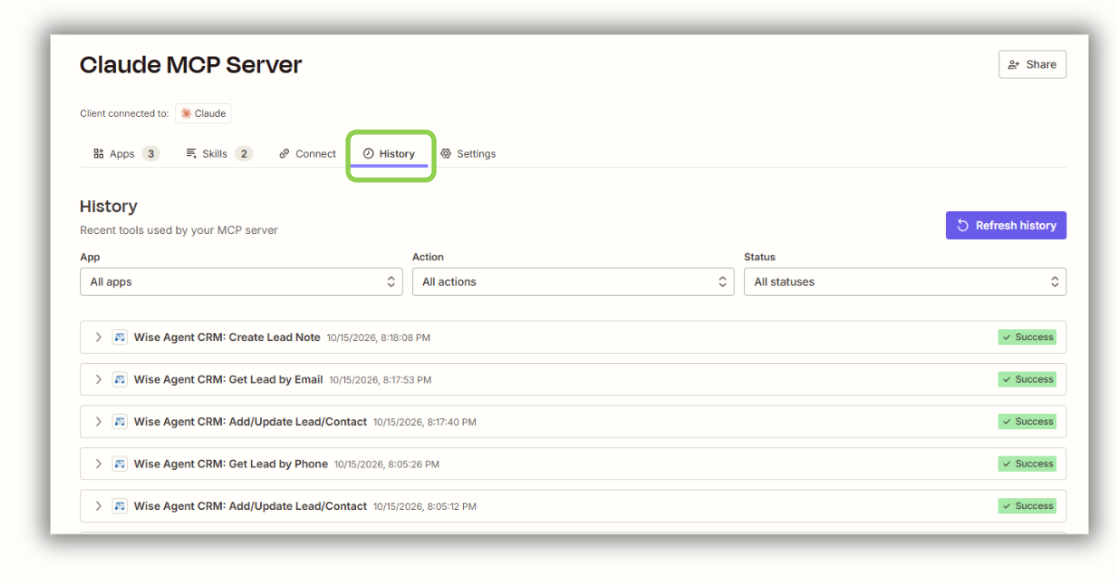
Open your MCP server and select the History tab.
Find the most recent entry for Wise Agent CRM.
Confirm the status shows the action ran successfully.
If something is missing
Check the History tab for an error message on the action.
Confirm your Wise Agent connection still reads Connected in App Connections.
Make sure the action you need is enabled on your MCP server.
When you are done testing, delete the Test Lead from Wise Agent.
For assistance, feel free to reach out to our award-winning Support team at support@wiseagent.com or by phone at (480)836-0345.