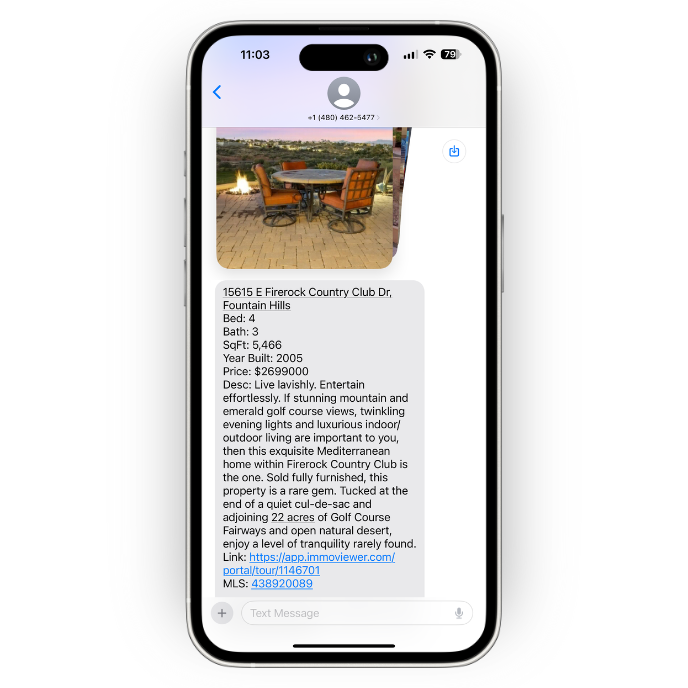
To get started, ensure the WiseText feature is added and enabled on your Wise Agent subscription.
WiseText SMS: Wise Agent's Text Messaging Feature ➜
Step 1: Adding Your Property To The Property List
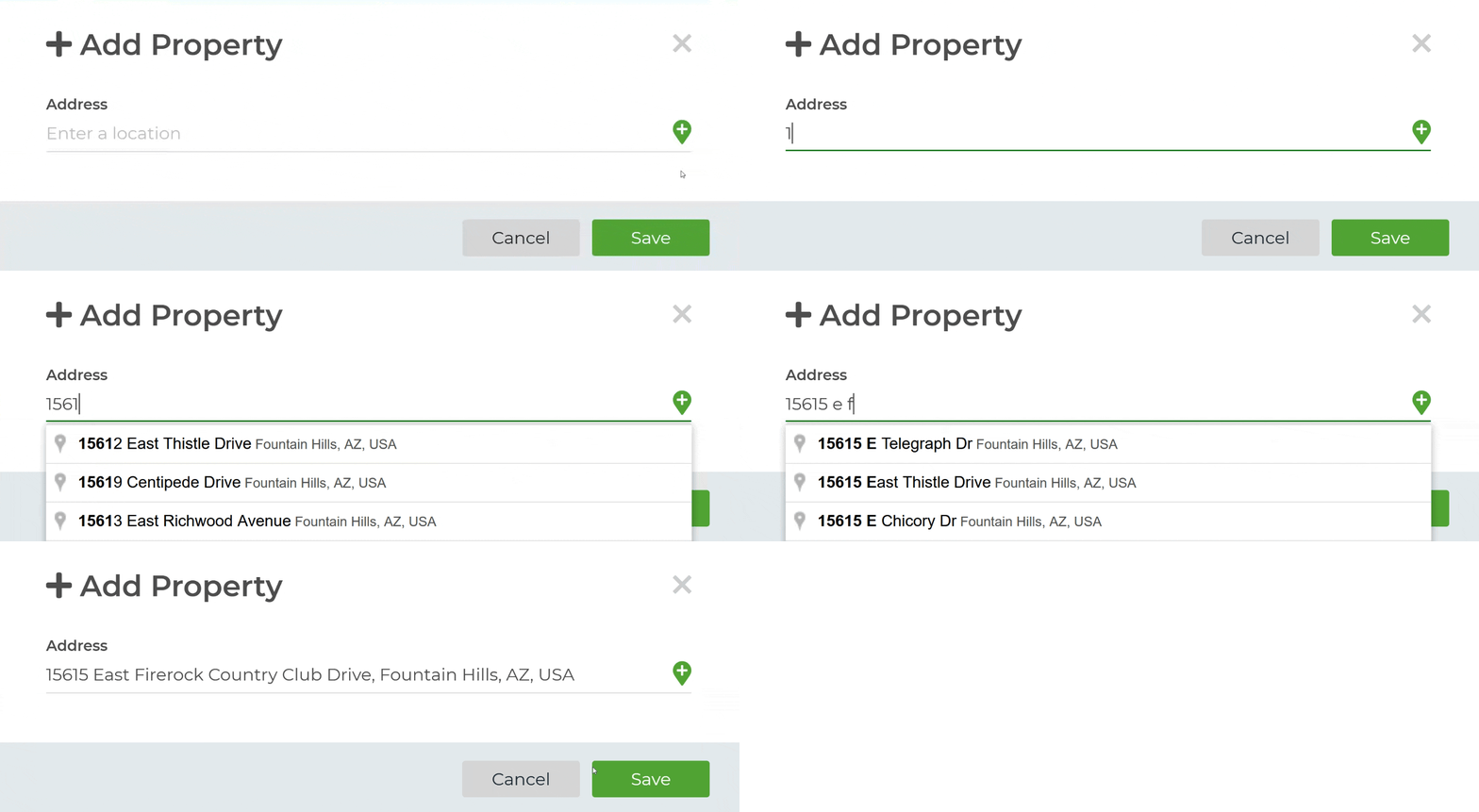
From the sidebar, navigate to Properties ➜ Add Property.
Enter your property's address, then click Save.
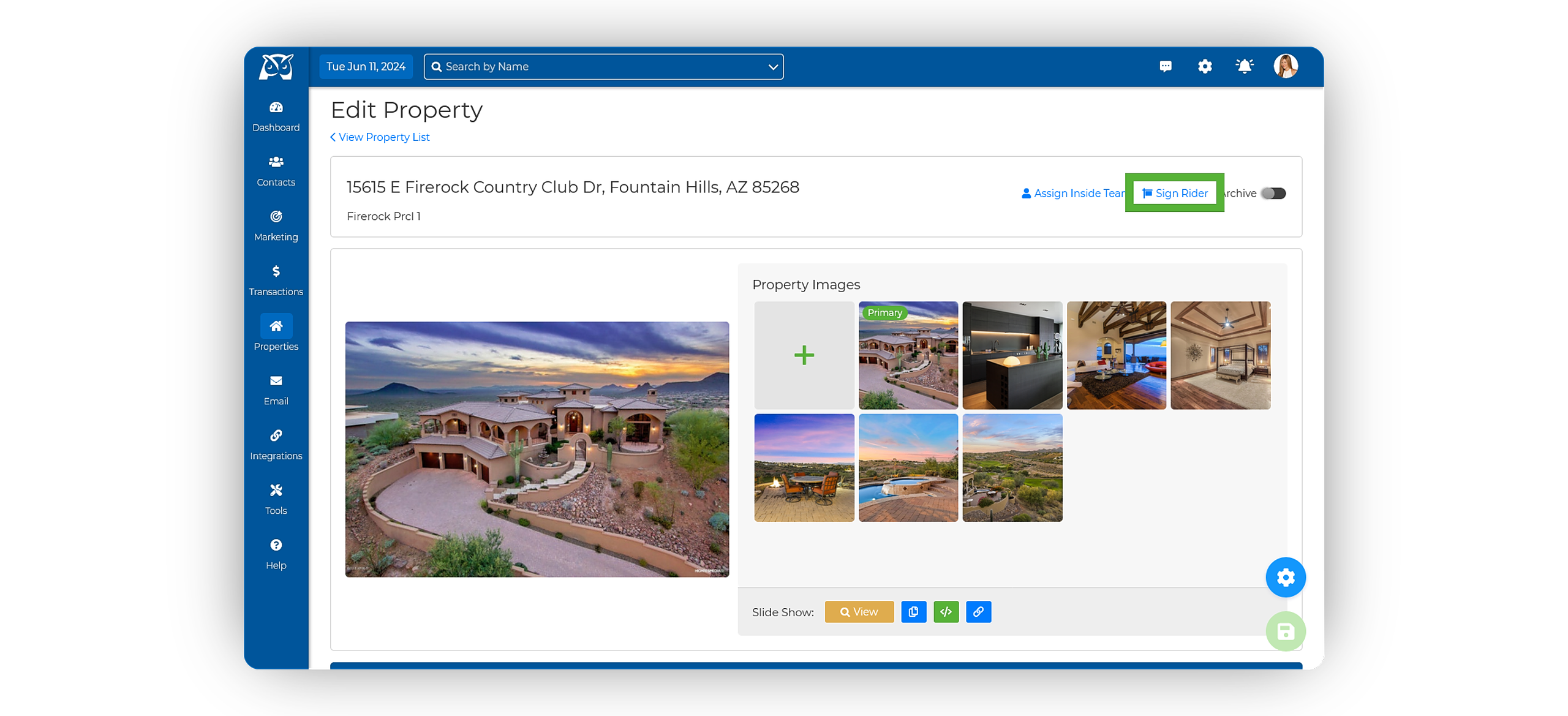
You will be redirected to the property profile. Here, you can add images, property information, features, and a description, all of which will be included in your Sign Rider SMS message.
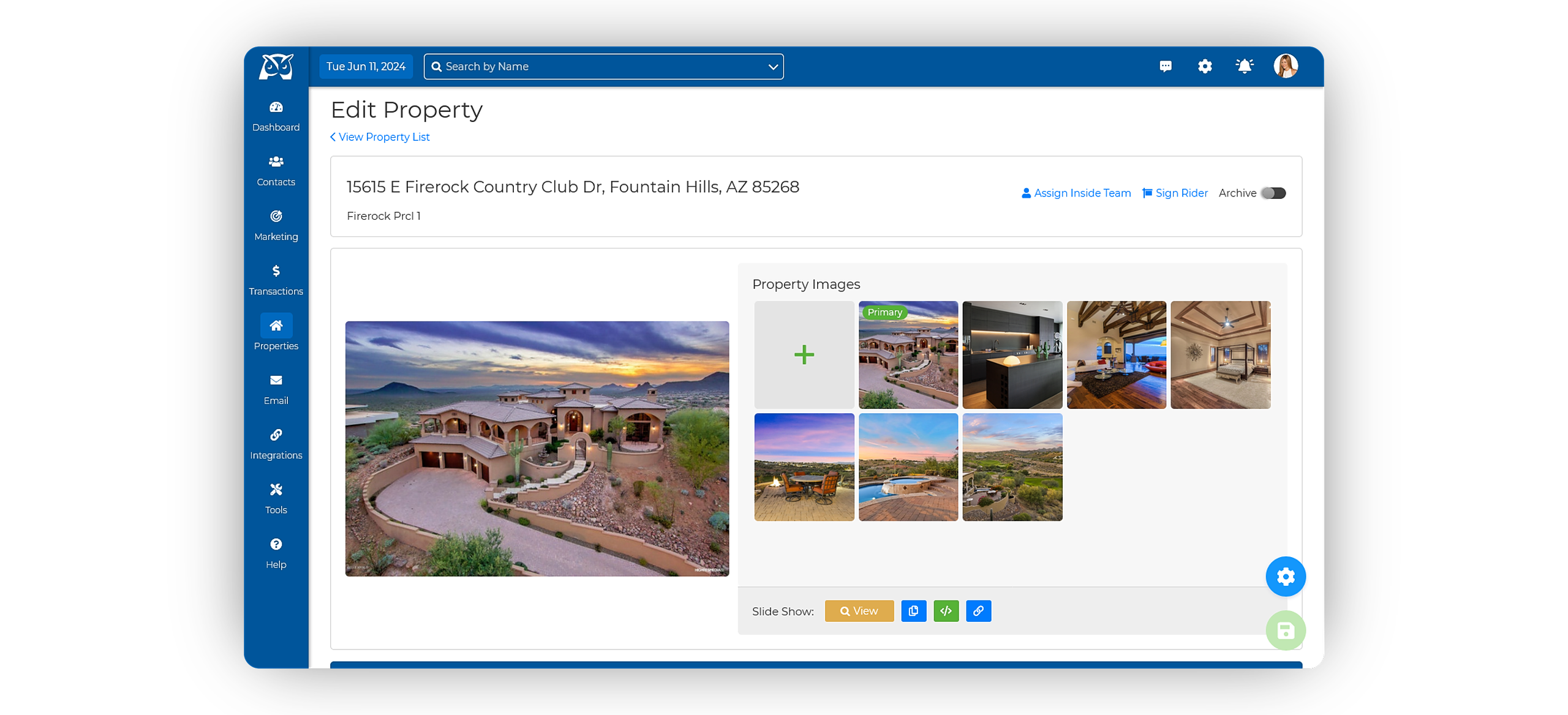
Once you’ve added all the details, click the green Save button in the bottom right-hand corner.
Step 2: Locating and Utilizing Your Sign Rider Code
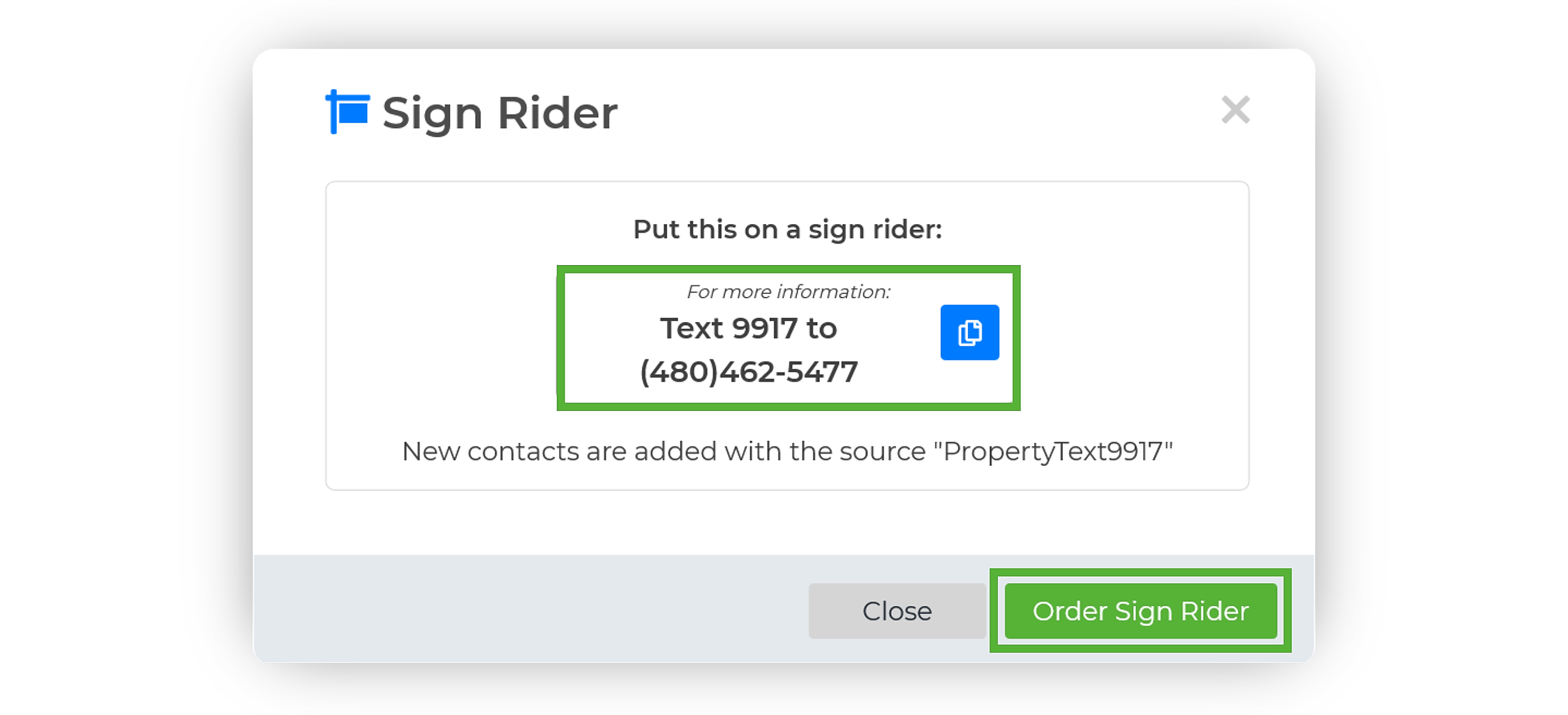
On the Property Profile page, find and click the Sign Rider button in the upper right-hand corner.
This will open a pop-up window where you can either copy your unique code for external use or click Order Sign Rider to purchase signs featuring your unique code.
Each property in your list has a distinct code. When a potential client texts this code to your WiseText number, they will automatically receive a text message with the property's details as listed on your Property Profile.
Additionally, they will be added to your Wise Agent account under a source name corresponding to the Property Code.