


Obtain Your Unique Wise Agent Lead Capture Email
From the sidebar, select Integrations, then click Settings from the menu.
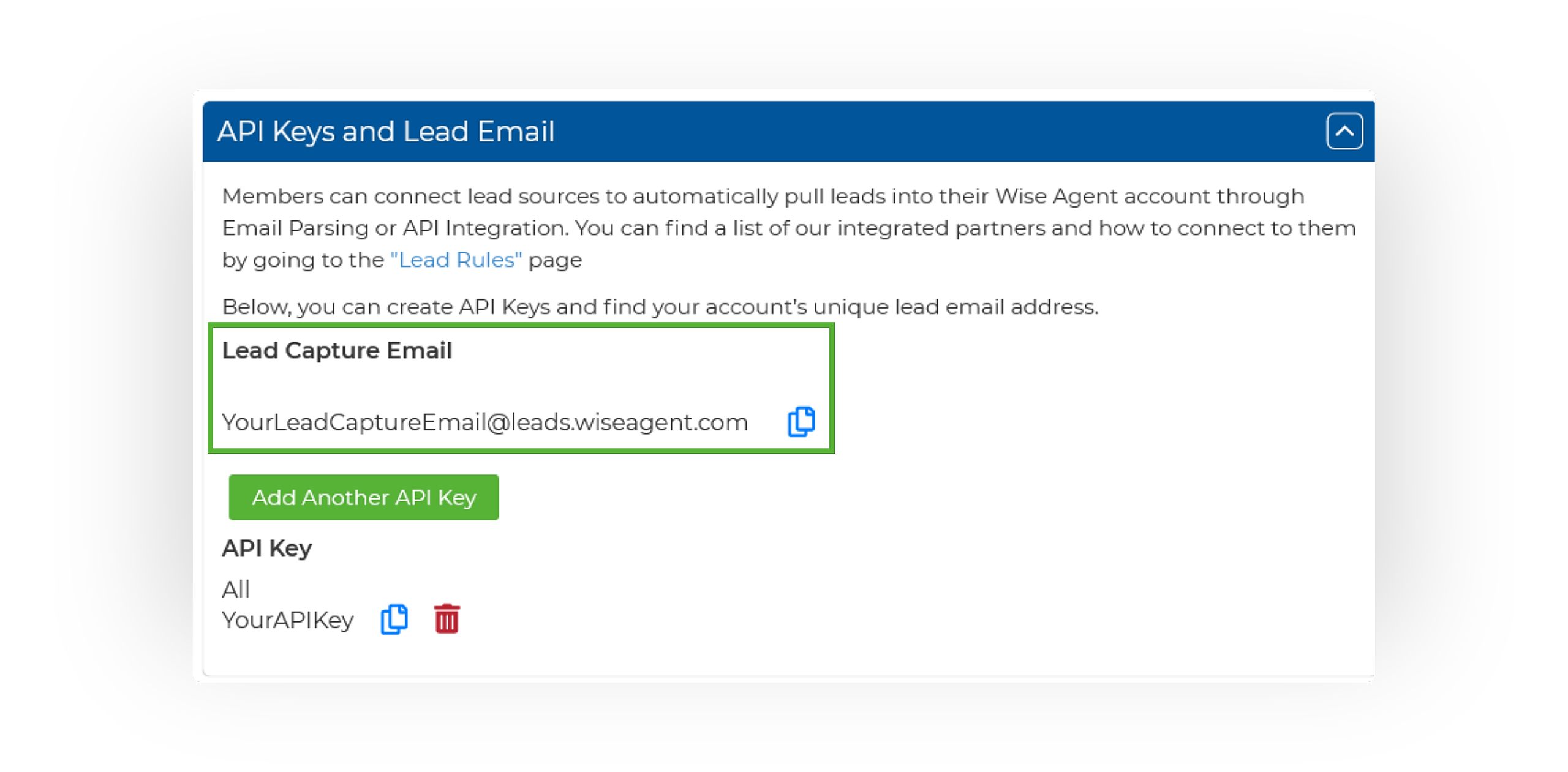
On the Integrations Settings page, locate and click on the API Keys and Lead Email tab and click to expand.
From this section, locate and copy your Lead Capture Email. This email address is specific to your Wise Agent account and is used for capturing leads from various sources.
Setting Up Lead Forwarding In iHomeFinder
Log into your iHomefinder Control Panel
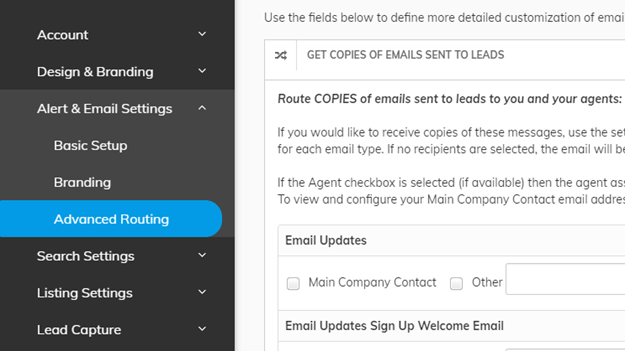
Navigate to Setup ➜ Advanced Routing➜ Options for Emails Sent to you
Check the box next to Other and paste your Wise Agent lead Capture Email into the field. You'll want to pick and choose which emails to forward. Make sure to read the descriptions for each section and input your lead capture email into all the desired options.
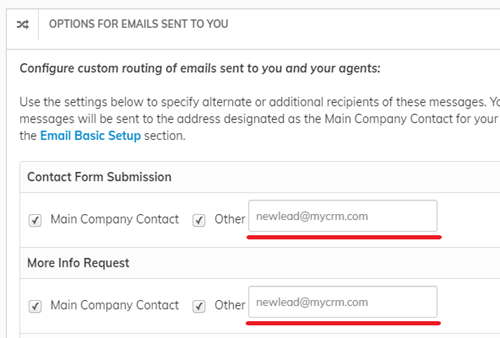
After completing the setup process, it's highly recommended to verify the lead forwarding functionality by visiting your website and submitting a form. The Contact Form Submission is typically the simplest one to test! Be sure to enter test data, ensuring it's not information already present in your Wise Agent Contact List.
Once a test lead is submitted, check your Wise Agent account to confirm that the lead appears in your Contact List, and that's it!