

Schedule An Email From The Contact Summary Page
1. From the sidebar menu click Contacts then "Contact List", then select your desired contact.
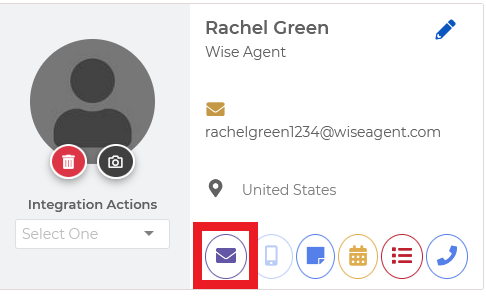
2. Once in the contact summary, click on the purple envelope icon (it is located right below the contact's primary information)
3. Once the pop-up appears, verify branding and designate any cc or bc you wish to include
4. Select the message tab and type in a subject, as well as create the email in the text field
5. Select the "Schedule" tab and pick a date and time for the email to be delivered.
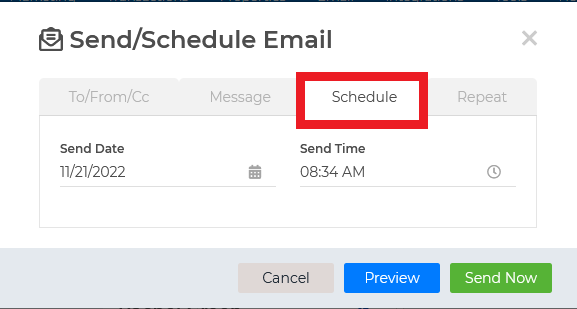
6. To complete click the green "Send Now" button on the bottom right corner and that's it, your email is now scheduled for a future date & time!