

Select "Contacts" then "Contact List".
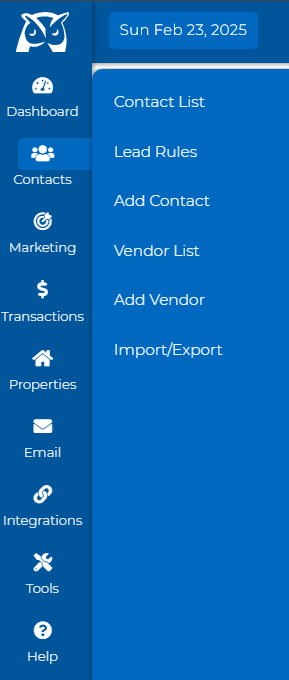
Once on your contact list, select the contacts for which you wish to set a rank.
After selecting the names for which you want to set a rank, a modal will appear at the top of your contact list. Locate the "Set Rank" option.
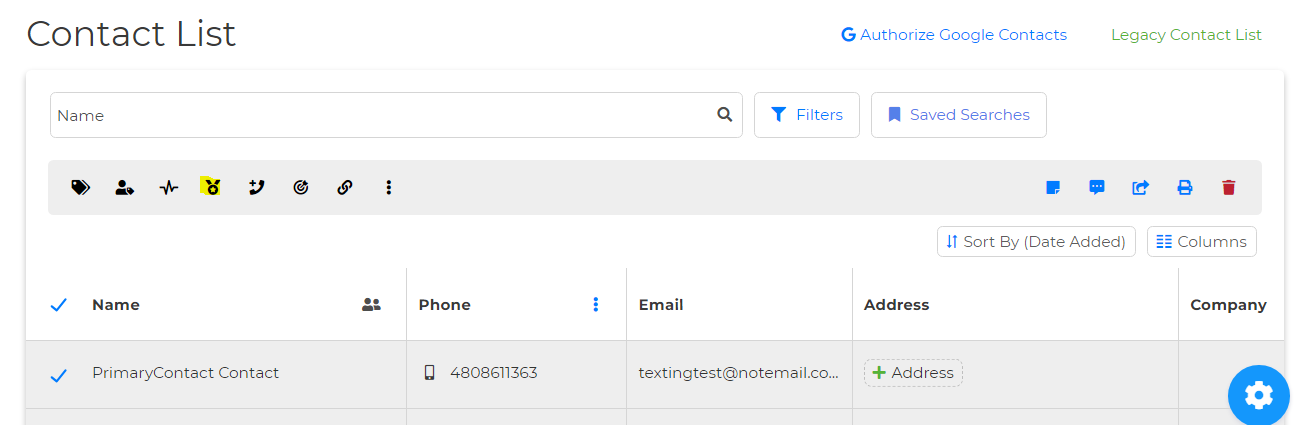
4. Now, you can select the rank. Once selected, click "Set Rank" to save, and that's it!