

Click the Gear button on the top right side of the page and click on "Profile".
Click on the Edit Profile button under your name then click on the camera icon.
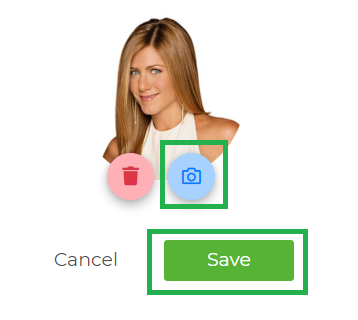
Click Browse, locate the photo, and click Open. The file should be in JPG or PNG format.
Click Continue. The new photo will replace what was there previously.
You can zoom in on the photo and move it to frame the picture correctly.
Click "Choose Photo" and your picture will be saved.
*NOTE: If the photo doesn’t appear to change, refresh the page by hitting ‘CTRL’ and ‘R’ on your keyboard*. If you would like us to resize the photo for you, email it to help@wiseagent.com.