

To add a new source:
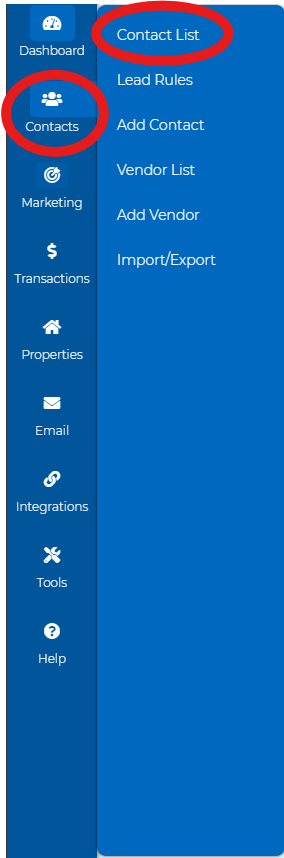
Go to the left-hand side and click on Contacts > Contact List.
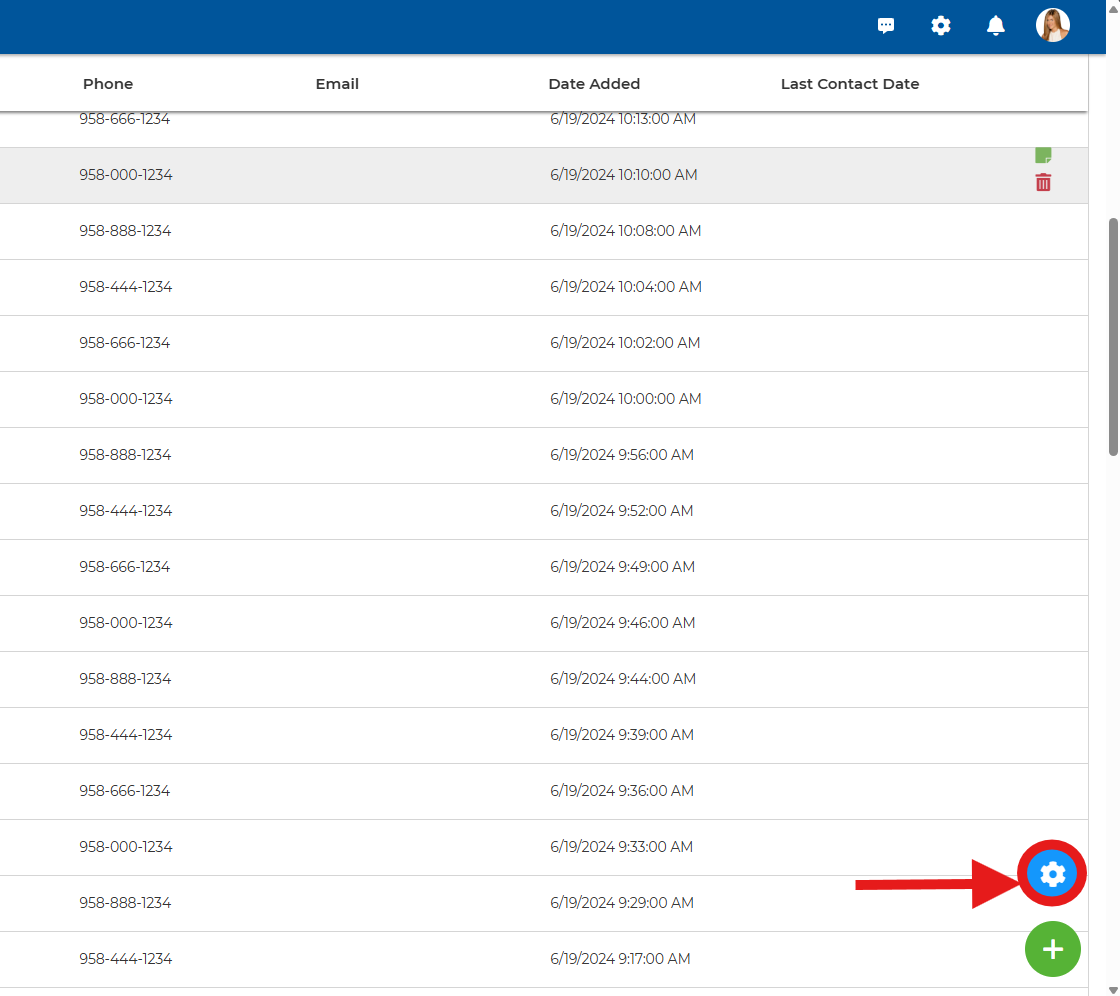
Click on the gear icon located in the lower right corner.
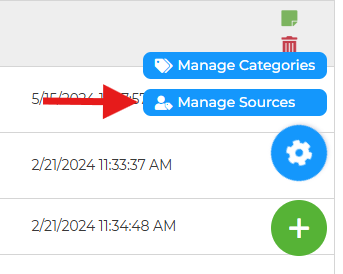
Click on Manage Sources
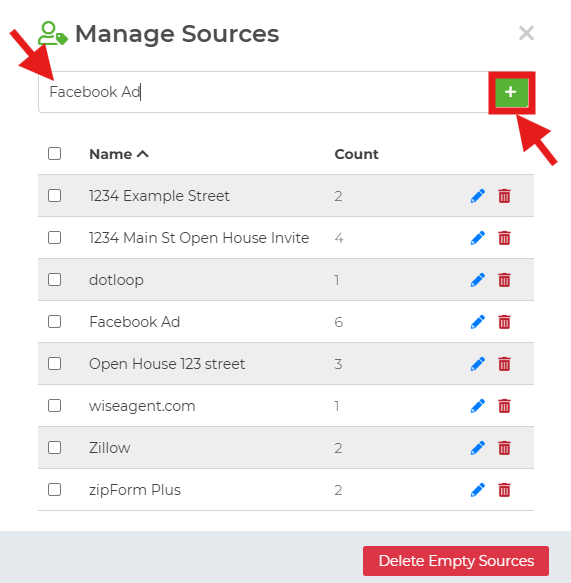
Type in the name of the new source in the text box and click on the + button.
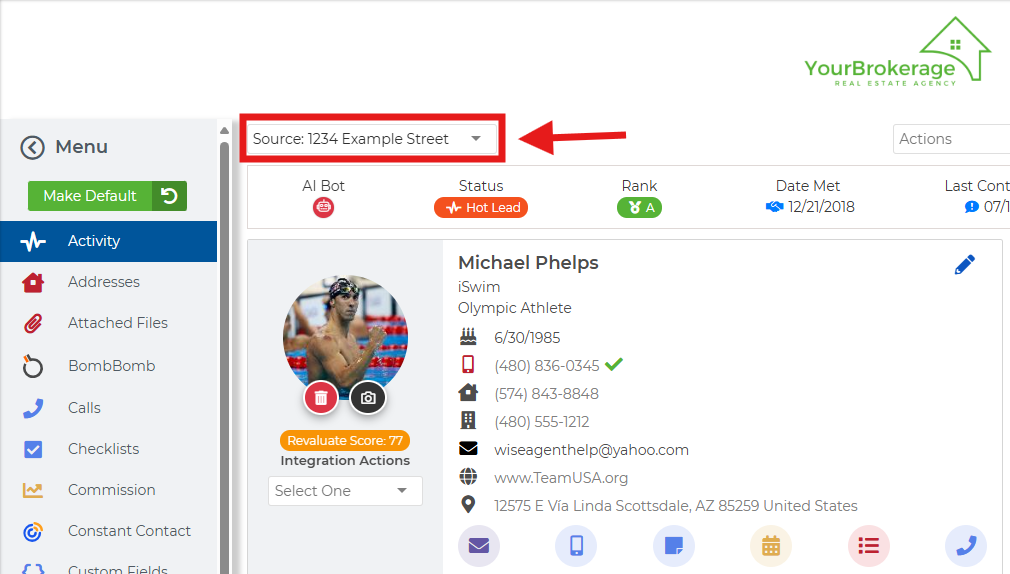
Another way of adding a new source is from the Contact Summary Page
Click on the Source dropdown at the top and type in the new source in the box.
Click on the option "click to + Add new source."
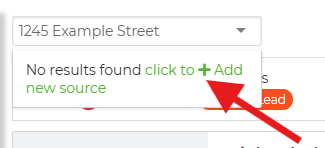
This will add a new source and add the contact to that source.
To add contacts to a source:
Click Contacts > Contact List.
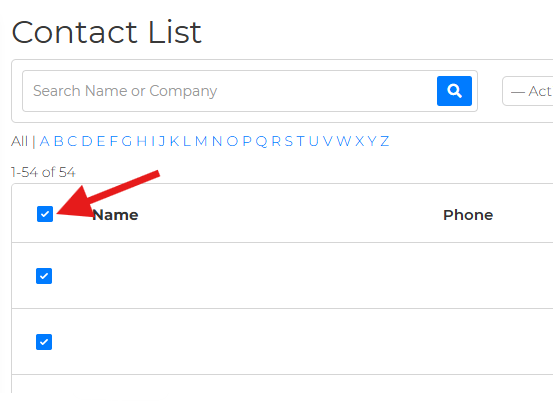
Check off the boxes before the contacts' names.
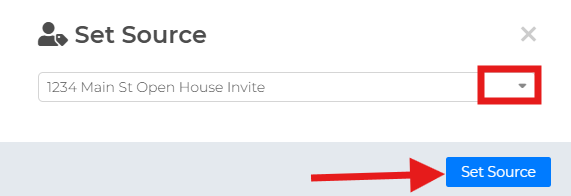
From the Actions dropdown menu at the top, select "Set Source."
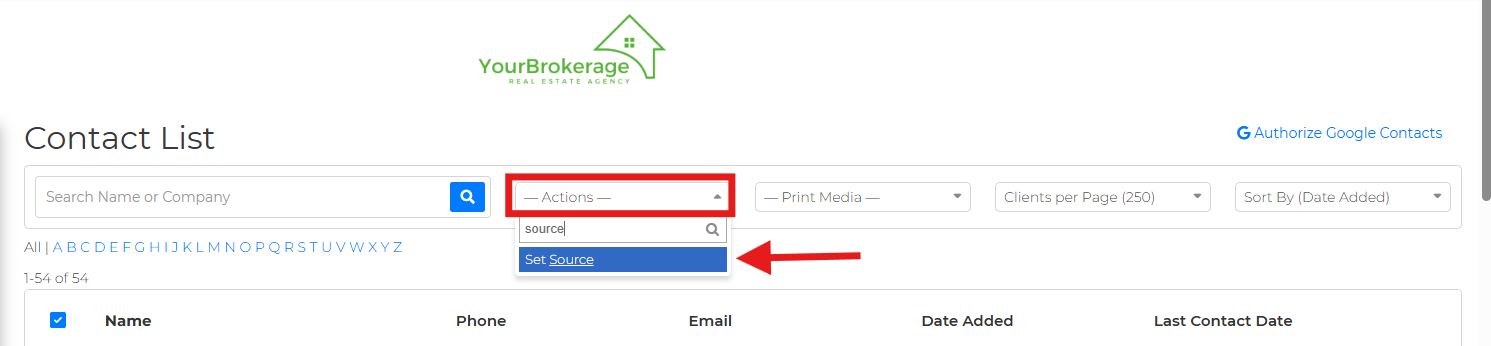
Choose the source from the dropdown and click the "Set Source" button.
You are all set!
If you need further assistance, please reach out to our 24/7 Support at 480-836-0345 or help@wiseagent.com.