

Log in to your Wise Agent account.
From the sidebar, select Contacts then Contact List.
Search for the desired contact and click on their name to view their Contact Summary.
Click on the camera icon located beneath the current photo.
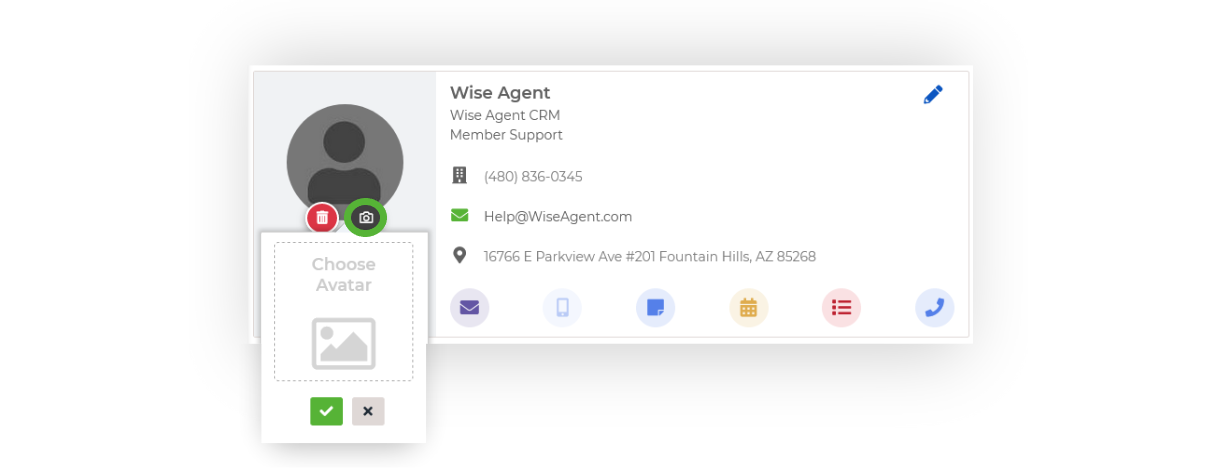
Drag and drop your desired image into the Choose Avatar box, or click on Choose Avatar to select an image from your computer.
Once uploaded, click the green checkmark to save and that's it!
💡 Important To Note: If you receive an error message that the file is too big, ensure that your image size is below 100KB. If necessary, compress the image to meet this requirement before uploading.