

General Questions
What is WiseSocial?
WiseSocial is a social media marketing integration built directly into Wise Agent CRM, powered by Back At You Media (SocialBAY). It lets real estate agents manage, automate, and grow their social media presence without leaving the platform. You can publish branded content, run advertising campaigns, capture leads, and connect your MLS listings to your social channels for automated new listing and price reduction posts.
How do I get support for WiseSocial?
Support for WiseSocial is split between Wise Agent and Back At You Media (SocialBAY) depending on the type of issue:
For questions about your Wise Agent subscription, activation, billing, or CRM integration, contact Wise Agent Member Success. You can reach us from your Wise Agent dashboard by clicking Help in the bottom left corner, then Contact Us.
For questions about WiseSocial platform features, content settings, MLS connections, advertising, and anything inside the SocialBAY dashboard, contact Back At You Media support directly from within your WiseSocial account.
To submit a support ticket to Back At You Media from within WiseSocial:
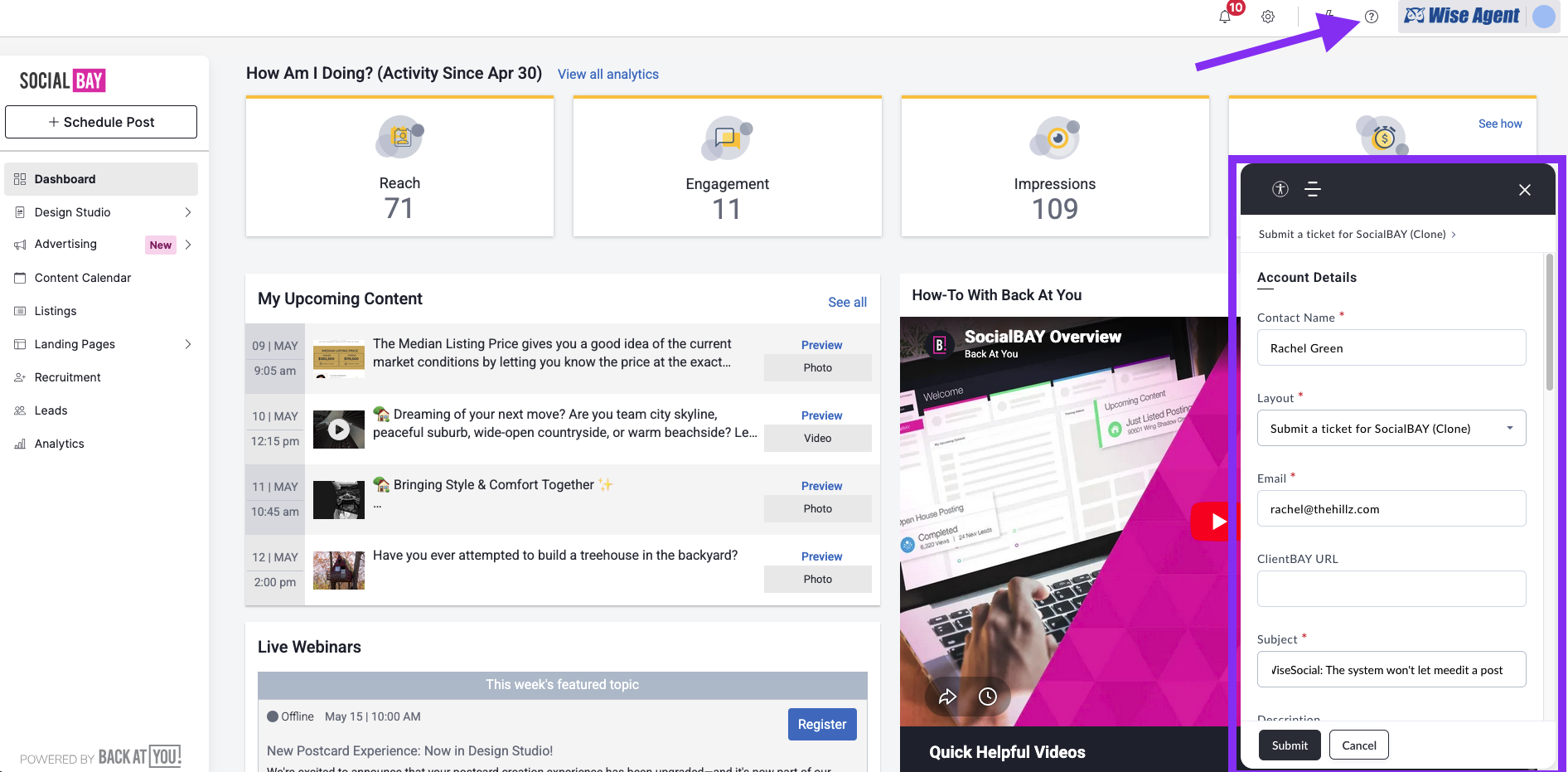
Click the question mark icon in the top right corner of your WiseSocial dashboard. You will see it labeled Help Center when you hover over it.
A support widget will appear. Click the Beehive icon (the menu icon) at the top of the widget.
From the menu, select Submit Ticket.
Choose Submit a Ticket for SocialBAY for feature questions, how-to help, or platform issues. Choose Billing only if you need help with advertising charges inside the SocialBAY platform.
Fill in your name and the email address associated with your WiseSocial account. You can confirm your account email under the gear icon in Profile settings. Leave the Client Bay URL field blank.
In the Subject line, always start with WiseSocial or Wise Agent followed by a colon and the topic. For example: WiseSocial: Having trouble connecting MLS.
In the Description, include as much detail as possible. For MLS issues, include your MLS ID, your listing MLS ID for a specific active property, your office name, your office address, and your MLS provider name (such as MRED, Stellar, or ARMLS).
Add any relevant screenshots as attachments, complete the verification, and click Submit.
You can also reach Back At You Media by phone at 800-660-7719 or by email at support@backatyou.com.
Which social media platforms does WiseSocial support?
WiseSocial supports the following platforms:
Facebook (business page required)
Instagram (business profile required)
LinkedIn (personal or business)
X (formerly Twitter)
TikTok
YouTube
Note: Facebook and Instagram must be connected as business accounts. Personal profiles are not supported for those two platforms.
Is WiseSocial content available in multiple languages?
Automated content provided through WiseSocial is currently available in English only. However, you can create and publish your own custom content in any language using the Content Calendar and Design Studio tools.
How much does WiseSocial cost?
WiseSocial is $20 per month, per user profile. This fee is billed to the main Wise Agent account. Enterprise and brokerage accounts are handled differently. Contact Member Success for details on Enterprise pricing.
Is advertising included in the $20/month subscription?
No. The $20/month subscription covers all of the core WiseSocial features including automated content, the Design Studio, the Content Calendar, MLS listing posts, and free lead generation landing pages. Paid advertising, such as boosting posts or running listing ad campaigns, requires a separate ad budget that you set and manage within the platform.
Setup and Activation
Can I activate WiseSocial for multiple team members at once?
Yes. During the activation flow, you can select multiple team members at the same time. Each team member's profile will be validated and the $20/month fee will be added per profile to the main account's billing.
What are the recommended first steps after activating WiseSocial?
Once activated, head to the gear icon in the top right of your WiseSocial dashboard to complete your account settings. Here is what to set up first:
Profile: Confirm your display name, email, phone number, and bio. Your display name appears on all content posted on your behalf, so make sure it is correct. Adding a bio is especially recommended if you plan to use single property websites.
Brand: Upload your logo and set your color scheme so all created content reflects your brand.
Content: Connect your social media accounts and set your content preferences, including which categories you want SocialBAY to post on your behalf. You must select at least 10 industry content categories.
Listings: Connect your MLS ID or a listing number to enable automatic listing posts.
Notifications: Confirm your lead capture email is correct. This is where leads from landing pages and paid ads will be sent.
Can I integrate my existing standalone SocialBAY account with WiseSocial?
The SSO feature for WiseSocial, powered by Back At you Media, only works for accounts created through Wise Agent and will not work with a standalone SocialBay account. However, you can add your Wise Agent lead capture email address to your existing SocialBAY profile so that leads still flow into Wise Agent CRM.
MLS and Listings
How do I connect my MLS to WiseSocial?
During setup, go to the Listings section in your WiseSocial settings and click Connect Now. Enter one of your active listing numbers or Agent MLS ID then confirm you are the correct agent, and save. Once connected, any active new listings and price reductions will automatically be posted to your connected social accounts.
Should I use my Agent MLS ID or a Listing MLS number to connect?
We recommend connecting with your MLS Listing ID for the most complete results. Using an Agent MLS ID can work, but some members have run into issues when the Agent MLS ID and the Listing MLS number do not match up in the system. If you experience connection problems, try one of your active Listing MLS IDs first.
What if I accidentally select the wrong agent name when connecting to the MLS?
You will need to disconnect and reconnect your MLS with the correct agent name. To do this you will need to contact Back At You Media support from your WiseSocial dashboard to help reset that connection. In the meantime, you can manually delete the other agent's listings that were imported into your WiseSocial listing dashboard.
I am having trouble locating my MLS or my brokerage office is not showing up. What should I do?
If your MLS or brokerage is not appearing, your broker of record may need to set up a ListHub account and add Back At You as a publisher. Here are the steps for your Broker to follow:
Sign up for a ListHub broker account at https://app.listhub.com/accounts/registerbroker.action
Allow up to two business days for the ListHub account to be fully configured after signing up.
While waiting, log in to the ListHub account, click the Publishers tab, and select Publisher Choices.
On the Publisher Choices screen, find and add Back At You as a publisher.
Click the Add Selected button to save.
Once the account is configured and Back At You is added as a publisher, your MLS listings should be available to connect in WiseSocial.
If you are still experiencing issues with the MLS connection after your broker has taken these steps, it's important to contact back at you media support for assistance.
Is there a fee for my brokerage to activate a ListHub account for WiseSocial?
ListHub fees for brokerage accounts are determined by ListHub directly and may vary. Contact Back At You Media support for the most current information on ListHub activation costs for WiseSocial use.
Can a broker connect all office listings without adding every individual agent?
As of right now, Broker accounts are not able to connect all their office listings under one account. They can only see listings from connected agents who also have a WiseSocial account connected and are limited to posting via company listings once per day.
What types of listing posts does WiseSocial create automatically?
Once your MLS is connected, WiseSocial will automatically post two types of listing updates:
New Listings: Posted when a new active listing is added. The default caption can be customized to say things like Just Listed or Hot on the Market.
Price Reductions: Posted when a listing price changes. The default caption says Reduced Price, but you can customize this as well.
You can also choose listing post designs, video templates, and audio settings, and randomize them for variety.
What property types are pulled from the MLS?
The MLS integration will pull the following property types:
Residential
Land
Commerical
Land and commercial listings may take up to 48 hours to appear.
Content and Automations
What types of content does WiseSocial post automatically?
WiseSocial automated content covers a wide range of real estate topics, including:
Branded videos
Trending home news
This or that engagement posts
Local market charts (inventory, median listing price, median days on market)
Lead generation capture forms (home valuation, contact forms)
Educational and seasonal content
You choose which categories you want SocialBAY to post on your behalf. A minimum of 10 content categories must be selected for automations to run.
How often does WiseSocial post content automatically?
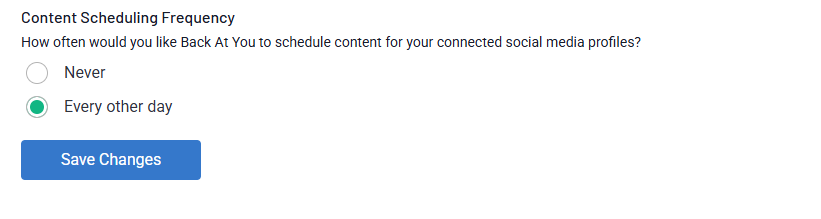
The scheduling frequency options are every other day to your socials. You can also manually add or adjust posts using the Content Calendar at any time.
I scheduled a post for a specific time, but it has not appeared on my social media yet. Is that normal?
Yes, this is expected. The posting time you select in WiseSocial is a preferred time, not an exact timestamp. Posts typically go live within 15 to 20 minutes of your scheduled time. If it has been longer than that, try refreshing your social media page. If the post still has not appeared after 30 minutes, contact Back At You Media support through the Help Center in your WiseSocial dashboard.
Can I edit or delete a scheduled post before it goes live?
Yes. In the Content Calendar, you can preview, edit, or delete any scheduled post before it publishes as long as it's not within a 20-30min window of the scheduled time. This applies to both automated and custom posts.
What is the Design Studio?
The Design Studio is a built-in content creation tool inside WiseSocial. You can choose from a large template library covering listings, holidays, market updates, quotes, engagement posts, and more. Templates are customizable, and you can upload your own graphics, use stock photos, add QR codes, and apply your brand colors and logo. You can create content for specific platforms like Facebook, Instagram, LinkedIn, and others.
What is the Content Calendar?
The Content Calendar gives you a full view of everything scheduled to post on your social accounts, both automated and custom. You can review, edit, delete, or add posts from this view. It also shows you the content type for each post so you always know what is going live and when.
Can I add a header or signature to my posts?
Yes. You can add a header that appears above your post caption and a signature that appears below it. These are useful for brokerage disclosures or recurring callouts. However, do not include clickable links in your headers or signatures. Links in those areas can cause your ads to be rejected or fail to deliver.
Lead Capture and Notifications
How does lead generation work in WiseSocial?
WiseSocial includes free lead generation landing pages that can be posted directly to your business page on Facebook, LinkedIn, TikTok, or other connected platforms. Examples include home valuation forms and contact forms. When someone fills out the form, their information is captured as a lead in SocialBAY and automatically pushed over to Wise Agent CRM as a new contact on your call list.
Note: Lead generation landing pages are included in your $20/month subscription. They are posted to your business page organically, not as paid ads, which means they reach people who visit your page directly rather than a targeted ad audience.
Where do WiseSocial leads show up in Wise Agent?
Leads captured through WiseSocial land in your Wise Agent CRM as new contacts, assigned to you and added to your call list. From there you can manage, follow up with, and add them to any existing automations just like any other lead source.
Leads from WiseSocial come in under two different sources:
WiseSocial
WiseSocial - Buyer
WiseSocial - Seller
Can I forward WiseSocial leads to an additional email address or assistant?
Yes. In your WiseSocial Notifications settings, there is an Additional Lead Notification Recipients field where you can enter extra email addresses. Separate multiple addresses with a comma to forward leads to a partner, assistant, or other team member.
Can I change the reply-to email for lead emails sent through the SocialBAY dashboard?
Currently, emails sent through WiseSocial display your name as the sender but use no-reply WiseAgent@backatyou.com as the sender address.
The reply-to is automatically set to the email address tied to your WiseSocial account. Changing the reply-to email can be completed under the "Notifications" setting tab in your WiseSocial Dashboard.
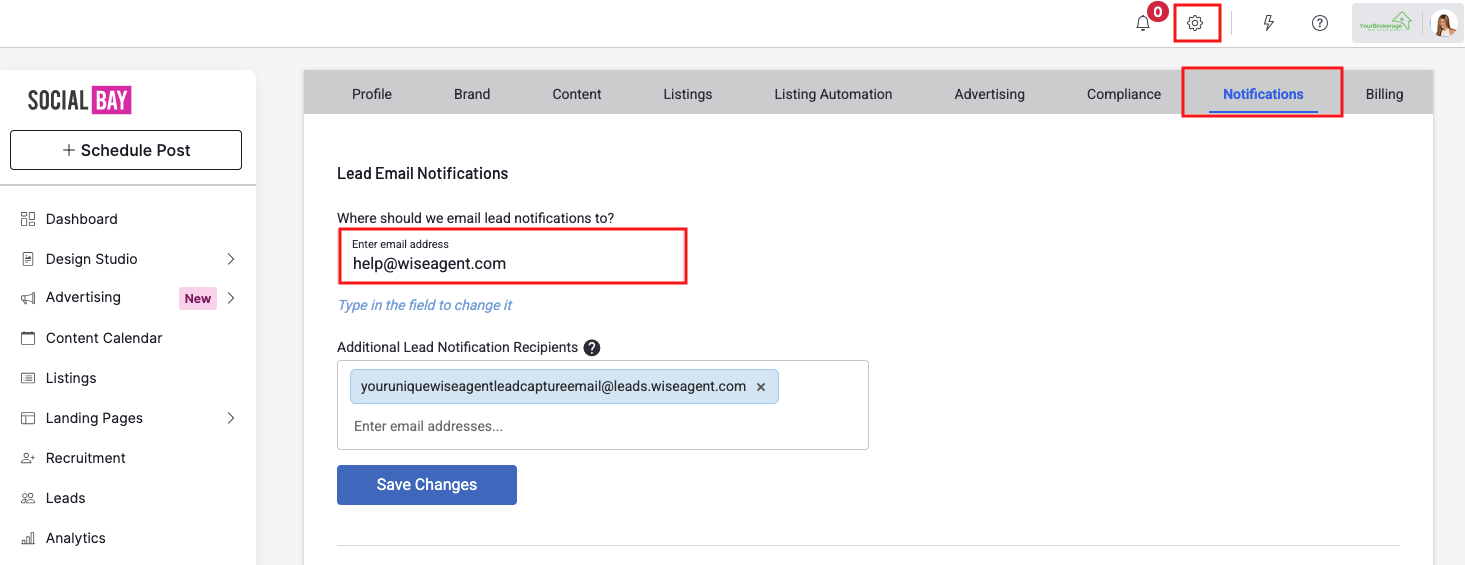
The "Additional Lead Notification Recipients" email is pulled from your Wise Agent account and is used for forwarding captured leads to your contact list. This should not be changed or deleted, unless you no longer wish to forward leads into Wise Agent.
Compliance and Advertising
What is the Compliance tab?
The Compliance tab is where you manage required disclosures for your social media content and advertising. This includes fair housing statements, brokerage identification, and other regulatory language. Make sure this is filled out accurately before running any paid ad campaigns.
What advertising options are available in WiseSocial?
WiseSocial offers two main paid advertising options, both requiring a separate ad budget beyond the $20/month subscription:
Boost a post: From the Content Calendar, you can advertise any individual post by setting a location, targeting radius, and budget.
Auto-advertise listings: Under Listing Automation Settings, you can turn on auto-advertising so your listing posts are automatically boosted. You set your own ad spend.
Smart Campaigns are also available for members who want more advanced targeting options. All advertising costs are handled separately from your monthly WiseSocial subscription and billed through the SocialBAY platform.
I have heard that links in headers or signatures can cause ads to fail. Is that true?
Yes. Including clickable links in your post headers or signatures can cause ads to be rejected or fail to deliver. Avoid placing links in these areas when setting up any content that may be advertised.
Troubleshooting
My MLS connection is not working. How do I troubleshoot it?
Follow these steps to troubleshoot your MLS connection from within your WiseSocial dashboard:
Click the gear icon in the top right corner of your WiseSocial dashboard to open Settings.
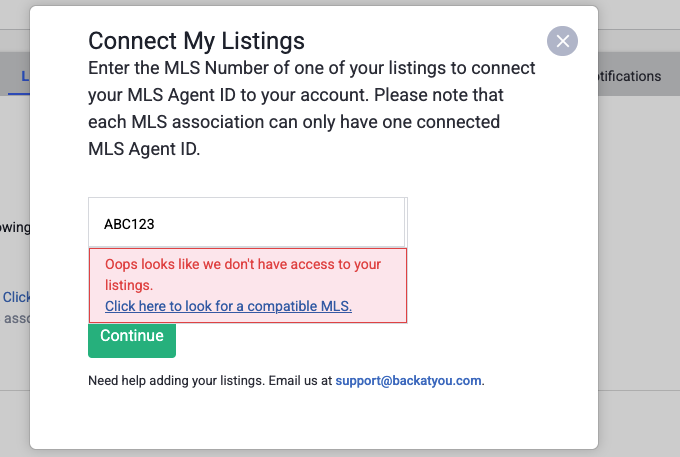
Under My Settings, click Listings. Then click Connect Your Listings.
Enter one of your active listing MLS numbers (not your Agent MLS ID) in the field provided. The listing must be currently active on the MLS.
If you see the message "Oops, looks like we don't have access to your listings," click the link to look for a compatible MLS.
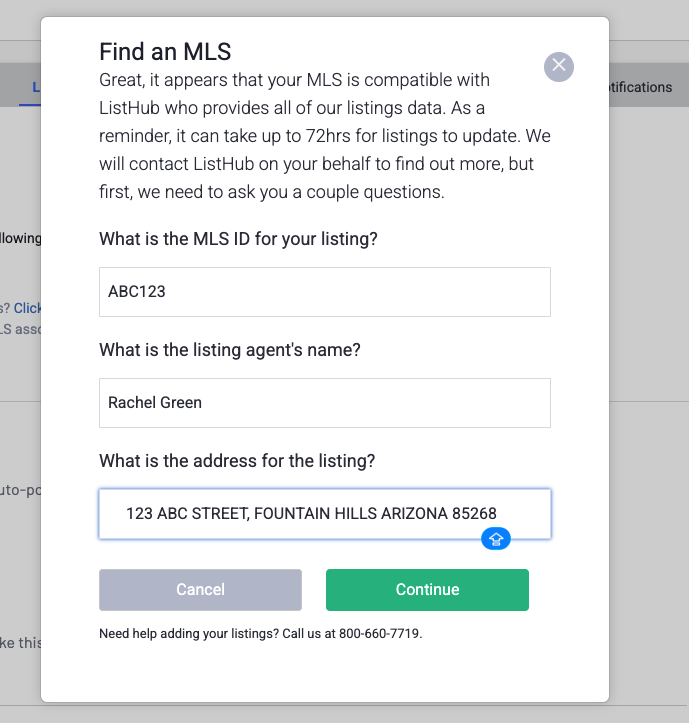
A Find an MLS window will appear. Search the dropdown list for your MLS provider and select it, then click Continue.
If your MLS is compatible with ListHub, you will be prompted to enter your listing MLS ID, the listing agent's name, and the listing address. Fill in all three fields and click Continue.
If everything checks out, you will receive a confirmation screen. ListHub will contact you directly with any updates. It can take up to 72 hours for listings to update after connecting.
If your MLS is not in the compatible list, your broker of record will need to create a free ListHub account and authorize Back At You Media access to your office listings. See the ListHub setup steps in the MLS and Listings section above.
Need help? You can call Back At You Media directly at 800-660-7719, or email support@backatyou.com.
My automations are not posting. What should I check?
Check the following:
You must have at least 10 industry content categories selected. Fewer than 10 will prevent automations from running.
Confirm your social media accounts are still connected and authorized. Tokens can expire, especially for Facebook and Instagram, and may need to be reconnected.
Make sure your posting frequency is not set to Never.
My social media account disconnected. How do I reconnect it?
Go to the account icon in the top right of your WiseSocial dashboard and select your social media accounts. From there you can reconnect any platform. Facebook and Instagram in particular may occasionally require you to re-authenticate, especially if your business page permissions change.
Need Help Getting Started?
Your Wise Agent Member Support team is here for you. Reach out anytime through the Help button in the bottom left corner of your Wise Agent account, or visit our knowledge base for step-by-step guides on activating and setting up WiseSocial.