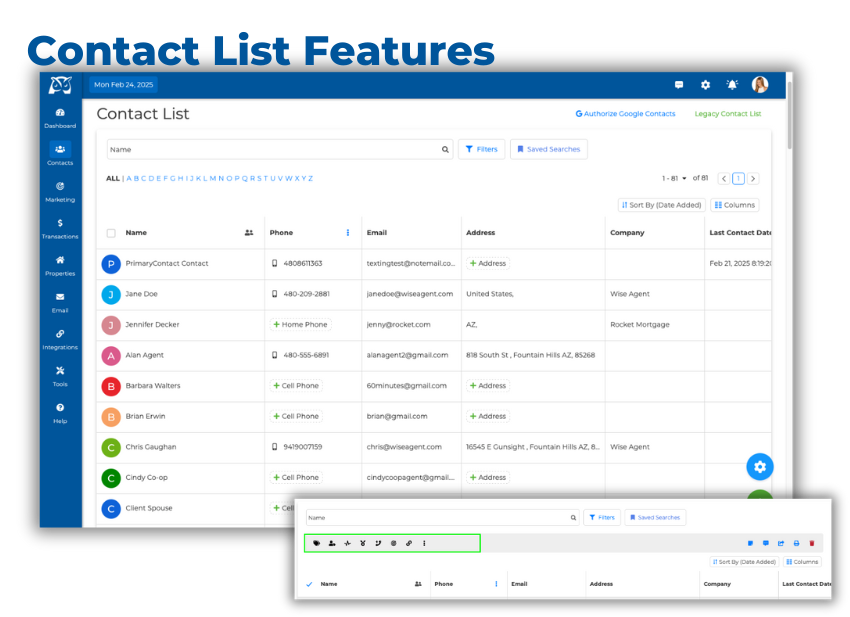
Wise Agent's Contact List is a centralized hub for storing and organizing client details. It allows you to sort, filter, and customize your view to highlight priority contacts. To access your Contact List, click on Contacts in the navigation menu and select Contact List. You can use various filters to narrow your searches and save frequently used filters for quick access to key contacts.
How to Use Search Filters:
Click the funnel icon near the name search bar to access the Filters. Select the desired filters.
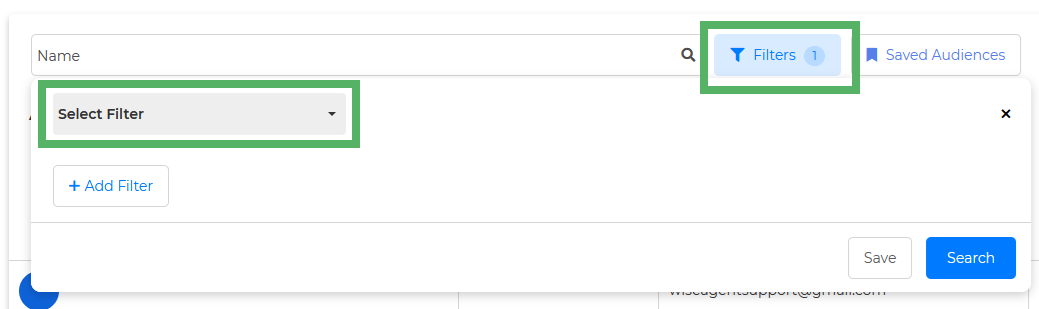
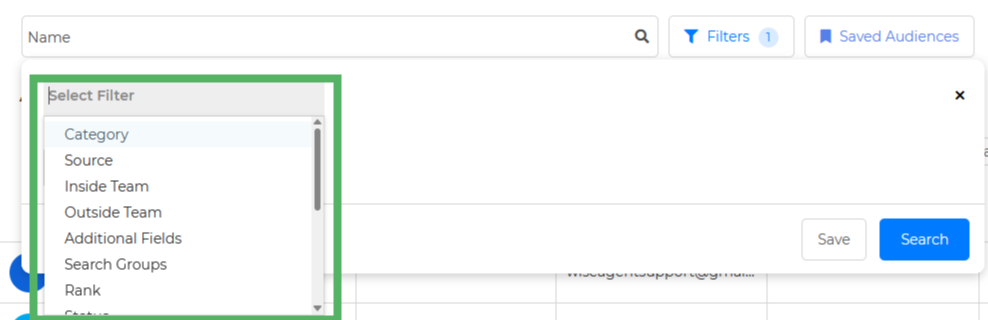
Click on the drop-down labeled "Select Filter," and you will be able to choose and select the filter you want.
After selecting a filter, choose how you want to apply it using the drop-down menu. Options include IS, IS NOT, CONTAINS, or ALL to refine your search criteria.
💡 Note: These options are only available for the Category, Status, Rank, and Source filters.
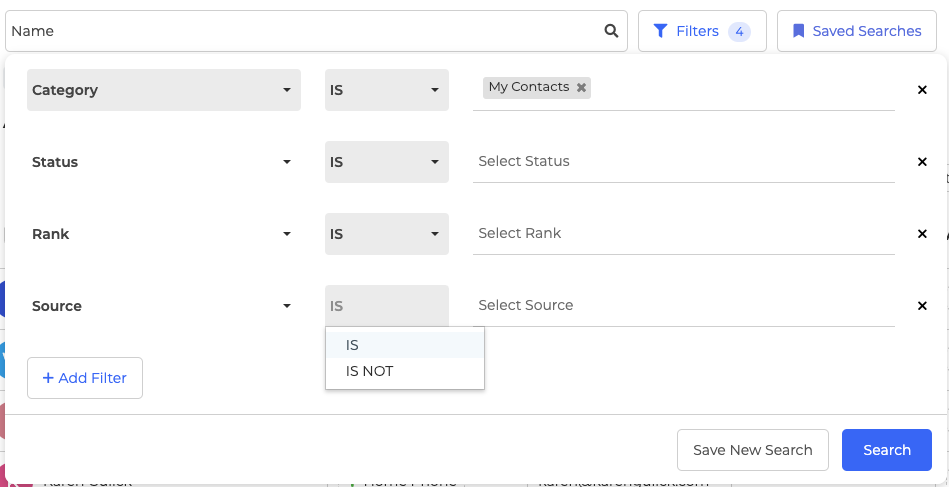
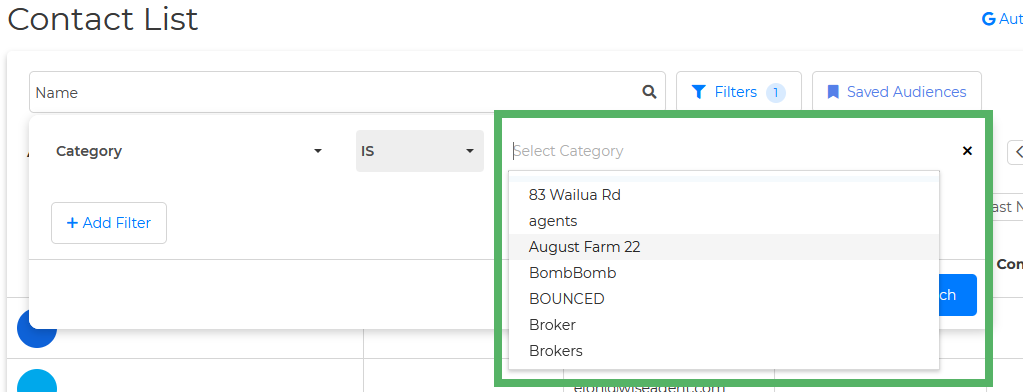
Once you've selected a filter, define the specific criteria to narrow your results. For example, choose a Category or Source name to filter your search.
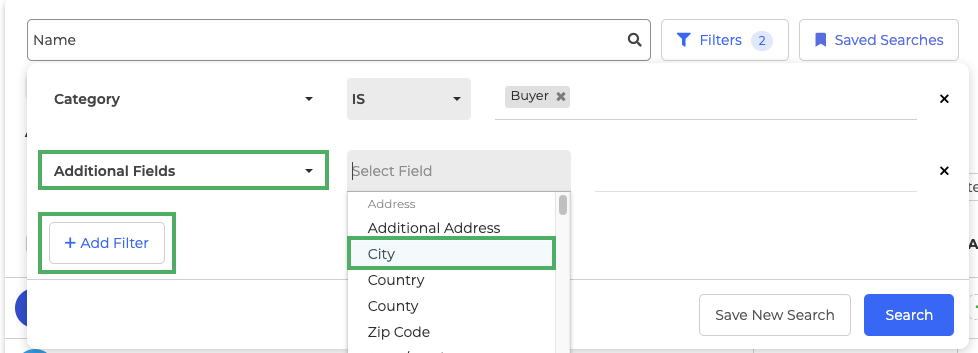
Add Filter- You can make your search more precise by using additional filters. Start with your first filter, such as a category, and then add a second filter, like using the "Aditional Fields" filter to include contacts in a specific City. This allows you to focus your search even further, helping you find exactly what you need more quickly and easily.
Saved Searches - You can create Saved Searches for frequently used filters, allowing you to quickly find the clients you need without manually selecting filters each time. This saves time and ensures easy access to commonly searched contacts.

Choosing Your Contact List View:
Wise Agent offers various tools for organizing your database, including a unique contact list view catered to your liking.
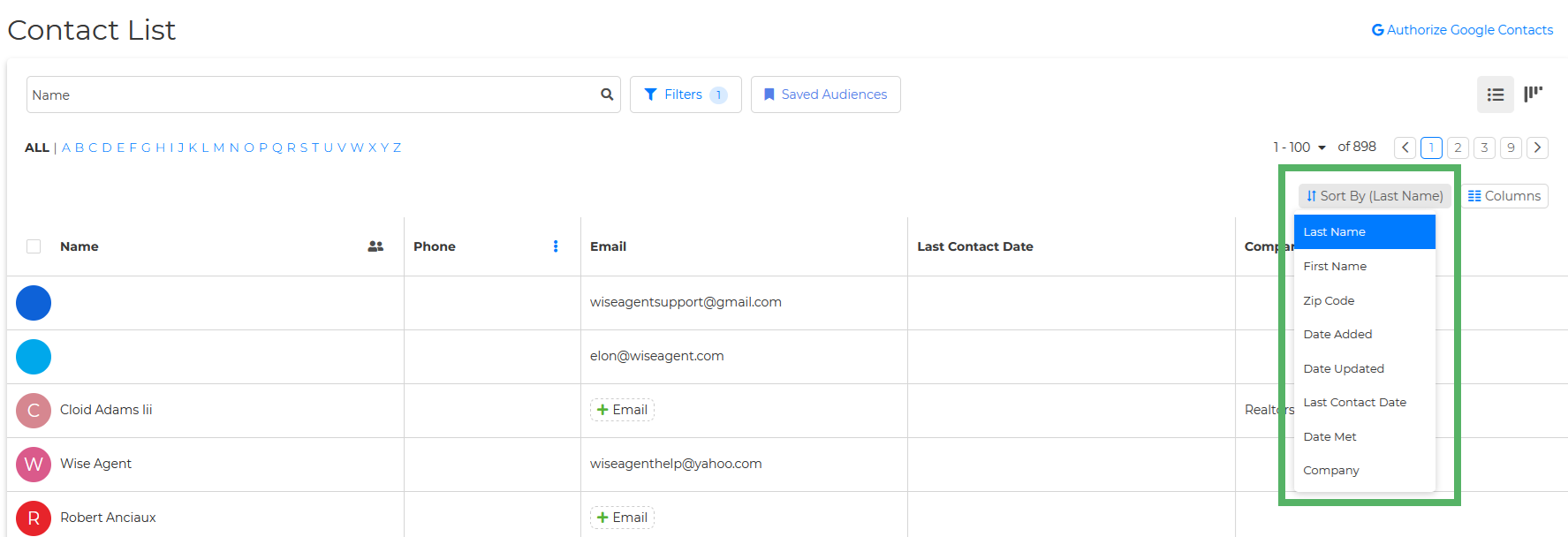
Sort By- Sort your contact list to view the contacts you want to prioritize easily. You can sort by options such as Last Name, First Name, Zip Code, Date Added, Date Updated, Last Contact Date, Date Met, and Company.
Columns- You can add more columns to your contact list to enhance your view of the information. Options include phone number, email, last contact date, company, address, rank, status, date added, date updated, and date met. You can also save this as your default view to keep it consistent in the future.
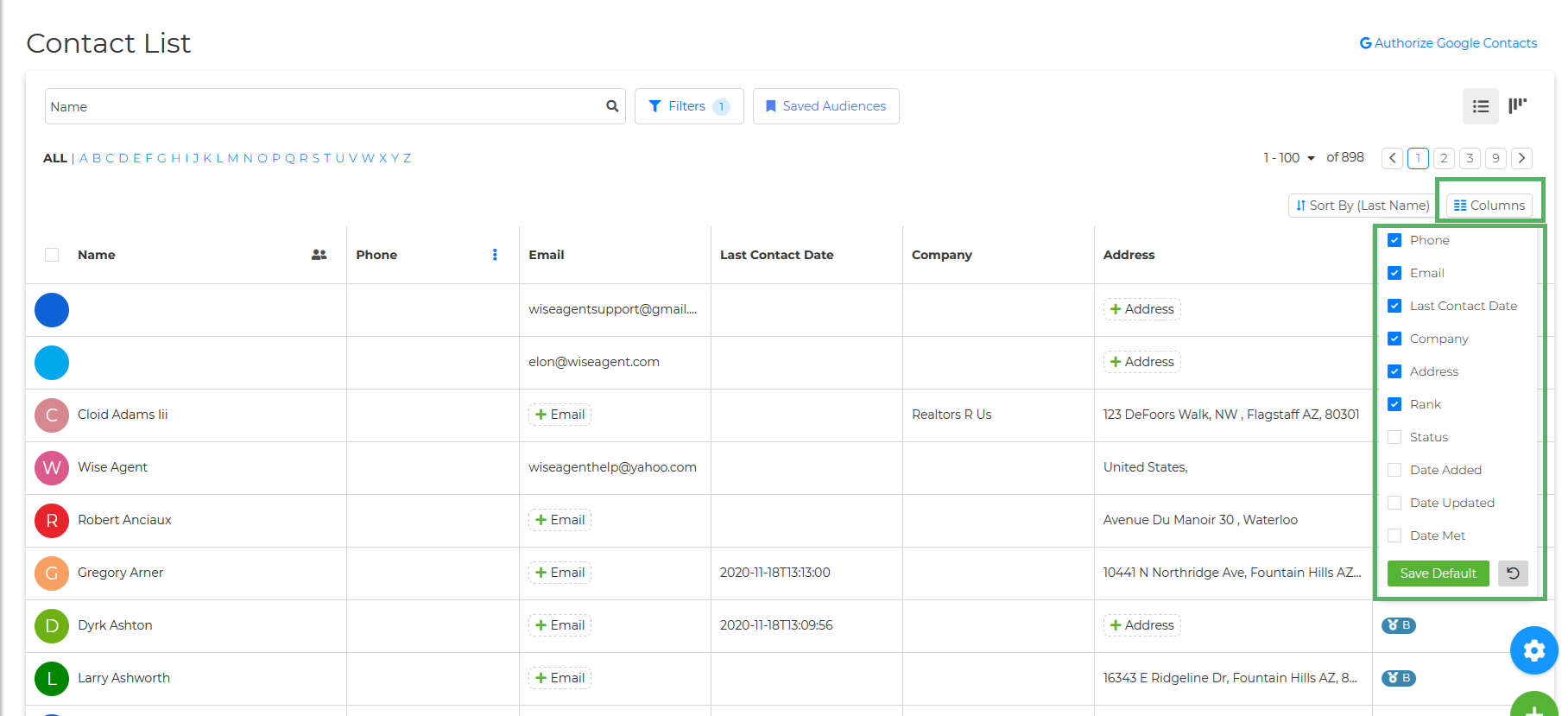
Contact List Actions:
From your Contact List page, you can perform bulk and individual actions on your contacts like updating statuses, adding categories, deleting contacts, sending mass text messages and so much more.
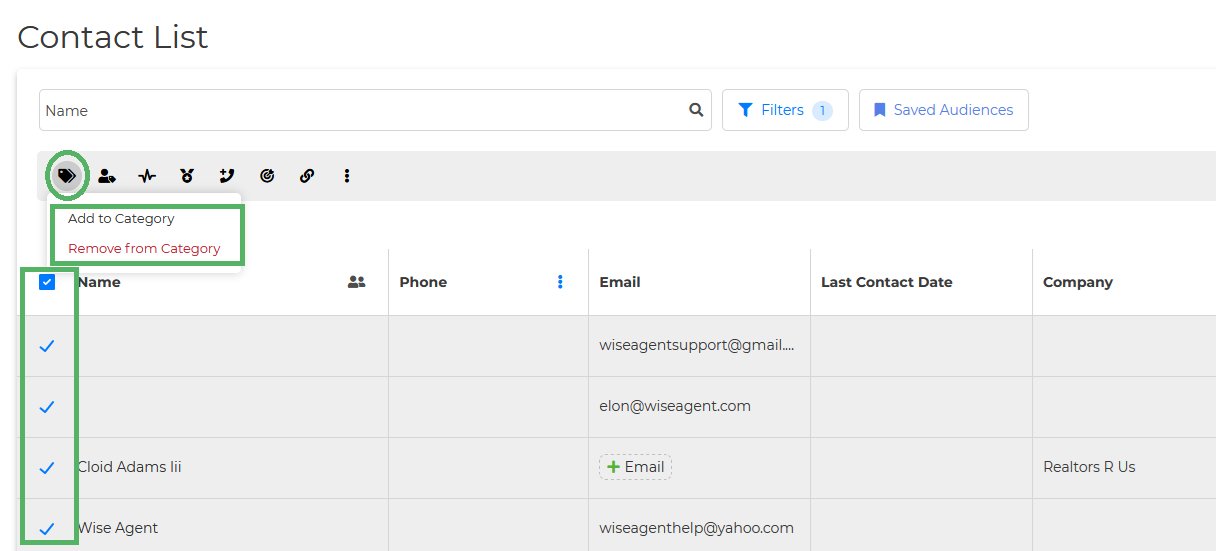
Add/Remove Category- To add or remove a contact from a category, select the contact or contacts you want to modify. Then, click on the Category Icon, where you can choose either Add to Category or Remove from Category.
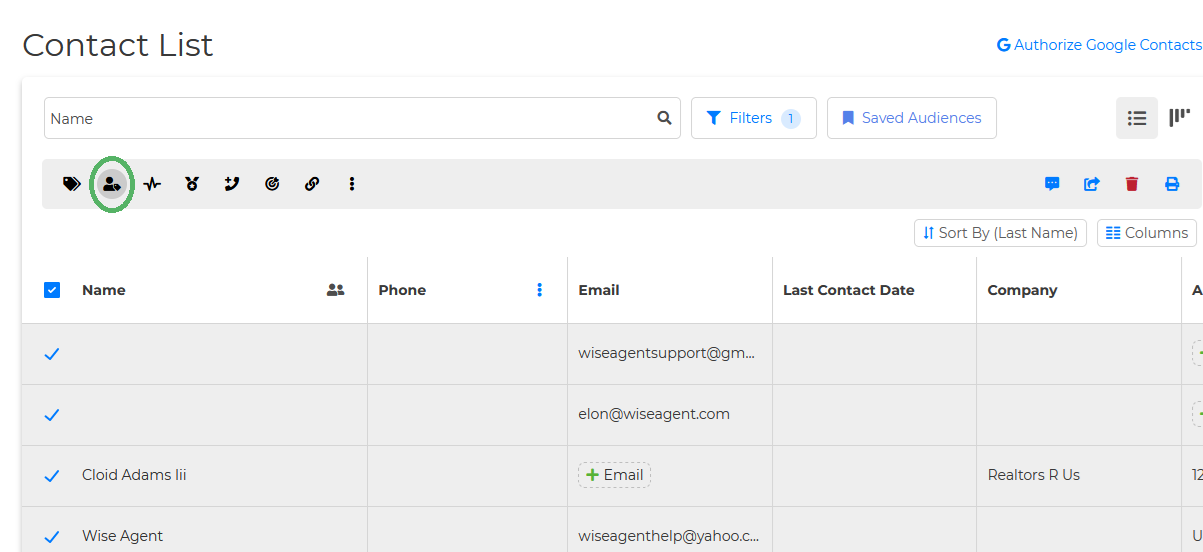
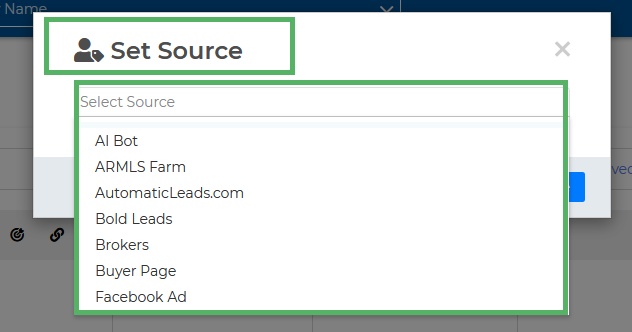
Add Source- Select the contact or contacts you want to modify. Click on the Add Source Icon, and from there, you can assign a source to those contacts.
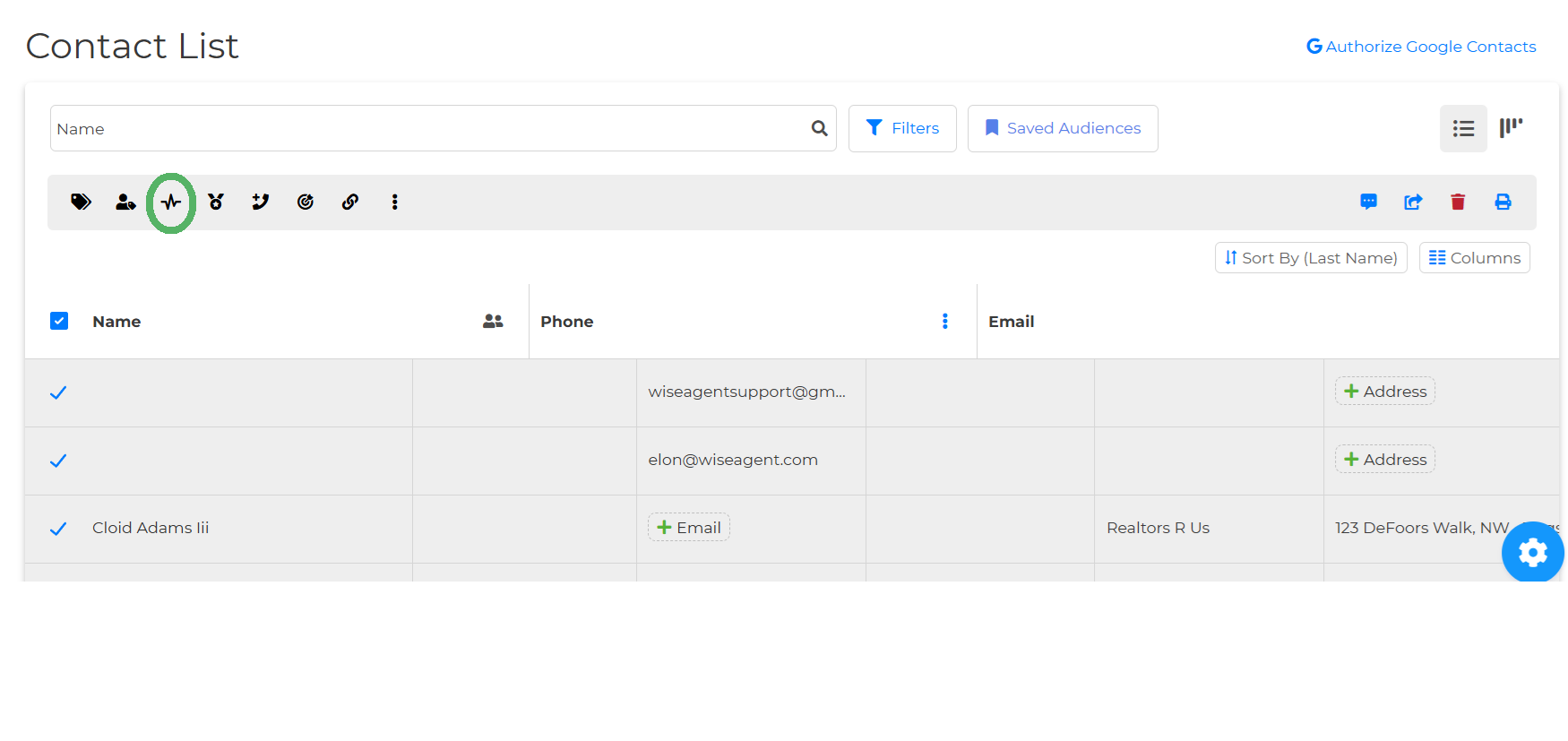
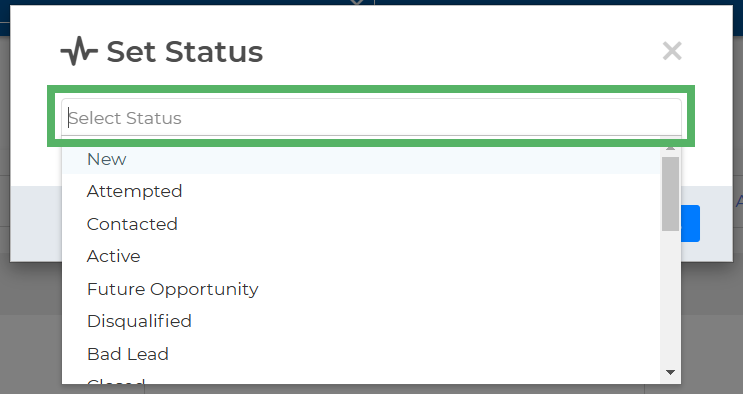
Set Status- Select the contact or contacts you want to set status. Once you've made your selection, click the dropdown menu. Choose the status you’d like to apply to the selected contacts. This allows you to update their status quickly and efficiently.
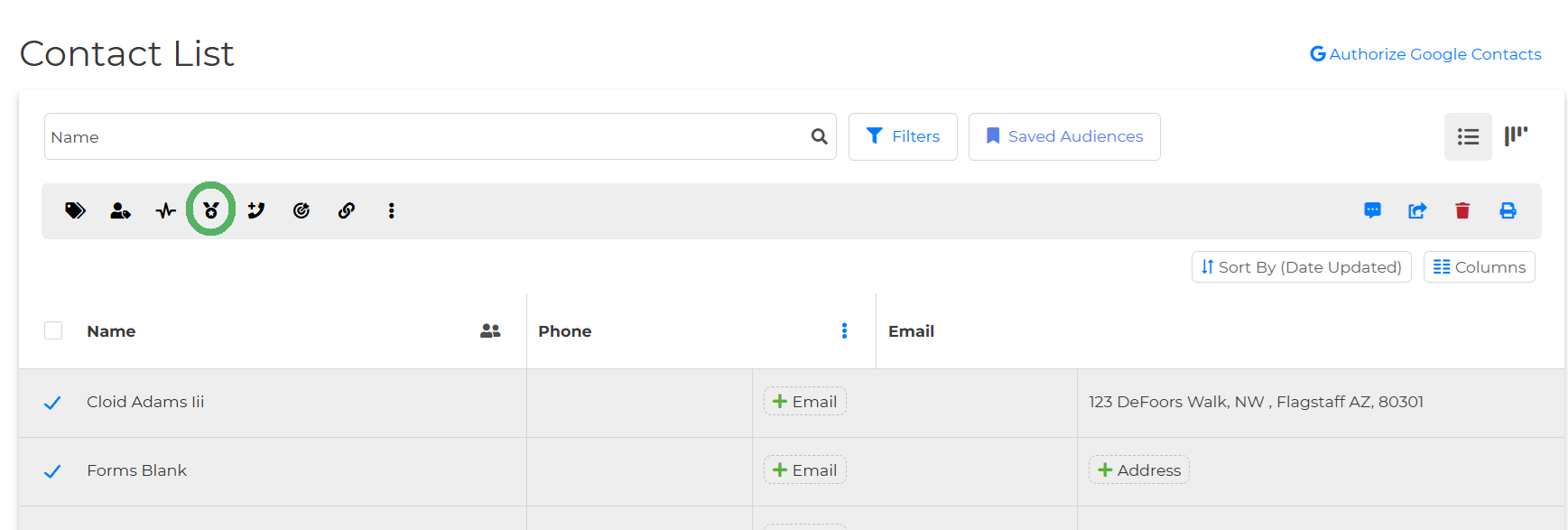
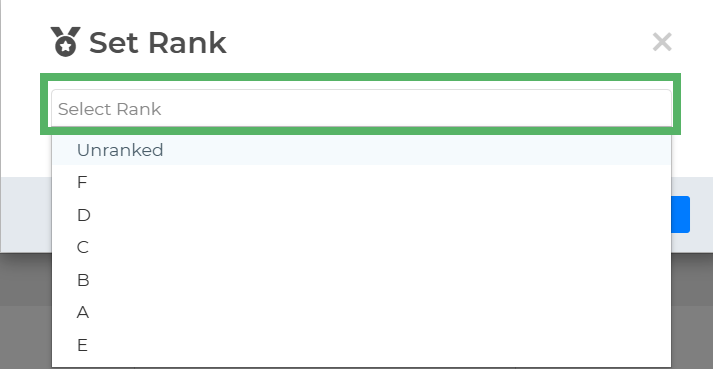
Set Rank- Start by selecting the contact or contacts you want to update. Once you've made your selection, click on the "Set Rank" icon. From there, you can assign ranks to your contacts, choosing from options like Unranked, A, B, C, D, E, or F.
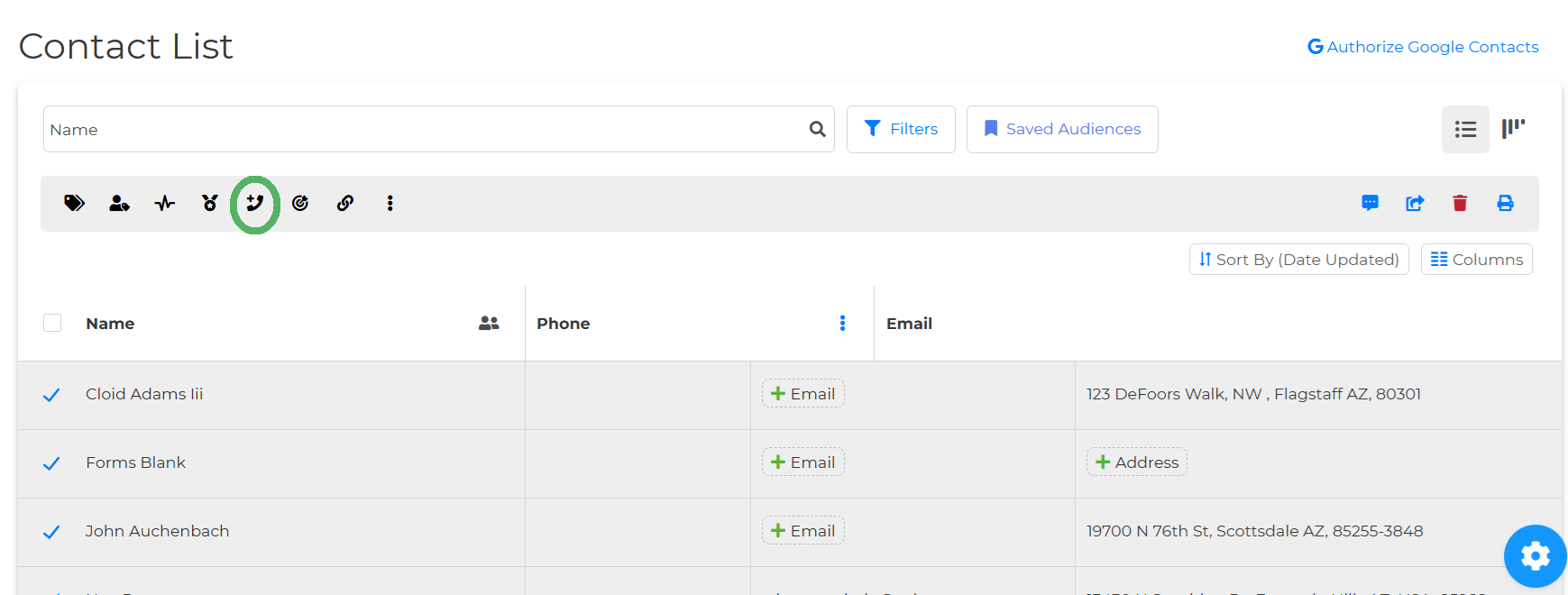
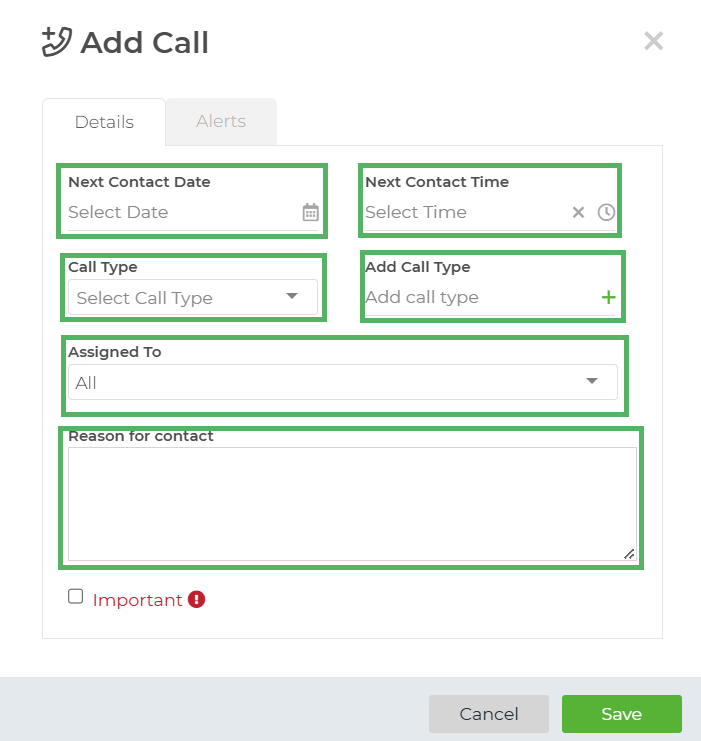
Add to Call List- To add contacts to your Call List, start by selecting the contacts you want. Then, click on the "Add to Call List" icon. From there, you can set the date and time for your next contact, choose the call type, and even add a new call type if needed. You can also assign the call to someone on your Inside Team and include your reason for contacting them. This makes it easy to stay organized and keep track of your follow-ups!
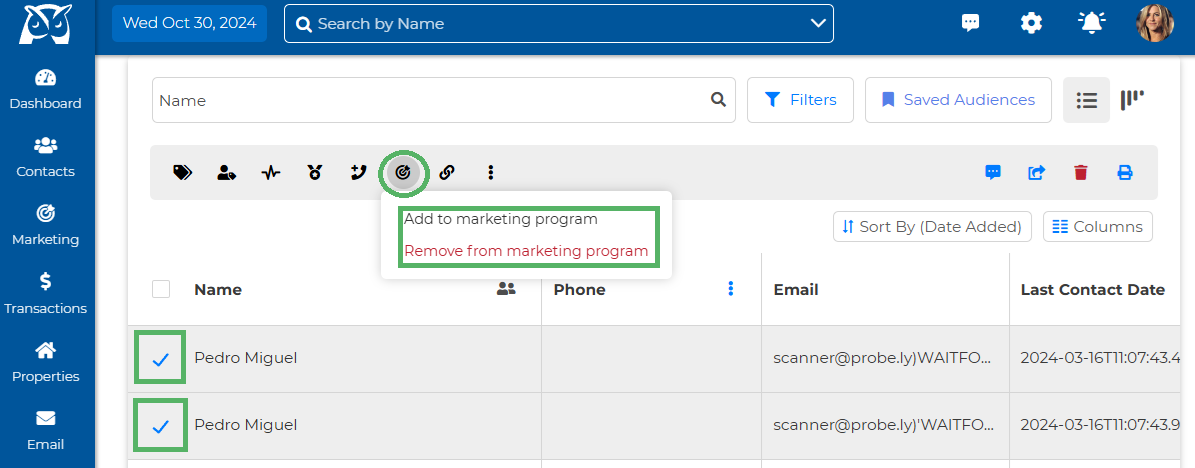
Add/Remove Contacts in Marketing Program- To add or remove contacts from your marketing program, first select the contact(s) you want to include or exclude. Then, click on the "Add to Marketing" icon.
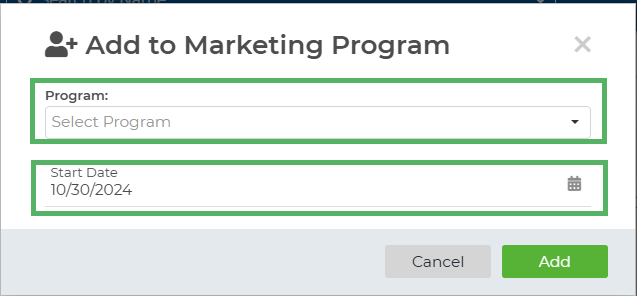
Select program and select the start date.
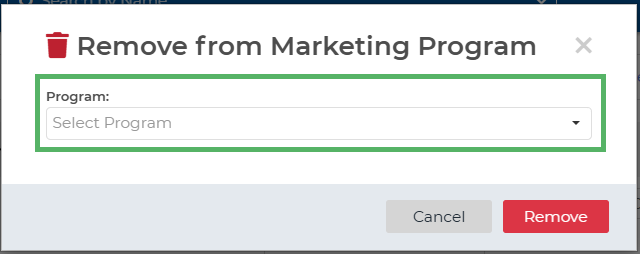
Choose the program from which you want to remove the selected contact(s).
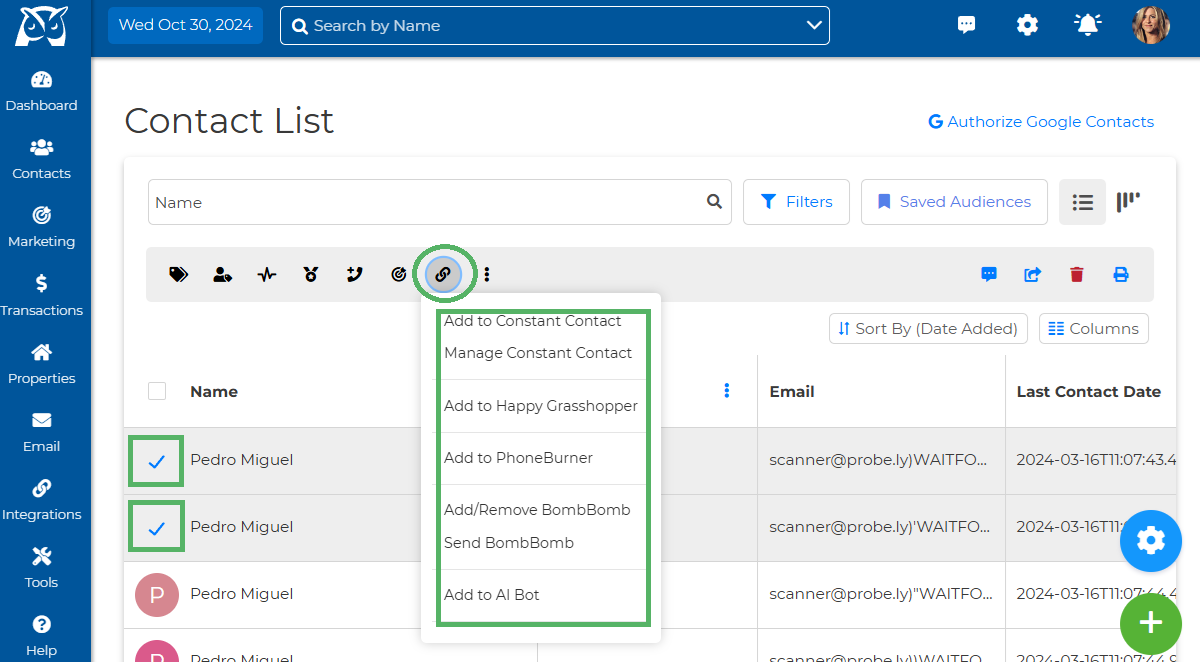
Add To Integration - You can now simply add your contact/contacts to an integration from the contact list, Click on the Add to Integration Icon and you from the list you can select which integration you would like to add them in.
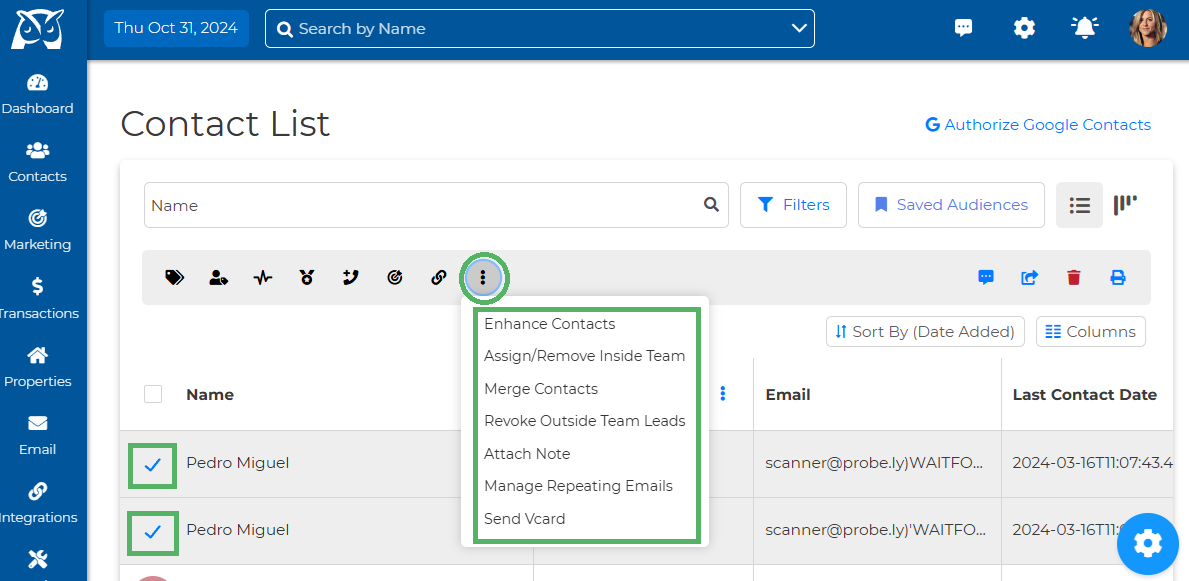
More Icon- By clicking the "More" button (represented by an ellipsis), you can access additional features for your contact list, including Enhance Contact, Assign/Remove Inside Team, Merge Contacts, Revoke Outside Team Leads, Attach Note, Manage Repeating Emails, or Send Vcard.
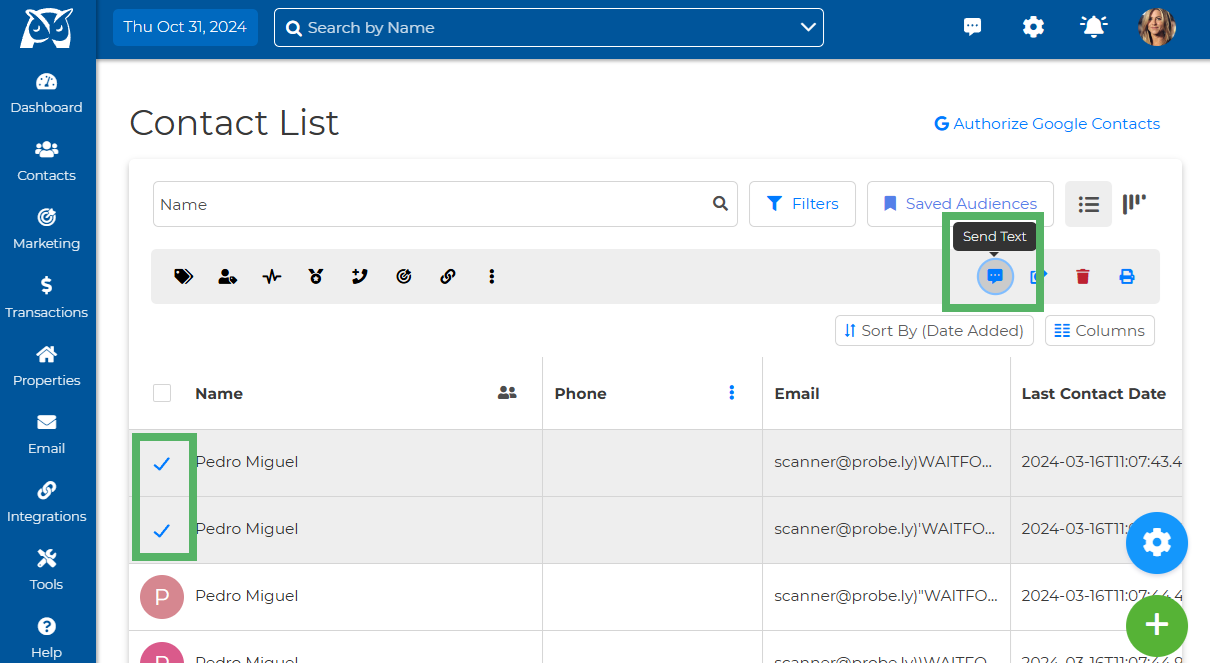
Send Text/Bulk Text Messaging- On the contact list page, you can send individual or bulk text messages. Simply select the contacts you wish to message, and then you’ll be able to compose your text.
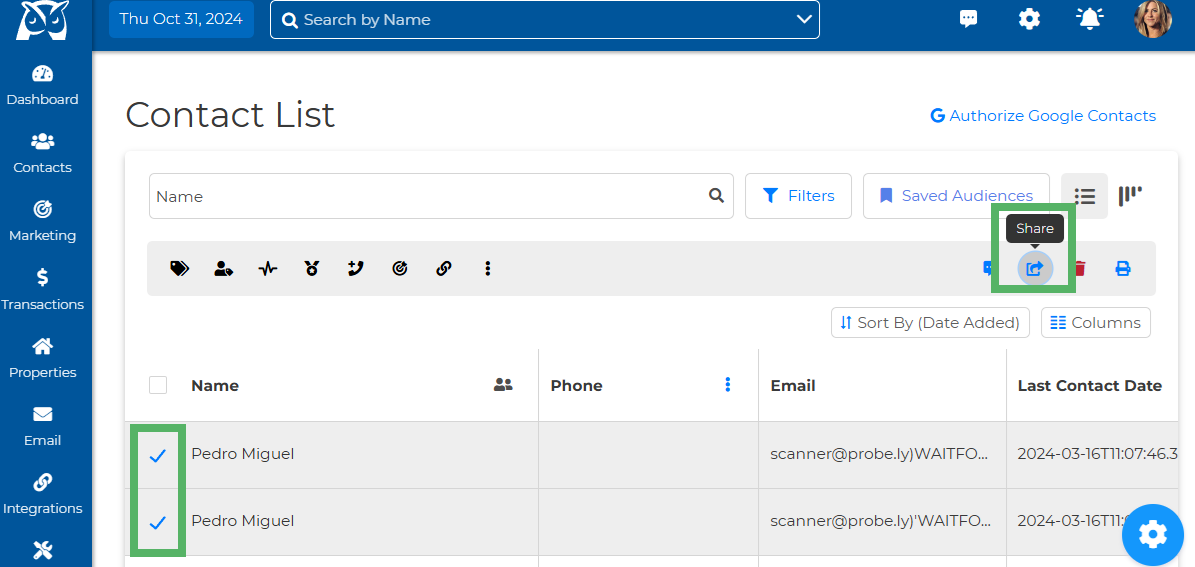
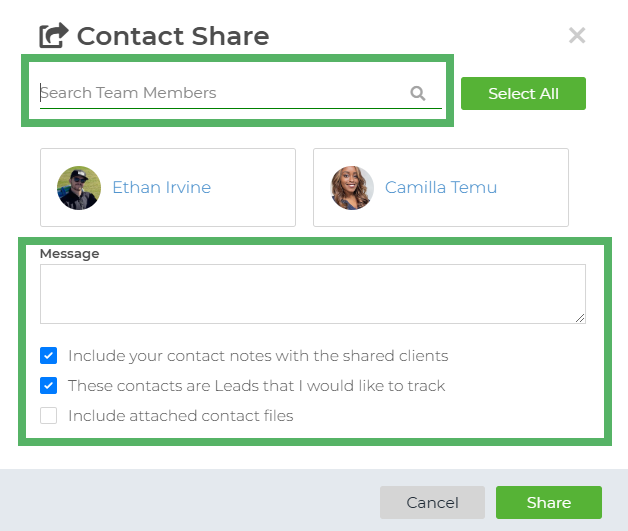
Share- The Share button lets you share contacts with your team. Simply select the contacts you want to share, click the Share button, and then choose your team members. You can also add a message and notes for your team.
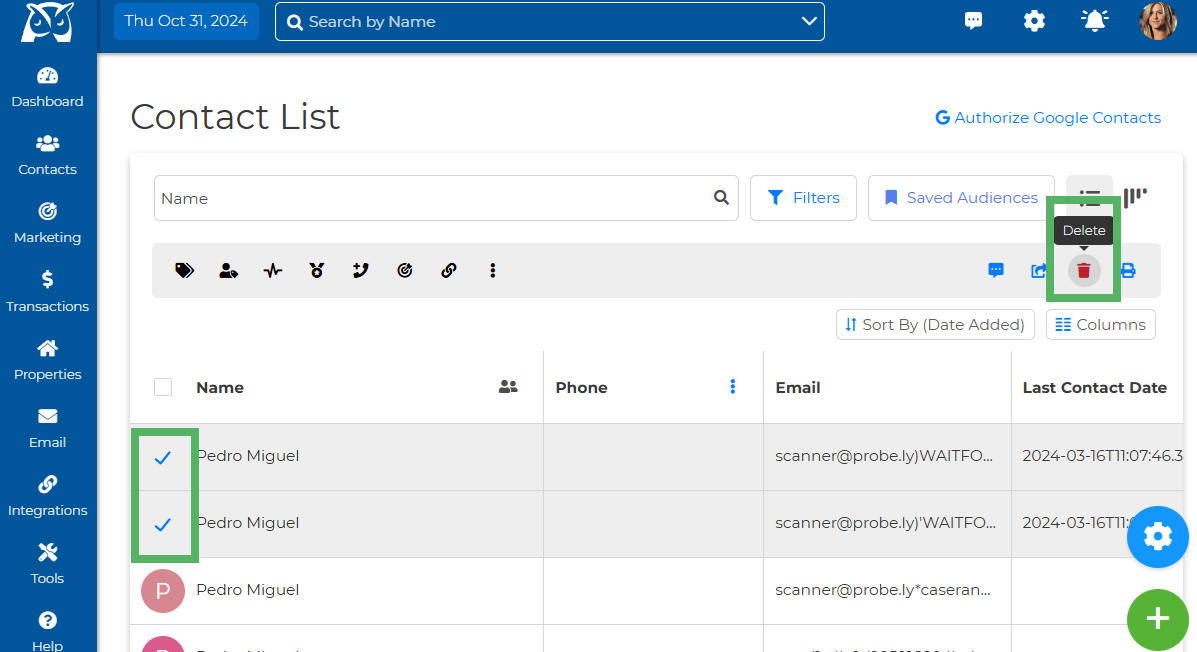
Delete- The Delete button enables you to remove contacts, whether you need to delete a single contact or multiple contacts at once.
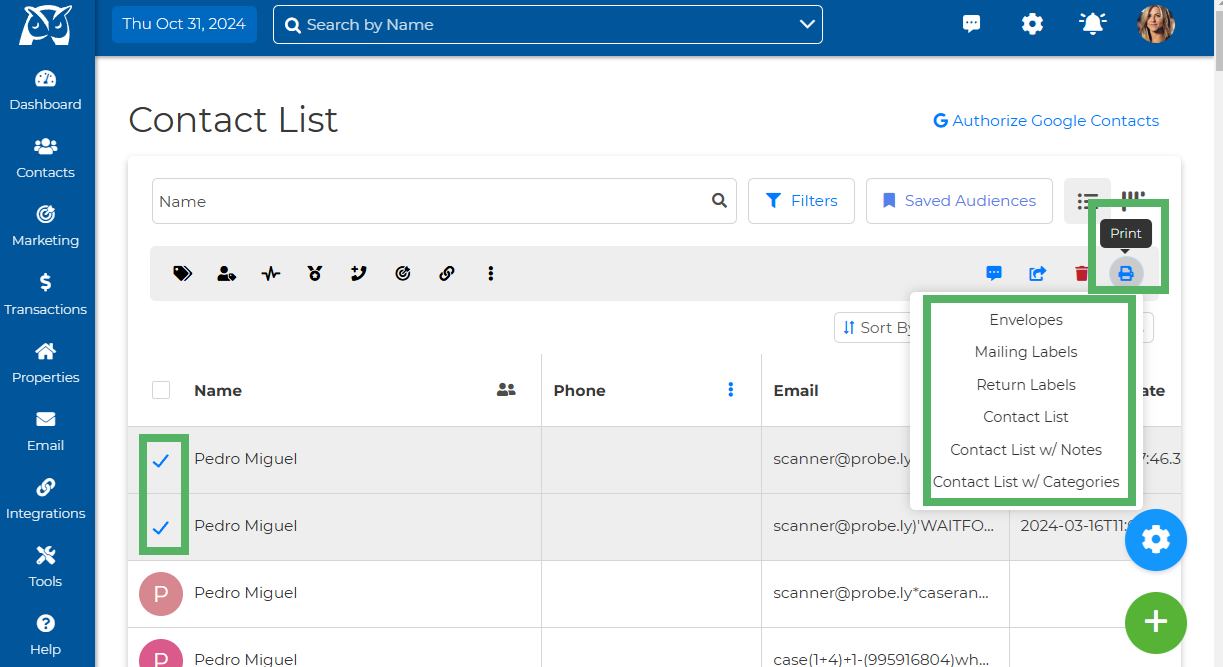
Print Media- From this section, you can print mailing labels, envelopes, return labels, and your contact list, including notes and organized by categories.
For more information on how to utilize the Print Media section - How To Utilize Wise Agent's Print Media Features