

Logo

What are you looking for?

Get help straight from our team...

How To Create Mailing Labels

Contact Management

How To Create Mailing Labels

Despite declining volume, direct mail remains a powerhouse in marketing, boasting a 90% open rate compared to emails' 20-30%. With 21% less cognitive effort to process, direct mail yields a response rate nearly nine times higher than email, leading to recipients spending 28% more. From within your Wise Agent CRM, generating mailing labels becomes seamless, allowing you to effortlessly tap into the benefits of direct mail marketing!

Last updated on 24 Feb, 2025

  1. Log in to your Wise Agent account.

  2. From the sidebar, select Contacts then Contact List.

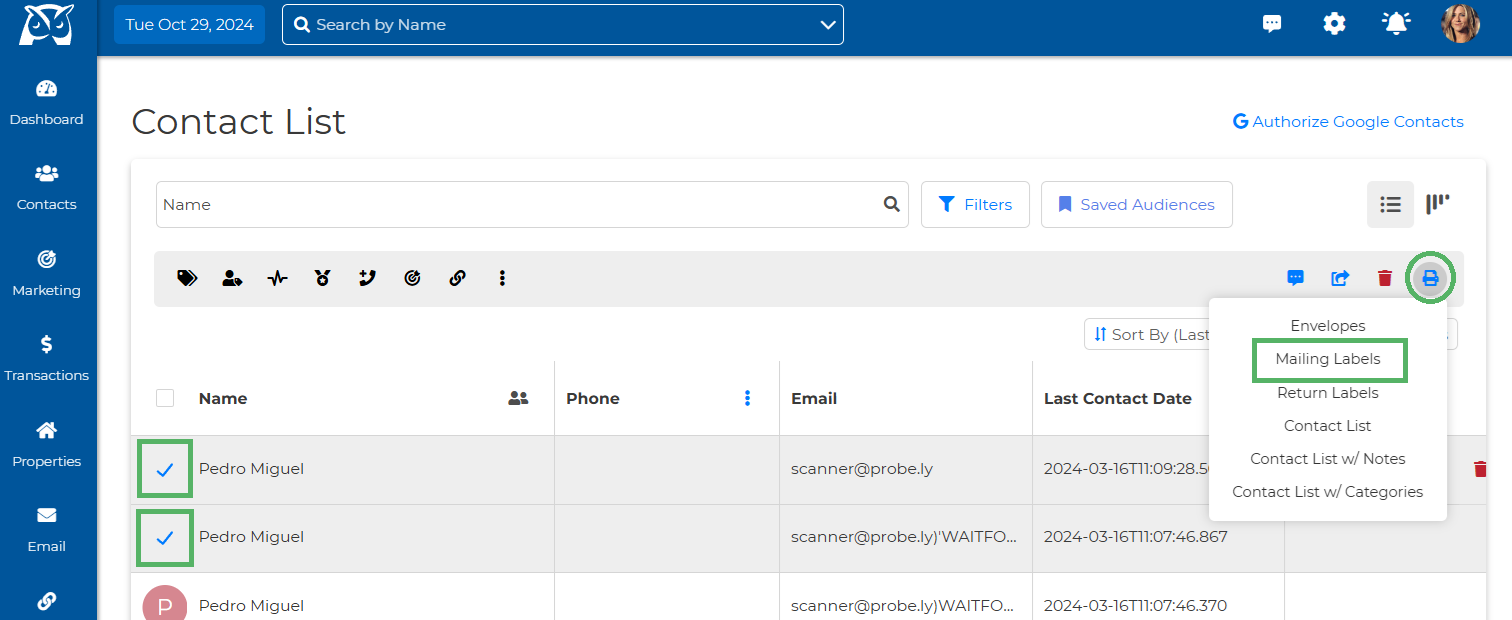
  3. Checkmark the clients you want to include in your mailing or click Select All to place check marks in front of each contact's name.

  4. From the Print Media Icon at the right top of your contact list, select Mailing Labels

Image
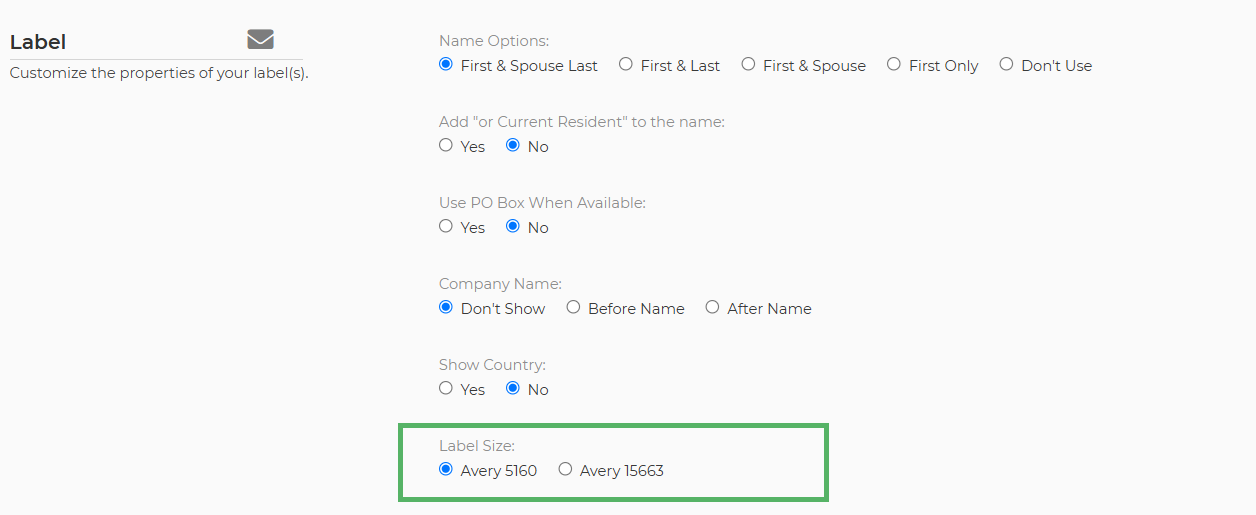
  1. Customize the properties of your labels, ensuring that the Avery Label size matches the ones you will be using.
Image
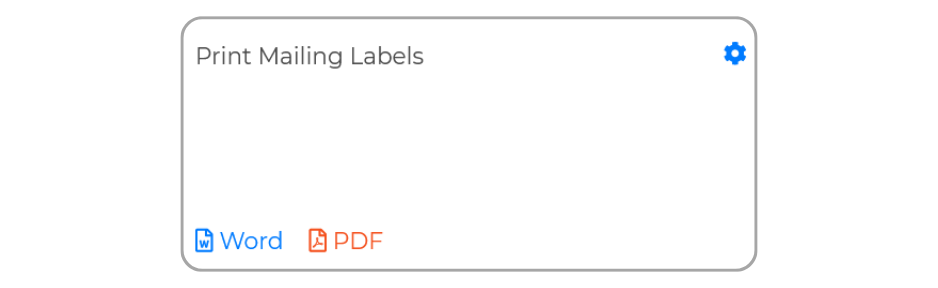
  1. When you're ready to proceed, simply click on either Word or PDF to generate the document for printing on your envelopes!
Image

Wise Agent Blog - Print Mailing Labels

Did you find this article helpful?
Previous

Edit a Contact

Next